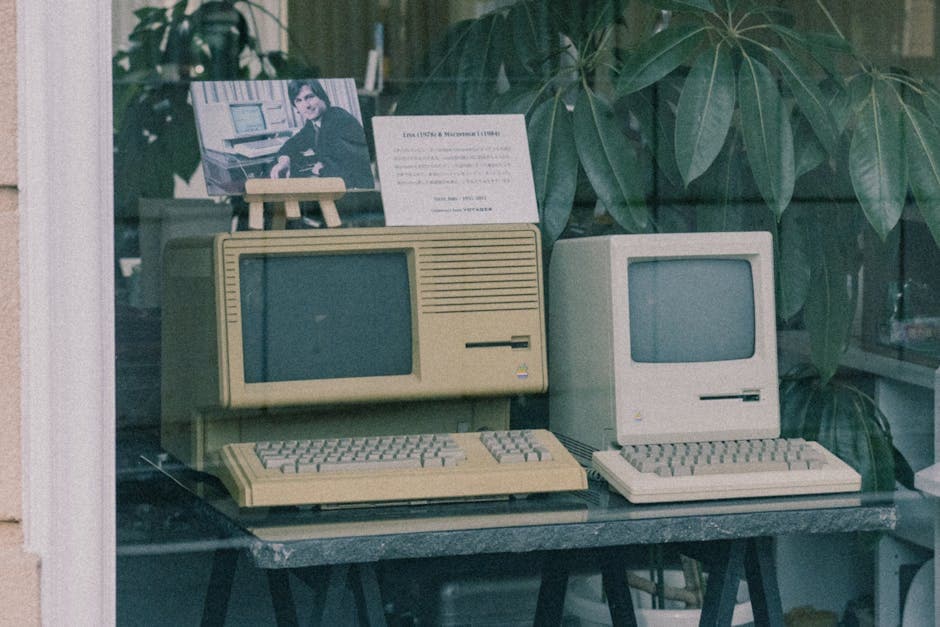
How to Convert WMV to Text: Legacy Windows Video
Summarize this article with:
Quick Answer
Upload your WMV file to a transcription tool that accepts the format directly. No pre-conversion is needed in most cases. If the tool rejects the file, run ffmpeg -i video.wmv -vn -c:a libmp3lame -b:a 192k audio.mp3 to extract the audio, then upload the MP3. The one real blocker is DRM: if VLC shows "DRM protected streams are not supported" when you open the file, read the DRM section below before going further.
What WMV Is and Why You Still Have It
WMV (Windows Media Video) is Microsoft's video format from the late 1990s and early 2000s. It pairs WMA audio with a video stream inside an ASF (Advanced Systems Format) container, forming the core of Microsoft's Windows Media stack for the XP, Vista, and 7 era.
If you have WMV files today, they almost certainly came from one of these sources:
- Corporate training libraries from 2003-2014. Most enterprises standardized on WMV before switching to MP4, and many never migrated their older archives.
- Old webinar recordings. Webex stored local recordings in its proprietary WRF format, which was converted to WMV for sharing. ARF (cloud recordings) could also be exported as WMV. GoToWebinar similarly defaulted to WMV output for much of this period.
- Windows Movie Maker exports. Versions shipping with XP and Vista could only export to WMV or DV-AVI. The default was WMV.
- Academic lecture captures. University recording systems from 2004-2012 frequently archived in WMV before Panopto became the institutional standard.
- Microsoft Stream Classic exports. Stream Classic was retired February 15, 2024, and many organizations downloaded their content as WMV files during the migration window.
Modern Windows no longer prefers WMV. Microsoft moved to MP4 around 2015, and the format is functionally retired for new content. But the archived WMV content from those years has largely never been transcribed.
The DRM Gotcha: Check This First
Before spending time on transcription, confirm the file is not DRM-protected.
Open the file in VLC. If it plays with audio, you are clear to proceed. If VLC shows an error along the lines of "DRM protected streams are not supported," the file is locked.
Microsoft's PlaysForSure DRM tied purchased content to license keys held on Microsoft's servers. Those servers shut down in 2008 when Microsoft retired MSN Music in favor of Zune Marketplace. Any file that requires those license servers to authorize playback is now permanently inaccessible, even if you originally bought it legally.
User-created WMV files are never DRM-protected. WMV itself has no built-in DRM; the protection lives in the ASF container layer, and it was only applied to purchased commercial content from stores like MSN Music. Anything you recorded, exported from Movie Maker, or received from a webinar platform is clean.
If you have a DRM-locked file from a corporate licensing system rather than a consumer store, contact your IT department. Enterprise DRM systems (like Windows Rights Management Services) have their own key infrastructure that may still be running.
What Is Inside Your WMV
A WMV file uses an ASF container. The typical contents:
- Video: WMV9 (also called WMV3 in codec metadata), or older WMV1/WMV2 variants from early 2000s files
- Audio: WMA Standard, typically 32-192 kbps, occasionally WMA Pro for higher-quality productions
For transcription, only the audio track matters. The video codec is irrelevant.
To inspect any WMV file before processing:
ffprobe yourfile.wmv
Look at the stream listing. You want to see a Stream #0:1: Audio: wmav2 (or similar WMA variant) entry. If you see only a video stream with no audio stream, there is nothing to transcribe.
Step-by-Step: Convert WMV to Text
Step 1: Confirm the File Plays
Open in VLC. If audio plays normally, proceed. If you see a DRM error, read the DRM section above. If only video plays with no audio, run:
ffprobe -show_streams -select_streams a yourfile.wmv
An empty result means no audio track exists. A populated result showing a WMA codec means the audio is there but may need a codec fallback to extract.
Step 2: Check for Audio Quality Issues
WMV files from old archives often have:
- Low bitrate audio (32 kbps WMA). Intelligible but noticeably compressed. Accuracy drops a few percentage points compared to 128 kbps, but the content is still usable.
- Mono audio. Common in corporate narration recordings from this era. Not a transcription problem.
- Windows Movie Maker encoding quirks. Some tools dislike the way Movie Maker wrote its headers. FFmpeg handles these without issue.
None of these prevent transcription. They affect accuracy margins, not whether transcription is possible.
Step 3: Upload to a Transcription Tool
ConvertAudioToText's video-to-text tool accepts WMV files directly. Drag the file in without pre-converting.
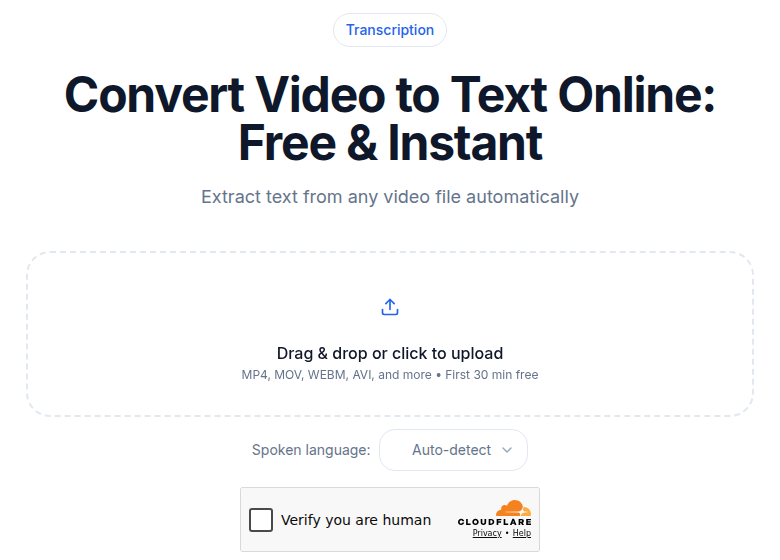 ConvertAudioToText video-to-text tool accepting WMV upload
If your chosen tool rejects WMV, extract audio with ffmpeg in one command:
ffmpeg -i video.wmv -vn -c:a libmp3lame -b:a 192k audio.mp3
The -vn flag drops the video stream entirely. The output MP3 is typically a fraction of the original file size, which speeds up upload considerably.
For older WMV1/WMV2 files that ffmpeg struggles to decode:
ffmpeg -i in.wmv -c:v libx264 -c:a libmp3lame -b:a 192k out.mp4
This re-encodes the whole file to MP4, which all modern tools accept.
Step 4: Specify the Language Manually
Auto-detect is less reliable on older WMV content because compressed WMA audio at low bitrates degrades the acoustic fingerprint that language detection relies on. Set the language explicitly before running.
Step 5: Run the Transcription
A 60-minute WMV typically processes in 3-5 minutes. The audio extraction phase is fast; transcription takes longer.
Accuracy varies by recording type:
- Corporate narration with a dedicated mic: 90-95%
- Meeting recordings with room audio: 80-90%
- Webinar audience phone-in audio: 70-85%
Step 6: Review and Export
WMV-era recordings share common accuracy traps: speakers far from the mic, HVAC background noise, and the slightly metallic quality of low-bitrate WMA compression. Pay close attention to proper nouns, product names, dates, and technical terms from the recording's era.
Export as TXT for archiving, DOCX for editing, or SRT/VTT if you plan to caption a converted version of the video.
Practical Tips for WMV Transcription
Boost quiet audio before uploading. Many old WMVs were recorded with low input gain. Open in Audacity, select the track, and apply Effect > Volume and Compression > Amplify or Normalize. Speech consistently below -25 dBFS can get skipped by voice detection.
Apply a gentle high-pass filter. Old office recordings often have HVAC rumble below 100 Hz. A high-pass filter at 80-100 Hz removes that rumble without touching voice frequencies. In Audacity: Effect > EQ and Filters > High Pass Filter, cut at 80 Hz.
Keep denoising light. WMA compression at low bitrates already strips audio detail. Heavy denoising removes what little remains. A 10-15% noise reduction setting is safer than anything more aggressive.
Process long archives in segments. A 4-hour training video is better split into 30-minute pieces. You get reviewable chunks and catch quality issues before committing the rest of the batch.
Run a quality test first. Take the worst-quality file in your archive and transcribe a 5-minute sample. That tells you whether you need pre-processing before running the full collection.
Common WMV Scenarios
Corporate Training Archives
A typical scenario: an organization has several hundred hours of WMV training videos recorded between 2005 and 2013. Transcribing them unlocks searchable content, accessibility compliance (closed captions and text alternatives), and the ability to repurpose material into modern formats.
For batch work, you need API access or an unlimited plan rather than a per-file tool. A metered API costs roughly $0.006-$0.02 per minute of audio depending on provider; for hundreds of hours, an unlimited subscription is almost always more economical.
Legacy Webinar Recordings
Webex WRF and ARF recordings converted to WMV from 2005-2014 vary wildly in audio quality. Host audio (from the presenter's dedicated mic) usually transcribes at 90-95%. Audience contributions via phone dial-in drop to 70-85%, because phone-line audio is sampled at 8 kHz, which is half the 16 kHz that modern speech recognition models expect. Expect to do manual cleanup on Q&A sections where multiple attendees spoke over a phone bridge.
Academic Lecture Recordings
University captures from 2004-2012 transcribe well if the lecturer wore a lavalier mic, less well from ceiling-mounted room mics. For lecture content, timestamped segmentation is more useful than a wall of text, so look for an export option that preserves timing or a tool that lets you jump between segments.
Personal Archives
Home recordings, family events, and school projects from the XP/Vista era are extremely variable depending on the original recording setup. A camcorder with a built-in mic in a quiet room might yield 85-90% accuracy. A camera on a table in a noisy living room might yield 65-75%. Manage expectations and budget review time accordingly.
WMV vs. Modern Formats for Transcription
| Format | Era | Container | Audio Codec | Expected Accuracy |
|---|---|---|---|---|
| WMV | 2000-2015 | ASF | WMA 32-192 kbps | 70-95% (varies by source) |
| MP4 (H.264) | 2008-present | ISO BMFF | AAC 96-256 kbps | 90-98% |
| WebM | 2013-present | EBML | Opus 64-192 kbps | 90-98% |
| MKV | 2002-present | Matroska | Various | Depends on audio track |
| AVI | 1995-2010 | RIFF | PCM/MP3/AC3 | Varies (often legacy material) |
My take: if you are working through an archive that mixes WMV with MP4, start with the MP4 files to establish an accuracy baseline. Then use that baseline to calibrate your review expectations when you hit the WMV content, which will consistently land a few points lower.
Common Errors and Fixes
"Codec not supported"
Older WMV files use WMV1 or WMV2. Convert to MP4:
ffmpeg -i in.wmv -c:v libx264 -c:a libmp3lame -b:a 192k out.mp4
For audio-only extraction, replace -c:v libx264 with -vn.
DRM error in VLC or transcription tool
See the DRM section above. User-created files are never DRM-protected. If you see this error on a file from a corporate archive, check with whoever originally created the archive whether it was ever protected.
Audio out of sync
Some old WMV files have variable frame rates that cause audio drift during video playback. This is a display rendering issue, not an audio track issue. Transcription tools read the audio stream directly and are unaffected.
Transcript missing the first few seconds
WMV encoders sometimes pad the file start with low-level silence. Amplify or trim the first few seconds in Audacity before re-saving.
File too large to upload
Old WMVs are typically compact (often under 200 MB per hour at standard quality). If yours is large, it is probably WMV HD content. Extract audio first to drop the size dramatically:
ffmpeg -i in.wmv -vn -c:a copy audio.wma
Then upload the WMA file or convert it to MP3 if your tool does not accept WMA.
Completely empty transcript
Run ffprobe -show_streams -select_streams a yourfile.wmv. If no audio streams appear, the file has no audio track to transcribe. Some screen recording captures from this era saved video-only to reduce file size.
FAQ
Are WMV transcripts accurate?
Yes, when the original audio quality is reasonable. Corporate training content with studio narration typically transcribes at 90-95% accuracy. Old webinar recordings where attendees joined via phone lines can drop to 75-85%. Budget time for review and editing on legacy content, especially Q&A sections where multiple speakers were on degraded phone audio.
Should I convert WMV to MP4 before transcribing?
Not for transcription quality. The audio content is identical either way, so converting to MP4 first does not improve results. Convert only if your transcription tool rejects WMV outright. For those cases, audio-only extraction with ffmpeg is faster than a full video conversion and produces a much smaller upload file.
Can I transcribe WMV for free?
Yes. ConvertAudioToText accepts WMV files directly and transcribes the first 30 minutes of any file free with no account, and a free account handles up to 30 files a day, up to 30 minutes each. For batch processing of a corporate archive with longer recordings, the Pro plan at $14.99/month handles long recordings (links and videos up to 24 hours) with unlimited transcription.
What if my WMV file is DRM-protected?
DRM-locked WMV files cannot be transcribed directly. Microsoft's PlaysForSure license servers shut down in 2008, so if the file came from MSN Music or another discontinued store, the DRM cannot be re-authorized and the content is effectively inaccessible. User-created WMV files from Windows Movie Maker, screen recorders, and corporate cameras are never DRM-protected.
Sources
- Windows Media Video, Wikipedia
- Windows Media DRM, Wikipedia
- Microsoft PlaysForSure, Wikipedia
- Stream Classic retirement announcement, Microsoft Tech Community
- WRF2WMV Converter, Webex Help
- Overview of the ASF Format, Microsoft Learn
- FFmpeg Extract Audio from Video, Shotstack
- ffprobe Documentation, FFmpeg
- Amplify and Normalize, Audacity Manual
- ConvertAudioToText Pricing
Try transcription free
Convert any audio or video to clean, unwatermarked text — speaker labels, timestamps, and AI summaries included. First 30 minutes free, no account.
Related Articles

How to Convert AVI to Text: Transcribe Legacy Video Files
Learn how to convert AVI to text, including codec-specific gotchas for DivX, XviD, and VBR MP3 audio, plus when to re-encode first vs upload directly.

How to Convert FLV to Text: Transcribe Flash Era Archives (2026)
Step-by-step guide to converting FLV Flash Video files to accurate text transcripts. Covers codecs, ffmpeg repair, when to remux to MP4, and tool compatibility realities.