
How to Convert FLV to Text: Transcribe Flash Era Archives (2026)
Summarize this article with:
FLV files from the Flash era (2003-2020) still hold real value: webinar archives, training videos, RTMP stream captures. The Flash plugin is gone, but FLV as a container is still fully readable by ffmpeg, VLC, and modern transcription tools. Audio codec matters more than the container: MP3 and AAC inside FLV transcribe cleanly, while Nellymoser and Speex voice codecs from old webcam recordings need an extra conversion step. If your tool rejects FLV, a one-line ffmpeg command remuxes it to MP4 without touching audio quality.
To get a transcript from an FLV file, upload it directly to a tool that accepts the format, or extract the audio with ffmpeg first if your tool requires it. The Flash era is over, but the files survive just fine on any modern pipeline.
What FLV Is and Why the Archives Still Matter
FLV (Flash Video) was the web video format from roughly 2003 to 2020. It powered YouTube before the HTML5 switch, every early Twitch stream, most webinar platforms before they moved to MP4, and the majority of corporate training systems that ran on Adobe Flash.
Adobe ended Flash Player support at the end of 2020. Browsers removed it. The web moved on.
The archives did not. There are still large FLV collections sitting on enterprise storage, captured from:
- Pre-2014 webinars on WebEx, GoToMeeting, and Microsoft LiveMeeting
- RTMP stream recordings from Twitch and Periscope before they switched formats
- Educational course libraries built on Adobe Captivate and Articulate
- Internal training repositories never migrated to MP4
- Recordings from broadcast servers like Adobe Media Server and Wowza
If you inherited one of these archives, the transcription path is straightforward once you know the codec reality.
What Is Actually Inside Your FLV File
The container is the easy part. The codec inside is what determines your workflow.
FLV carries video in one of three formats:
- Sorenson Spark (H.263-based): the original Flash Video codec, common before 2005
- VP6: became the preferred codec with Flash Player 8 in September 2005
- H.264: added in Flash Player 9 Update 3 (December 2007) and used through the end of Flash
For transcription, the video codec does not matter at all. What matters is the audio track:
- MP3 in FLV: the most common audio format across FLV archives, transcribes identically to a standalone MP3 file
- AAC in FLV: used in later Flash Player versions, transcribes cleanly at standard bitrates
- Nellymoser Asao: a proprietary low-bandwidth voice codec built into Flash for microphone capture, used in webcam-based recordings and early VoIP; transcribes acceptably but degrades at lower bitrates
- Speex: an open-source voice codec added in Flash Player 10 for streaming, voice-tuned but low bandwidth
Run ffprobe yourfile.flv to identify exactly what audio codec your file uses before deciding on a workflow.
Step-by-Step: Convert FLV to Text
Step 1: Confirm the File Plays
Open it in VLC. VLC reads every FLV codec variant: Sorenson Spark, VP6, H.264 video, and all audio codecs including Nellymoser and Speex. If VLC plays it with audio, you have a workable file.
If VLC refuses with a playback error (not a DRM notice), the file may have truncated metadata from an RTMP capture that was interrupted mid-stream. Move to Step 2 before transcribing.
Step 2: Repair Metadata if Needed
RTMP stream recordings often have missing or incorrect duration metadata. The fix is a single ffmpeg pass that copies all streams without re-encoding:
ffmpeg -i broken.flv -c copy -fflags +genpts fixed.flv
This rebuilds the container timestamps without touching the actual audio or video data. Run it on any FLV that reports "could not determine duration" or fails to seek correctly.
Step 3: Upload or Extract Audio
If your tool accepts FLV directly, upload as-is. CATT accepts FLV files alongside MP4, MOV, MKV, and other formats via the video-to-text tool.
If your tool requires a different format, extract the audio track. When the audio is already MP3 or AAC, stream copy is faster and lossless:
ffmpeg -i video.flv -vn -c:a copy audio.mp3
When the audio is Nellymoser or Speex, transcode to MP3:
ffmpeg -i video.flv -vn -c:a libmp3lame -b:a 192k audio.mp3
If you need full MP4 output (for a tool that requires it), and the FLV uses H.264 video, you can stream-copy both tracks:
ffmpeg -i video.flv -c copy output.mp4
If the FLV uses Sorenson Spark or VP6 video, you need a full re-encode, which is slower:
ffmpeg -i video.flv -c:v libx264 -c:a aac output.mp4
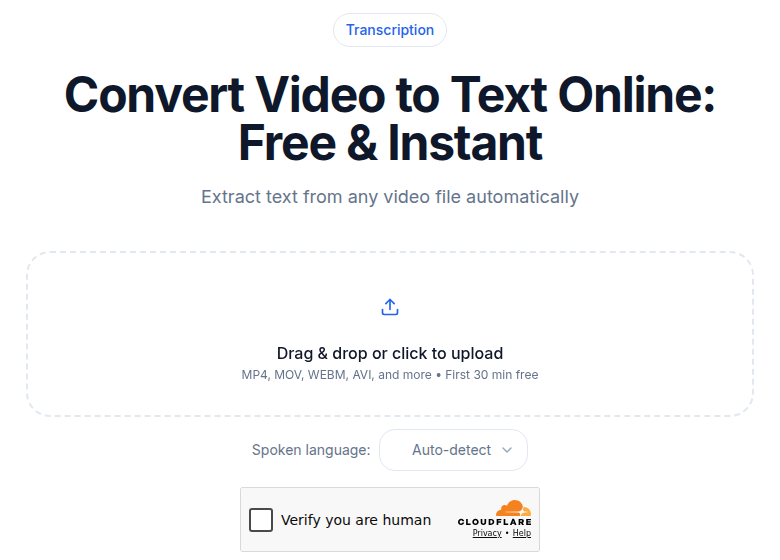 CATT video-to-text upload interface handling legacy video formats including FLV
Step 4: Set the Language
Specify the language manually. Older FLV content sometimes has degraded audio that confuses automatic language detection. For non-English content, set the language before processing rather than correcting after.
Step 5: Run the Transcription
A 60-minute FLV takes 3 to 6 minutes to process on most services. Audio extraction is nearly instant; transcription is the longer phase.
Step 6: Review the Output
Legacy FLV audio has characteristics that affect accuracy:
- Low bitrate audio (32 to 96 kbps was typical for streaming)
- Webcam microphones and phone-line attendee audio
- Network-dropout artifacts in RTMP captures
Expect 80 to 92% accuracy on older webinar content with mixed audio, and 90 to 95% on professionally recorded FLV with a dedicated host microphone.
When Remuxing to MP4 Actually Helps (and When It Doesn't)
The question comes up constantly for FLV archives: convert to MP4 first, or transcribe directly?
Remuxing does not improve transcript accuracy. The speech model processes the audio codec, and the container wrapper is discarded before processing. A Nellymoser audio track in an FLV produces the same output as a Nellymoser track in an MP4.
Remuxing does help in two real situations:
- Your transcription tool rejects FLV outright. Many consumer tools only accept MP4, MOV, MP3, and WAV. If yours does, a stream-copy remux takes seconds and costs no quality.
- You want to verify the file plays before sending it. MP4 is more universally playable in media players and browser preview windows if you need to confirm content before uploading.
For a batch of hundreds of files, skip the remux step entirely and work with the originals. Read more about format-specific workflows in the how-to-convert-video-to-text guide and the companion post on WMV archives, another format with similar legacy concerns.
Common FLV Scenarios
Legacy Webinar Archives
Platforms from 2004 to 2014 (WebEx, GoToMeeting, MS LiveMeeting, ON24) recorded to FLV. Audio quality splits sharply by source:
- Host microphone: usually clean, transcribes at 90 to 95%
- Attendee phone audio (PSTN): 8 kHz telephone quality, transcribes at 75 to 85%
- Mixed host-plus-attendee: averages the two
For large webinar archives, check whether the platform recorded separate audio tracks for host and attendees. If it did, extract them separately and transcribe each, then merge the results.
Twitch and Streaming Captures
Twitch used RTMP before switching to HLS around 2017. Stream archives from that period are FLV. Accuracy varies by the streamer's audio setup.
Streaming content often has background music, game audio, and sound effects mixed into the speech track. AI models can hallucinate text during music sections. Trim to speech-only segments before uploading if accuracy matters.
Educational Course Libraries
Adobe Captivate, Articulate Storyline, and similar authoring tools exported FLV-based modules from 2005 to 2015. Voiceover narration in these courses is typically studio-recorded with a dedicated microphone. Accuracy is generally 95% or higher.
RTMP Server Recordings
Adobe Media Server (formerly Flash Media Server), Wowza, and Red5 recorded RTMP streams to FLV by default. These captures sometimes have:
- Missing or incorrect duration metadata (repair with
-fflags +genptsas shown above) - Audio drift over recordings longer than an hour
- Frame drops or audio gaps from network interruptions
Repair metadata before transcribing. Audio drift is harder to fix in post and mostly affects timestamp alignment rather than transcript accuracy.
Marketing and Corporate Archives
Pre-2015 marketing video libraries often exist in both FLV original and re-encoded MP4 form. If you have both, transcribe from the FLV original. The MP4 re-encode went through a lossy compression step that the original did not.
What to Watch For
Truncated recordings. RTMP captures sometimes cut off mid-sentence when the stream dropped or the server stopped. Play to the end before assuming you have the full content. A transcript that ends abruptly mid-thought is a symptom, not an error in the transcription.
Dual audio tracks. Some webinar FLVs record host and attendees on separate audio tracks. Most transcription tools process only the first track. Check with ffprobe -show_streams whether your file has more than one audio stream, and extract the one you need.
Embedded cue points and chat data. Some FLV files from webinar systems embed text chat as metadata cue points. These are not audio; they are container metadata. Most transcription tools ignore them. If a tool reports parsing errors, strip non-audio metadata first:
ffmpeg -i in.flv -c copy -map 0:v -map 0:a clean.flv
Nellymoser and Speex quality. Both are voice codecs operating at low bitrates. They transcribe, but accuracy drops compared to MP3 or AAC at equivalent content quality. If you have Nellymoser or Speex audio and accuracy is critical, transcode to 192k MP3 first. The re-encode introduces some generation loss, but the result is usually more recognizable to a speech model than the raw Nellymoser stream at 5.5 kHz.
Practical Tips for Batch FLV Archives
Repair all files first. Run a batch metadata repair on the entire archive before transcribing anything:
for f in *.flv; do ffmpeg -i "$f" -c copy -fflags +genpts "fixed_$f"; done
This rebuilds container metadata without touching audio. Any file with truncated or incorrect metadata becomes well-formed before entering your transcription pipeline.
Process chronologically. Files from the same era and platform have similar audio quality patterns. Calibrate your expectations on one representative file, then apply the same settings to the rest.
Use API access for large volumes. Uploading 500 hours of archive files one at a time is not practical. CATT's Developer and Business plans include API access with webhooks, which makes batch processing scriptable. Check the hidden costs of transcription services before choosing a plan for volume work.
Skip audio preprocessing. Old FLV audio is already heavily compressed. Adding noise reduction, EQ, or normalization on top of an already-compressed source often makes AI accuracy worse, not better. Upload the source audio and let the model handle it.
Check for DRM before starting. Commercial FLV content from defunct Flash-era services was sometimes DRM-protected. VLC will refuse with a "protected content" error. User-recorded content (webinars, training, streams) almost never has DRM. If you hit DRM, there is no practical path to transcription.
FLV Format vs. Modern Formats
| Format | Era | Typical Audio Codec | Common Bitrate | Transcription Accuracy |
|---|---|---|---|---|
| FLV (MP3) | 2003-2014 | MP3 | 32-128 kbps | 88-95% |
| FLV (AAC) | 2009-2020 | AAC | 64-192 kbps | 92-97% |
| FLV (Nellymoser) | 2003-2011 | Nellymoser | 5-64 kbps | 80-90% |
| FLV (Speex) | 2008-2016 | Speex | 8-45 kbps | 82-92% |
| MP4 | 2008-present | AAC | 96-256 kbps | 94-98% |
| WebM | 2013-present | Opus | 64-192 kbps | 94-98% |
FLV that contains H.264 video and AAC audio transcribes essentially identically to MP4 with the same codecs. The outer container is discarded by the transcription pipeline. The audio inside is what counts.
If you just need a clean transcript from a file and want to skip the ffmpeg steps, ConvertAudioToText accepts FLV directly: upload, select language, and the service handles extraction automatically.
Common Questions
Can I transcribe FLV files in 2026 even though Flash is dead?
Yes. The Flash browser plugin is gone, but FLV as a file format is still fully supported by ffmpeg, VLC, and many transcription services. The container reads fine; what matters is the audio codec inside. MP3 and AAC in FLV transcribe the same as any standalone MP3 or AAC file.
Should I convert FLV to MP4 before transcribing?
Only if your transcription tool rejects FLV outright. For audio quality, conversion does not help: the audio codec inside the container is what the speech model actually processes, so remuxing the container changes nothing about accuracy. Audio-only extraction with ffmpeg is faster than a full remux, and either approach gets you to the same transcript.
When does FLV actually need re-encoding before transcription?
The audio needs re-encoding when the FLV contains Nellymoser or Speex audio, since those codecs can sound degraded at low bitrates and some tools reject them. Run ffprobe on the file first to check. If the audio track is already MP3 or AAC, you can extract it with stream copy (-c:a copy) and skip re-encoding entirely, which preserves original quality.
What if my FLV file has DRM?
Try playing it in VLC first. If it refuses with a protected-content error, the file is DRM-locked. User-recorded FLV files (webinars, training videos, stream captures) rarely have DRM. Commercial FLV content from defunct Flash-era services sometimes does, and removing it is rarely practical or legal a decade after the original service shut down.
Sources
- Flash Video format and codec history: Wikipedia - Flash Video
- Nellymoser Asao codec details: MultimediaWiki - Nelly Moser
- FLV to MP4 conversion with ffmpeg: AddPipe - Converting FLV to MP4 With FFmpeg
- VLC FLV playback and codec support: VideoLAN Wiki - Flash Video
- ffmpeg documentation: ffmpeg.org
Try transcription free
Convert any audio or video to clean, unwatermarked text — speaker labels, timestamps, and AI summaries included. First 30 minutes free, no account.
Related Articles
How to Convert AVI to Text: Transcribe Legacy Video Files
Learn how to convert AVI to text, including codec-specific gotchas for DivX, XviD, and VBR MP3 audio, plus when to re-encode first vs upload directly.
How to Convert MKV to Text: Multi-Track Audio & OBS Recordings
Learn how to transcribe MKV files with multiple audio tracks, handle OBS recordings, pick the right track with ffprobe, and deal with DTS/TrueHD codecs.