
Transcription into HubSpot: Verified Integration Paths
Summarize this article with:
HubSpot's Conversation Intelligence (Sales Hub Professional at $90/seat/month) transcribes calls made through its native dialer, Zoom, and Google Meet automatically. For calls from external dialers, uploaded recordings, or languages outside its coverage, you need to push transcripts in via the Calls API. This guide covers both paths: when to rely on native CI and when to build the webhook-to-engagement pipeline yourself, with corrected association IDs and a working end-to-end handler.
The fastest path to call transcripts in HubSpot depends on where your calls originate. If your team dials from HubSpot's native calling tool, Zoom, or Google Meet, HubSpot's built-in Conversation Intelligence handles transcription automatically on Professional and Enterprise tiers. If you use an external dialer, receive inbound calls on a third-party platform, or want to backfill recordings from Gong, Zoom Cloud, or an S3 bucket, you need to push transcripts in via the Calls API yourself.
This guide covers both paths.
When Native Conversation Intelligence Is Enough
HubSpot Sales Hub Professional ($90 per seat per month, billed annually) includes Conversation Intelligence, which gives you up to 1,500 hours of transcription per account per month. Calls auto-transcribe when made through:
- HubSpot's built-in calling tool
- The native Zoom integration (meeting recordings sync automatically)
- Google Meet (Professional and Enterprise)
- Some third-party calling providers listed in the HubSpot marketplace
For those scenarios you get transcripts attached to the contact timeline without writing a line of code. The manager can open a contact, scroll the activity feed, and read or search the transcript immediately after the call.
The limits: CI requires a paid Sales or Service Hub seat per user, does not transcribe calls from dialers outside the supported list, and cannot process recordings you upload manually from a file system.
My take: if your entire team already uses HubSpot's dialer or Zoom through HubSpot, native CI is the obvious choice. The API path below is for the gap cases.
When You Need the API Path
The API recipe covers:
- Calls recorded outside HubSpot (Gong exports, Zoom Cloud standalone, external dialers, in-person recordings).
- Bulk backfills of historical recordings.
- Languages or speaker counts where you want to control the transcription engine.
- Teams that cannot afford Sales Hub Professional per-seat pricing for every rep.
The workflow is straightforward:
- Sales rep records a call (Zoom standalone, external dialer, uploaded audio).
- Recording lands in accessible storage (S3, Cloudflare R2, Google Drive).
- Your system submits the file to a transcription API.
- On completion, a webhook fires to your handler.
- The handler matches the call to a HubSpot contact and deal.
- Transcript is attached as a HubSpot Call Engagement on the contact timeline.
- Optionally, deal properties are updated with extracted signals (next steps, sentiment, objections).
About 200 lines of code. Most revenue ops teams have it running the same day.
Step 1: HubSpot Private App Setup
In HubSpot: Settings, Integrations, Private Apps, Create private app.
Name it "Transcription Integration" and request these scopes:
crm.objects.contacts.readcrm.objects.contacts.writecrm.objects.deals.readcrm.objects.deals.writecrm.objects.calls.writecrm.schemas.calls.read
Save the access token and set it as HUBSPOT_TOKEN in your environment.
Step 2: Receive the Transcription Webhook
The handler that fires when transcription completes. See webhook vs polling for transcripts for the tradeoffs.
import express from 'express';
import { Client as HubSpotClient } from '@hubspot/api-client';
import crypto from 'crypto';

const app = express();
const hubspot = new HubSpotClient({ accessToken: process.env.HUBSPOT_TOKEN });

app.post(
  '/webhooks/transcript',
  express.raw({ type: 'application/json' }),
  async (req, res) => {
    const sig = req.header('X-CATT-Signature');
    const expected = crypto
      .createHmac('sha256', process.env.TRANSCRIPT_WEBHOOK_SECRET)
      .update(req.body)
      .digest('hex');

    if (!crypto.timingSafeEqual(Buffer.from(sig), Buffer.from(expected))) {
      return res.status(401).send('Bad signature');
    }

    const event = JSON.parse(req.body.toString());
    if (event.event !== 'job.completed') return res.sendStatus(200);

    await processCompletedTranscription(event.data);
    res.sendStatus(200);
  }
);
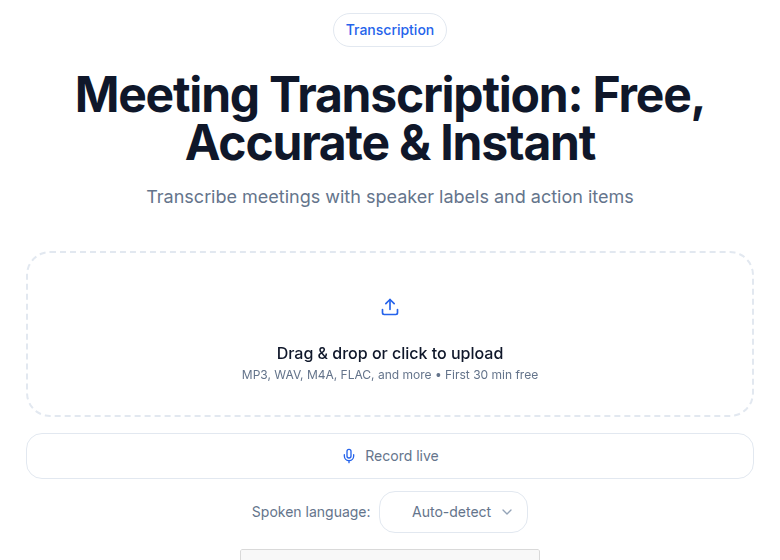 Meeting transcription ready to attach to a HubSpot contact timeline
Completed transcript ready for routing to a CRM contact or deal.
Step 3: Match the Call to a HubSpot Contact
Contact matching is the part most teams underestimate. Three signals work:
Phone number. Best signal when your dialer captures the outbound number. Normalize before searching: strip all non-digit characters so "+55 11 99999-8888" and "551199998888" match the same record.
async function findContactByPhone(phone) {
  const digits = phone.replace(/\D/g, '');
  const result = await hubspot.crm.contacts.searchApi.doSearch({
    filterGroups: [{
      filters: [{ propertyName: 'phone', operator: 'EQ', value: digits }]
    }],
    limit: 1
  });
  return result.results[0] ?? null;
}
Email address. When the call was scheduled via calendar, the invite has participant emails. Use those to find the contact:
async function findContactByEmail(email) {
  const result = await hubspot.crm.contacts.searchApi.doSearch({
    filterGroups: [{
      filters: [{ propertyName: 'email', operator: 'EQ', value: email }]
    }],
    limit: 1
  });
  return result.results[0] ?? null;
}
Rep and timestamp fallback. When neither phone nor email is available (cold calls, shared lines), fall back to the rep's open deals active around the call time. Less reliable but useful to avoid losing the transcript entirely.
Step 4: Create a HubSpot Call Engagement
Once matched, write the transcript as a Call Engagement. The correct association type ID for call-to-contact is 194. For call-to-deal, the correct ID is 220 (not 195, which is incorrect and will silently fail or create wrong associations).
async function attachTranscriptToContact(contactId, dealId, data) {
  const durationMs = data.duration_seconds * 1000;

  const call = await hubspot.crm.objects.calls.basicApi.create({
    properties: {
      hs_timestamp: new Date().toISOString(),
      hs_call_title: `Recorded call (${Math.round(data.duration_seconds / 60)} min)`,
      hs_call_body: data.transcript,
      hs_call_duration: String(durationMs),
      hs_call_status: 'COMPLETED',
      hs_call_direction: 'OUTBOUND',
      hs_call_summary: data.summary ?? ''
    },
    associations: [
      {
        to: { id: contactId },
        types: [{ associationCategory: 'HUBSPOT_DEFINED', associationTypeId: 194 }]
      },
      ...(dealId
        ? [{
            to: { id: dealId },
            types: [{ associationCategory: 'HUBSPOT_DEFINED', associationTypeId: 220 }]
          }]
        : [])
    ]
  });

  return call.id;
}
The hs_call_body field holds the transcript text. For long calls, test whether the text stays within HubSpot's per-property character limit (per HubSpot docs, consult the properties API for the current fieldType: textarea ceiling). For very long transcripts, use a second custom property or store the full text externally and link to it.
Step 5: Extract Deal Signals (Optional)
If your transcription response includes a summary or you want to run an LLM pass over the text, you can push structured signals to deal properties. Create the custom properties in HubSpot first (Settings, Properties, Deals), then update:
async function updateDealFromTranscript(dealId, transcript, summary) {
  await hubspot.crm.deals.basicApi.update(dealId, {
    properties: {
      last_call_summary: summary ?? '',
      last_call_date: new Date().toISOString().split('T')[0]
      // Add your custom properties here: last_call_sentiment, next_steps, etc.
    }
  });
}
For structured extraction (BANT signals, objections, decision makers), run a separate LLM call against the transcript text before this step. The meeting transcription tool can generate formatted summaries that drop directly into this update.
The End-to-End Handler
async function processCompletedTranscription(data) {
  const meta = await getCallMetadata(data.audio_filename);

  const contact =
    (await findContactByPhone(meta.phone)) ??
    (await findContactByEmail(meta.email));

  if (!contact) {
    await logUnmatchedCall(data, meta);
    return;
  }

  const deal = await getActiveDealForContact(contact.id);

  await attachTranscriptToContact(contact.id, deal?.id ?? null, data);

  if (deal && data.summary) {
    await updateDealFromTranscript(deal.id, data.transcript, data.summary);
  }

  await notifyRep(meta.rep_email, contact, data);
}
The getCallMetadata function pulls phone, email, and rep from the recording filename or a metadata sidecar file. The exact source depends on your call platform.
Handling Unmatched Calls
Expect 5 to 15% of calls to fail contact matching: cold outreach, new leads who are not yet in HubSpot, or calls on shared lines.
Option A: Create a new contact from the call. Set phone as the first property, lifecycle stage as "Lead," and let the SDR enrich it later.
Option B: Log unmatched calls to a "Unmatched transcripts" custom object and route to an SDR queue for weekly triage.
Option C: Save the transcript in your own database and skip HubSpot for that call. Some calls (wrong numbers, robodials) are genuine noise.
What Native CI Misses That This Fixes
For teams already on Sales Hub Professional, the API path adds value in specific gaps:
- External dialers: Calls placed from Outreach, Salesloft, or a VoIP system not on HubSpot's partner list skip CI entirely. The API path captures them.
- Historical backfills: CI only processes calls going forward. The API path lets you ingest a year of Zoom Cloud recordings overnight.
- Language coverage: CI's transcription language support is narrower than dedicated transcription APIs. For non-English-heavy teams, a separate transcription layer (see best speech-to-text APIs for 2026) gives better accuracy.
- Calls outside HubSpot users: CI requires a paid seat per user. Contract employees, offshore callers, or partner reps using separate tools do not produce CI transcripts. The API path handles their recordings regardless.
What This Costs vs. Gong
Before this integration, teams that wanted call transcription intelligence typically looked at:
- Gong: Platform fee of $5,000 to $50,000 per year plus approximately $1,400 to $2,000 per seat per year (not published, enterprise-quoted). For a 10-rep team, budget $20,000 to $35,000 per year.
- Manual notes: Reps type summaries after each call. Incomplete, slow, and biased toward favorable details.
The API path costs:
- A transcription API subscription (flat-rate options start under $15/month for a solo user, scale from there).
- HubSpot you already have.
- One day of engineering setup.
The tradeoff is honest: Gong and Chorus build coaching analytics, keyword tracking, and deal forecasting on top of transcripts. The API path gives you the foundation and leaves the analytics layer to you (or to a cheaper add-on like HubSpot's own AI tools).
If you just need clean transcripts attached to contacts and deals without a dedicated conversation intelligence subscription, ConvertAudioToText's meeting transcription tool supports direct file or URL submission and returns structured output that maps cleanly into the handler above. A native CATT HubSpot integration is coming soon; until then, the API and webhook route above is how you connect the two.
Zapier Alternative
Zapier has a native HubSpot app listed in the HubSpot marketplace. For non-technical teams, the flow is:
- Trigger: Webhook (transcription job.completed event).
- Filter or Formatter: Normalize the phone number.
- Search: Find HubSpot contact by phone or email.
- Action: Create HubSpot Call Engagement with the transcript text.
This covers the straightforward case. Custom code handles edge cases better, especially contact matching for cold calls and the unmatched-call fallback logic.
Production Gotchas
Phone number normalization. International numbers like "+55 11 99999-8888" need digits stripped before searching HubSpot. Build a normalizePhone(str) helper and run every number through it before any lookup.
Multi-tenant or shared phone lines. If multiple reps share a number, phone-based matching is ambiguous. Fall back to email or calendar context.
Webhook reliability. Build a daily reconciliation job that polls for completed transcription jobs not yet logged in HubSpot. Downtime on your handler can create gaps otherwise.
Call permissions in HubSpot. Call records are visible to anyone with contact access by default. For sensitive sales calls, restrict via HubSpot teams and roles before going live.
Testing the association IDs. Run a test call creation against a sandbox contact and deal before wiring to production. Log the returned call ID and confirm the engagement appears on both the contact and the deal timeline.
Common Questions
Does HubSpot transcribe calls natively?
Yes, but only at Sales Hub Professional ($90/seat/month billed annually) or Enterprise tier. Calls placed through HubSpot's native dialer, the Zoom integration, Google Meet integration, and select third-party calling providers are transcribed automatically. Calls from external dialers or uploaded audio files require a separate API submission path.
Can I upload an external recording to get HubSpot to transcribe it?
Yes, but with restrictions. HubSpot's calling extensions API accepts WAV, FLAC, and MP4 files for transcription, the audio must be multi-channel (each speaker on a separate channel), and transcription only runs for users with a paid Sales or Service Hub seat. The flow requires registering an authenticated endpoint for your recording URL, logging the call with hs_call_source set to INTEGRATIONS_PLATFORM, and then calling the /recordings/ready endpoint to trigger processing.
What is the correct HubSpot association type ID for linking a call to a deal?
The correct call-to-deal association type ID is 220, not 195. Call-to-contact is 194. Both use associationCategory set to HUBSPOT_DEFINED. Using 195 will fail silently or create an incorrect association.
Is there a no-code way to push transcripts into HubSpot?
Zapier has a native HubSpot app listed in the HubSpot marketplace. You can set a webhook trigger on transcript completion and use the HubSpot action to create an engagement. The limitation is contact matching: Zapier handles simple email or phone lookups, but edge cases like cold calls or shared phone lines need custom code with fallback logic.
Sources
- HubSpot Sales Hub Pricing - verified July 2026
- Review call recordings and transcripts - HubSpot Knowledge Base - verified July 2026
- HubSpot Calling Extensions: Recordings and Transcriptions API - verified July 2026
- HubSpot Calls Engagement API v3 - Association Type IDs - verified July 2026
- Gong Pricing 2026 - verified July 2026
- Zapier HubSpot Integration - HubSpot Marketplace - verified July 2026
Try transcription free
Convert any audio or video to clean, unwatermarked text — speaker labels, timestamps, and AI summaries included. First 30 minutes free, no account.
Related Articles

Integrating Transcription With Notion: API Recipe (2026)
How to auto-save transcripts to Notion databases using the ConvertAudioToText webhook API. Verified schema, Node.js code, Zapier/n8n paths, and Notion API limits.

Transcription to Slack: The Paths That Actually Work
Three verified ways to get transcripts into Slack in 2026: Otter and Fireflies native apps, a webhook-to-Slack pattern, and CATT's built-in Slack notification setting.