Record and Transcribe on Android: The Full Path
Summarize this article with:
Record with your phone's built-in app (Pixel Recorder on Pixels, Samsung Voice Recorder with Galaxy AI on Galaxy phones, Easy Voice Recorder elsewhere), then either use the on-device transcript for personal notes or move the file to Google Drive and paste the link into a cloud transcription tool for 99-language support, speaker labels, and SRT export. The full record-to-transcript path takes under 15 minutes with no extra hardware.
The Android Path
Android gets you from spoken word to text transcript in under 15 minutes, with no special hardware required. The steps are: record with your phone's built-in app, get the file into Google Drive or Dropbox, and submit it to a transcription service by URL. That's the whole workflow. The rest of this guide fills in the decisions that make each step reliable.
Unlike iPhone, which ships a single Voice Memos app across every device, Android has no universal recorder. You get whatever your manufacturer installed, plus a sprawling Play Store full of alternatives. That fragmentation looks like a problem but is mostly noise: for transcription purposes, virtually any modern Android recorder produces audio that AI services handle well. The decisions that actually matter are file format, cloud sync setup, and export path.
Which Recording App to Use
Pixel Recorder (Pixel phones only)
Pixel Recorder is the strongest built-in option on any Android phone, because it includes free on-device transcription that works offline. It ships pre-installed on Pixel 3 and newer devices and is not available on other brands.
Real-time on-device transcription works in up to 15 languages on Pixel 6 and later, including English, Spanish, French, German, Italian, Hindi, and Mandarin Chinese. A "Transcribe again" feature, which sends audio to Google's cloud, extends that to 40+ languages. Speaker labels are available on Pixel 6 and later, but only in English.
The Pixel 8 and later also offer AI-generated summaries (Gemini Nano, on-device) in seven languages. Summaries work on recordings from 5 minutes up to 1 hour.
When Pixel Recorder is enough on its own:
- Personal notes you want to search by content later.
- Short recordings (under 30 minutes) in one of the supported languages.
- Situations where you cannot or will not upload audio to a third-party service.
When you need something beyond it: multi-speaker recordings with more than two or three speakers, non-English content in a language not supported by on-device transcription, or any output that needs SRT/VTT subtitles, speaker-labeled exports, or structured summaries.
Samsung Voice Recorder with Galaxy AI (Samsung Galaxy phones)
Galaxy AI adds Transcript Assist to the Samsung Voice Recorder on devices running One UI 6.1 or later, which brings AI transcription, translation, and summarization to most recent Galaxy phones and tablets.
The feature supports 16 languages for transcription, including English, Spanish, French, German, Korean, Japanese, Mandarin Chinese, Hindi, Arabic, Vietnamese, and Indonesian. It can translate transcripts and generate short summaries, and it integrates with Samsung Notes so you can continue editing there.
One UI 7 extended Galaxy AI to call recording, letting you transcribe phone calls directly on the device. The call transcription feature works in the same language set as Voice Recorder's Transcript Assist.
For Samsung users, Transcript Assist is a solid capture-and-lightly-edit tool. Its transcription accuracy sits in a serviceable range for informal notes and meetings, but for anything you publish or distribute, running the audio through a dedicated transcription service gives you better accuracy, structured speaker labels, and subtitle exports.
Easy Voice Recorder (Third-party, all Android phones)
Easy Voice Recorder is one of the most reliable third-party recording apps on the Play Store, with a straightforward interface and no obvious privacy concerns. A free version handles basic recording; a paid Pro version (one-time purchase, check Play Store for current price) adds automatic cloud upload to Google Drive or Dropbox, plus recording in MP3, FLAC, and AAC.
No built-in transcription. Its value is as a clean capture tool that feeds into whichever transcription workflow you prefer.
Otter.ai for Android
Otter's Android app records and live-transcribes in a single step, with the result saved to your Otter account. It works well if you already use Otter for meeting notes. The free tier allows 300 minutes per month with a 30-minute cap per recording. Pro is $8.33/month billed annually (or $16.99/month billed monthly), adding 1,200 minutes/month and a 90-minute per-meeting cap. Business, at $19.99/user/month annually, removes the per-meeting cap and allows up to 4-hour sessions.
The catch is that Otter is primarily a meeting-bot tool. For standalone voice recordings, interview audio, or podcast files, a general-purpose transcription service gives you more control over format and export.
For a fuller breakdown, see the Otter vs Fireflies honest comparison.
Apps to Avoid
A large number of recording apps on the Play Store have poor reviews, sell user data, or inject ad audio into recordings. Filter by 4+ stars and at least 1 million installs before installing anything you have not used before.
Recording Settings That Actually Matter
Set these once when you first configure your recorder, then leave them alone.
Format: M4A or MP3. Both are accepted by every major transcription service. M4A (AAC codec) produces slightly smaller files at equivalent quality. MP3 is marginally more universal. Either works.
Sample rate: 44.1 kHz or 48 kHz. Do not go lower than this. Some apps default to 22 kHz to save space; it degrades audio quality enough to hurt accuracy on quieter or accented speech.
Bitrate: 128 kbps mono. This is the practical sweet spot. 64 kbps mono works if storage is very constrained. Stereo doubles the file size with no benefit for speech.
Channels: Mono. Unless you have a stereo microphone for a specific spatial purpose, mono is the right choice.
Storage location: Internal. microSD cards work but introduce one more failure point. Internal storage with cloud backup is more reliable.
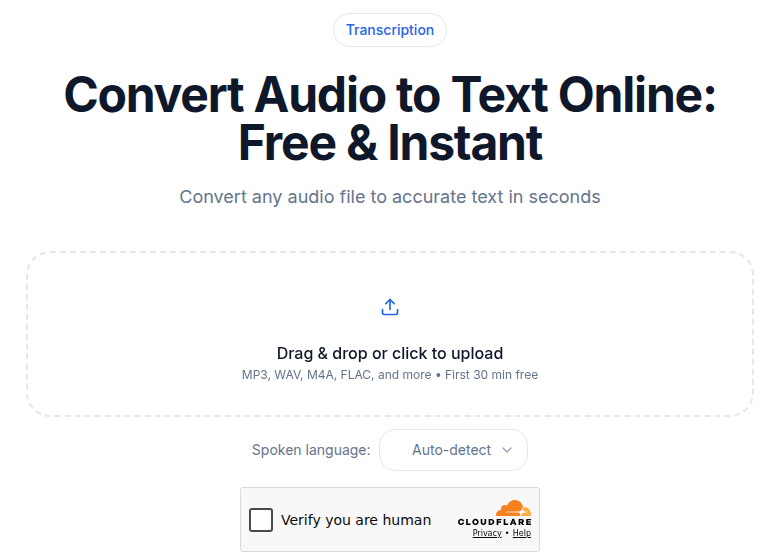 The audio upload tool on ConvertAudioToText, showing the file selection area and language picker
Getting Audio Off the Phone
Google Drive (Recommended)
Most Android phones ship with Google Drive. Set your recorder to auto-upload, or use the Share sheet to send a finished recording directly to Drive.
Pixel Recorder uploads to your Google account automatically. Samsung Voice Recorder does not auto-sync but lets you share individual recordings to Drive via the Share sheet. Easy Voice Recorder Pro auto-uploads if you enable it in settings.
Once a file is in Drive, you can submit it by URL to a transcription service without downloading it locally first.
Dropbox
Same pattern as Drive. If you prefer Dropbox, enable cloud sync in your recorder (supported natively by Easy Voice Recorder Pro) or drag files in manually.
USB Transfer
Plug an Android phone into a computer and it appears as a media device. Recordings live in folders named "Recordings," "Voice Recorder," or sometimes under "Music." Copy files from there.
Fine for occasional one-off transfers. Not practical for a regular workflow.
Browser Upload Directly on Android
Open a transcription tool in Chrome on Android and upload a file from local storage. This works but the small screen makes reviewing the transcript uncomfortable. Better as a backup method than a primary workflow.
The End-to-End Android Workflow
Here is the full path from capture to finished transcript:
- Record in your phone's recorder. Keep Do Not Disturb on. Name the file before you stop if your app lets you, or rename it immediately after (e.g.
2026-07-02_interview_kim.m4a). - Let cloud sync push it to Drive or Dropbox. On a typical home connection, a 1-hour file (roughly 60-90 MB in M4A at 128 kbps) uploads in 2 to 5 minutes.
- On any computer, right-click the file in Drive and copy its shareable link.
- Go to audio to text and paste the URL directly. No download required.
- Set the language explicitly. Auto-detect works most of the time but occasionally misidentifies heavily accented speech.
- Submit. A 1-hour recording returns in roughly 2 to 4 minutes.
- Review, correct proper nouns, and export in the format you need (TXT, SRT, VTT).
Total elapsed time from "stop recording" to "transcript ready" is typically 10 to 20 minutes, dominated by upload speed and recording length.
If you just need a clean transcript without a meeting bot or deep integrations, ConvertAudioToText handles the transcription step without requiring an account: the first 30 minutes of any file are free. A free account runs your first file on the premium engine (up to an hour), and the free tier keeps working after that: up to 30 files a day, up to 30 minutes each, with every transcript free to read, edit and copy.
Pixel Recorder On-Device vs. Cloud Transcription
The choice is not either-or. Pixel Recorder's on-device transcription is genuinely useful for a specific set of use cases.
| Use case | On-device (Pixel Recorder) | Cloud transcription |
|---|---|---|
| Personal notes, search | Good | Overkill |
| Non-English audio | 15 languages (on-device) | 99+ languages |
| Speaker diarization | English-only, basic | Multi-language, labeled |
| SRT/VTT export | No | Yes |
| Privacy-sensitive content | Stays on device | TLS upload to third party |
| Multi-speaker recordings | Limited | Accurate with speaker IDs |
| Recordings over 1 hour | Summaries not supported | Full length |
My take: use Pixel Recorder for anything personal you want to search later. Use cloud transcription for anything you will share, publish, or need in a specific format.
Call Recording on Android
Native call recording is available on Pixel 6 and later with Android 14, expanded internationally in early 2026. Google plays an automated disclosure tone at the start of every recorded call. The feature does not appear in regions where call recording is prohibited.
Samsung Galaxy phones running One UI 7 added call recording with AI transcription via Galaxy AI.
The legal picture is fragmented. In the United States, federal law requires one-party consent, but California, Washington, Illinois, and around a dozen other states require all-party consent. The UK allows personal recordings but restricts sharing without consent. Many EU countries require all-party consent. Before recording any call, confirm the rule that applies where both parties are located.
Third-party call-recording apps were blocked from using Android's Accessibility API for call capture in 2022. The native Phone app on Pixel remains the reliable path.
Improving Audio Quality Without Extra Hardware
Hardware upgrades help but are not the first fix. These free changes matter more:
Do Not Disturb mode. Every notification that arrives during recording appears as an audio artifact in the transcript. Enable DND before you start and disable it after.
Phone placement. Hold the phone at chest height, or place it on a table 30 to 50 cm from the speaker. The bottom microphone on most Android phones is the primary mic for recording. Facing it toward the audio source improves capture significantly.
Lock screen orientation. Auto-rotation on some recording apps triggers audible artifacts from the accelerometer. Lock to portrait.
Check your phone case. Heavy cases without clean mic cutouts muffle the bottom microphone. Briefly record the same content with and without the case to see if it matters on your device.
Keep the phone charged or plugged in. A phone that shuts down mid-recording often saves a corrupted or empty file.
When Hardware Upgrades Are Worth It
For interview work or podcast recording, a USB-C lavalier microphone makes a measurable difference. BOYA makes USB-C lavs that plug directly into the phone's USB-C port; these run from roughly $15 to $40 and eliminate the need for an adapter. Rode makes higher-end options in the same form factor if you want broadcast quality. Wired is more reliable than Bluetooth for transcription: wireless mics add latency and sometimes compress audio in ways that hurt accuracy.
Automated Workflows with Tasker
If you record regularly and want to reduce manual steps, Tasker (available on the Play Store, one-time purchase) lets you build trigger-based automations. Examples:
- Start a specific recording app when a calendar event begins.
- Auto-rename recordings using the current date and event title.
- Move completed recordings to a specific Drive folder via an HTTP action.
Tasker watches over 130 states and events, including calendar, location, and Bluetooth connection, and can execute more than 350 actions. It has a steep learning curve but rewards repetitive workflows. MacroDroid is a friendlier alternative for simpler trigger-action pairs.
Multilingual Recording Workflow
The recording side of multilingual work is the same regardless of language. The transcription side varies.
For non-English audio, set the language explicitly when you submit the file. Auto-detect handles most languages correctly but can confuse closely related languages or heavily accented speech in a second language. Explicit language selection takes two seconds and removes that failure mode.
For more on how accuracy varies by language and environment, see transcription accuracy explained.
Privacy
Cloud sync sends recordings to Google or Dropbox servers, both of which are encrypted in transit and at rest. Transcription services receive audio over TLS.
For sensitive content (legal proceedings, medical conversations, journalism source interviews), the appropriate path depends on what "sensitive" means. Pixel Recorder's on-device transcription never leaves the phone. For everything else, review the provider's data retention policy before submitting.
For HIPAA-covered work specifically, ConvertAudioToText is not currently HIPAA-certified. Use a HIPAA-eligible provider for medical audio.
Common Questions
Does Android have a built-in transcription app?
Not universally. Google Pixel phones include Pixel Recorder with on-device transcription, but this app is exclusive to Pixel devices. Samsung Galaxy phones running One UI 6.1 or later have Galaxy AI Transcript Assist built into Samsung Voice Recorder. Other Android brands ship no built-in transcription.
Can I record phone calls on Android and transcribe them?
Yes, on Pixel 6 and later with Android 14, using the native Phone by Google app. The feature expanded to most international markets in early 2026 but is still absent in regions where call recording is prohibited by law. Samsung Galaxy phones running One UI 7 also support call recording with AI transcription. Third-party call-recording apps are blocked from capturing calls through the Accessibility API.
What file format should I use for Android recording?
M4A is the default output of most Android recorders and works with every major transcription service. MP3 is marginally more universal. Either at 128 kbps mono gives you reliable transcription quality at a manageable file size.
Does Pixel Recorder work without the internet?
Real-time on-device transcription in Pixel Recorder runs entirely on-device and does not require internet access. The "Transcribe again" feature, which supports 40+ languages, uses Google's cloud and requires a connection. AI summaries also require network access.
What is the fastest way to get an Android recording transcribed?
Record, then let Google Drive sync the file. Paste the Drive share link directly into ConvertAudioToText's audio-to-text tool. A 1-hour file typically returns a transcript in 2 to 4 minutes. The total time from "stop recording" to "finished transcript" is usually under 20 minutes, limited mostly by upload speed.
Sources
- Google Pixel Recorder help: https://support.google.com/pixelphone/answer/16267698
- Pixel Recorder about page: https://recorder.google.com/about
- Samsung Voice Recorder with Galaxy AI: https://www.samsung.com/us/support/answer/ANS10000942/
- Pixel call recording international expansion: https://9to5google.com/2026/02/19/pixel-call-recording-international/
- Android call recording laws by country: https://recapmycalls.com/call-recording-laws-international/
- Otter.ai pricing: https://otter.ai/pricing
- Easy Voice Recorder Pro on Play Store: https://play.google.com/store/apps/details?id=com.digipom.easyvoicerecorder.pro
- Android audio format guide: https://www.androidauthority.com/audio-format-guide-mp3-m4a-aac-flac-3190468/
Try transcription free
Convert any audio or video to clean, unwatermarked text — speaker labels, timestamps, and AI summaries included. First 30 minutes free, no account.
Related Articles
How to Transcribe Voice Recorder Recordings (Any Device)
Get text from any voice recorder, from Anker SoundCore Work to old Olympus dictaphones. Covers file transfer, formats, WMA conversion, speaker labels, and export options.
Best Transcription App: iOS, Android and More
Compare the best transcription app for iPhone, Android, journalists, dictation and video creators, plus a browser option, with current free tiers and prices.