Burning Subtitles into Video: Settings That Work
Summarize this article with:
Burned vs Soft in One Minute
Burned-in subtitles (open captions) are pixels baked into the video frame. They show up on every player, every platform, with no viewer action required. Soft subtitles (closed captions) are separate text tracks attached to a video file. The viewer can toggle them on or off, the search engine can index them, and they can be swapped for another language without re-rendering.
Which one you need depends entirely on the destination. For TikTok, Instagram Reels, and most downloaded video files, burn-in is the only reliable path. For YouTube, Vimeo, and LinkedIn, soft tracks are the better choice. The rest of this guide focuses on burn-in: when it is required, how to do it with FFmpeg or a video editor, and the quality and styling tradeoffs that matter.
For the counterpart, choosing and uploading a soft caption track, see the how to add subtitles to video guide. For the conceptual difference between open and closed captions, see the open vs closed captions explainer.
When Burning Is Required vs When It Is Not
TikTok and Instagram Reels do not give viewers a reliable caption toggle for creator-uploaded videos. Instagram offers an auto-caption sticker during Reel creation and generates captions using speech recognition, but it does not accept a pre-made SRT file that viewers toggle on or off. TikTok Studio includes an auto-caption generator and manual text editing, but not a true closed-caption track a viewer can switch. On both platforms, burned-in text is the only way to guarantee every viewer sees your captions regardless of device or settings.
Platforms where you should NOT burn, and should use a soft track instead:
- YouTube: Upload an SRT or VTT file via YouTube Studio. Viewers can toggle captions, switch languages, and Google can index the text.
- LinkedIn: LinkedIn accepts SRT files attached during video upload. The platform displays captions as a toggleable overlay.
- Vimeo: Supports SRT/VTT uploads as switchable tracks.
- Facebook: Accepts SRT uploads, though Facebook's own auto-caption system often handles this automatically.
A practical hybrid for multi-platform creators: burn one stylized version for short-form social, and upload a clean SRT alongside the YouTube version. The source caption file is the same; only the export differs.
Step 1: Get the SRT Right Before You Burn
Burned captions cannot be edited after rendering. Re-doing an hour of 4K video to fix three typos costs real render time. Before you touch FFmpeg or your editor, proofread the SRT.
Quick pre-flight checklist:
- Read every line of the SRT in a text editor.
- Spot-check timecodes against the audio at three or four random points.
- Keep caption blocks to two lines maximum, 42 characters per line maximum.
- Confirm proper nouns, brand names, and numbers are correct.
- Make sure the font you plan to use covers every character in the file (non-Latin scripts need attention here).
If you do not have an SRT yet, the subtitle generator returns a timed SRT in minutes and supports 99 languages.
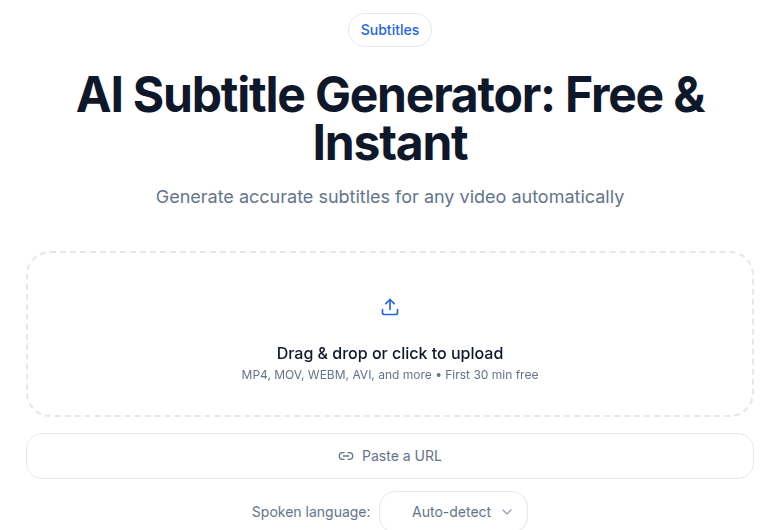 The subtitle generator tool produces a downloadable SRT file ready for burn-in
Step 2: Burn With FFmpeg
FFmpeg is the fastest path for one-off burns and for batch processing. The core command:
ffmpeg -i input.mp4 -vf "subtitles=captions.srt" -c:a copy output.mp4
The -vf flag applies a video filter. The subtitles filter reads the SRT via the libass renderer and overlays the text. The -c:a copy flag copies the audio track without re-encoding it.
By default this renders white text with a black outline near the bottom of the frame. For styled output, pass parameters through force_style:
ffmpeg -i input.mp4 \
  -vf "subtitles=captions.srt:force_style='Fontname=Arial,FontSize=24,PrimaryColour=&H00FFFFFF,OutlineColour=&H00000000,BorderStyle=3,Outline=2,Shadow=1,Alignment=2,MarginV=40'" \
  -c:a copy \
  output.mp4
Two things to know about the force_style syntax:
- Color values use ASS/BGR format, not RGB.
&H00FFFFFFis white (00=alpha, FF=blue, FF=green, FF=red in BGR order). If you copy an HTML hex color directly it will look wrong. BorderStyle=3adds a background box behind the text.BorderStyle=1adds an outline. The box style reads better on busy video backgrounds.
Quality and file size
Burning subtitles forces a full video re-encode. The audio is copied, but the video frames get decoded, composited with the text, and re-encoded. For H.264 output, FFmpeg defaults to CRF 23, which is fine for web delivery. If you are working from a high-quality source and want to minimize generation loss, pass -crf 18 or -crf 20:
ffmpeg -i input.mp4 \
  -vf "subtitles=captions.srt:force_style='Fontname=Arial,FontSize=24,BorderStyle=3,Alignment=2,MarginV=40'" \
  -c:v libx264 -crf 18 -c:a copy \
  output.mp4
Lower CRF = higher quality = larger file. For social uploads CRF 20-23 is a reasonable target. For archival delivery, CRF 18. Avoid going above 28 or the text rendering itself will look blocky.
Step 3: Burn in a Video Editor
If you prefer a visual preview while you work, every major editor handles burn-in. The workflow is consistent across Premiere Pro, DaVinci Resolve, Final Cut Pro, and CapCut:
- Import the video onto the timeline.
- Import the SRT as a caption or subtitle track (Resolve calls it Subtitles; Premiere calls it Captions).
- Choose a font, size, color, and position using the caption style tools.
- On export, choose the option that bakes captions into the video.
In DaVinci Resolve, go to the Deliver page, open Subtitle Settings, check Export Subtitle, and select "Burn into video" from the format dropdown. That setting renders the captions permanently into the frame.
In Premiere Pro, check "Export Captions" in the export dialog and select "Burn captions into video" rather than "Sidecar file."
The advantage over FFmpeg is real-time preview: you see the captions on the timeline and can scrub through to check timing before committing to a render. The disadvantage is that editors sometimes mangle SRT imports, especially with non-ASCII characters or unusual line breaks. Test on a short clip before exporting the full video.
For multi-language batch burns, FFmpeg is more reliable than a GUI editor because you can script the SRT swap:
for lang in en es fr de; do
  ffmpeg -i input.mp4 \
    -vf "subtitles=captions-${lang}.srt:force_style='Fontname=Arial,FontSize=24,BorderStyle=3,Alignment=2,MarginV=40'" \
    -c:v libx264 -crf 20 -c:a copy \
    output-${lang}.mp4
done
Each language version is a separate render. Timecodes stay the same across translations, so you are only swapping the text file. See the subtitle translation workflow guide for the full pipeline.
Step 4: Style for the Platform
Burned captions need to be sized for the platform's actual viewer layout, not just "looks readable on my timeline."
TikTok and Instagram Reels (9:16 vertical): White text, font size 36-48px equivalent, background box with around 70% opacity. Center horizontally. Position at 60-70% of frame height to stay above TikTok's bottom UI bar and below the top progress indicator. One line is the cleanest look; two lines occasionally for longer sentences.
YouTube Shorts (9:16 vertical): YouTube's UI takes less screen space than TikTok's, so you have a little more room. White text, drop shadow rather than box, position around 70% height. Font 42-56px range.
Instagram Feed (1:1 square): The square format gives you horizontal room. White text with subtle drop shadow, 28-36px, two lines maximum, positioned at 80% height.
YouTube, LinkedIn, horizontal video (16:9): Standard bottom-third position. White text with black outline, 24-32px, two lines maximum, 42 characters per line maximum. MarginV=30 or MarginV=40 in FFmpeg's force_style keeps the text off the very bottom edge.
The subtitle styling best practices post has precise safe-zone measurements per platform.
Common Burn Problems and Fixes
Text looks blurry or jagged. This is almost always Outline=0 in your force_style. The text blends into video noise with no outline. Set Outline=1 or Outline=2.
Captions are out of sync after burning. Usually a framerate mismatch. The SRT was timed against a 30fps source but you are burning into a 29.97fps timeline, or vice versa. Either re-time the SRT or match the output framerate to the source using -r 30 in your FFmpeg command.
Special characters show as boxes. The default font does not include that script. For Arabic, Chinese, Devanagari, Thai, or Cyrillic, set Fontname=Noto Sans in force_style. Noto Sans has the broadest glyph coverage of any freely available font. For European languages with diacritics, most system fonts work fine.
Colors look wrong in force_style. Remember that color values are BGR, not RGB. &H0000FF in BGR is red, not blue. Test with a short clip before the full render.
Large file after burning. Burning re-encodes the video. If you were just copying the stream before, the encoded output will be larger. Use -crf 20 to -crf 23 as a starting point for web-delivery file sizes.
My take: for short-form social, FFmpeg with a force_style template saved as a shell alias is the fastest repeatable workflow. You run one command, wait for the encode, and the output is ready to upload. The visual editor route is worth it when you need to make per-caption timing edits or when the project has complex styling decisions that are hard to express in ASS parameters.
Common Questions
What is the difference between burned-in and soft subtitles?
Burned-in subtitles (also called open captions or hardcoded subtitles) are rendered directly into the video pixels. They cannot be turned off, restyled, or translated by the viewer, and they play on any device without any caption-track support. Soft subtitles (closed captions) are a separate text track attached to the video file or uploaded alongside it. Viewers can toggle them on or off, and platforms can index the text for search.
Do TikTok and Instagram support soft caption tracks that viewers can toggle?
Not reliably for creator-uploaded videos. Instagram does not accept a pre-made SRT file that viewers switch on or off. TikTok Studio has an auto-caption generator, but not a viewer-toggled closed-caption track equivalent to YouTube's CC button. Burned-in captions are the safe, guaranteed-visible approach for both platforms.
Does burning subtitles reduce video quality?
Yes, because burning requires a full video re-encode. The degree of quality loss depends on your CRF setting. FFmpeg defaults to CRF 23 with libx264, which is acceptable for web delivery. For higher quality at a larger file size, use CRF 18-20. The audio is not re-encoded when you pass -c:a copy, so there is no audio quality loss.
Can I burn subtitles in multiple languages without re-recording the video?
Yes. Each language version needs a separate render, but the video file and timecodes are identical. You only swap the SRT file between runs. A short shell loop in FFmpeg handles this automatically: iterate over your language SRT files, point the subtitles filter at each one, and output a separate file per language.
Sources
- FFmpeg subtitles filter and force_style documentation: https://ffmpeg.org/doxygen/2.8/vf__subtitles_8c_source.html
- Bannerbear FFmpeg subtitle guide (force_style, color format): https://www.bannerbear.com/blog/how-to-add-subtitles-to-a-video-file-using-ffmpeg/
- CRF guide for x264/x265: https://slhck.info/video/2017/02/24/crf-guide.html
- DaVinci Resolve subtitle burn-in export: https://caption-x.com/blog/how-to-add-captions-davinci-resolve
- Instagram Reels caption options (official help): https://help.instagram.com/225479678901832/
- LinkedIn closed captions SRT upload: https://www.linkedin.com/help/linkedin/answer/a552177/add-closed-captions-to-videos-on-linkedin
- OpusClip Instagram Reels caption best practices 2026: https://www.opus.pro/blog/instagram-reels-caption-subtitle-best-practices
- Open vs closed captions on social media: https://www.sky-scribe.com/en/blog/closed-vs-open-captions
Try transcription free
Convert any audio or video to clean, unwatermarked text — speaker labels, timestamps, and AI summaries included. First 30 minutes free, no account.
Related Articles
How to Add Subtitles to a Video: 2026 Step-by-Step Guide
Add subtitles to any video in 2026. Covers AI subtitle generation, SRT formatting rules, soft vs burned-in paths, YouTube upload steps, and TikTok/Instagram best practices.
Subtitle Translation for Video: The Reliable Path
Translate existing subtitles the reliable way: machine pass plus review, length expansion handling, and timing re-fit.