How to Get Subtitles from Any Video File (2026)
Summarize this article with:
If your video already has embedded subtitle tracks (common in MKV files), you can pull them out in seconds with FFmpeg or MKVToolNix at no cost. If your file has no embedded tracks, which is true of most phone recordings, screen captures, and meeting recordings, AI-powered generation is the fastest path: upload the video, pick a language, and download an SRT or VTT file in a few minutes. This guide covers both routes, including the MKV versus MP4 container reality that determines which approach applies to your file.
Getting subtitles from a video comes down to one question: does your file already have subtitle tracks embedded inside the container? If yes, you extract them. If no, you generate them from the audio. Knowing which situation you're in takes about 10 seconds and changes the entire workflow.
Check Your File First
Before anything else, figure out what you're working with. Open a terminal and run:
ffprobe -loglevel error -select_streams s -show_entries stream=index,codec_name:stream_tags=language -of csv=p=0 your-video.mkv
If the output lists subtitle streams with codec names like subrip, ass, or webvtt, you have text-based embedded tracks and can extract them directly. If you see hdmv_pgs_subtitle or dvd_subtitle, those are image-based (more on that below). If the output is empty, the file has no embedded subtitles and you need to generate them.
You can also check without a terminal: open the file in VLC, go to Subtitle, then Sub Track. If subtitle options appear, embedded tracks are present.
Container Reality: MKV vs MP4
The container format determines what subtitle options you have. This table summarizes the key differences:
| Container | Embedded subtitle support | Common subtitle codecs | Extract to SRT? |
|---|---|---|---|
| MKV | Strong, multiple tracks | SRT, ASS, PGS, VobSub, WebVTT | Yes (SRT/ASS tracks); No (PGS/VobSub without OCR) |
| MP4 | Limited | tx3g (Timed Text), CEA-608 | Sometimes, with compatibility caveats |
| MOV | Limited | tx3g | Sometimes |
| WebM | Good for web | WebVTT | Yes |
| AVI | Minimal | Rarely present | Rarely |
MKV is the container format most likely to have usable embedded subtitle tracks, particularly files ripped from Blu-ray or DVD, downloaded TV episodes, or anime. MP4 files downloaded from YouTube, recorded on a phone, or exported from editing software almost never carry embedded subtitle tracks.
Route 1: Extract Embedded Text Subtitles
If ffprobe confirmed you have text-based subtitle tracks (subrip, ass, or webvtt codec), extraction takes one FFmpeg command.
Extract the first subtitle track as SRT:
ffmpeg -i video.mkv -map 0:s:0 subtitles.srt
Extract a specific track by index (useful for multi-language MKVs):
ffmpeg -i video.mkv -map 0:s:1 subtitles_track2.srt
Extract by language tag:
ffmpeg -i video.mkv -map "0:m:language:eng" -map "-0:v" -map "-0:a" english.srt
Extract all subtitle tracks at once:
ffmpeg -i video.mkv output_%d.srt
For users who prefer a GUI, MKVToolNix is the official free tool for Matroska files. Drag your MKV in, deselect the video and audio tracks, leave the subtitle tracks checked, and click Start muxing. It handles SRT, ASS, WebVTT, and PGS extraction (PGS goes to a .sup file, not to text).
The PGS Problem
PGS and VobSub tracks are images, not text. A Blu-ray rip stores each subtitle frame as a bitmap, which looks like text on screen but has no searchable characters inside. FFmpeg cannot convert these to SRT because there is no text to convert. You have two options: use OCR software (like Subtitle Edit's built-in OCR on Windows) to extract text from the images, or skip extraction entirely and generate fresh AI subtitles using Route 2 below.
Route 2: Generate Subtitles from the Audio
For most everyday files, including phone videos, meeting recordings, screen captures, podcast clips, and YouTube downloads, there are no embedded tracks. You generate subtitles by transcribing the audio.
The CATT Subtitle Generator handles this in the browser without any software to install:
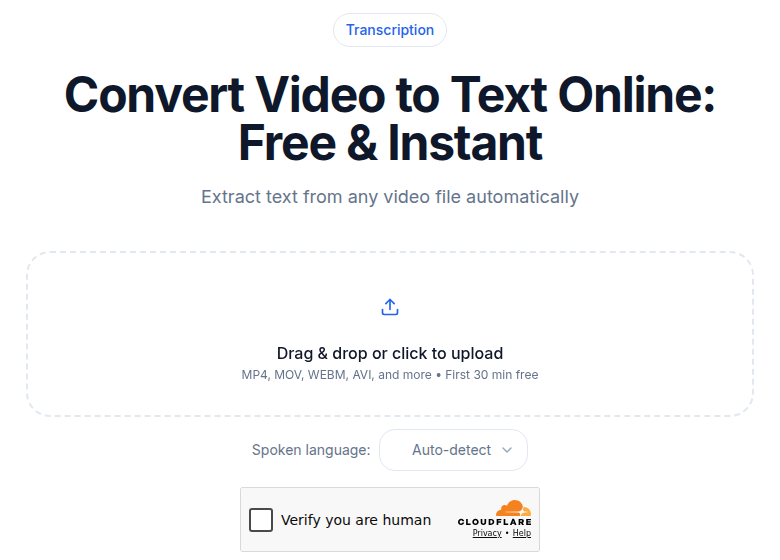
- Upload your video file. MP4, MOV, AVI, MKV, WebM, and WMV are all accepted.
- Select the language spoken in the video.
- Wait for processing. Most videos under 30 minutes finish in a few minutes.
- Review the generated subtitles in the editor and correct any errors.
- Download the subtitle file as SRT, VTT, or ASS.
Modern AI transcription achieves 90 to 98 percent accuracy on clear audio with a single speaker. Expect more corrections for noisy audio, heavy accents, or dense technical vocabulary.
If you already have a transcript and want to turn it into a timed subtitle file, the Video to Text tool generates timestamped output that can be exported as SRT or VTT directly.
Editing the Result
Extracted subtitles are often usable as-is. Generated subtitles need a quick review pass.
The most common corrections:
- Proper nouns. Names of people and brands are frequently transcribed phonetically.
- Line breaks. Long lines should split at natural phrase boundaries. Keep each line to 42 characters or fewer and a maximum of two lines per subtitle block.
- Timing gaps. Subtitles that appear slightly early or late relative to the audio. Adjust the start time in any SRT editor.
- Display duration. A minimum of one second and a maximum of seven seconds per subtitle block keeps reading comfortable.
You can edit SRT files directly in any text editor since the format is plain text. For a visual timeline view, see the subtitle editor comparison to pick the right desktop or browser-based tool.
Subtitle Formats: Which One to Download
SRT is the right default for almost everything. It works in YouTube, VLC, Premiere Pro, Final Cut Pro, DaVinci Resolve, and virtually every video platform and editing tool. The format is a plain text file with numbered cue blocks, timestamps, and subtitle text.
VTT (WebVTT) is the web standard for HTML5 video players. Use it when you're embedding video directly on a website with the track element.
ASS/SSA is worth knowing about for styled subtitles with custom fonts, colors, and positioning. Common in anime distribution. Most tools that accept SRT also accept ASS, but check your target platform first.
For the differences in more depth, see SRT vs VTT subtitle formats.
After You Have the Subtitle File
The subtitle file and the video are two separate assets. You have two ways to use them:
Soft subtitles (separate file): Upload the SRT or VTT file alongside your video. Viewers can toggle them on and off. This is standard for YouTube, Vimeo, and streaming platforms. Platform encoding is handled by the platform itself.
Hard subtitles (burned in): The subtitle text is permanently rendered into the video pixels. Required for Instagram Reels, TikTok, and any platform where viewers watch without controls. See the how to add subtitles to video and burning subtitles into video guides for the workflow.
If you need subtitles translated into another language, see the subtitle translation workflow guide.
FAQ
Can I get subtitles from a video if I don't know what language it's in?
Yes. Upload the video to an AI subtitle generator and let the model auto-detect the language, or try a few common options manually. Detection accuracy is high for major languages. Once you have the subtitles, you can run them through a translation tool if you need a different output language.
How long does AI subtitle generation take?
For a typical 10-minute video, generation completes in roughly 30 to 90 seconds. A one-hour video usually finishes in 3 to 6 minutes. This is orders of magnitude faster than manual subtitle creation, which takes 5 to 10 times the video's runtime.
My MKV has embedded subtitles but FFmpeg gives an error when I try to extract them. Why?
The most common cause is image-based subtitle tracks. Blu-ray rips often carry PGS (Presentation Graphic Stream) or VobSub tracks, which are bitmaps, not text. FFmpeg cannot convert those directly to SRT or VTT. Run ffprobe on your file to check the codec name. If you see hdmv_pgs_subtitle or dvd_subtitle, you need an OCR step or you should generate a fresh text transcript instead.
What formats can I get the subtitles in?
The most useful output formats are SRT (works with YouTube, VLC, Premiere Pro, Final Cut, and nearly every video platform), VTT (the web standard for HTML5 players), and ASS/SSA (for styled subtitles with custom fonts and positioning). Most AI generators and FFmpeg both support all three. SRT is the safest default.
Sources
Try transcription free
Convert any audio or video to clean, unwatermarked text — speaker labels, timestamps, and AI summaries included. First 10 minutes free, no account.
Related Articles
How to Add Subtitles to a Video: 2026 Step-by-Step Guide
Add subtitles to any video in 2026. Covers AI subtitle generation, SRT formatting rules, soft vs burned-in paths, YouTube upload steps, and TikTok/Instagram best practices.
Burning Subtitles into Video: Settings That Work
Learn when and how to burn subtitles permanently into video for TikTok, Reels, and social media. Covers FFmpeg commands, video editor workflows, styling, and quality tips.