How to Convert WAV to Text: Format Guide and Accuracy Tips
Summarize this article with:
WAV files store raw PCM audio with no lossy compression, making them the cleanest possible input for speech-to-text engines. At 44.1 kHz / 16-bit stereo, one minute of WAV runs about 10 MB, so a 60-minute recording lands near 600 MB. For most uploads, converting to a 16 kHz mono WAV (about 110 MB/hr) or a high-bitrate MP3 first costs nothing in accuracy while cutting upload time sharply. For legal, archival, or borderline-quality recordings, uploading WAV directly is the right call.
WAV is the accuracy-optimal input for speech-to-text because it is raw, uncompressed PCM audio. There is nothing to decompress, no lossy codec artifacts, and no reconstruction guesswork before the audio hits the model. If you have a WAV from a studio recorder, a broadcast field unit, or a lecture capture system, you are starting from the best possible source material.
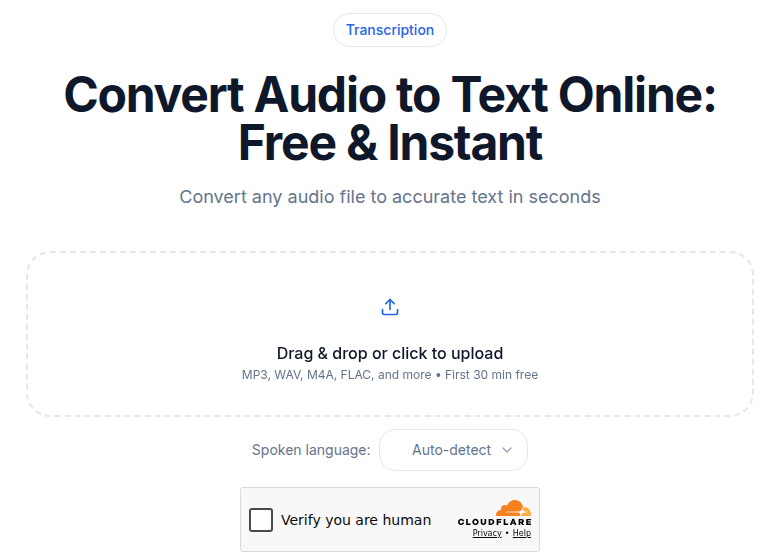 WAV uploads work directly; size is the only consideration
This post covers the format mechanics that matter for transcription, not just the upload steps.
What is the file size of a 60-minute WAV recording?
WAV stores audio as linear PCM: every sample is written as-is, no compression. The math is simple and the numbers are large.
At 44.1 kHz / 16-bit stereo (CD quality, common from consumer recorders and podcast mixers):
| Duration | WAV size | 192 kbps MP3 | 16 kHz mono WAV |
|---|---|---|---|
| 1 minute | ~10 MB | ~1.4 MB | ~1.9 MB |
| 30 minutes | ~300 MB | ~43 MB | ~57 MB |
| 60 minutes | ~600 MB | ~86 MB | ~110 MB |
| 3 hours | ~1.8 GB | ~259 MB | ~330 MB |
At 48 kHz / 24-bit stereo (standard from broadcast field recorders like the Zoom F-series and RodeCaster Pro II), the numbers are roughly 65% larger again, a 60-minute recording hits about 990 MB.
These sizes determine whether you can upload directly or need to convert first. They also explain why a 3-hour conference WAV can stall a browser upload for 20 minutes on a typical home connection.
What is the difference between WAV, BWF, and polyWAV?
WAV is a container format (RIFF/WAVE specification), not a codec. Most WAV files contain uncompressed linear PCM audio, but the container can hold other encodings too. Three variants you will actually encounter when transcribing:
PCM WAV is the default. Audio samples stored as fixed-point integers: 16-bit (consumer), 24-bit (professional), or 32-bit integer (rare). All modern transcription services handle these natively. The vast majority of WAVs you will encounter are 16-bit or 24-bit PCM.
BWF (Broadcast Wave Format) is WAV plus a BEXT metadata chunk carrying timecode, scene/take data, and unique file IDs. It is the default format on most broadcast field recorders (Sound Devices, Zoom F-series, Tascam portacaptured in ENG mode). For transcription, BWF is functionally identical to plain WAV, the BEXT chunk is ignored by speech engines.
PolyWAV is a multi-channel BWF: one file, multiple tracks, each track on its own channel. A RodeCaster Pro records a 14-channel polyWAV (each mic plus stereo mix). A Zoom F8n Pro can record up to 10 channels in a single polyWAV.
This is the biggest format-specific gotcha for transcription: most transcription services that accept WAV treat a polyWAV as a single mixed-down audio stream. They run diarization on the mix, not per-track. To get clean per-track transcription, you need to either:
- Split the polyWAV into individual mono WAVs first (
ffmpeg -i poly.wav -map 0:a:0 track1.wav -map 0:a:1 track2.wav ...), then submit one per speaker. - Use a service with explicit multichannel support (Deepgram's
multichannel=trueparameter processes each channel as a separate transcript). Note that multichannel and speaker diarization are mutually exclusive, you choose one approach per request.
For more on when to use channel-based vs. diarization-based speaker separation, see speaker diarization explained.
Can I upload a 32-bit float WAV to transcription tools?
Common in professional production tools (Pro Tools, Logic Pro, Audacity's internal format) and from field recorders with "32-bit float" mode like the Zoom F8n Pro or the Sound Devices MixPre-10 II. The advantage is headroom: 32-bit float captures audio that clips in hardware without hard-limiting. The transcription gotcha: Google Cloud Speech-to-Text v1 rejects 32-bit float WAV, requiring conversion before submission. If a transcription service returns an encoding error on a WAV, this is the most likely cause.
Convert before uploading:
ffmpeg -i input-float.wav -acodec pcm_s16le output-pcm.wav
Most modern transcription services accept 32-bit float WAV without issue; the conversion is only needed when a tool rejects the file.
WAV from Common Recorders: What Sample Rate and Bit Depth to Expect
Different recording devices produce different WAV specs, and these affect upload size:
Podcast mixers (RodeCaster Pro II, Rodecaster Duo): 48 kHz / 24-bit, polyWAV for multitrack. The stereo mix is a standard 2-channel WAV.
Professional field recorders (Zoom F-series, Sound Devices MixPre): up to 192 kHz / 32-bit float. For transcription, anything above 16 kHz / 16-bit is uploading more data than the model will use.
DSLR and mirrorless cameras (Canon R-series, Sony A7-series): PCM WAV or BWF at 48 kHz / 16-bit, recorded to the internal card or an attached recorder. Common source for interviews shot on camera.
Lecture capture systems (Echo360, Panopto): Often output WAV at 44.1 kHz / 16-bit alongside video, or embed audio in the video container. The WAV track, if available separately, is cleaner to process than extracting from H.264 video.
For transcription purposes, the model's internal processing target is 16 kHz mono 16-bit PCM. Everything above that is discarded internally. You are paying upload bandwidth for data the engine does not use.
Should I convert WAV to MP3 before uploading if the file is too large?
If your WAV exceeds a service's upload cap, convert to 192 kbps MP3 and archive the original WAV. There are four paths in total:
Path 1: Upload WAV directly. For files under your service's upload cap, direct upload is the simplest path. Walk away and come back. Upload time dominates.
Path 2: Downmix to 16 kHz mono WAV (lossless from the model's perspective). The transcription engine will do this conversion internally anyway. Do it client-side first to cut upload size by roughly 80%:
ffmpeg -i recording.wav -ac 1 -ar 16000 recording-16k-mono.wav
A 60-minute 44.1 kHz stereo WAV drops from 600 MB to about 110 MB. The model sees identical content.
Path 3: Convert to FLAC (lossless, smaller). FLAC compresses the same PCM data losslessly, typically to 40-60% of WAV size. A 60-minute WAV at 300 MB becomes roughly 150-180 MB as FLAC.
ffmpeg -i recording.wav -acodec flac recording.flac
FLAC is worth choosing when you want to preserve the exact original audio fidelity but need faster uploads than WAV allows. For more on converting audio formats for transcription, see how to convert FLAC to text.
Path 4: Convert to MP3, archive the WAV. The most practical workflow for high-volume situations. Upload a 192 kbps MP3 (about 1.4 MB/min), keep the WAV as the archive master.
ffmpeg -i recording.wav -acodec mp3 -ab 192k recording.mp3
At 192 kbps, the accuracy difference compared to the original WAV is negligible for speech on clean recordings. Below 128 kbps, lossy compression starts to erode high-frequency consonants. Below 64 kbps, accuracy drops enough to produce systematic errors on unusual names and technical vocabulary. For a full comparison of format tradeoffs for speech recognition, see WAV vs MP3 for transcription.
When does converting to MP3 first actually make sense? When your WAV exceeds an upload cap. A long WAV at 48 kHz / 24-bit can hit service file size limits. Converting to MP3 at 192 kbps brings a 5-hour recording from roughly 5 GB down to about 700 MB, well within any service's cap. Always archive the original WAV before converting.
How to Transcribe a WAV File
The upload step is deliberately short because the format expertise is the point of this post.
- Choose your path above (direct WAV, downmixed WAV, FLAC, or MP3).
- Upload to your transcription service of choice.
- Set language, speaker count, and any vocabulary hints.
- Run. WAV files process at the same speed as equivalent-duration MP3s, the engine works on audio duration, not file size.
- Export as TXT, SRT, VTT, or DOCX.
If you just need a clean transcript without a meeting bot or heavy editing tools, ConvertAudioToText handles WAV natively, supports the full 16 kHz downmix path server-side, and accepts multi-gigabyte uploads on paid plans.
Pre-transcription Edits That Help
For WAV files with audio problems, a short editing pass before upload pays off:
- Noise reduction: iZotope RX, Adobe Enhance Speech, or Audacity's noise reduction filter. Most valuable on room recordings with HVAC hum or outdoor recordings with wind.
- Silence trimming: Cut dead air at the start and end. Helps diarization, which can misfire on long silences.
- Loudness normalization: Bring quiet speakers to a consistent level. Common issue on multi-person podcast recordings where one mic was too far from the speaker.
- Dynamic range: WAV's dynamic range (96 dB for 16-bit, 144 dB for 24-bit) means very quiet passages that compress poorly in MP3 are still captured clearly. This is the main practical advantage of archiving WAV.
For recordings that were captured cleanly, skip the editing pass entirely and just submit. Editing time adds up fast, and modern speech models handle moderate noise better than they did three years ago. Reserve editing for recordings where you can hear the problem clearly when listening back.
Does WAV transcribe more accurately than MP3?
WAV's main accuracy advantage is what it lacks: lossy encoding artifacts. A 44.1 kHz 16-bit WAV carries the full frequency range up to about 22 kHz, well above the 8 kHz cutoff of telephone audio and above the 4 kHz range that most speech content lives in.
In practice, the accuracy difference between WAV and a 192 kbps MP3 of the same recording is negligible for most speech content. The gap grows in two scenarios:
- Borderline audio quality: noisy rooms, distant microphones, heavy accents. Lossy encoding makes marginal audio harder to recover from.
- Tonal languages or technical vocabulary: phonemes that rely on fine spectral structure are better preserved in uncompressed audio.
For a deeper look at how audio format affects transcription accuracy, see transcription accuracy explained.
FAQ
Does WAV transcribe more accurately than MP3?
For the same recording, the difference between WAV and a high-bitrate MP3 (192 kbps or above) is negligible on clean audio. The gap grows with lower-quality MP3s: at 64 kbps you lose enough high-frequency content that accuracy noticeably drops. Keep WAV for borderline recordings or legal chain-of-custody needs; use 192 kbps MP3 for everyday work.
What is the file size of a 60-minute WAV recording?
At 44.1 kHz / 16-bit stereo (CD quality), a 60-minute WAV is roughly 600 MB. At 48 kHz / 24-bit stereo (common from field recorders), it runs closer to 1 GB. Downmixing to 16 kHz mono before uploading brings the same hour of audio to about 110 MB, which is what most transcription engines process internally anyway.
Can I upload a 32-bit float WAV to transcription tools?
Most modern transcription services accept 32-bit float WAV, but some older integrations and Google Cloud Speech-to-Text v1 reject it. If a tool rejects your file, convert to 16-bit PCM first with ffmpeg: ffmpeg -i input.wav -acodec pcm_s16le output.wav. The audio content is identical after conversion.
What is the difference between WAV, BWF, and polyWAV?
WAV is the standard Microsoft/IBM container for PCM audio. BWF (Broadcast Wave Format) is WAV with an added BEXT metadata chunk carrying timecode, scene/take info, and unique file identifiers, the default output of most broadcast field recorders. PolyWAV is a multi-channel BWF that stores up to 99 tracks in a single file, one per microphone. For transcription, all three behave identically; the metadata is ignored by speech engines.
Should I convert WAV to MP3 before uploading if the file is too large?
Yes. If your WAV exceeds a service's upload cap, convert to 192 kbps MP3 using ffmpeg (ffmpeg -i recording.wav -acodec mp3 -ab 192k recording.mp3) and keep the WAV as your archive. At 192 kbps the accuracy difference is too small to matter for most recordings. Alternatively, convert to 16 kHz mono WAV first, which gives you lossless audio at roughly one-fifth the original file size.
Sources
- WAV file size math and calculation formulas
- PCM audio and WAV format structure, AudioUtils
- 32-bit float WAV explained, Sound Devices
- Broadcast Wave Format, Wikipedia
- WAV, BWF and Poly container guide, Soundrolling
- Optimizing audio for Google Cloud Speech-to-Text
- Deepgram multichannel documentation
- FLAC vs WAV compression ratio, Cloudinary
- Descript pricing
- Otter.ai pricing
- Rev pricing
Try transcription free
Convert any audio or video to clean, unwatermarked text — speaker labels, timestamps, and AI summaries included. First 30 minutes free, no account.
Related Articles
How to Convert AAC to Text: Streams vs M4A Explained
AAC to text: the raw-stream vs M4A container distinction that trips tools, broadcast origins, and the reliable workflow.
How to Convert FLAC to Text: Lossless Audio Guide 2026
FLAC to text for field recordings and archival interviews: why lossless helps, half-of-WAV file sizes, and the upload workflow.