How to Convert FLAC to Text: Lossless Audio Guide 2026
Summarize this article with:
Quick Answer
Upload your FLAC file to a transcription tool that accepts it natively, select your language, and run. You get the same accuracy as WAV at roughly half the file size, so there is no reason to convert to MP3 first. The rest of this guide explains what makes FLAC different under the hood and where the workflow breaks in practice.
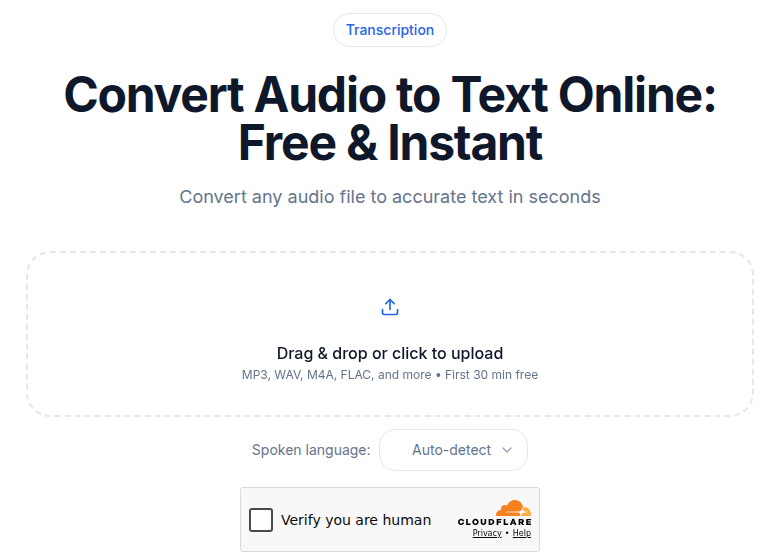 FLAC uploads keep lossless quality end to end
What FLAC Actually Is (and Why Archivists Use It)
FLAC stands for Free Lossless Audio Codec. It is lossless compression, which means the file is bit-for-bit identical to an uncompressed WAV when decoded. No audio data is thrown away. The format uses variable-rate entropy coding, so quiet or simple passages compress harder than dense, complex ones. For spoken-word recordings, which have a lot of silence and relatively narrow frequency content, FLAC typically reaches 50% of the WAV file size.
That math matters concretely. One hour of CD-quality stereo audio (44.1 kHz, 16-bit) is around 600 MB as WAV. The same content as FLAC lands around 300 MB. Speech compresses particularly well because voice sits in a much narrower frequency band than music.
WAV is still the dominant format for field recorders and broadcast gear. The Zoom H6 records WAV/MP3, Sound Devices MixPre records 32-bit WAV, most Tascam portables record WAV. FLAC enters the picture at the archival stage. Oral history programs at university libraries, journalism organizations, and public radio archives routinely convert WAV masters to FLAC for long-term storage because the combination of lossless fidelity and 50% size reduction is hard to beat. Hi-res streaming platforms (Tidal, Qobuz) also deliver 24-bit/96 kHz FLAC, which is where a lot of music-with-speech content lives.
If you have FLAC on your drive, it almost certainly came from one of three places: a WAV master that was converted for archival, a CD rip kept at lossless quality, or a hi-res streaming download.
What FLAC Means for Transcription Accuracy
FLAC and WAV deliver the same baseline transcription accuracy because they carry identical audio data. IBM Watson's audio-format research found that MP3 produces roughly 10% more errors (higher word error rate) than WAV or FLAC. Ogg Opus at 64 kbps shows about 2% degradation. Those numbers hold across multiple engines because the loss of high-frequency information in lossy codecs removes phonetic cues that recognition models depend on.
The practical effect is most visible on hard material: quiet speakers, heavy accents, overlapping talkers, and recordings with background noise. MP3 at 128 kbps thins out the 8-16 kHz band where sibilants ("s", "sh", "t") live. FLAC preserves that range intact. On a clean, close-mic'd interview, the difference is invisible. On a field recording from a noisy room, it can save meaningful editing time.
The deeper point for archivists: if you invested in a lossless master because you knew the recording had archival value, transcribing it as FLAC honors that investment. Converting to MP3 before upload is the wrong direction.
A note on what FLAC does not do: it does not improve a bad recording. FLAC preserves whatever is in the source. If the original microphone placement was poor or the room was reverberant, the transcript will reflect those problems. Lossless compression cannot recover information that was never captured.
The Codec and Container Mechanics That Matter
FLAC is both a codec and a container. Unlike MP3, which lives inside MP3 containers, or AAC, which gets wrapped in M4A or MP4 containers, a .flac file holds both the compressed audio and the metadata directly. This simplicity is useful: there are no codec-container mismatches, no video tracks to strip, no DRM layers to worry about in ordinary cases.
For transcription accuracy, the relevant specs are:
Sample rate. FLAC files from CD rips are typically 44.1 kHz. Field-recorder conversions are usually 48 kHz. Hi-res downloads are often 96 kHz or 192 kHz. All of these work. Transcription engines resample to 16 kHz internally, so anything above 48 kHz is wasted upload bandwidth.
Bit depth. 16-bit and 24-bit are both common and both work. The bit depth affects dynamic range and file size, not the frequency content the engine cares about.
Channels. Mono and stereo are standard. FLAC supports up to 8 channels, so 5.1 and 7.1 files are possible, usually from film audio rips. These need to be mixed down before uploading (more on that below).
Variable bitrate by nature. FLAC is inherently VBR. The bitrate fluctuates across the file depending on audio complexity. A one-hour speech FLAC might show 700-900 kbps on average, but that number is not fixed the way MP3 bitrate is. Do not use the file's bitrate to judge quality; use bit depth and sample rate instead.
Old encoder block sizes. FLAC files encoded before version 1.3.0 occasionally use non-standard block sizes that some tools reject with an "unsupported codec" error. The audio is not damaged. Re-encode with ffmpeg -i in.flac -c:a flac out.flac to get a current-spec FLAC. The audio stays lossless through that operation.
Step-by-Step: Transcribing a FLAC File
Check the file first. Run ffprobe yourfile.flac (included with any FFmpeg installation) or look at file properties in your audio software. Confirm the sample rate, bit depth, and channel count. This takes 10 seconds and prevents surprises.
Upload directly without converting. Tools that handle FLAC natively preserve the lossless advantage through the pipeline. Converting to MP3 before uploading trades accuracy for nothing, since modern tools accept FLAC without complaint. If you want clean transcripts of archived interviews and field recordings, see how to convert WAV to text for the same workflow applied to uncompressed sources.
If your file is very large (a 4-hour 24-bit/96 kHz stereo FLAC can approach 4 GB after compression), either downsample to 16-bit/44.1 kHz first or split into chunks. See the section below on troubleshooting for the exact ffmpeg commands.
Select the language manually. Auto-detect works reasonably well on long, clear recordings, but manually selecting the language improves accuracy by 2-5 percentage points on short clips and accented speech. Most engines support 50-99 languages.
Review the output for proper nouns and jargon. Names of people and places, technical terms, and numbers are the most common error categories regardless of format. A quick pass after transcription catches most of these.
Export in the format you need. TXT or DOCX for editing and archival. SRT or VTT if the FLAC was extracted from a video and the transcript will be used as subtitles.
If you want to try this without a software install, ConvertAudioToText accepts FLAC directly with no conversion step required.
Common FLAC Sources and Their Specific Gotchas
WAV-to-FLAC Archives from Field Recorders
The most common source. A journalist recorded a 90-minute interview on a Zoom H6 as WAV, then converted to FLAC for long-term storage. These files are usually 48 kHz/24-bit stereo. They transcribe cleanly, with one frequent wrinkle: stereo recordings sometimes have the interviewer on the left channel and the subject on the right, because the recorder was positioned between them. A tool with speaker diarization should detect and label both speakers. If it does not, mix to mono first (ffmpeg -i in.flac -ac 1 out.flac).
CD Rips of Interview Discs and Oral Histories
Libraries and radio archives sometimes distribute interview collections on CD or issue them as CD-quality FLAC downloads. These are 44.1 kHz/16-bit, the most common FLAC specification, and they work without any preparation. The one thing to watch: track boundaries. If the CD was split into tracks per question or per segment, you may want to concatenate the tracks before uploading to get a continuous transcript with accurate timestamps, rather than submitting 20 short files individually.
Hi-Res Streaming Downloads (Tidal, Qobuz)
Platforms delivering 24-bit/96 kHz or 24-bit/192 kHz FLAC give you files that are 2-3x larger than necessary for transcription. A 1-hour hi-res stereo FLAC at 96 kHz compresses from roughly 2 GB (WAV equivalent) to around 1 GB. There is no transcription benefit to that resolution. Speech sits below 8 kHz; the engine resamples to 16 kHz anyway. Pre-downsampling to 16-bit/44.1 kHz with ffmpeg -i in.flac -ar 44100 -sample_fmt s16 out.flac cuts upload time substantially with no accuracy loss.
Music Podcasts and Concert Recordings with Speech Segments
Music podcasts, lecture recordings with musical examples, and concert recordings with MC introductions all arrive as FLAC because the host wants the music preserved. The speech sections transcribe normally. The problem is non-speech sections: Whisper and similar models occasionally hallucinate plausible-sounding text during long instrumental passages or silence. The fix is trimming the file to speech-only before uploading, or using a tool with voice activity detection (VAD) that automatically skips non-speech regions. For more on this workflow, see best transcription tools for podcasts.
FLAC vs Other Formats for Transcription
| Format | Lossless | 1-hr stereo file size | Transcription accuracy vs WAV | Best use case |
|---|---|---|---|---|
| FLAC | Yes | ~300 MB | Identical (baseline) | Archival, journalism, CD rips |
| WAV (16-bit/44.1 kHz) | Yes (uncompressed) | ~600 MB | Baseline | Studio, broadcast, field recording |
| MP3 320 kbps | No | ~144 MB | ~1-2% worse | Casual distribution |
| MP3 128 kbps | No | ~58 MB | ~10% worse | Streaming, voice memos |
| Ogg Opus 64 kbps | No | ~29 MB | ~2% worse | Compressed voice, podcasts |
My take: if you have FLAC, transcribe it as FLAC. The 50% size saving over WAV comes free and the accuracy is identical. The only scenario where it makes sense to convert is when your target tool refuses FLAC, which is increasingly rare. For a broader comparison of formats and what they mean at the API level, see supported audio formats for transcription and WAV vs MP3 for transcription.
When FLAC Transcription Goes Wrong
File too large to upload. A 4-hour 24-bit/96 kHz stereo FLAC can approach 4 GB. Two options. Split into 30-minute chunks: ffmpeg -i in.flac -f segment -segment_time 1800 -c copy out_%03d.flac. Or downsample the whole file to 16-bit/44.1 kHz first: ffmpeg -i in.flac -ar 44100 -sample_fmt s16 out.flac. The downsampled version will be under 600 MB per hour with no transcription accuracy loss.
Hallucinated text during music or silence. The model invents plausible text when it receives non-speech audio. Trim the FLAC to speech-only sections before uploading, or choose a tool that runs VAD preprocessing to skip those regions automatically.
Speaker labels swapped or missing. Common when a stereo FLAC has one speaker per channel. Try requesting diarization explicitly. If the tool still misses it, mix to mono first so the diarizer works from the combined signal rather than guessing from channel separation.
"Unsupported codec" error. Older FLAC files (pre-1.3.0 encoder) use non-standard block sizes. Re-encode: ffmpeg -i in.flac -c:a flac out.flac. The audio is bit-identical after re-encoding; no quality loss.
Bitrate looks wrong in the file inspector. FLAC is variable-rate by design. A reading of 700 kbps or 1,100 kbps is normal and does not indicate a problem. What matters is the bit depth and sample rate, not the VBR bitrate average.
FAQ
Is FLAC better than MP3 for transcription?
Yes, measurably so. IBM Watson's audio-format research found MP3 produces roughly 10% more transcription errors than WAV or FLAC. The gap is largest on quiet speakers, heavy accents, and noisy recordings. If you already have FLAC, transcribe it as FLAC. Converting to MP3 first discards frequency information the model could use.
Can I transcribe FLAC for free?
Yes. ConvertAudioToText transcribes the first 30 minutes of a FLAC file with no signup at all, and a free account transcribes up to 30 files a day, up to 30 minutes each. TXT downloads are free on that account; for longer files or other download formats, the Weekly Pass or a paid plan covers you.
Will a transcription engine accept 24-bit FLAC?
Yes. Modern engines resample audio to 16 kHz mono internally, regardless of your source bit depth or sample rate. A 24-bit/96 kHz file works fine. The main downside is upload time: at roughly 2 GB per hour before FLAC compression, very large hi-res files take a while to transfer.
What if my FLAC has multiple audio tracks?
FLAC supports up to 8 channels. Most spoken-word recordings are mono or stereo and work without any preparation. If you have a 5.1 or 7.1 file, mix to mono first with ffmpeg (ffmpeg -i in.flac -ac 1 out.flac). The center channel usually carries the dialog in surround mixes.
Sources
- IBM Watson Speech Services: "Why the Audio Compression Format Impacts the Speech-to-Text Transcription Accuracy", https://medium.com/ibm-data-ai/why-the-audio-compression-format-impacts-the-speech-to-text-transcription-accuracy-84da6438024c
- OpenAI Whisper GitHub repository and format documentation, https://github.com/openai/whisper
- Zoom H6 product manual (WAV/MP3 format specs), https://zoomcorp.com/media/documents/E_H6.pdf
- Sound Devices MixPre-3 II product page, https://www.sounddevices.com/product/mixpre-3-ii/
- FLAC Wikipedia specification page, https://en.wikipedia.org/wiki/FLAC
- University of Pittsburgh Oral History Toolkit: File Formats, https://pitt.libguides.com/oralhistorytoolkit/formats
- AssemblyAI: Best audio file formats for speech-to-text, https://www.assemblyai.com/blog/best-audio-file-formats-for-speech-to-text
- Colin Crawley Audio File Size Calculator, https://www.colincrawley.com/audio-file-size-calculator/
- FFmpeg segment muxer guide, https://www.samgalope.dev/2024/11/11/audio-segmentation-a-simple-guide-to-splitting-long-audio-files-with-ffmpeg/
Try transcription free
Convert any audio or video to clean, unwatermarked text — speaker labels, timestamps, and AI summaries included. First 30 minutes free, no account.
Related Articles
How to Convert AAC to Text: Streams vs M4A Explained
AAC to text: the raw-stream vs M4A container distinction that trips tools, broadcast origins, and the reliable workflow.
How to Convert OGG to Text (WhatsApp Voice Notes) 2026
Convert OGG files to text, including WhatsApp voice notes, Discord messages, and Audacity exports. Covers Vorbis vs Opus codecs, export paths, and transcription gotchas.