
How to Create an SRT File: Format, Rules, Examples
Summarize this article with:
The Format in 30 Seconds
An SRT file is a plain text file. Each subtitle entry has four parts in strict order: a sequence number on its own line, a timecode range, the subtitle text, and a blank line. That blank line is the separator. Repeat that pattern for every subtitle. Nothing else is required.
1
00:00:01,000 --> 00:00:04,500
Welcome to today's tutorial.

2
00:00:05,000 --> 00:00:08,200
We'll cover everything you need
to know about SRT files.

3
00:00:09,000 --> 00:00:12,800
Let's start with the basics.
That is a complete, valid SRT file. Three subtitles, three blank-line separators. Open it in any text editor and you can read it immediately.
What SRT Actually Is
SRT stands for SubRip Text. The format originated with SubRip, a Windows program released in 2000 that extracted subtitles from DVD video streams using optical character recognition. The program's output format became the de-facto standard not because anyone published a specification, but because players adopted it. There is no official spec document: the format is defined by what the original software produced and what players learned to accept.
That origin matters for one practical reason: SRT is a de-facto standard, not an IETF or W3C standard. Different players are subtly forgiving in different ways. YouTube strips all markup. VLC accepts bold and italic tags. Strict parsers reject periods in timecodes; lenient ones accept them. When in doubt, write the plainest valid SRT you can.
SRT files use the .srt extension. They are plain text, no binary encoding, no proprietary structure. A feature-length film might have 2,000 subtitle blocks and the file is still only a few hundred kilobytes.
Anatomy of a Subtitle Block
Each block has exactly four components.
1. Sequence Number
A positive integer, starting at 1, incrementing by 1. Most modern players use timecodes for ordering and ignore the sequence number entirely, but keep them sequential anyway. Out-of-order numbers confuse older players and subtitle editing tools that rely on index lookups.
2. Timecode Line
00:00:01,000 --> 00:00:04,500
The format is HH:MM:SS,mmm --> HH:MM:SS,mmm.
- HH: hours, zero-padded to two digits
- MM: minutes (00-59)
- SS: seconds (00-59)
- mmm: milliseconds (000-999)
- The separator is
-->with exactly one space on each side
The millisecond separator is a comma, not a period. This is the single most common mistake when writing SRT by hand. 00:00:01,500 is correct. 00:00:01.500 is technically wrong (some forgiving players accept it, but YouTube does not). The comma comes from SubRip's French origin, where a comma is the decimal separator.
3. Subtitle Text
One or two lines of text. The standard maximum is two lines. Three or more lines cover too much of the video frame. Keep each line under 42 characters, which is the Netflix Timed Text Style Guide limit and a good general target. The BBC's internal broadcast standard is 37 characters per line; either figure gives you a comfortable reading experience on small screens.
SRT supports basic HTML-style tags: <b>, <i>, <u>, and <font color="#RRGGBB">. Support varies by platform, so use them sparingly or not at all for general distribution.
4. Blank Line
A single blank line ends the block. Missing this separator causes the parser to merge blocks together.
The file should also end with a blank line after the last subtitle.
Here is a more complete example showing good line-breaking practice:
4
00:00:11,000 --> 00:00:14,200
You can find the download link
in the description below.

5
00:00:15,000 --> 00:00:18,500
All right, let's get started.
Notice the line break in block 4: it falls between a noun phrase and a prepositional phrase, not in the middle of a clause. Breaking mid-clause ("You can find the download" / "link in the description") forces the reader's eye to carry context across the line break, slowing comprehension.
Hand-Writing an SRT File
For a short video under five minutes or a few dozen subtitle blocks, writing by hand is feasible. For anything longer, generating first and editing second is faster.
Choose the Right Editor
Use a plain text editor. Word processors (Microsoft Word, Google Docs) add invisible formatting characters that silently break SRT parsing.
Good options:
- Windows: Notepad++, VS Code, or plain Notepad in a pinch
- Mac: VS Code, Sublime Text, or TextEdit in plain-text mode (Format > Make Plain Text)
- Linux: gedit, nano, VS Code
VS Code is worth installing on any platform. It shows line endings, lets you set encoding explicitly, and has SRT syntax plugins if you subtitle often.
Save with the Right Extension and Encoding
When saving, set two things explicitly:
- Extension:
.srt, not.txt. If your editor saves as.txt, rename the file after saving. - Encoding: UTF-8 without BOM.
The BOM variant causes a specific failure worth understanding. A BOM (byte order mark) is a three-byte sequence (EF BB BF) that some editors prepend to UTF-8 files. Players treat it as part of the file content, so it appears before the 1 of your first sequence number. The parser reads \xef\xbb\xbf1 instead of 1, fails to parse the sequence number, and the first subtitle block disappears entirely. The rest of the file works fine.
In VS Code, the encoding appears in the status bar at the bottom right. Click it to change. Select "UTF-8" (not "UTF-8 with BOM"). In Notepad++: Encoding menu > "Encode in UTF-8 (without BOM)".
Test Before Publishing
Drag the SRT file onto an open video in VLC (or go to Subtitle > Add Subtitle File). If timecodes are correct, you'll see subtitles appear at the right moments. This catches parsing errors before you upload anywhere.
Auto-Generating SRT Files
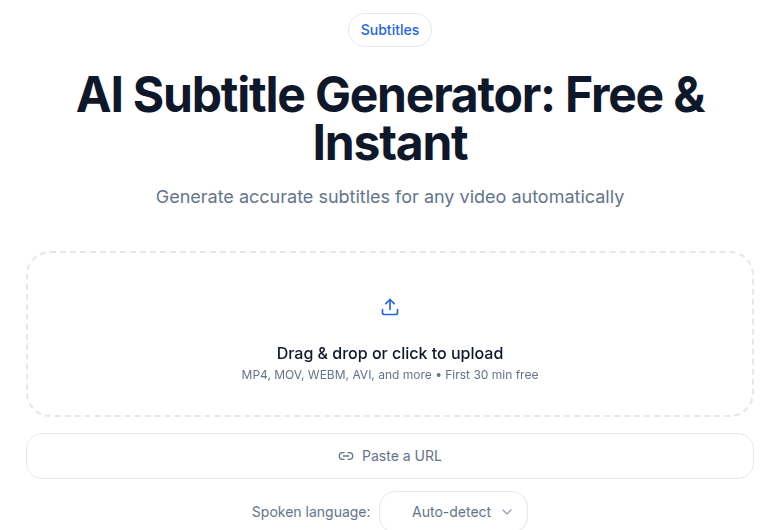
Manual creation makes sense for narration you wrote yourself and already know by heart. For interviews, podcasts, meetings, or any content where you are transcribing speech after the fact, AI generation is meaningfully faster. A ten-minute video that would take 45-60 minutes to subtitle by hand takes 1-3 minutes with an AI tool, and the rough transcript gives you something to edit rather than a blank page.
If you just need a clean SRT file without installing software, the CATT Subtitle Generator handles the upload, transcription, and export in one step. Upload your video or audio, wait for processing, edit any errors in the browser editor, and download the SRT.
For longer recordings or multi-speaker audio, getting a full transcript first sometimes makes editing easier. The audio-to-text tool produces a timestamped transcript you can refine before exporting as SRT.
See also: best free subtitle generators for a comparison of tools across different use cases.
Timing Best Practices
Minimum display time: 1 second. Anything shorter cannot be read. Maximum display time: 7 seconds. Beyond that, viewers lose the sense that it is a subtitle rather than a title card. Lead-in: Subtitles should appear 0.1-0.25 seconds before the speech starts, giving the eye time to find the text. Gap between subtitles: At least 80ms (0.08 seconds) between the end of one block and the start of the next. This visual "blink" signals a new subtitle has appeared.
Reading speed: professional subtitles target 15-20 characters per second. Children's content or educational material works better at 12-15 characters per second.
A quick check: take the total character count of a subtitle block, divide by the display duration in seconds. "Welcome to today's tutorial" (28 characters) over 3 seconds is 9.3 characters per second, quite comfortable. The same text over 1 second would be 28 characters per second, too fast to read comfortably.
Common Errors and How to Fix Them
Period instead of comma in timecodes. Swap every . in the millisecond position for a ,. A find-and-replace in your editor works if you are careful to target only the millisecond separator and not text content.
Missing blank lines. If blocks are merging together in the player, check that every block ends with a blank line. Some editors silently strip trailing blank lines on save.
Garbled characters (non-English text). Re-save the file as UTF-8 without BOM. The encoding is shown in your editor's status bar.
Overlapping timecodes. If subtitle 1 ends at 00:00:05,000 and subtitle 2 starts at 00:00:04,500, they overlap. Most players show both simultaneously or skip one. Fix by ensuring each subtitle's end time comes before the next subtitle's start time.
First subtitle missing. Almost always caused by a UTF-8 BOM. Strip it as described above.
SRT vs VTT: When to Use Which
| Use case | SRT | VTT |
|---|---|---|
| YouTube upload | Yes (preferred) | Yes |
| Vimeo upload | Yes | Yes |
| Facebook upload | Yes | No |
HTML5 <video> + <track> | Browser ignores it | Native support |
| DaVinci Resolve / Premiere Pro | Yes | Varies |
| VLC playback | Yes | Yes |
| Styling and positioning | Basic tags only | Full CSS-like support |
For web-based video players, VTT is the correct choice. Browsers natively support VTT through the <track> element. An SRT file referenced in <track> is silently ignored. Converting is minimal work: add WEBVTT on the first line, change commas to periods in timecodes, and rename the extension to .vtt. See SRT vs VTT subtitle formats for a deeper comparison.
For everything else (upload to YouTube, social media, desktop editing software), SRT is the safer choice because it has the broadest support across the most varied software versions.
Uploading SRT Files to Major Platforms
YouTube: YouTube Studio > Content > select video > Subtitles > Add Language > Add (under Subtitles) > Upload file > "With timing." YouTube notes that only basic SRT is supported: no markup is recognized.
Vimeo: Open the video in your Library, click the Languages button, then click the plus button to upload. Select SRT or WebVTT, choose the language and type (subtitle vs. caption), upload, and toggle it on. Vimeo requires UTF-8 encoding.
Facebook: Edit Video > Captions > Upload SRT File. Facebook requires the filename to include the language code: myfile.en_US.srt.
HTML5 video: Convert to VTT first, then use the <track> element. Alternatively, a JavaScript player like Video.js will handle both formats if you want to serve SRT directly.
FAQ
Can I add bold, color, or font styling to an SRT file?
SRT supports basic HTML-style tags: <b> for bold, <i> for italic, <u> for underline, and <font color="#FFFFFF"> for color. Support is inconsistent across players. YouTube ignores all SRT styling. VLC handles bold and italic. If consistent styling matters, use the ASS/SSA format, which has proper style blocks. For most workflows, plain unstyled text is the safest choice.
Why do my subtitles show garbled characters for non-English text?
This is almost always an encoding problem. The file was saved as Windows-1252, ISO-8859-1, or another legacy encoding instead of UTF-8. Open the file in VS Code or Notepad++, check the encoding label at the bottom, and re-save as UTF-8 without BOM. The BOM variant causes a second problem: the invisible byte-order mark appears before the sequence number of the first subtitle block, which breaks parsing and causes the first cue to disappear.
Should I use SRT or VTT for my website?
VTT for web video. The HTML5 <track> element only natively supports WebVTT. Browsers silently ignore SRT files referenced in a <track> tag. Most JavaScript players (Video.js, Plyr) accept both, but if you control the server, serve VTT. Converting is trivial: add WEBVTT as the first line, change commas to periods in timecodes, and rename the extension. SRT remains the right choice for uploading to YouTube, social media, and desktop video editors.
How do I fix subtitles that are out of sync?
If every subtitle is consistently early or late by the same amount, shift all timecodes by a fixed offset. A subtitle editor or the CATT subtitle generator's editor lets you do this in one step. If the drift increases over time (subtitles that start correct but fall behind by the end), the timecodes have a rate mismatch, which is common when mixing 23.976 fps and 25 fps frame rates. In that case, regenerating the subtitles from the source audio with an AI tool is faster than manual correction.
Sources
- SubRip on Wikipedia (format history and specification)
- Library of Congress: SubRip Subtitle Format
- YouTube: Supported subtitle and closed caption files
- Vimeo: How to add captions or subtitles
- WhisperS2T: SRT encoding issue (UTF-8 BOM)
- SubtitleEdit: UTF-8 BOM bug
- JBI Localization: SRT vs WebVTT differences
Try transcription free
Convert any audio or video to clean, unwatermarked text — speaker labels, timestamps, and AI summaries included. First 10 minutes free, no account.
Related Articles
How to Add Subtitles to a Video: 2026 Step-by-Step Guide
Add subtitles to any video in 2026. Covers AI subtitle generation, SRT formatting rules, soft vs burned-in paths, YouTube upload steps, and TikTok/Instagram best practices.

Subtitle Translation for Video: The Reliable Path
Translate existing subtitles the reliable way: machine pass plus review, length expansion handling, and timing re-fit.