
Recording Zoom for Transcription: Settings That Matter
Summarize this article with:
Enable "Record a separate audio file for each participant" before your meeting starts, it is the single biggest lever for clean speaker attribution. Record locally on a paid plan when audio quality matters; cloud recording is more compressed and adds a 10-15 minute upload wait. Set background noise suppression to Low or Off so the model hears complete syllables. For what to do with the file after the call, see the companion post on transcribing Zoom recordings.
To record Zoom for transcription, do three things before the call starts: enable per-participant separate audio tracks, switch background noise suppression to Low, and choose local recording if audio quality matters more than convenience. Everything else is a smaller gain on top of those three.
The One Setting That Changes Everything
Zoom's default produces a single mixed audio file. Every speaker's voice goes into one track, and any transcription tool has to separate them by voice characteristics alone, a hard problem with 3 or more speakers overlapping.
When you enable "Record a separate audio file for each participant", each person gets their own M4A file. Each file has one voice. Speaker attribution becomes near-certain because the file itself tells you who is speaking, not an algorithm guessing from audio features.
How to enable it for local recording:
- Open the Zoom desktop app, then Settings, then Recording.
- Check "Record a separate audio file for each participant."
- Start recording as normal.
For cloud recording, the setting is in your Zoom web portal under Settings, then Recording: look for "Record an audio only file" and then "Record a separate audio file of each participant." This requires a Pro, Business, or Enterprise account with cloud recording enabled.
Two caveats: participants who join by phone (not via the Zoom app) are merged into a single combined audio file regardless of this setting. And the maximum Zoom supports is 200 separate speaker tracks per meeting.
Local vs Cloud Recording: Which to Choose
The right choice depends on what you are optimizing for.
| Factor | Local Recording | Cloud Recording |
|---|---|---|
| Audio quality | Higher bitrate (under 2 Mbps per Zoom) | More compressed (under 1 Mbps) |
| Video resolution | Up to 1080p | Typically capped at 720p |
| Separate audio tracks | Available on all paid plans | Pro, Business, Enterprise |
| File availability | Immediately after meeting ends | 10-15 minute upload wait |
| Storage | Your local disk | 10 GB per licensed user (Pro/Business), unlimited (Enterprise) |
| Plan required for recording | All plans (local); paid for cloud | Pro or above |
| Phone participant audio | Merged into one track | Merged into one track |
My take: for client calls, journalism interviews, or anything you will reference later, record locally. The audio is better, the file is available instantly, and you do not depend on Zoom's servers. For routine team standups, cloud recording wins on convenience, files upload automatically, everyone can access them, and the quality gap matters less for internal meetings.
For transcription specifically, the compression difference between local and cloud is real but not the most important variable. Separate tracks plus decent microphones outweighs bitrate in almost every real-world comparison.
Mic Setup on the Participant Side
Recording settings can only work with what the microphone sends. If three people on the call are using laptop built-in mics, the recording will reflect that.
For calls you care about, ask participants before the meeting to:
- Use a wired USB headset or external mic, not the laptop's built-in.
- Wear wired earbuds or headphones during the call. Speakers feeding back into a mic create acoustic echo that Zoom's noise cancellation handles for human ears but not cleanly for transcription, the transcript ends up with a faint duplicate of words that confuses models.
- Mute when not talking, especially from noisy locations.
- Stay on the same audio device through the whole call. Switching mid-call resets Zoom's audio processing.
The headphones request is the most commonly skipped and the most impactful. Put it in the calendar invite.
Zoom Audio Settings to Adjust
On each participant's Zoom desktop app, in Settings then Audio:
- Suppress background noise: Low or Off. The "High" setting truncates quiet syllables and word starts to clean up the call for human listeners. That processing works against transcription accuracy. Low or Off preserves the full audio signal. Trade-off: noisy participants will sound noisier, but the transcript will be more complete.
- Original sound: On, if you are recording a podcast guest or interview with good gear. This bypasses Zoom's audio enhancements entirely. Use it only when the source audio is genuinely clean, it will not help and may hurt if the participant is in a noisy room.
- Echo cancellation: Auto is fine for most setups.
- High fidelity music mode: Off for standard meetings. On only for music or podcast guest recordings where audio fidelity matters more than voice clarity.
Note: the "Optimize for 3rd party video editor" setting in local recording preferences changes the video from variable to constant bitrate. This helps video editors. It has no meaningful effect on the audio file or transcription accuracy.
The Recording Side Checklist
Run this in the 60 seconds before the call:
- Separate audio tracks setting is on (check in Zoom app settings, not just once, it can revert).
- Local recording selected if audio quality matters.
- Background noise suppression set to Low or Off.
- Participants have headphones in (confirmed via calendar invite or opening message).
- Recording announced to all participants before starting.
- Cloud storage has space if using cloud recording.
The teams that consistently get clean meeting transcripts are not using better software. They run a checklist every single call.
After the Recording: Processing Your Files
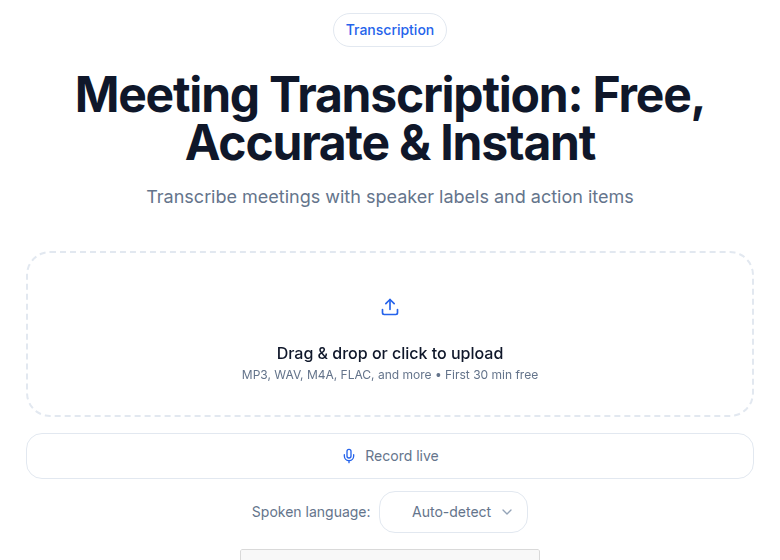 ConvertAudioToText meeting transcription tool in action
Once your Zoom recording finishes, you will have one of two situations.
Single mixed file: If separate tracks were off, you have one audio_only.m4a. Upload it to any transcription tool. Speaker attribution will rely on voice characteristics, expect 80-85% accuracy on calls with three or more participants, improving with fewer speakers and cleaner audio.
Per-speaker files: If separate tracks were on, you get a folder with audio_only.m4a and individual audio_[Name].m4a files for each app participant. Two approaches:
Upload each per-speaker file separately and label them as you go. Each file produces a perfectly attributed mini-transcript. Combine them by timestamp afterward.
Or use ffmpeg to merge the per-speaker files into a multi-channel WAV before uploading. This keeps timestamps aligned and produces one output file with speaker labels embedded.
For the full transcription workflow, what to do with these files, how to turn them into meeting minutes, and which tools handle multi-speaker recordings best, see the companion post on how to transcribe a Zoom meeting.
Handling Long Meetings and File Splits
Zoom's free Basic plan caps group meetings at 40 minutes (still active in 2026, per Zoom's plan documentation). For paid plans, meetings can run for hours.
Most transcription tools accept large files. If you need to split a long recording, ffmpeg can cut by timestamp without re-encoding:
ffmpeg -i meeting.m4a -ss 00:00:00 -t 01:00:00 -c copy part1.m4a
ffmpeg -i meeting.m4a -ss 01:00:00 -t 01:00:00 -c copy part2.m4a
The output transcripts can be concatenated in order and then summarized together. For context on turning the transcript into action items and decisions, see creating meeting minutes from audio.
What If You Cannot Record
Sometimes legal, org policy, or participant preferences prevent recording.
Zoom's built-in live transcription (part of AI Companion on paid plans) gives you a real-time caption stream during the call. Accuracy is reported around 85-90% under good conditions and drops on technical terms, accents, and speaker crosstalk. The output is a rough caption file, not a structured transcript. For AI Companion features, Zoom covers 46 languages for live captions as of their current documentation.
If neither recording nor live transcription is available, the live caption export is the next best option. Quality will be around 80% and degrades with content complexity.
Recording Consent
Zoom displays a notification banner to all participants when a host starts recording. That visible notice usually satisfies single-party consent requirements under federal law (the Electronic Communications Privacy Act) and in most US states.
For calls involving participants in California, Florida, Connecticut, Maryland, or other all-party consent states, a verbal acknowledgment at the start of the call is safer practice: "I am recording this call, please let me know if that is not okay." If the participant continues, that is generally treated as consent.
If your call crosses international lines, requirements differ significantly. Always check the laws for each participant's jurisdiction when in doubt. This post covers the recording side; the legal framework for different scenarios is a separate topic that warrants its own research.
If You Just Need a Quick Transcript
If the setup above feels heavy for a routine call, ConvertAudioToText's meeting transcription tool accepts the mixed audio_only.m4a file Zoom produces by default. No separate tracks required. Upload, wait a few minutes, and get a speaker-labeled transcript with timestamps.
For higher-stakes recordings, the settings above are worth the extra two minutes of prep. For everything else, record however is convenient and clean up with a good transcription tool.
Frequently Asked Questions
Does the separate audio track setting work for cloud recordings?
Yes. Zoom added per-participant audio files for cloud recording on Pro, Business, and Enterprise plans. Phone participants are an exception: all callers who join by phone are merged into one combined audio file regardless of the setting. Local recording has supported separate tracks longer and still works on all paid plans.
What is the quality difference between local and cloud Zoom recordings?
Local recordings use higher bitrates (Zoom states under 2 Mbps total) and can save up to 1080p video. Cloud recordings are more compressed (under 1 Mbps total) and are typically capped at 720p. For transcription purposes, the audio gap is real but modest, the bigger win is separate tracks, not resolution.
Can I record Zoom for transcription on the free plan?
Partly. Free accounts can record locally, so you can capture a file and upload it to a transcription tool. Cloud recording and the separate per-participant audio track feature both require a paid plan (Pro or above). The free plan also caps group meetings at 40 minutes.
Does lowering noise suppression actually help transcription?
Yes, in most cases. Zoom's high noise suppression truncates quiet word starts and plosives to make calls sound cleaner to human listeners. That same processing can confuse AI transcription models. Low or Off preserves the full audio signal. The tradeoff: if a participant is in a loud environment, Low/Off will let that noise through.
Sources
- Zoom Support: Changing basic and advanced cloud recording settings, support.zoom.com/hc/en/article?id=zm_kb&sysparm_article=KB0064676
- Zoom Support: Recording formats, support.zoom.com/hc/en/article?id=zm_kb&sysparm_article=KB0064394
- Zoom Support: Cloud recording storage capacity, support.zoom.com/hc/en/article?id=zm_kb&sysparm_article=KB0067670
- Zoom Support: Understanding time limits for Zoom Meetings, support.zoom.com/hc/en/article?id=zm_kb&sysparm_article=KB0067966
- Brass Transcripts: Zoom Recording Settings for Better Transcription, brasstranscripts.com/blog/zoom-recording-settings-perfect-transcription
- Recording Law: California Recording Laws (2026), recordinglaw.com/party-two-party-consent-states/california-recording-laws/
- StreamGeeks: How to Increase the Quality of Your Zoom Recordings, streamgeeks.us/how-to-increase-the-quality-of-your-zoom-recordings/
Try transcription free
Convert any audio or video to clean, unwatermarked text — speaker labels, timestamps, and AI summaries included. First 30 minutes free, no account.
Related Articles

Best Zoom Transcription Tools 2026, by Workflow
Zoom transcription tools ranked by actual workflow: live bots, native Zoom AI, and post-upload. Verified prices, free-tier limits, and honest trade-offs for 2026.

Repurpose Zoom Recordings into Blog Posts (2026 Workflow)
Turn a 45-minute Zoom call into a publishable 1,500-word article in under 90 minutes. The exact workflow: consent, transcribe, extract, and write.