
How to Transcribe a Lecture: Student Workflow (2026)
Summarize this article with:
The Short Version
Ask permission first, then record the full lecture. Upload the file to a transcription tool that handles your lecture's length without splitting. Run a vocabulary list for course-specific terms. Feed the transcript into a study-notes template. Total post-lecture time: roughly 25 minutes for a 90-minute session.
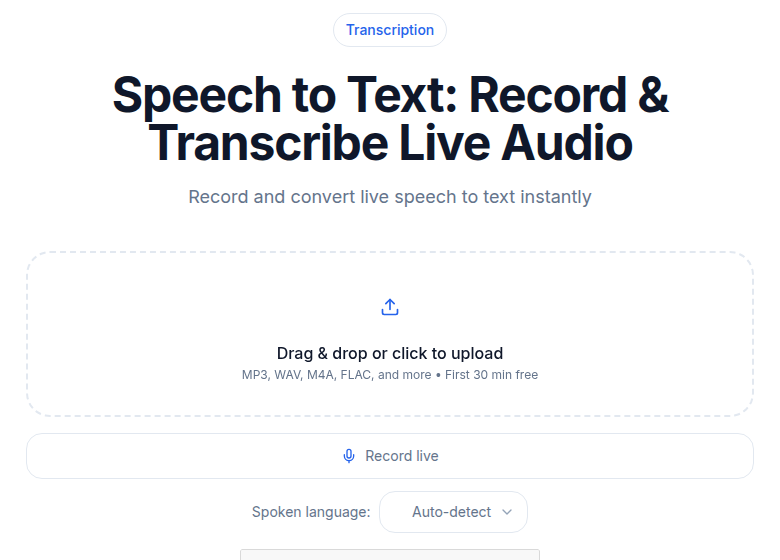 Long lecture recordings transcribe the same way: upload and wait a few minutes
Permission: The Step Most Students Skip
Recording a lecture without permission can violate university policy, state law, or the professor's copyright. Lectures are intellectual property, and many US institutions require explicit consent before any recording device is used in class.
The fastest check: read the course syllabus. Many professors state their recording policy there. If it is silent, a brief email or after-class question covers you. Most professors say yes to personal-use recording for study purposes.
Two situations where the rules differ:
- Disability accommodations. Federal law recognizes lecture recording as a reasonable accommodation that can override a professor's no-recording policy when a student has a documented disability. If you use Disability Services, confirm this in writing so you have documentation if challenged.
- Online lectures already posted. If the lecture is distributed through the course portal (Zoom recording, Panopto, Brightspace), you generally have implicit permission to download and transcribe your own copy for personal study.
Even with permission, the recording is for your personal use. Sharing transcripts on course-sharing platforms exposes you to a separate set of copyright and FERPA issues around identifying other students who spoke in class.
Recording the Lecture
Small lecture hall (40 people or fewer)
Put your phone or a compact recorder on your desk, mic pointed toward the front. A built-in microphone at 20-30 feet works well when the room has decent acoustics. Switch your phone to airplane mode before the lecture starts. A notification mid-class interrupts the audio and creates a gap in the transcript.
Large lecture hall (100+ people)
Distance kills audio quality. Three options, in order of preference:
- Use the lecture capture system. Many universities record lectures automatically and post them to the course portal. The microphone is already at the lectern. Check the portal before every lecture.
- Ask to place a recorder near the lectern. A 30-second conversation with the professor after class can save an entire semester of noisy recordings.
- External microphone on your phone. A lavalier mic for under $30, plugged into your phone, dramatically improves signal-to-noise ratio compared to a built-in mic at 40+ feet.
Online and recorded lectures
Download the recording directly (usually MP4) and skip live recording entirely. For Zoom lectures, Panopto, or Loom, transcribing from the downloaded file produces cleaner audio than any re-recording workaround.
Handling Long Lecture Files
A 90-minute lecture at MP3 192kbps mono is roughly 130 MB. That size is not a problem for most modern tools, but the per-session length caps on free tiers are a serious constraint students hit regularly.
Here is the honest picture by tool:
| Tool | Free limit per session | Paid cap removal |
|---|---|---|
| Otter.ai | 30 minutes | Pro plan ($8.33/mo annual) lifts to 90 min |
| TurboScribe | 30 minutes per file (3 files/day) | $10/mo annual, 10 hrs per file |
| Descript | 60 minutes/month total (free tier) | Hobbyist from $16/mo |
| Rev | 45 AI minutes/month | Essentials from $25.49/mo |
| ConvertAudioToText | 30 minutes per file, up to 30 files a day (free account) | Pro $14.99/mo, long recordings (links and videos up to 24 hours) |
Otter.ai's free plan hard-cuts a 90-minute lecture at 30 minutes. The remaining hour is not transcribed. If you record a standard university lecture on Otter free, you get one third of the class.
TurboScribe's free tier gives 3 files per day, each capped at 30 minutes. That means splitting a 90-minute lecture into three separate uploads, with some manual stitching of the resulting transcripts.
If you transcribe lectures regularly, an unlimited or high-limit plan pays for itself by eliminating the splitting workflow. A 90-minute lecture processed end-to-end in one upload takes about 5-8 minutes of processing time. Three separate 30-minute uploads triple that overhead.
For students who occasionally need to transcribe recorded lectures rather than doing it every week, check whether your university provides institutional access first. Many do through Zoom's transcript feature, Panopto, or an academic licensing deal with a transcription vendor.
If you just need to transcribe a file without installing anything, creating meeting bots, or managing a subscription, ConvertAudioToText accepts the upload directly and processes the full file in one pass.
If your lecture recording is a video file (Zoom MP4, lecture capture), extract audio before uploading to save upload time:
ffmpeg -i lecture.mp4 -vn -acodec libmp3lame -ab 192k lecture.mp3
A 90-minute MP4 at 1080p is commonly 2-4 GB. The audio-only MP3 is around 130 MB.
Vocabulary Boosting for Technical Lectures
This is where lecture transcription most often fails without intervention. A general speech model on a chemistry lecture will consistently mangle domain-specific terms: "deoxyribonucleic acid" becomes "deoxy ribbon nucleic acid," "SN2 reaction" surfaces as "S and 2 reaction," and professor names get phonetically mangled.
Custom vocabulary lists reduce domain-specific errors by 40-60 percent according to published data from AssemblyAI and Deepgram. The fix takes about 10 minutes once per course.
Build the list when you first review the course syllabus:
Molecular biology example:
polymerase, ribosome, tRNA, mRNA, cytochrome, histone,
chromatin, Watson, Crick, Krebs cycle, ATP synthase,
transcription factor, deoxyribonucleic acid, CRISPR, Cas9
Include:
- The professor's full name and any co-instructors
- Textbook-specific terminology used in this course
- Common acronyms the course uses (ATP, PCR, ELISA, OSHA, GAAP, etc.)
- Proper nouns: locations, names of theorists, company or case names
Save the list as a text file and reuse it for every lecture in the same course. You build it once; it works for the entire semester.
Transcribing the Lecture
- Upload the file. For a 90-minute lecture, you need a tool or plan that handles that length in one pass. See the table above.
- Set speaker count. For most lectures, set it to 1 (the professor). Set to 2 only if student questions are loud enough to be worth capturing. Questions from the room in large halls are often too distant to transcribe cleanly anyway.
- Add your vocabulary list. Paste or upload the course term list you built from the syllabus.
- Run. Processing time for a 90-minute lecture is typically 5-8 minutes. Use that time to review your handwritten notes from class.
See the transcription accuracy guide for a detailed breakdown of what affects word error rate and how audio quality, speaker count, and vocabulary interact.
The 10-Minute Edit Pass
Lecture transcripts get a lighter edit than professional documents because they are personal study material.
- Skim at 2x playback speed, following along in the text.
- Fix the professor's name if it surfaces wrong.
- Fix any vocabulary the model missed that your term list did not catch.
- Pay close attention to numerical values, dates, formulas, and named theorems. These are high-stakes errors for studying.
- Skip filler-word edits and punctuation cleanup. Not worth your time for personal notes.
If you plan to share the transcript (a course wiki, peer study group), do a second pass and redact any student names or identifiable comments from the room.
Converting the Transcript into Study Notes
The raw transcript is not the final output. Two workflows for turning it into usable study material:
AI template pass (15 minutes of effort)
Run the transcript through a lecture-focused AI prompt and ask it to produce:
- A 1-paragraph summary of what the lecture covered.
- 8-12 key terms with brief definitions drawn from the lecture itself.
- A section-by-section outline following the lecture's natural breaks.
- 5-10 practice questions based on the content.
- Any phrases the professor repeated or flagged as "this will be on the exam."
The template output is a 1-2 page document you can read in 10 minutes. It works best as a first-pass overview. It is a draft, not a finished document. Edit the definitions to match how your professor stated them, not how a general AI reformulated them.
Manual highlight-and-summarize (45-60 minutes)
Read the transcript at comprehension speed, highlighting key passages. After one pass, write a short summary of each major topic in your own words. More time-intensive, but the act of reformulating builds retention that passive reading does not.
My take: the AI pass for the initial overview, then manual work on the 2-3 topics that are unclear or that you know will carry exam weight. The AI draft is a scaffold, not a substitute for engaging with the material.
Building a Searchable Semester Archive
The compound value of transcription comes from searching across multiple lectures, not from any single transcript. One transcript is useful. A semester's worth becomes a study corpus.
A simple folder structure that stays sortable:
2026-fall_organic-chemistry/
  ├── 2026-08-25_lecture-01.mp3
  ├── 2026-08-25_lecture-01.txt
  ├── 2026-08-27_lecture-02.mp3
  ├── 2026-08-27_lecture-02.txt
  └── vocabulary-list.txt
Date first, lecture number second. Any file browser or search tool sorts it chronologically.
A full semester of 25-30 lectures produces 250-400 KB of plain text. Grep, macOS Spotlight, Windows Search, or Obsidian's full-text search can scan that in under a second. "Where did the professor first mention SN2 reactions?" goes from scrubbing recordings to a 2-second text search.
Two weeks before the final, run the semester's transcripts through a summarization workflow. You get a structured outline of the whole course. Use it as a review skeleton and fill in the sections you are still unclear on.
When Lecture Transcription Underperforms
Common failure modes and honest expectations:
- Large reverberant halls with no lecture capture. Echo and room noise are the hardest conditions for any AI model. If you cannot get the lecture capture recording, sit as close to the front as possible and ask about placing a recorder near the lectern.
- Quiet professor, loud room. Microphones adjust to the loudest signal. If the professor is soft-spoken and the HVAC is loud, the professor drops in the mix. Get closer or get the lecture capture.
- Heavy accent on technical content. Modern models handle most accents well on general speech, but when a strong accent meets dense technical vocabulary, accuracy drops to the 85-90% range even with vocabulary boosting. Budget more time for the edit pass on these files.
- Equation-heavy lectures. A physics or engineering lecture where the professor says "x squared plus y squared equals r squared" gives you those words, not the equation. Transcription does not understand math notation. For heavily mathematical lectures, use the transcript for verbal explanation and fill in equations manually or from the course slides.
- Multi-speaker Q&A segments. Students asking questions in a large hall are usually too far from any microphone to transcribe reliably. Treat those as gaps and fill them in from your handwritten notes if needed.
Realistic Time Budget
- Recording during class: 0 extra minutes.
- Upload after class: 1 minute.
- Processing: 5-8 minutes (work on something else).
- Edit pass: 10 minutes.
- AI study-notes template: 1-2 minutes.
- Reading the output: 10-15 minutes.
Total post-lecture investment: under 30 minutes for a 90-minute lecture. The result is a searchable full transcript plus a draft study guide.
For podcast or long-form interview workflows, the how to transcribe a podcast episode guide covers some overlapping techniques.
Common Questions
Do I need permission to record my lecturer?
In most US universities, yes. Recording a class without permission can violate institutional policy, state consent laws, or copyright protections the professor holds over their lecture materials. The safest path: ask before the first session or check the course syllabus. Students with documented disability accommodations have the strongest legal standing, as recording is recognized as a reasonable accommodation under federal law. For online lectures already posted to the course portal, you typically have implicit permission to download and transcribe your own copy for personal study.
Can Otter.ai handle a 90-minute lecture on its free plan?
No. Otter.ai's free tier caps each individual conversation at 30 minutes. A 90-minute lecture would be cut off at the 30-minute mark and the remaining audio would not be transcribed. You would need to either split the recording into 30-minute chunks or upgrade to at least the Pro plan, which extends the per-session limit to 90 minutes. Otter also offers a 20% discount on Pro for students with a .edu email address.
How do I transcribe a lecture recording that is longer than the free tier allows?
A few options: TurboScribe's free tier allows 3 files per day up to 30 minutes each, so you would need to split a 90-minute recording into three parts. ConvertAudioToText's Pro plan at $14.99/month processes long lecture recordings end to end (links and videos up to 24 hours). If you only need to transcribe once or twice a semester, check whether your university provides institutional access to a transcription tool, or use a pay-as-you-go service like Rev's automated transcription.
How do I get the technical terms right in the transcript?
The fastest fix is a custom vocabulary list. Before transcribing, prepare a list of 20-30 course-specific terms: the professor's full name, acronyms used in the field, and proper nouns that appear weekly. Published research and independent case studies from providers like AssemblyAI and Deepgram show custom vocabulary can reduce domain-specific errors by 40-60 percent. Build the list once for each course, then reuse it for every lecture that semester.
How do I turn the raw transcript into usable study notes?
The most efficient path is an AI template pass. Upload the transcript to a tool that supports lecture-specific prompts and ask it to produce a 1-paragraph summary, a list of key terms with brief definitions, a section-by-section outline with timestamps, and 5-10 practice questions. The result is a 1-2 page study document you can review in 10 minutes. For content you need to understand deeply rather than memorize, do a second manual pass: read through and write a short summary of each main concept in your own words. Most students combine both approaches.
Sources
- Otter.ai pricing page - verified free plan 300 min/month, 30-min session cap, Pro at $8.33/mo annual
- Otter.ai student discount help article - 20% off with .edu email
- TurboScribe pricing - free 3 files/day at 30 min each; unlimited from $10/mo annual
- Descript pricing - free 60 min/month; Hobbyist $16/mo annual
- Rev pricing - free 45 AI min/month; Essentials from $25.49/mo annual
- ConvertAudioToText pricing - free 30 minutes per file, up to 30 files a day, on a free account; Pro $14.99/mo
- UIC Lecture Recording Privacy FAQ - university policy guidance
- LegalClarity: Can You Record Lectures in College? - consent and copyright overview
- Charlotte School of Law: Classroom Recordings and FERPA - FERPA implications for sharing recordings
Try transcription free
Convert any audio or video to clean, unwatermarked text — speaker labels, timestamps, and AI summaries included. First 30 minutes free, no account.
Related Articles
Best Transcription Tools for Students in 2026: Budget-Ranked
Ranked by real cost and verified free-tier limits: the best transcription tools for students in 2026, from free university options to paid picks for heavy lecture loads.

Exam Prep From Lecture Transcripts: The 3-Week Plan (2026)
Turn lecture transcripts into a study system that beats re-reading. A 3-week countdown plan using keyword search, past-paper mapping, and active recall.