
How to Transcribe a Podcast Episode: Creator Guide 2026
Summarize this article with:
Upload the audio file or paste the episode URL into a transcription tool, set the language and speaker count, run a 15-minute edit pass, then export TXT for show notes and SRT for any video version. Multi-track recording (one file per speaker) is the single biggest accuracy lever. Once you have the transcript, show notes, chapters, clips, and a YouTube version all follow from the same source file.
The fastest path: upload the audio file directly, or paste the public episode URL if the episode is already hosted. Most modern transcription tools accept both. Set the language, specify the speaker count, and you have a draft transcript of a 60-minute episode in roughly 3-5 minutes. What you do with that transcript afterward is where the real leverage is.
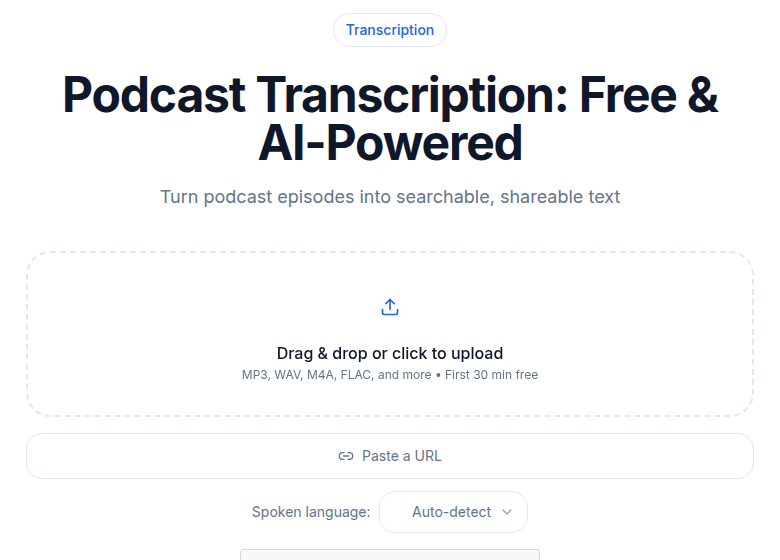 Podcast transcription: upload the episode file or paste its URL
File Upload vs RSS URL: Which Path to Take
Both entry points work. The right choice depends on where you are in the production process.
| Input path | Best for | Trade-off |
|---|---|---|
| Upload audio file | Pre-publish episodes, raw multi-track files, edited MP3 before release | Requires the file on disk; larger uploads take longer |
| Paste episode URL | Already-published episodes, back-catalog batch work, Spotify/Apple Podcasts public links | Dependent on the file being publicly accessible |
| RSS feed URL | Auto-importing all episodes from a feed, back-catalog workflows | Tool support varies; not all services read RSS natively |
If you record multi-track (separate files per speaker), upload each track individually rather than the mixed-down version. The diarization quality difference is significant, explained in the next section.
If you are catching up on a back catalog of published episodes, the URL path is faster. Paste the audio URL from your hosting platform's episode page, skip the download-and-upload step entirely.
If you want ConvertAudioToText specifically, the uploader on the main page accepts MP3, M4A, WAV, and MP4 files up to 100 MB without an account (1 GB on a free account, 5 GB on paid plans), and the URL input field handles public audio links from any hosting provider.
The Multi-Track Advantage
The single biggest difference between a great podcast transcript and a mediocre one is whether you recorded multi-track.
Multi-track means each host and guest is recorded to their own audio file. Remote recording tools like Riverside, Zencastr, and Descript (which acquired SquadCast) default to this. You end up with two or three audio files instead of one mixed-down file.
Why this matters for transcription:
- Diarization becomes exact. Each track is one speaker by definition. The tool does not need to cluster voices acoustically; it just labels each track.
- Cross-talk damages one track at a time. If a guest interrupts and the host speaks over them, the host's track still has clean audio.
- Accuracy stays high per speaker. A clean single-speaker track removes the ambiguity that cross-talk introduces. Diarization errors in mixed audio often cascade: one misattributed word causes the surrounding sentences to flip speakers.
- Bad takes can be muted on one track. Silencing a mistake on one track does not affect the other.
Studio-quality recordings with dedicated mics in treated rooms typically reach 95-99% accuracy. Remote recordings from Riverside or Zencastr land at 92-95%. Laptop mics in noisy environments drop to 80-90%. The model matters less than the input audio. For more on what drives accuracy scores, see transcription accuracy explained.
For in-person recording, multi-track comes from individual mics with a recorder that captures each as a separate channel: the Zoom H6, Tascam DR-40, and RodeCaster Pro II all do this.
The Workflow End-to-End
1. Record multi-track
Use a remote recording tool that captures each participant locally and uploads after. The output is per-speaker audio files, typically 192 kbps MP3 or uncompressed WAV.
For in-person recording, plug individual mics into a multi-channel recorder and enable per-track record.
2. Light editing pass on the audio
Trim silence at the start and end, remove obvious mistakes. Do not over-edit before transcription: the transcript should match the released audio. Export each track to MP3 at 192 kbps.
3. Upload or paste the URL
If you have per-speaker files, upload them individually or as a batch. If the episode is already published, paste the public audio URL.
Set three things before you hit transcribe:
- Language. Always specify it. Auto-detect is unreliable on episodes that start with intro music.
- Speaker count. Set to the actual number of speakers (usually 2-3).
- Vocabulary list. Add recurring terms specific to your show: guest names, product names, niche terminology your model has not seen at high frequency.
4. Process
A 60-minute episode typically processes in 3-5 minutes. Longer files scale roughly linearly. The full upload-to-download loop for a 60-minute episode is typically under 10 minutes.
5. Edit pass
15 minutes per hour of audio is the target. Play at 1.5x speed while skimming the text:
- Fix proper nouns, numbers, and meaning-changing errors.
- Do not chase every filler word. Most podcasts publish clean verbatim, which AI tools handle automatically. Hunting every "uh" is wasted time unless you need strict verbatim for research or legal purposes.
For speaker diarization output, scan the speaker labels once through and fix any swaps near the start of the file (early misattributions tend to persist).
6. Export
One transcription job, multiple outputs:
- TXT or DOCX for the show notes page.
- SRT for any video version (YouTube, TikTok clips, Reels).
- VTT for the RSS transcript tag (more on this below).
- JSON for downstream tools.
7. Publish the transcript
Publish the transcript on its own page on your podcast site and link to it from the episode page. This creates indexable text around every topic the episode covers, including guest names, product names, and questions answered that a listener might search for. None of that is accessible to search engines from the audio file alone.
Show Notes From the Transcript
The transcript is rarely the final deliverable. Most shows pair it with structured show notes: episode summary, chapter timestamps, pull quotes, and links mentioned.
With the full transcript in hand, a complete show notes draft takes 20-30 minutes, not 60-90. You already have:
- A 1-paragraph episode summary (pull the clearest statement of what the episode is about).
- 5-10 timestamps with topic labels (identify where the conversation shifts).
- 3-5 pull quotes for social media, picked from the transcript without re-listening.
- A resource list: every URL or book the guest mentioned.
For SEO purposes, aim for at least 300-600 words of indexable content in the show notes, not just the timestamp list. Full transcripts are the strongest version: thousands of words of keyword-rich text, searchable by listeners and indexed by Google. See best transcription for podcasts 2026 for a comparison of tools built around this workflow.
Chapter Markers
Chapter markers improve listener experience and matter for platform SEO. As of 2026, YouTube is the most-used podcast discovery platform in the US at 33% market share, ahead of Spotify at 26% and Apple Podcasts at 14%. YouTube's discovery algorithm responds to chapters much as a search engine responds to headings.
Both Apple Podcasts and Spotify render chapter markers in their apps. Listeners use them to navigate long episodes and preview topics before committing to listen.
A typical chapter list for a 60-minute interview episode has 5-10 chapters of 5-15 minutes each. Sub-minute chapters feel noisy in the player.
Add chapters through your podcast hosting platform. Transistor, Buzzsprout, Megaphone, and most major hosts accept timestamps and titles, either pasted in or uploaded as a file. Buzzsprout also supports chapters embedded in the MP3's ID3v2 tags.
The Podcast 2.0 Transcript Tag
If you publish a podcast RSS feed, adding the podcast:transcript tag to each episode is worth 30 seconds of setup. As of mid-2026, 33 podcast players support the tag, including Apple Podcasts (since iOS 17.4), Pocket Casts, and AntennaPod. Spotify accepts JSON and VTT formats.
The basic tag looks like this:
podcast:transcript
  url="https://example.com/transcripts/ep42.vtt"
  type="text/vtt"
  language="en"
Two things that cause silent failures: the URL must be HTTPS, and the MIME type must be set correctly (CDNs often default to application/octet-stream). If your hosting platform supports the tag natively (Transistor and Buzzsprout both do), use that rather than adding it manually.
VTT is the format that works across the widest range of apps. Export VTT from your transcription tool and host it wherever your other episode assets live.
Repurposing the Transcript
Once you have the text, the marginal cost of each additional format is low:
- YouTube version. Use the SRT export, sync it with a video version of the episode (a camera feed or a static waveform image), and upload. YouTube is now the primary podcast discovery platform in the US; treating it as an afterthought leaves reach on the table. See how to transcribe a YouTube video for the reverse path.
- Email newsletter. A 200-word summary plus 2-3 highlight quotes, pulled directly from the transcript.
- LinkedIn or X threads. The best quotes in a guest interview land well as standalone posts with light framing.
- Audiograms. Pick a 30-60 second highlight, generate a waveform video with captions burned in, and post to short-form platforms.
- Full article version. Some shows publish an edited article based on each episode alongside the audio. The article picks up search traffic; the audio picks up downloads. They reinforce each other.
Each format takes 5-20 minutes once the transcript exists. Without it, each requires re-listening.
Where Most Podcasters Lose Time
Three patterns that come up repeatedly:
- Mixing down before transcription. If you recorded multi-track, transcribe multi-track. The quality difference in diarization is immediate and visible.
- Re-transcribing for different exports. Transcribe once and export TXT, SRT, and VTT from the same job.
- Editing filler words manually. Clean verbatim mode on modern transcription tools handles this automatically. Manual filler editing is largely wasted time unless you have a specific reason for strict verbatim.
Quick Setup Checklist
| Step | What to do |
|---|---|
| Recording | Multi-track, separate audio per speaker |
| Mics | USB or XLR, close to the speaker, in a treated room |
| Input path | Upload per-speaker files, or paste the public episode URL |
| Settings | Language specified, speaker count specified, vocabulary list passed |
| Edit | 15 minutes per hour, focus on proper nouns and meaning |
| Export | TXT for show notes, SRT for video, VTT for RSS transcript tag |
| Publish | Transcript on its own page, linked from the episode page; podcast:transcript tag in RSS |
FAQ
Does transcribing a podcast episode actually help with SEO?
Yes. Search engines index text, not audio. A full transcript published alongside an episode makes every topic, guest name, product mention, and question answered in that episode searchable on Google. Without a transcript, the audio content is invisible to search. Show notes alone (200-300 words) are thin; a full transcript adds thousands of words of indexable content per episode.
Is it better to upload the audio file or paste the episode URL?
Both produce the same transcript. Uploading the file directly works best for pre-publish episodes or multi-track files you want to keep separate. Pasting the URL is faster for back-catalog episodes that are already publicly hosted, since you skip the download-and-reupload step.
What accuracy should I expect from AI podcast transcription?
Accuracy depends primarily on audio quality, not the specific tool. Studio-quality recordings with dedicated microphones in quiet rooms reach 95-99%. Remote recordings from tools like Riverside or Zencastr typically land at 92-95%. Laptop mics in noisy environments drop to 80-90%. Multi-track recording (separate file per speaker) consistently produces better diarization and fewer cross-talk errors than a mixed-down file.
Do I need to edit the transcript after it is generated?
A light edit pass is worth it. The target is 15 minutes per hour of audio, listening at 1.5x speed while scanning the text. Focus on proper nouns, numbers, and any place where the meaning changed. Do not chase filler words unless your podcast style requires strict verbatim; clean verbatim mode handles those automatically.
What is the podcast:transcript RSS tag and should I use it?
It is a Podcasting 2.0 extension tag that links a transcript file directly to an RSS episode entry. As of mid-2026, 33 podcast apps support it, including Apple Podcasts (since iOS 17.4), Pocket Casts, and Spotify. Adding it takes about 30 seconds per episode if your hosting platform (Transistor, Buzzsprout, and others) writes the tag for you. Use VTT format for broadest compatibility. The file URL must be HTTPS or Apple Podcasts will silently skip it.
Sources
- Podcasting 2.0 transcript tag spec
- ConvertAudioToText: Podcast RSS with transcripts
- Riverside multitrack podcast recording
- Video Podcast Statistics 2026: YouTube Dominance
- AI Transcription Accuracy in 2026: Real Benchmarks and WER
- Buzzsprout: Create Chapter Markers
- Transistor: Add chapters to your podcast episodes
Try transcription free
Convert any audio or video to clean, unwatermarked text — speaker labels, timestamps, and AI summaries included. First 30 minutes free, no account.
Related Articles
Transcribe a 30-Minute Podcast Quickly: The 2026 Speed Guide
How to get a clean transcript of a 30-minute podcast episode in about two minutes. Real timings, export tips, and the fastest honest path from audio to text.

Spotify Transcript Extractor: How to Copy and Download Episode Text
Get a Spotify podcast transcript you can copy and download: paste a public episode link, 30 minutes free with no signup, TXT or SRT files on eligible plans.