
How to Transcribe a YouTube Video: 3 Methods Ranked (2026)
Summarize this article with:
The fastest path to a clean YouTube transcript is pasting the video URL into an AI transcription tool, which takes under two minutes and returns proper punctuation, speaker labels, and multiple export formats. YouTube's own transcript panel is genuinely useful for quick lookups on clear-audio videos, but it skips punctuation and has no speaker labels. If the video URL is blocked by a tool, download the audio first and upload the file directly. For most use cases, the URL-paste method wins.
You can get a transcript of any public YouTube video in under two minutes by pasting the URL into an AI transcription tool. YouTube also has a free built-in transcript panel that works instantly for quick needs. A third option, downloading the audio file first and uploading it, covers edge cases where direct URL processing fails. Below is how each method works and when to reach for it.
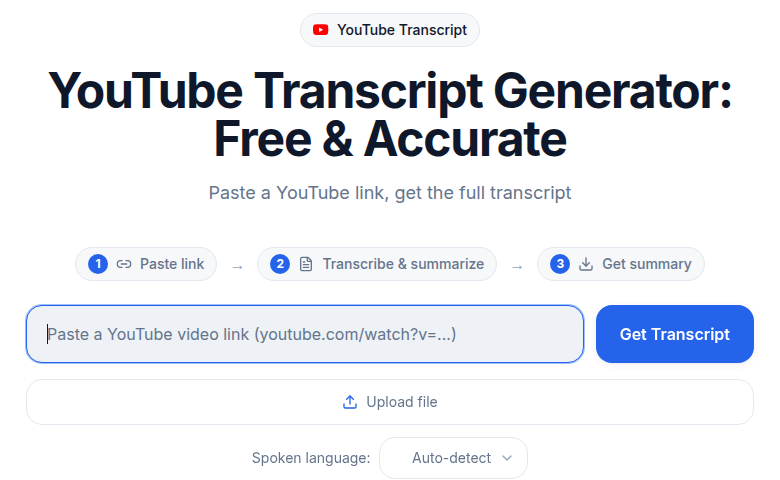
Method 1: Paste the URL into an AI Transcription Tool (Recommended)
This is the fastest path to a usable, accurate transcript. You copy the YouTube link, paste it into a transcription tool, and get back a formatted document with punctuation, capitalization, and paragraph breaks.
The biggest advantage over YouTube's own captions is speaker labeling. When a video has two or more speakers, an AI tool that supports speaker diarization will identify and label who is talking. YouTube's panel gives you a wall of undifferentiated text.
How to do it:
- Copy the YouTube video URL from your browser address bar.
- Open the YouTube Transcript Generator and paste the link into the input field.
- Select the video's language if it is not English.
- Click "Transcribe." Most videos under 30 minutes finish processing in one to two minutes.
- Review the transcript in the editor. Punctuation and paragraph breaks are applied automatically.
- Export as plain text, SRT, VTT, or a formatted document depending on your use case.
If you need subtitles for a video you are uploading, the Subtitle Generator can create properly timed SRT and VTT files in the same workflow.
My take: For anything beyond a quick quote lookup, this is the method worth defaulting to. The accuracy gap between YouTube's auto-captions and a dedicated AI tool is real: YouTube scores 85-95% on clear studio audio, while a modern AI transcription model typically lands at 95-98% on the same content. One wrong word per sentence adds up fast when you are turning a transcript into a published article.
Method 2: Use YouTube's Built-In Transcript Panel (Quick and Free)
YouTube generates automatic captions for most videos and lets you view them as a raw transcript panel right on the page, at no cost and with no sign-in required.
This method is genuinely useful for quick reference when you do not need clean output. If you want to scan a lecture for a specific term, or copy a short quote and clean it up yourself, the panel works fine.
How to access it on desktop:
- Open the YouTube video.
- Click the "...more" button below the video title to expand the description.
- Scroll to the bottom of the description and click "Show transcript." A panel opens on the right side of the player.
- To remove timestamps, click the three-dot icon in the top-right corner of the transcript panel and select "Toggle timestamps."
- Select all the text, copy it, and paste it into a text editor.
On mobile, open the video, tap the title area to expand the description, scroll down, and tap "Show transcript."
What the built-in transcript does well
- Free, no signup, no tool needed.
- Instant: the transcript is already generated for most public videos.
- Timestamps are clickable and sync with the video, useful for navigation.
- Available in multiple languages when the creator has uploaded translated captions.
Where it falls short
- No punctuation or paragraph breaks. The output is a raw block of timestamped fragments.
- No speaker identification. Multiple speakers appear as a single stream of text.
- Accuracy drops on accented speech, technical jargon, and noisy audio. Background music can push accuracy below 75%.
- Not all videos have it. Creators can disable captions, and some videos lack auto-generated captions entirely.
- Export is manual: select, copy, paste.
For more on what accuracy really means in practice, see transcription accuracy explained.
Method 3: Download the Audio, Then Upload the File
Sometimes a tool cannot process a YouTube URL directly, either because the video is geo-restricted, the URL format is unusual, or the platform has changed its download rules. In those cases, download the audio first and upload it as a file.
How to do it:
- Use a YouTube-to-MP3 converter (many free browser-based ones exist) or install yt-dlp locally to extract the audio as an MP3 or M4A file.
- Go to the Video to Text tool, or any AI transcription tool that accepts file uploads.
- Upload the audio file.
- Select your language and any diarization options.
- Export in your preferred format.
The transcript quality from this method is identical to Method 1, since you are feeding the same audio into the same engine. The only difference is the extra download step.
A note on format: most dedicated transcription tools accept MP3, M4A, WAV, and MP4 directly. If you only have the video file, uploading the full MP4 also works because the tool extracts the audio internally.
Comparison: Which Method Fits Your Need?
| Method | Accuracy | Speaker Labels | Export Formats | Setup Required | Best For |
|---|---|---|---|---|---|
| URL into AI tool | 95-98% on clear audio | Yes (most tools) | TXT, SRT, VTT, DOCX | None | Repurposing, notes, subtitles |
| YouTube transcript panel | 75-95% varies | No | Copy-paste only | None | Quick reference, short quotes |
| Download then upload | 95-98% on clear audio | Yes (most tools) | TXT, SRT, VTT, DOCX | Download step | Geo-blocked or URL-blocked videos |
How to Get Better Results from Any Method
Audio quality is the single biggest factor in transcription accuracy. A video recorded with a decent microphone in a quiet room will transcribe cleanly regardless of which method you use. A video with heavy background music, echo, or multiple overlapping speakers will challenge even the best AI models.
A few practical tips:
Set the right language. If a video is in French and you leave the language set to English, the output will be garbled. Most AI tools default to auto-detect, but manually setting the language improves accuracy on shorter or quieter clips.
Segment long videos. For videos over an hour, consider splitting the audio into 30-minute segments before transcribing. It makes the editing pass faster and reduces any chance of timeout or formatting issues.
Plan your export format. If you are publishing the transcript as a web page, plain text is easiest to clean up. If you are adding captions to a video, request SRT or VTT output from the start so the timing data is already there.
For a deeper look at speaker diarization and when it matters, that post covers how multi-speaker detection works and its limitations in noisy recordings.
Creative Uses for YouTube Transcripts
A transcript is often more valuable than the video itself for many workflows.
Turn videos into blog posts. The transcript gives you a verbatim first draft. Restructure it with headings, trim repetition, and you have a publishable article in a fraction of the time it would take to write from scratch.
Build searchable study notes. A full-text transcript of a lecture is searchable, highlightable, and faster to review than rewatching the video at exam time.
Extract pull quotes. Interview and podcast transcripts make it easy to find compelling quotes for social media, newsletters, or press materials.
Improve content accessibility. Publishing a transcript alongside your embedded video helps viewers who are deaf or hard of hearing, and benefits non-native speakers who may find reading easier than listening at speed.
Boost SEO on your own site. Search engines cannot index spoken content inside a video, but they can index a transcript you publish as a page or article.
If you need to transcribe content from other platforms, see how to transcribe a podcast episode or how to transcribe a Zoom meeting for platform-specific workflows.
Frequently Asked Questions
Can I transcribe any YouTube video, or only my own?
You can transcribe any publicly available YouTube video. YouTube's built-in transcript panel and AI transcription tools work on any video that is not set to private or unlisted. That said, always respect copyright: transcribing someone else's content and republishing it without permission can infringe on their rights. Personal use for research, study, or accessibility is generally considered fair use in most jurisdictions.
How accurate are YouTube's auto-generated captions?
Accuracy varies significantly by content type. Clear studio audio with a single English speaker typically scores 90-95% word accuracy. Conversational content with decent audio falls closer to 85-90%. Accented speech, technical jargon, or overlapping speakers can drop accuracy to 75-85%, and background music can push it below 75%. Dedicated AI transcription tools, by contrast, consistently score 95-98% on the same clear audio, and handle accents and jargon better because they are built specifically for transcription rather than caption generation.
Can I get a YouTube transcript with timestamps?
Yes. YouTube's built-in panel includes timestamps by default, and you can toggle them off if you only need the text. AI transcription tools also produce timestamped output and can export in SRT or VTT format, which includes precise timing for every segment. SRT and VTT are the formats YouTube accepts if you want to upload corrected captions back to a video.
What if a video does not have a transcript on YouTube?
Some creators disable captions, and some older or less-watched videos have not had auto-captions generated. In those cases, YouTube's built-in panel will not appear. Use Method 1 or Method 3 from this guide instead: both extract the audio directly and transcribe it regardless of whether the creator has enabled captions on the platform.
Is it legal to transcribe YouTube videos?
Transcribing a YouTube video for personal use, such as study notes, research, or accessibility purposes, is generally fair use. Publishing a full verbatim transcript of copyrighted content without the creator's permission can be infringement. If you are transcribing your own videos, or videos under a Creative Commons license, there are no restrictions. When in doubt about a specific use case, consult a legal professional.
How long does it take to transcribe a YouTube video with AI?
For the URL-paste method, most videos under 30 minutes finish processing in one to two minutes. Longer videos take proportionally more time but still run faster than real time, meaning a 60-minute video typically transcribes in four to six minutes. Manual transcription, by contrast, runs at roughly a 4-to-1 ratio for a practiced typist: four hours of effort per one hour of audio. AI transcription is the clear winner on speed for any video longer than a few minutes.
Sources
- YouTube Help, "See the transcript of a video": https://support.google.com/youtube/answer/100077
- GrabCaptions, "YouTube Auto-Caption Accuracy in 2026": https://grabcaptions.com/blog/youtube-auto-captions-accuracy/
- NoteLM, "YouTube Auto Captions Accuracy 2026": https://www.notelm.ai/blog/youtube-auto-captions-transcript
- Audext, "How Long Does It Take to Transcribe 1 Hour of Audio": https://audext.com/transcribe-an-hour-of-audio/
- Bluedot, "How to open transcript on YouTube in 2026": https://www.bluedothq.com/blog/how-to-open-transcript-on-youtube
Try transcription free
Convert any audio or video to clean, unwatermarked text — speaker labels, timestamps, and AI summaries included. First 10 minutes free, no account.
Related Articles
Convert YouTube Videos to Text: The Repurposing Path
Paste a YouTube URL and get a formatted transcript in minutes. Four verified methods for converting YouTube videos to text, SRT, and repurposable content in 2026.
How to Transcribe a YouTube Video to Text
Turn any YouTube video into text. Paste the URL into CATT, review the auto transcript, and export TXT, SRT, or VTT subtitles in a few very easy steps.