Convert YouTube Videos to Text: The Repurposing Path
Summarize this article with:
You can convert any public YouTube video to text by pasting its URL into a transcription tool, no download needed. YouTube's built-in transcript panel is the fastest free option but accuracy drops with accents, jargon, and background noise. For repurposing video content into blog posts, SRT subtitle files, or searchable notes, a URL-based AI transcription tool gives you cleaner output with speaker labels and export format choices.
Paste the YouTube URL, get a formatted transcript, that is the fastest path in 2026. You skip the download, skip the captions panel, and get a clean, timestamped document you can turn into a blog post, SRT file, study notes, or newsletter within minutes.
This post covers four methods ranked by what they actually produce, not just by effort. The focus here is conversion and repurposing: getting text you can use downstream, not just a rough caption copy. If you want the step-by-step how-to for a single video, see how to convert video to text for the broader format context.
Method Comparison at a Glance
| Method | Accuracy (clear audio) | Speaker labels | Export formats | Effort |
|---|---|---|---|---|
| YouTube built-in transcript | 85-95% English; 60-80% other langs | No | Copy-paste only | Minimal |
| URL-based AI transcription | 95%+ (per Deepgram documentation) | Yes | TXT, SRT, VTT | Minimal |
| Download audio, then upload | 95%+ | Yes | TXT, SRT, VTT | Medium |
| Download existing SRT from creator | 99%+ if manually authored | N/A | SRT, VTT | Low (when available) |
Method 1: YouTube's Built-In Transcript Panel
Most people never notice that YouTube has a transcript panel built into every desktop browser page. It takes two clicks to open and costs nothing.
Steps on desktop:
- Open the video in a desktop browser (this feature is not in the YouTube mobile app).
- Click the three-dot menu below the video (next to the Share button).
- Select "Show transcript." A panel appears to the right of the video.
- In the transcript panel header, click the three vertical dots, then choose "Toggle timestamps" to hide the time codes.
- Click inside the panel, press Ctrl+A (Cmd+A on Mac) to select all, then copy.
The copied text pastes cleanly into Google Docs, Notion, or any editor.
Accuracy ranges widely. For studio-recorded English with a single speaker, expect 90-95% word accuracy. Conversational podcasts land around 85-90%. Accented speakers, panel discussions, or any background music push accuracy down to 60-75%, per testing published by GrabCaptions in 2026. Proper nouns are the most consistent failure point across all conditions.
Limitations that matter for repurposing:
- No speaker attribution. If you are turning a two-person interview into a blog post, you need to re-label every speaker by hand.
- No direct download. You copy and paste; there is no export to SRT or VTT.
- Some creators disable captions entirely. Unlisted and private videos also cannot be accessed this way.
- Auto-captions are not available for every language. YouTube supports auto-generated captions for roughly 17 languages as of mid-2026.
My take: the built-in panel is fine for grabbing one quote from a video you own. For anything you plan to publish or repurpose at scale, it creates more editing work than it saves.
Method 2: URL-Based AI Transcription (Recommended for Repurposing)
Drop the YouTube URL into a transcription tool and receive a formatted, speaker-labeled transcript without downloading anything. This is the most practical option when your goal is a blog post, podcast show notes, or subtitle file.
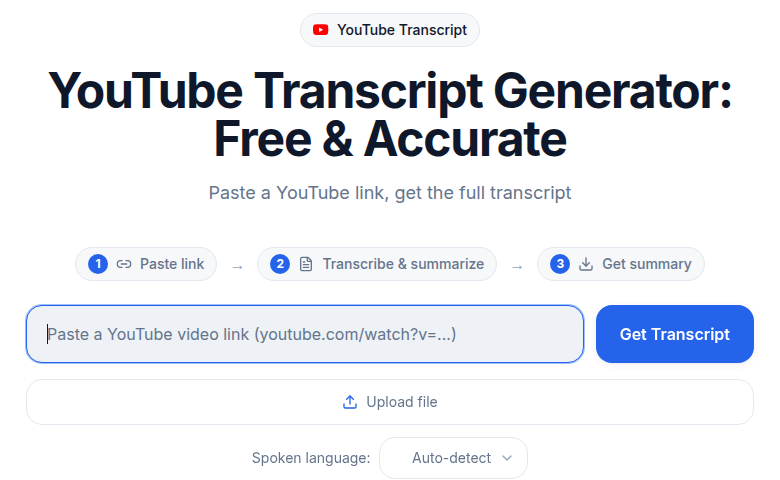
Steps with the YouTube Transcript Generator:
- Copy the full YouTube video URL from your browser's address bar.
- Open the YouTube Transcript Generator tool.
- Paste the URL into the input field.
- Select the spoken language (or leave on auto-detect for common languages).
- Start transcription. Videos under 30 minutes typically finish in 2 to 3 minutes.
- Review the result, make corrections for proper nouns, then export in TXT, SRT, or VTT.
This method works because the tool fetches and processes the audio directly rather than relying on YouTube's caption track. The underlying model is trained for transcription accuracy rather than real-time caption generation, which is why results are meaningfully better on accented speech and technical vocabulary.
If you just need a clean transcript without creating an account, ConvertAudioToText lets you paste a URL and start immediately.
When URL-Based Transcription Is Worth It
- You are repurposing a video into a blog post and need speaker-attributed paragraphs.
- You need an SRT or VTT file to upload as synchronized subtitles to your own channel.
- The video is a podcast episode, conference talk, or long-form interview where YouTube's accuracy is not sufficient for publication.
- The creator has disabled captions and the built-in panel shows nothing.
For podcast-specific workflows, see how to transcribe podcast episodes for format and editing tips that apply equally to video podcast content.
Method 3: Download Audio, Then Upload
If you have already downloaded a video, or need to work offline, you can extract the audio and upload it directly.
Steps using yt-dlp (command line):
yt-dlp -x --audio-format mp3 "https://youtube.com/watch?v=VIDEOID"
This extracts the audio track to an MP3 without downloading the full video file. yt-dlp requires FFmpeg to handle the format conversion.
Once you have the MP3, upload it through the video-to-text workflow or any tool that accepts audio files. The transcript quality will match Method 2 because the same underlying audio reaches the same transcription engine.
When this makes sense: archival projects where you want both the audio file and a transcript; batch workflows where you pre-download a playlist overnight and transcribe in the morning; situations where a video might be taken down before you finish your work.
Method 4: Download the Creator's Own Subtitle File
If a creator has uploaded a manual subtitle track (not auto-generated), that track is typically 99%+ accurate because a human reviewed it. You can identify manual captions by looking for a CC button that does not say "auto-generated" in the quality menu.
Third-party tools like DownSub and the YouTube Transcript Extractor Chrome extension can pull SRT or VTT files directly from YouTube's subtitle system. These work only when the creator has made subtitles available and has not disabled embedding.
Practical check: click the gear icon on the video player, select "Subtitles/CC," and look for language options that lack an "(auto-generated)" label. If they exist, a subtitle downloader can pull them without any re-transcription step.
Repurposing YouTube Transcripts: What Actually Works
A raw transcript from any of the four methods above is an intermediate product, not a finished piece of content. Here is what experienced creators actually do with it.
Blog Posts
The transcript is your raw material, not your draft. The spoken cadence of a video does not read well, sentences are longer, filler words appear throughout, and the logic often relies on visual cues you cannot see in text. A good process:
- Export the full transcript as TXT.
- Strip filler words and false starts.
- Identify the 3-5 main points from the video.
- Use the transcript to write around those points, not to transcribe them verbatim.
- Embed the original video near the top of the post for SEO and for readers who prefer video.
This American Life found that transcript pages attracted 6.26% of all inbound search traffic after they published their audio archive as text. The same principle applies to video: the text version surfaces in search; the video converts readers who want to go deeper.
SRT Subtitle Files for Your Own Videos
If you are the creator, converting your own video to text and then uploading an SRT file back to YouTube has a direct ranking effect. YouTube indexes the words in caption tracks, which means every term you say becomes searchable. Auto-captions do this already, but poorly for technical vocabulary and proper nouns. An accurate SRT file you generate and upload replaces the auto-generated track with one that Google's crawlers can index correctly.
See the subtitle generator tool for building SRT and VTT files from audio or video.
Research and Journalism
Journalists and researchers need timestamps with every quote. The URL-based method (Method 2) produces a timestamped transcript where you can click any line to jump the audio to that moment. That timestamp is your citation reference for verifying what was said at a specific point in time.
Transcribing YouTube content for personal research, education, or news reporting generally falls under fair use. Publishing someone else's full transcript as your own content does not. The boundary is transformation: you are using the transcript as raw material to produce new analysis or commentary, not reproducing the video as text.
Study Notes from Lectures and Courses
Educational YouTube content becomes significantly more usable with a searchable transcript. A 45-minute lecture at 130 words per minute produces roughly 5,850 words of content. Without a transcript, finding a specific explanation means scrubbing through video. With a transcript in Notion or Obsidian, you can search, highlight, and link concepts.
For lecture transcription specifically, the best no-signup transcription tools roundup covers options for students who need quick results without a paid subscription.
Getting Cleaner Output
Audio quality is the single largest variable in transcript accuracy. Before processing, play 30 seconds of the video. If you hear consistent background music, overlapping speakers, or significant echo, set expectations accordingly and budget time for a careful edit pass.
Three habits that improve results on any method:
- Set the language manually. Auto-detect is reliable for common languages in clean audio but degrades with accented speech or code-switching.
- Run the transcript through a spell-checker configured for the subject domain. Technical fields and proper nouns are where all models, including YouTube's, consistently make the same errors.
- Keep the original video open alongside the transcript for a final accuracy pass. The timestamp links in URL-based output make spot-checking fast.
For a deeper look at what drives transcription accuracy and how models differ, see transcription accuracy explained.
Frequently Asked Questions
Can I get a transcript from any YouTube video?
You can transcribe any public or unlisted YouTube video that you have access to. Some creators disable captions and restrict embedding, which blocks the built-in transcript panel and some URL-based tools. Private videos require you to download the file directly before transcribing. There is no method that bypasses a creator's explicit restriction on all fronts.
How accurate are YouTube's auto-generated captions?
Accuracy is condition-dependent. Clear studio English with a single speaker reaches 85-95%. Conversational audio with background noise or multiple speakers drops to 60-75%. Proper nouns are incorrectly transcribed roughly 45% of the time across conditions, per published testing in 2026. For content you plan to publish, auto-captions alone are not sufficient.
Can I download a YouTube transcript as an SRT file?
YouTube does not offer a native SRT download for viewers. You have two paths: use a URL-based transcription tool (Method 2 above) that exports SRT directly, or use a third-party subtitle downloader like DownSub to pull the creator's existing caption track if one is available. If you are a channel owner, YouTube Studio lets you download your own caption tracks in SRT format.
Is it legal to transcribe YouTube videos?
Transcribing YouTube videos for personal use, research, education, or journalism is generally covered by fair use doctrine. The key test is transformation: using a transcript as source material for new commentary or analysis is different from reproducing the video as a word-for-word text and publishing it as your own. Always credit the original creator when quoting from a transcript.
How do I turn a YouTube transcript into a blog post?
Export the transcript as plain text, then treat it as raw research material rather than a draft. Strip filler words, identify the 3-5 key points from the video, and write new paragraphs around each point using the transcript for quotes and detail. Embed the original video at the top of the post. This produces a piece that serves readers who prefer reading and ranks in search, while the video stays the primary format for YouTube audiences.
Sources
- YouTube Help: Show or hide captions on a video, https://support.google.com/youtube/answer/100078
- GrabCaptions: YouTube Auto-Caption Accuracy in 2026, https://grabcaptions.com/blog/youtube-auto-captions-accuracy/
- NoteLM.ai: YouTube Auto Captions Accuracy 2026, https://www.notelm.ai/blog/youtube-auto-captions-transcript
- NoteLM.ai: How to Download YouTube Transcript as SRT File, https://www.notelm.ai/blog/youtube-transcript-srt
- DownSub: Free Subtitle Downloader, https://downsub.com
- 3Play Media: 7 Ways Captions and Video Transcripts Improve Video SEO, https://www.3playmedia.com/blog/7-ways-video-transcripts-captions-improve-seo/
- yt-dlp documentation, https://github.com/yt-dlp/yt-dlp
- U.S. Copyright Office: Fair Use FAQ, https://www.copyright.gov/help/faq/faq-fairuse.html
Try transcription free
Convert any audio or video to clean, unwatermarked text — speaker labels, timestamps, and AI summaries included. First 10 minutes free, no account.
Related Articles

How to Transcribe a YouTube Video: 3 Methods Ranked (2026)
Three ways to get a YouTube video transcript, ranked by quality: paste-URL AI tool, built-in transcript panel, and download-then-upload. Clear guide for 2026.
How to Transcribe a YouTube Video to Text
Turn any YouTube video into text. Paste the URL into CATT, review the auto transcript, and export TXT, SRT, or VTT subtitles in a few very easy steps.