
How to Transcribe a Loom Video: The Fast Path (2026)
Summarize this article with:
Loom shows a free, viewable, copyable transcript on every plan, so if you only need to read, search, or copy the text, open the transcript panel and you are done. Go external only when you need a downloadable file (SRT, VTT, TXT, DOCX) or AI meeting notes: paste the public share URL into a transcription tool, or for private and restricted Looms, download the MP4 first and upload it.
The Fast Path
Loom gives every user a free transcript, viewable and copyable, on all plans. If you only need to read, search, or copy the spoken content, you do not need any external tool. If you need a downloadable file (SRT, VTT, TXT, DOCX) or AI-generated meeting notes, you either upgrade Loom or run the video through an external transcription tool.
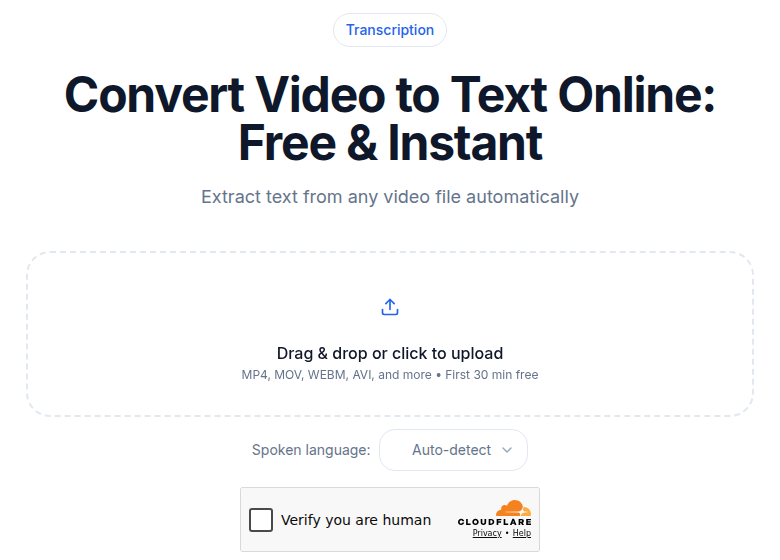 A downloaded Loom MP4 transcribes as a normal video upload
That distinction shapes everything in this guide.
What Loom's Native Transcript Actually Includes
Loom (Atlassian-owned since 2023) transcribes videos automatically in 50+ languages across all plans, including the free Starter tier. The transcript appears as a panel to the right of the video player with click-to-seek timestamps, a search bar, and a copy-to-clipboard button.
The free plan is more capable than most people assume. You can view, search, and copy the full transcript text without paying anything.
What is gated behind Business or higher:
- Downloading a caption file (SRT). The three-dot menu download option requires Business, Business+AI, or Enterprise.
- Stylized captions in the player. Available on Business+AI and Enterprise only.
- AI-generated summaries, chapters, and meeting notes. Business+AI and Enterprise only.
- Text-based video editing. Business+AI and Enterprise only.
The free Starter plan also caps recordings at 25 videos and 5 minutes per video, which affects whether Loom is even the right tool for longer async sessions.
My take: for a typical 3-5 minute team update or code walkthrough, Loom's free transcript does the job. The moment you need to share a clean exported file or automate meeting notes from recurring Looms, the native tooling either requires upgrading or an external step.
When to Go External
Four situations where Loom's built-in transcript is not enough:
You need a portable file. If you're on the free Starter plan and need an SRT for YouTube captions, a TXT for Confluence, or a DOCX for a stakeholder, Loom cannot export one natively. An external tool fills this gap without requiring a Loom upgrade.
Your videos cover specialized vocabulary. Loom's transcription has no custom vocabulary or boosting options. A Loom recording with product names, internal codenames, or technical terms will produce more errors than a tool that accepts a terminology list.
You want richer async documentation. Business+AI's auto-summary and chapters are Loom's best feature for async work. If you're not on that plan, an external tool can produce structured meeting notes from the same recording. See how to create meeting minutes from audio for a workflow that applies here.
You're transcribing someone else's Loom. If the creator's workspace controls block your access to their transcript panel, you need to either get the download or work from the share URL externally.
Method 1: Public Share URL (No Download Required)
If the Loom is set to "Anyone with the link," paste the share URL directly into a video-to-text tool. The tool fetches the audio from Loom's CDN and processes it without you downloading anything.
- Copy the share URL from Loom (format:
https://www.loom.com/share/<hash>). - Paste it into ConvertAudioToText's video-to-text tool or a comparable tool that accepts public video URLs.
- Select the language if it is not English.
- Run the job and export in your target format: TXT, SRT, VTT, or DOCX.
This works for any publicly accessible Loom. It does not work for workspace-restricted videos where the URL requires authentication to view.
Method 2: Download the MP4 First (Private or Restricted Looms)
For Looms you own or have authenticated access to:
- Open the Loom video in your browser or the desktop app while logged in.
- Click the three-dot menu on the video page and choose "Download."
- Select the highest available quality. The file is an MP4.
- Upload the MP4 to any transcription tool that accepts video files.
The download method works regardless of share settings, as long as you have access to the video as a workspace member. The tradeoff is the extra download step and upload bandwidth, especially for longer Looms.
If you are on Loom's Business or higher plan, you can also download the SRT directly from Loom's native caption export at this step, which may save the external tool entirely.
A Note on Loom Video Characteristics
Loom recordings have consistent traits that affect transcription quality in your favor:
- Single speaker by design. Async Loom messages are almost always one person talking, so speaker separation is rarely needed.
- Clean audio. Users typically record with a headset or close to a built-in mic in a quiet environment, which produces cleaner input than meeting recordings.
- Short to medium length. Most Looms run 2-10 minutes, though training sessions and demos can run longer.
For these reasons, transcription accuracy on Looms tends to be high. The area where errors accumulate fastest is product-specific jargon: internal project names, tool names, and technical vocabulary that generic models have not seen.
A short terminology list improves results significantly for internal content. For an engineering team's code review Loom, that might include your version control system name, your deployment toolchain, and your monitoring tools. For a customer success Loom, it might include your CRM name, your pricing tier names, and feature names that are not common English words.
Use Cases: Async Work and Documentation
Loom plus transcript as a documentation artifact
Many teams use Loom for knowledge transfer: how to deploy a service, how to write a PR, how to run a quarterly review. The video plus a cleaned transcript becomes a searchable, permanent record. Six months later, a new team member can search the transcript for "rollback" or "staging environment" and jump directly to that moment.
The workflow is: transcribe, lightly edit for clarity, attach the TXT to the same Confluence page or Notion doc as the embedded Loom.
Meeting notes from recurring Looms
If your team uses async Looms for weekly updates or product reviews, a consistent transcript-to-notes workflow saves re-watching. Transcribe the Loom, drop it into your notes template, and pull out decisions and action items. For longer sessions, creating meeting minutes from audio covers how to structure the output.
Customer demos and sales follow-ups
A transcript pasted below a demo Loom in a follow-up email serves two audiences: those who prefer to read and those who prefer to watch. The text is also searchable by the recipient and indexable if it ends up on a help center page.
Captioning for repurposed content
Looms recorded for one audience sometimes get repurposed: a product demo becomes a YouTube walkthrough, a team training becomes a help center video. For those use cases, export an SRT from the transcription run and upload it to the platform as a caption track. For YouTube specifically, see how to transcribe a YouTube video for the platform-specific upload steps. For standalone subtitle files, the subtitle generator handles the formatting.
Comparing Loom's Native Transcript to External Tools
| Feature | Loom Starter (free) | Loom Business+ | External tool |
|---|---|---|---|
| Auto-transcript | Yes, 50+ languages | Yes, 50+ languages | Yes, varies by tool |
| View and copy | Yes | Yes | Yes |
| SRT/VTT file download | No | Yes (SRT only) | Yes (SRT, VTT, TXT, DOCX) |
| AI summary/chapters | No | Business+AI only | Varies |
| Custom vocabulary | No | No | Yes (most tools) |
| Transcribe others' videos | Via share URL only | Via share URL only | URL or file upload |
The practical split: if you are already on Loom Business+AI, the native tools cover most documentation use cases. If you are on the free plan and need a file, or if you need custom vocabulary or multi-format export, external tools are the faster path.
If you just need a clean transcript file without upgrading Loom, ConvertAudioToText accepts both Loom share URLs and MP4 uploads with no meeting bot required.
Common Questions
Does Loom automatically transcribe videos?
Yes. Loom generates a transcript automatically for all plans, including the free Starter tier, in 50+ languages. The transcript appears as a searchable, clickable panel beside the video player. You can copy the full text to clipboard without a paid plan. What you cannot do on the free plan is download a caption file (SRT), that requires Business or higher.
How do I download a Loom transcript as a file?
If you are on Loom's Business, Business+AI, or Enterprise plan, click the three-dot menu on your video and choose "Download captions" to get an SRT file. If you are on the free Starter plan, Loom does not offer a file download. Your options are: copy-paste the transcript text manually, or run the video through an external transcription tool that exports TXT, SRT, VTT, or DOCX.
Can I transcribe a Loom video I don't own?
If the Loom is set to "Anyone with the link," you can paste the share URL into a video-to-text tool and get a transcript without downloading anything. If the video is workspace-restricted, you need the owner to share it with you, at which point you can download the MP4 from your authenticated Loom account and upload it to a transcription tool.
Is Loom's built-in transcript accurate enough for meeting notes or documentation?
For clean single-speaker recordings (the majority of Looms), the built-in transcript is accurate enough for internal notes and documentation. It handles 50+ languages and is searchable, which covers most async-work use cases. The gaps are: no downloadable file on Starter, no AI summary or chapters without Business+AI, and no custom vocabulary support for technical jargon. If you need a portable file or better handling of product-specific terms, an external tool fills those gaps.
Sources
- Loom video transcription and closed captions, Atlassian Support, verified July 2026
- Loom Pricing, Atlassian, verified July 2026
Try transcription free
Convert any audio or video to clean, unwatermarked text — speaker labels, timestamps, and AI summaries included. First 30 minutes free, no account.
Related Articles

Spotify Transcript Extractor: How to Copy and Download Episode Text
Get a Spotify podcast transcript you can copy and download: paste a public episode link, 30 minutes free with no signup, TXT or SRT files on eligible plans.
Focus Group Transcription for UX Researchers: Turn Multi-Speaker Audio Into Usable Evidence
A practical guide to focus group transcription for UX and insights teams. See how CATT handles speaker labels, timestamps, AI summaries, and clean export.