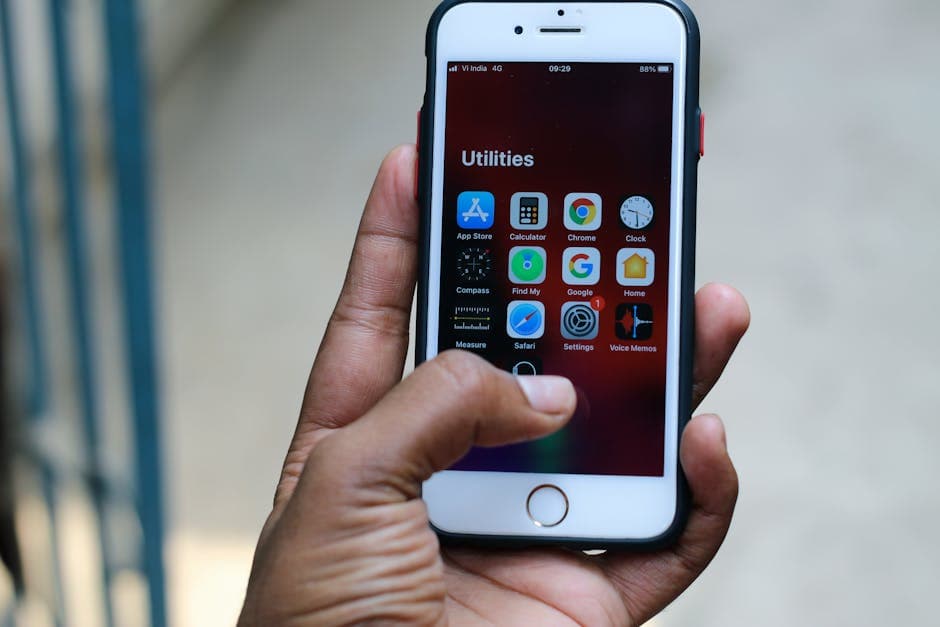
How to Record and Transcribe Audio on iPhone in 2026
Summarize this article with:
iPhone covers every recording scenario out of the box: Voice Memos for interviews and notes, the Phone app for call recording (iOS 18.1+, select regions), and Notes for spontaneous audio captures. iOS 18 added on-device transcription to Voice Memos, and iOS 26 extends that with AI summaries and the new SpeechAnalyzer engine. For professional-quality transcripts with speaker labels and 95%+ accuracy, uploading to a dedicated transcription tool takes just a few minutes more.
The fastest path from voice to text on iPhone is already on your phone. Voice Memos records, iOS 18 transcribes, and iOS 26 summarizes, all on-device. For casual personal use that pipeline is complete. For anything you need to publish, share, or clip with speaker labels, one extra step turns the M4A file into a polished transcript.
Voice Memos: What the Default Settings Actually Do
Should I record in Compressed or Lossless quality in Voice Memos?
Open Settings, tap Voice Memos, and you see two audio quality options.
Compressed (default) saves as M4A using AAC compression at 44.1 kHz. File size runs roughly 1 MB per minute. Lossless saves a larger file at higher bit depth, closer to 10 MB per minute. For transcription, Compressed is always fine: transcription engines downsample to 16 kHz mono internally, so the extra fidelity in Lossless is invisible to the model. Choose Lossless only if you plan to edit the audio in a multi-track tool before sending it for transcription.
One setting worth enabling: Location-based naming, also in Voice Memos settings. With it on, recordings get auto-named by location ("Coffee Shop on Market St") rather than "New Recording 47." Six months later, that difference matters.
Built-In Transcription: What iOS 18 and iOS 26 Deliver
Does iPhone Voice Memos automatically transcribe recordings?
Apple added on-device transcription to Voice Memos starting with iOS 18, available on iPhone 12 and later. Swipe up on the waveform inside any recording to reveal the transcript. Transcription runs entirely on-device: no audio leaves your phone.
Supported languages as of iOS 18: English (all variants), Spanish, Portuguese, Italian, French, German, Japanese, Korean, Simplified Chinese, and Traditional Chinese. No other languages are supported by the built-in Voice Memos transcription.
iOS 26 adds two meaningful upgrades. First, Writing Tools can now summarize a Voice Memos transcript with a tap, useful for long interviews where you want the key points without reading the full text. Second, the new SpeechAnalyzer framework (available to apps via the iOS 26 SDK) removes the old one-minute processing limit that affected third-party apps using the speech API.
Accuracy on clean English audio sits around 85 to 90% per user reports. Background noise, fast speech, strong accents, and overlapping voices pull that number down. There is no speaker diarization: the transcript shows a single stream of text with no labels for who said what. There is also no export to SRT or VTT subtitle formats.
When is the iPhone's built-in transcription good enough, and when should I use an external tool?
For personal notes and quick lookups, the built-in transcript is hard to beat. For anything multi-speaker or destined for publication, a dedicated transcription service running a larger model like Whisper Large-v3 gives noticeably higher accuracy, especially on noisy audio, accents, and multi-speaker recordings. It also adds speaker labels and SRT/VTT export that Voice Memos lacks. See the workflow section below.
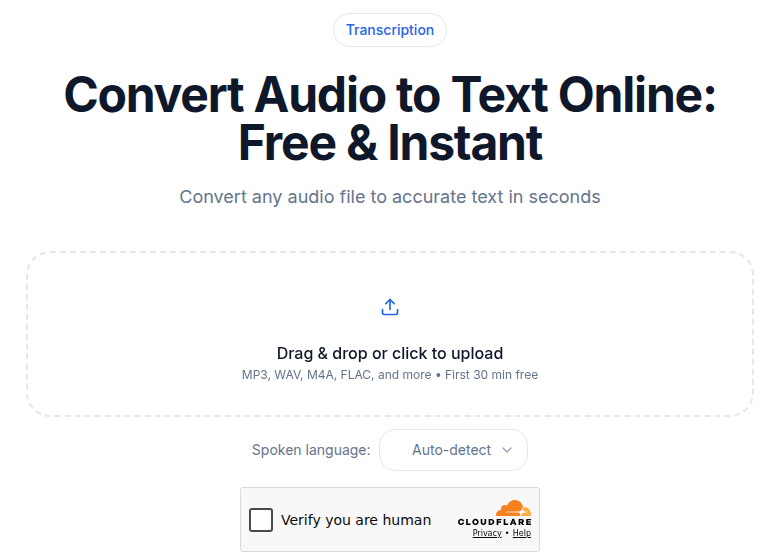 ConvertAudioToText audio upload tool screenshot
Call Recording: The iOS 18.1 Feature People Miss
Can I record phone calls on my iPhone?
iPhone has had native call recording since iOS 18.1 (October 2024). During any phone call, tap the waveform icon in the top-left corner of the call screen. An automated voice immediately notifies everyone on the call that recording has started. The recording and a transcript save automatically to a locked folder in the Notes app when the call ends.
iOS 26 extends this further: call recordings now include AI-generated summaries and Live Translation for cross-language calls.
The hard limit: call recording is not available in the European Union, nor in a long list of other regions including Russia, UAE, Saudi Arabia, South Africa, and several others. Apple maintains a feature availability page at apple.com/ios/feature-availability where you can check your specific country. If your region is blocked, third-party apps or screen-based workarounds are the only path.
One more thing call recording does not do: it saves to Notes, not Voice Memos. If your workflow involves uploading to an external transcription tool, you will share the recording from the Notes app rather than from Voice Memos.
Recording Hygiene for Better Transcription Accuracy
Voice Memos captures whatever the iPhone's mic hears. The mic is good, not magic. A few habits close the gap:
Distance and angle matter. Hold the phone with the bottom mic 6 to 12 inches from the speaker's mouth. Do not cover the bottom microphone with your hand.
Silence the phone before pressing record. Enable Focus or Do Not Disturb. Notification buzzes show up in the audio.
Turn off haptic feedback. Settings > Sounds and Haptics > System Haptics off. Every tap without this setting creates a small vibration that the mic picks up.
Use a lavalier mic for sit-down interviews. The Rode SmartLav+ (3.5mm TRRS, around $50-70 depending on retailer, requires a USB-C to 3.5mm adapter on current iPhones) clips to a collar and isolates the speaker's voice dramatically. A Boya BY-M1 runs cheaper and delivers similar performance for interview work. The accuracy improvement on noisy recordings is substantial.
Getting Files Off the iPhone
How do I get a Voice Memos file onto my computer or into a transcription tool?
Three paths, ranked by convenience:
iCloud Sync
Settings > Voice Memos > Sync Voice Memos via iCloud. Files appear in the Voice Memos app on Mac automatically. iCloud's free tier is 5 GB; the 50 GB tier costs $0.99/month, which is sufficient for most Voice Memos use. If you are already hitting the cap with photos, add this consideration.
Share Sheet
Tap the three-dot menu on any recording in Voice Memos, then Share. AirDrop to a nearby Mac is the fastest single-file transfer. Save to Files lets you route the M4A directly into a cloud folder (iCloud Drive, Google Drive, Dropbox, OneDrive) depending on what apps you have installed.
Direct Browser Upload
A browser-based transcription tool accepts uploads from iPhone Safari. Share the recording from Voice Memos and select the tool in your browser. The upload and transcription work fine on mobile, though reviewing a long transcript is more comfortable on a larger screen.
The iPhone-First Transcription Workflow
For journalists, researchers, podcasters, and anyone recording more than a few times per week:
- Record in Voice Memos with Compressed quality (default).
- Rename the file immediately. Use a pattern like "2026-07-02_SarahK_fintech" rather than leaving the auto-name.
- Enable iCloud sync so the file propagates to your Mac without manual action.
- On any device, open a transcription tool in your browser and upload from iCloud Drive or share directly from Voice Memos.
- Set the language explicitly if it is not English.
- Wait roughly 2 to 4 minutes for a one-hour recording.
- Review the transcript, then export to TXT, SRT, or VTT depending on the downstream use.
Total time from "stop recording" to "searchable transcript" is typically 5 to 10 minutes depending on file size and connection speed. For interview transcription workflows specifically, the SRT export is useful when you want to replay audio with captions.
iOS Recording Apps Beyond Voice Memos
Voice Memos is the right starting point for most people. These apps serve specific cases where it falls short:
Ferrite Recording Studio. The iOS standard for podcasters. Multi-track editing, non-destructive workflow, and professional-grade recording. Free to download; the Pro in-app purchase is $29.99 (per developer page as of mid-2026) and unlocks multi-track, effects, and automation. If you edit audio on your phone before transcription, Ferrite is the tool.
Just Press Record. Single-purpose recorder with a watch app so you can start recording from your wrist. On-device transcription included. One-time purchase, typically $4.99 to $6.99 depending on the store region, no subscription. Good for quick voice capture when you want the recording to start in under a second.
Notes app (built-in). Tap the camera/media icon in a note and record audio directly. Since iOS 18, Notes transcribes in the same 10 languages Voice Memos supports. Useful when you want audio embedded in a document context rather than as a standalone file.
Otter.ai. Has a decent mobile recording experience with auto-upload transcription, but commits you to Otter's pricing model: free at 300 minutes per month with a 30-minute per-session cap, Pro at $8.33/month (annual) for 1,200 minutes. If you need meeting-bot features for Zoom or Teams, Otter makes sense. If you just need clean transcripts from phone recordings, it is an expensive dependency. My take: Voice Memos plus an upload-based transcription tool is simpler and often cheaper for solo iPhone recorders than a subscription meeting app.
Privacy: What Leaves Your Device and What Does Not
Voice Memos built-in transcription is fully local. Apple's on-device model processes audio without a network connection. Apple does not receive your audio for this transcription.
iCloud sync uploads recordings to Apple's servers. The files are encrypted in transit and at rest, but Apple holds the keys. For legal recordings, journalist source protection, or medical content, turn off iCloud sync and transfer files via AirDrop or cable.
Call recordings in Notes stay local by default. Transcription runs on-device. The recordings are not uploaded to iCloud unless you have iCloud Notes sync enabled and specifically allow it.
Third-party transcription services receive your audio over TLS. Read each provider's data retention policy before uploading sensitive content. Policies vary on how long raw audio is stored after transcription completes.
For the highest-sensitivity recordings, iOS 18's on-device Voice Memos transcription with iCloud sync off is the most private option currently available on iPhone. Accuracy will be lower than a server-side model, but no audio leaves the device.
Long Recording Logistics
Voice Memos handles multi-hour recordings without issues. A few practical notes:
Battery drain is real. A two-hour recording can consume 15 to 25% of battery depending on the iPhone model and ambient temperature. Use a power bank for anything over 90 minutes.
Locking the screen does not stop recording. The side button puts the phone in your pocket without interrupting Voice Memos. The recording indicator appears on the lock screen.
Phone calls interrupt Voice Memos by default. Enable Do Not Disturb or a Focus mode before starting.
File sizes stay manageable in Compressed mode (roughly 1 MB per minute), so a two-hour interview produces around 120 MB, well within iCloud sync range.
What to Do With the Transcript
Once you have a text file, the use cases multiply:
Search without scrubbing. No more dragging a playhead through an hour of audio to find a quote. CMD+F or a text search finds it in milliseconds.
Extract quotes with timestamps. SRT export from a transcription tool includes word-level timestamps, so you can cite "at 34:12" and share just that clip.
Feed into structured outputs. A raw transcript can be summarized into meeting minutes, podcast show notes, or a research brief either with the AI templates in your transcription tool or with a general-purpose AI assistant.
Build a searchable archive. Every Voice Memos recording becomes indexed text. A folder of M4A files is opaque; a folder of transcripts is a searchable database. For researchers and journalists, this compounds over time into a genuinely useful personal archive.
For researchers recording multiple interviews, the how to transcribe an interview recording guide covers the file naming and export patterns that hold up at scale.
If you just need a clean transcript without meeting-bot features or subscription overhead, ConvertAudioToText handles Voice Memos M4A uploads directly with no account required for short files.
Sources
- Apple Support: Voice Memos transcription on iPhone: https://support.apple.com/guide/iphone/view-a-transcription-iph00953a982/ios
- Apple Support: Record and transcribe a call on iPhone: https://support.apple.com/guide/iphone/record-and-transcribe-a-call-iph57c6590e9/ios
- Apple Support: iOS and iPadOS 26 Feature Availability: https://www.apple.com/ios/feature-availability/
- Apple Support: About iOS 26 Updates: https://support.apple.com/en-us/123075
- Apple Support: iCloud+ plans and pricing: https://support.apple.com/en-us/108047
- MacRumors: iOS 18.1 Call Recording How-To: https://www.macrumors.com/how-to/ios-record-your-phone-calls/
- MacRumors: Apple transcription API speed tests: https://www.macrumors.com/2025/06/18/apple-transcription-api-faster-than-whisper/
- Ferrite Recording Studio App Store page: https://apps.apple.com/us/app/ferrite-recording-studio/id1018780185
- Just Press Record App Store page: https://apps.apple.com/us/app/just-press-record/id1033342465
- Otter.ai pricing page: https://otter.ai/pricing
- Rode SmartLav+ product page: https://rode.com/en-us/products/smartlav-plus
Try transcription free
Convert any audio or video to clean, unwatermarked text — speaker labels, timestamps, and AI summaries included. First 30 minutes free, no account.
Related Articles
How to Transcribe an iPhone Voice Memo (iOS 26 Guide)
Two clear paths to turn an iPhone Voice Memo into a text transcript: the iOS 26 built-in feature and the export-and-upload route with better output options.

Convert Voice Memos to Text: Every Path That Works
Step-by-step guide to converting voice memos to text in 2026. Covers iOS 26 native transcripts, Google Pixel Recorder export, Samsung Galaxy AI, and third-party upload methods.