
Transcribe Audio on Slow Internet: Real Bandwidth Math (2026)
Summarize this article with:
Slow internet blocks the upload, not the transcription. A 60-minute WAV file (~635 MB) compressed to 64 kbps mono MP3 shrinks to about 29 MB, cutting upload time from 40+ minutes to under 3 minutes on a 2 Mbps connection. When there is no usable connection at all, local Whisper tools like Buzz or whisper.cpp run entirely on your machine with no internet required. Cloud tools including ConvertAudioToText need your file on their servers first, so the tactics below exist to get it there fast, or to work around needing to.
If you have a usable but slow connection, compress your audio to 64 kbps mono MP3 before uploading. A 60-minute file shrinks from roughly 635 MB to about 29 MB, cutting upload time from 40 minutes to under 3 minutes on a 2 Mbps line. If you have no connection at all, a cloud transcription tool cannot help you: run local Whisper instead.
Slow internet is an upload problem, not a transcription problem. Once a file reaches the server, the transcription itself takes the same few minutes regardless of your location. Everything below is about getting the file there fast, or working around the need to.
The Bandwidth Math
Here is the real file size picture across common formats:
| Audio length | WAV 44.1k stereo | MP3 128k mono | MP3 64k mono |
|---|---|---|---|
| 30 minutes | ~318 MB | ~29 MB | ~14 MB |
| 60 minutes | ~635 MB | ~58 MB | ~29 MB |
| 120 minutes | ~1.27 GB | ~115 MB | ~58 MB |
At 2 Mbps upload, 635 MB takes roughly 43 minutes. The same 60-minute recording at 64 kbps mono takes about 2 minutes. The transcription engine produces effectively identical output on either file because it resamples to 16 kHz mono before processing anyway.
The compression ratio from WAV to 64 kbps mono is approximately 22:1. That is not a rounding error. WAV encodes uncompressed PCM (44.1k stereo 16-bit = 1,411 kbps). A 64 kbps mono MP3 is 22 times smaller and still perfectly suited for speech transcription.
Compress Before You Upload
The single most effective thing you can do on a slow connection is convert your audio before you touch the upload button.
The ffmpeg command:
ffmpeg -i input.wav -ac 1 -ar 16000 -b:a 64k output.mp3
What each flag does: -ac 1 forces mono, -ar 16000 downsamples to 16 kHz (the same rate transcription engines use), and -b:a 64k sets the bitrate. The resulting file loses nothing that matters for speech recognition.
For Mac users without ffmpeg, QuickTime Player exports audio-only via File → Export As → Audio Only, producing a compressed M4A. For Windows users without ffmpeg, Audacity exports to MP3 in a few clicks via File → Export.
If your source is video, extract audio first. A 60-minute video file can run 1 to 4 GB. Stripping it to audio-only before upload is a larger win than any bitrate tweak. With ffmpeg:
ffmpeg -i input.mp4 -vn -ac 1 -ar 16000 -b:a 64k output.mp3
The -vn flag removes the video stream entirely.
For a deeper look at how different encoding formats affect cloud transcription performance, see the transcription accuracy explained breakdown.
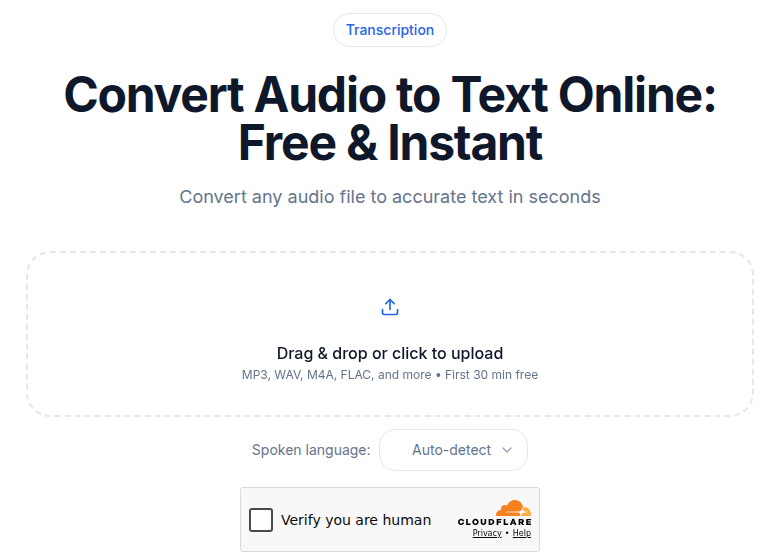 Audio upload tool on ConvertAudioToText, ready to accept a compressed MP3
Trim Silence While You Are At It
A 60-minute recording often has 3 to 5 minutes of dead air: the pre-interview chat before recording was supposed to start, the pause while someone finds their notes, the outro. Audacity's "Truncate Silence" effect removes pauses above a configurable threshold automatically. That shaves 5 to 8% off the file size and slightly reduces processing time.
This is a minor gain compared to format compression, but it costs nothing and is worth doing on files longer than 30 minutes.
Stage via Cloud Storage to Skip Your Upload Entirely
If the audio file is already in cloud storage, you may not need to upload at all. When a transcription service accepts a URL pointing to a Google Drive link, a Dropbox share, or an S3 presigned URL, the server fetches the file directly at gigabit speeds. Your laptop's 2 Mbps connection never touches it.
The workflow:
- Sync the audio file to Google Drive or Dropbox from a device on better internet (or a previous session at home).
- Copy the shareable link.
- Paste the link into the transcription tool's URL input instead of uploading a file.
This is especially useful in coffee shops where your machine has 1 Mbps but Google's data center fetches at 1 Gbps. The transcript shows up in the same time as a normal job.
If you need to compare cloud versus local processing approaches more broadly, on-device vs. cloud transcription covers the trade-offs.
When the Upload Keeps Failing Mid-File
Interrupted uploads are the most frustrating symptom of slow or unstable connections. A few practical fixes before you give up:
Switch to wired if you can. Even 5 Mbps Ethernet is more stable than 20 Mbps congested Wi-Fi. Packet loss on Wi-Fi, not raw speed, is usually what kills uploads.
Move closer to the router. 5 GHz bands lose signal through walls quickly. If you are more than one room away, 2.4 GHz is slower but more consistent.
Kill background traffic. A cloud sync client running in the background can consume 80 to 90% of available upload bandwidth. Pause Dropbox, Google Drive, or iCloud before starting the upload.
Start over after a failure. Most transcription services do not resume from a specific byte offset. A failed upload needs to restart from zero, which is why getting the file small enough to complete in a single session matters.
Tether to Mobile When Wi-Fi Is Genuinely Bad
When the local Wi-Fi is too congested or throttled to be useful, mobile tethering often beats it.
A typical LTE connection in the US or Western Europe delivers 10 to 30 Mbps upload. 5G on Sub-6 GHz bands averages 15 to 50 Mbps. Both are generally faster than hotel or conference venue Wi-Fi during peak hours.
Watch the data. A 60-minute compressed MP3 at 29 MB is a trivial amount of mobile data. The uncompressed WAV at 635 MB is not. Compress first, then tether, and the math works comfortably within most data plans.
Carriers can throttle speeds after 5 to 15 GB of hotspot use per billing cycle depending on the plan. If you are near that ceiling, compress to the smallest workable file before you start.
For workflows that regularly involve field recording away from reliable connections, transcription while traveling has practical patterns for decoupling the record step from the upload step.
The Offline Fallback: Local Whisper
There is a class of situation where no amount of compression helps: no connection at all. A dead zone, an airplane with no Wi-Fi, a remote location between cell towers. Cloud transcription tools require network access to receive your file. They cannot help here.
Local Whisper runs entirely on your machine with no upload and no internet. Two practical options:
Buzz is a free, open-source desktop app for Windows, macOS, and Linux. It wraps OpenAI's Whisper models in a point-and-click interface. Import an audio or video file, pick a model, get a transcript. No Python, no terminal required on macOS with the packaged installer.
whisper.cpp is a C++ port that runs on CPU without any NVIDIA GPU. It is faster than the original Python implementation on Apple Silicon (uses Metal) and usable on any modern laptop with the tiny or base model. The small model sits in the sweet spot for most speech: higher accuracy than base, still fast on CPU.
My take: for the truly offline case, local Whisper is the only real answer. It takes about 5 minutes to set up Buzz the first time and maybe 10 to 15 minutes to transcribe an hour of audio on a mid-range laptop CPU with the small model. That is slower than a cloud tool, but it works anywhere.
ConvertAudioToText handles the upload-based path well and supports URL input for the cloud-staging workflow described above. If you have even a marginal connection and a compressed file, that is usually faster than running local Whisper. If you have genuinely no connection, only local Whisper will work.
For a direct comparison of what local versus cloud approaches each handle well, see on-device vs. cloud transcription.
Split Long Files When Nothing Else Works
When uploads consistently fail even at compressed sizes, split the audio into smaller pieces. A 120-minute recording split into 15-minute segments gives you eight files of about 7 MB each at 64 kbps mono. Each segment uploads in under a minute on a 2 Mbps connection.
If one segment fails, restart only that segment. After all eight finish, concatenate the transcripts in order. Audio splits at silence points work cleanly and the seams are invisible in the final transcript.
FAQ
Does compressing audio to 64 kbps MP3 hurt transcription accuracy?
No, not meaningfully. Cloud transcription engines downsample audio to 16 kHz mono internally before processing, so they discard the extra fidelity of WAV anyway. The accuracy difference between a well-encoded 64 kbps mono MP3 and a lossless WAV is negligible on clean speech.
Can I transcribe audio with no internet connection at all?
Yes, but only with a local tool. Whisper-based desktop apps like Buzz and whisper.cpp run entirely on your machine with no upload required. Cloud services cannot help when you are genuinely offline. If the audio file is short, the tiny or base Whisper model on a modern CPU completes the job in a few minutes.
What is the fastest way to upload a large audio file on slow Wi-Fi?
First, compress to 64 kbps mono MP3 using ffmpeg or Audacity, which can cut file size by 20x or more compared to WAV. If the file is already synced to cloud storage (Google Drive, Dropbox), use a URL-based upload path instead of a file upload. The transcription server downloads directly from the cloud provider at high speed, bypassing your slow local connection entirely.
Is mobile tethering faster than hotel or cafe Wi-Fi for uploads?
Often, yes. A typical LTE connection delivers 10 to 30 Mbps upload. 5G on Sub-6 GHz bands averages 15 to 50 Mbps. Both usually beat congested hotel Wi-Fi. The trade-off is data: a 60-minute WAV upload at 635 MB can consume a significant portion of a monthly mobile data cap, which is why compressing first matters even on mobile.
Sources
- Audio File Size Calculator, Colin Crawley (file size math for WAV and MP3, checked 2026-07-02)
- Buzz on GitHub, chidiwilliams/buzz (offline desktop Whisper app, checked 2026-07-02)
- whisper.cpp on GitHub, ggml-org/whisper.cpp (CPU-native Whisper port, checked 2026-07-02)
- Faster-Whisper Setup Guide 2026, Local AI Master (model tiers and GPU/CPU requirements, checked 2026-07-02)
- 5G vs 4G Speed 2026, Spenza (LTE 10-30 Mbps / 5G 15-50 Mbps upload, checked 2026-07-02)
Try transcription free
Convert any audio or video to clean, unwatermarked text — speaker labels, timestamps, and AI summaries included. First 30 minutes free, no account.
Related Articles

Agentic Transcription Systems: Real Patterns for 2026
Agentic transcription goes beyond raw text. Learn the three real agent loops (verify-and-retry, terminology lookup, summary chains) that work in production today.

Batch Transcription for Large Projects: The 2026 Playbook
How to run a 1,000-file batch transcription job without losing your mind: manifest setup, API parallelism, rate limits, failure handling, QC sampling, and cost math for 2026.