
Transcripts for Screen Reader Users: Formatting That Works
Summarize this article with:
How Screen Readers Read Transcripts
A transcript is only as accessible as its semantic structure. Screen readers do not display pages visually; they parse the underlying HTML and present it as audio or braille output. A blind user navigating a 5,000-word transcript can jump by heading, move paragraph-by-paragraph, search for text, or read sequentially. Which of those modes is fast depends entirely on how the transcript was formatted.
Captions and transcripts are different tools for different users. Under WCAG 1.2.2 (Level A), captions are required for synchronized video, because they appear on screen in sync with the audio. Under WCAG 1.2.1 (Level A), a transcript is required for prerecorded audio-only content, because blind users cannot see the video player and cannot benefit from timed captions. For more on where those lines fall, see transcription vs captioning vs subtitles.
The practical point: if you publish a podcast episode, a recorded lecture, or an interview, your transcript is the primary access path for blind and low-vision listeners. Its structure is the interface.
What Screen Reader Users Can Do with a Transcript
A screen reader user has several navigation modes available:
- Heading jump: Pull up a list of all headings and jump directly to any section (fast, the preferred mode for long content)
- Paragraph skip: Move to the next paragraph at medium speed
- Sentence skip: Move one sentence at a time for precise reading
- Text search: Jump directly to a keyword or phrase
- Sequential read: Listen from top to bottom (slow, used when structure is absent)
For a 90-minute interview transcript, heading-based navigation is the difference between finding a section in seconds and spending minutes listening through content. The visual presentation can look like anything. What matters is the semantic structure underneath.
Formatting Patterns That Work
Use a Real Heading Hierarchy
Headings give screen reader users a map of the document. For a podcast or interview transcript:
- H1: Episode or interview title (on the page, not in the transcript body)
- H2: Major sections (intro, main topic, Q&A, closing)
- H3: Subsections within major sections, if the content warrants it
For a meeting or lecture:
- H2: Agenda items or lecture sections in order
- H3: Topic shifts within a section, if substantial
A heading labeled with the topic ("Pricing Model Discussion") lets the user decide whether to read that section. A heading labeled only with a timestamp ("00:15:30") gives no context until the user has already jumped there.
Speaker Labels as Text at Every Change
For multi-speaker content, each speaker change needs a visible text label. The pattern that works:
**Sarah:** I think we should focus on the second option.

**David:** Agreed, the timeline works better.

**Sarah:** And it costs less in the long run.
The bold styling helps visual readers scan quickly. The speaker name followed by a colon gives the screen reader user the attribution before the content: "Sarah, I think we should focus..." Visual cues like indentation or color do not transfer to audio. Text labels do.
Paragraph Breaks at Natural Points
A wall of text is hard for everyone, but for a screen reader user navigating paragraph-by-paragraph, a 600-word block without breaks means listening through the entire block to find one sentence. Break paragraphs:
- At topic shifts within a speaker's content
- Every 100-150 words for long monologues
- At natural speech pauses of three seconds or longer
Each paragraph should be a coherent unit on its own.
Time Markers for Navigation
For transcripts over about 20 minutes, periodic timestamps help users find specific moments. Format them inline, before the text at that point:
**[00:15:30]** And then we got to the question of pricing...
The bracketed timestamp is announced by the screen reader and provides a reference point without breaking the reading flow. For a 90-minute transcript, a marker every five to ten minutes is appropriate.
Non-Speech Sounds in Brackets
Sounds that affect comprehension belong in the transcript:
- [Audience laughter]
- [Background music fades]
- [Door slams]
These are more critical in captions, where they need to be timed to the video. In a standalone transcript they add context for users who have never heard the audio.
Spell Out Acronyms on First Use
Screen readers often read unfamiliar acronyms letter-by-letter. "GDPR" on a well-configured screen reader may come out as "G-D-P-R." "Equal Employment Opportunity Commission (EEOC)" on first use, then "EEOC" after, gives the user the full form before the abbreviation appears. Common acronyms like NASA or FBI are usually handled correctly; domain-specific ones are the risk.
Standard Punctuation Only
Modern screen readers handle periods, commas, and question marks correctly. What causes problems:
- Excessive ellipses, which create awkward pauses
- ALL CAPS, read letter-by-letter on some screen readers
- Decorative Unicode characters that may not pronounce consistently
- Smart quotes in some older reading configurations
Keep punctuation standard and functional.
Patterns That Fail
Speakerless walls of text are functionally inaccessible. A 3,000-word block with no speaker labels and no paragraph breaks forces sequential reading with no navigation options.
Headings as the only structure is better than nothing, but if each H2 covers 800 words without internal paragraph breaks, the user can jump to a section but then has to listen through all of it.
PDF-only distribution is a frequent trap. Exporting to PDF from Word or a web page usually strips the semantic tag structure, even when the visual layout looks correct. Heading navigation disappears. For screen reader accessibility, HTML on a web page is the most reliable format.
Inline editorial comments confuse the sequential reading flow. If you need to add context ("[editor: this section was cut for time]"), put it in a clearly labeled aside or footnote, not inline with the speaker text.
Timestamp-only headings ("00:15:30") give no navigation value. Combine the timestamp with the topic.
Mixed-language content without language markup is a specific failure that screen readers cannot work around. If a transcript includes Spanish passages in an English document, the screen reader needs a lang attribute to switch pronunciation rules. WCAG 3.1.2 (Level AA) requires language identification for each passage or phrase in a different language from the page default. Without it, Spanish text gets read with English phonetics.
Workflow: From AI Transcript to Accessible Document
Starting from an AI-generated transcript via the audio to text tool:
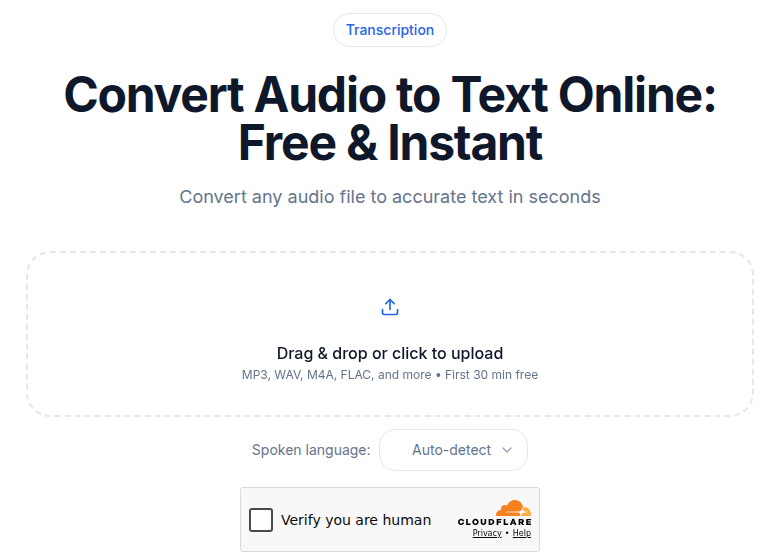 ConvertAudioToText audio upload tool showing file drop zone and format options
Step 1: Initial review. Read through the transcript while listening to the audio. Confirm accuracy and identify the major topic shifts that should become H2 headings.
Step 2: Add heading structure. Insert H2 headings at major topic shifts. For a 60-minute interview, five to fifteen headings is a reasonable range. Name each heading with the topic.
Step 3: Verify speaker labels. AI diarization is typically accurate 80-90% of the time, but check for: overlapping speech where both speakers were merged into one, quick turns that the AI collapsed, and misattributed lines.
Step 4: Break paragraphs. Split long monologues at natural points. Aim for paragraphs of 100-200 words.
Step 5: Add time markers. Insert timestamps every five to ten minutes for navigation.
Step 6: Mark non-speech sounds. For narrative audio, add bracketed sound descriptions at relevant moments. For pure dialogue (meetings, interviews), usually unnecessary.
Step 7: Add language markup. If any section is in a different language, wrap it in a lang attribute in HTML, or note the language explicitly in plain text formats.
Step 8: Validate with a screen reader. NVDA (free, open source, Windows) and VoiceOver (built into macOS and iOS) are the two most practical tools for this. Navigate the transcript using only the keyboard. Confirm that heading navigation jumps between major sections, paragraph navigation moves cleanly, and speaker labels are announced before the text.
This validation step catches issues that visual review misses.
Where to Publish the Transcript
| Format | Screen Reader Support | Notes |
|---|---|---|
| HTML on the page | Best | Full semantic structure; heading and landmark navigation works natively |
| Tagged PDF | Good | Requires intentional authoring; not produced by default "Save as PDF" |
| Markdown (rendered) | Good | Platforms that render to HTML preserve most structure |
| Plain text | Acceptable | No heading navigation; sequential reading only |
| Untagged PDF | Poor | Semantic structure usually lost; heading navigation unavailable |
| Embedded in video player | Poor | Often inaccessible to screen readers depending on player implementation |
For platforms that strip formatting (some podcast hosts, some course platforms), publish the HTML version on your own site and link to it.
Placement on the Page
Put the transcript on the same page as the audio, not behind a separate link. A user who navigates to your episode page should be able to scroll down (or jump via heading) to the transcript without opening a new URL. If the transcript is long, a skip link at the top of the player ("Jump to transcript") reduces the navigation burden.
For video content, transcripts and captions serve different users and both may be needed. The transcript belongs as text on the page. Captions belong as a timed file on the video player. Neither substitutes for the other. See transcription for deaf and hard-of-hearing users for the full picture on which formats serve which access needs.
Length and Structure by Content Type
Under 15 minutes of audio: A single prose section without subheadings is acceptable. Speaker labels and paragraph breaks still matter.
15-60 minutes: H2 headings every five to fifteen minutes. Five to ten headings for a typical interview.
60-180 minutes: Hierarchical headings, H2 for major sections and H3 for topic shifts within sections.
Multi-session or multi-hour content: Consider splitting into separate transcript pages by session or topic. The navigation goal is that any user can find any moment within about 30 seconds.
For educational content, accessible lectures with transcripts covers how transcript structure integrates with course platforms. For the broader compliance picture, WCAG compliance with transcripts covers which success criteria apply to which media types.
A Quick Accessibility Checklist
Before publishing a transcript, confirm:
- Can a screen reader user identify the speaker at any point in the text?
- Can they jump to a specific section using heading navigation?
- Can they navigate paragraph-by-paragraph through the content?
- Are non-English passages marked with language attributes?
- Is the transcript on the same page as the audio, not behind a separate link?
- Did you test navigation with an actual screen reader?
If any answer is no, the transcript is not fully accessible. The fixes are formatting changes, not content rewrites. A transcript that passes these checks serves more than screen reader users: it helps anyone scanning for a keyword, reading on a small screen, or searching for a specific quote. The structural work that makes transcripts accessible makes them more useful for everyone.
If you're generating transcripts from audio or video files, ConvertAudioToText produces text output you can paste directly into your publishing workflow and format using the patterns above.
Common Questions
Do blind users need captions or transcripts?
Blind users need transcripts, not captions. Captions are synchronized text overlaid on video, designed for users who can see the video but cannot hear the audio. A transcript is a standalone text document that a screen reader can navigate independently. WCAG 1.2.1 (Level A) requires a transcript for prerecorded audio-only content; WCAG 1.2.2 (Level A) requires captions for synchronized video. Both may be needed, but they serve different purposes and different users.
Where should the transcript be placed on the page?
Put the transcript on the same page as the audio or video, not behind a separate download link. A screen reader user should not have to navigate to a different page to access the text. If the transcript is long, place it below the media player with a clear heading so the user can jump to it from the heading list. A skip link ("Jump to transcript") above the player also helps. If you do offer a download, HTML is more reliably accessible than PDF.
How do headings help screen reader users navigate a long transcript?
Screen readers let users pull up a list of all headings on the page and jump directly to any of them. In a 90-minute transcript with no headings, the user has to read every word sequentially to find a specific section. With H2 headings for major topics every 10-15 minutes, the user can jump to the right section in seconds. Heading text should describe the topic, not just show a timestamp: "00:15:30: Pricing Discussion" gives useful context; "00:15:30" alone does not.
Are PDF transcripts accessible to screen readers?
PDFs can be accessible, but most are not by default. A PDF created with "Save as PDF" from Word or exported from a web page usually loses its semantic tag structure. Screen readers can still read the text sequentially, but heading navigation, list structure, and language attributes are typically stripped out. For reliable screen reader accessibility, HTML on a web page is the best format. If you need to offer a PDF, use a PDF authoring tool that exports tagged PDFs with explicit heading, paragraph, and language tags.
Sources
- W3C WCAG 2.1 Understanding 1.2.1 Audio-only and Video-only (Prerecorded): https://www.w3.org/WAI/WCAG21/Understanding/audio-only-and-video-only-prerecorded.html
- W3C WCAG 2.1 Understanding 1.2.2 Captions (Prerecorded): https://www.w3.org/WAI/WCAG22/Understanding/captions-prerecorded.html
- W3C WCAG Understanding 3.1.2 Language of Parts: https://www.w3.org/WAI/WCAG22/Understanding/language-of-parts.html
- W3C WAI Transcripts guidance: https://www.w3.org/WAI/media/av/transcripts/
- NV Access NVDA download page: https://www.nvaccess.org/download/
- W3C ARIA Landmarks and screen reader AT examples: https://www.w3.org/WAI/ARIA/apg/patterns/landmarks/examples/at.html
Try transcription free
Convert any audio or video to clean, unwatermarked text — speaker labels, timestamps, and AI summaries included. First 30 minutes free, no account.
Related Articles

Podcast Accessibility Transcripts: Why Every Show Needs One
Why podcast transcripts matter for deaf and hard-of-hearing listeners, what good ones look like, and how to publish them.
Accessibility Captions and ADA Compliance: A 2026 Guide
How to caption video for ADA compliance: the real WCAG levels, the DOJ Title II deadlines after the 2026 extension, Section 508, the EU Accessibility Act, and the AI-plus-human workflow that actually