
Draft a Follow-Up Email From a Meeting With AI (2026)
Summarize this article with:
Meeting to Email in Five Minutes
The fastest way to write a good follow-up email after a meeting is to transcribe the recording, paste the transcript into an LLM with the right prompt, and spend two minutes editing the draft before sending. For a 45-minute call, the whole sequence takes five to eight minutes. The manual version, done well, takes 30 to 45 minutes. Most people skip it entirely.
This post covers the four-step pipeline, four prompt templates for the most common meeting types, the editing pass that turns a competent AI draft into one that sounds like you, and the privacy questions worth thinking through before you deploy this at scale.
The Four-Step Pipeline
- Transcribe the meeting with speaker diarization.
- Identify the email type you need (recap, customer follow-up, hiring, cross-functional).
- Paste the transcript and a typed prompt into an LLM.
- Edit for names, dates, hedging, and voice, then send.
Transcription is the slowest step, usually two to five minutes for a 30-60 minute call. The LLM step runs in under 30 seconds. The edit pass takes one to two minutes if you have a clear mental model of what to check. Total: five to eight minutes from end-of-call to sent email.
Step 1: Get a Transcript With Speaker Labels
The follow-up email needs to know who said what. A summary without speaker attribution cannot produce sentences like "Alice committed to sending the contract draft by Friday." Use a tool with diarization built in.
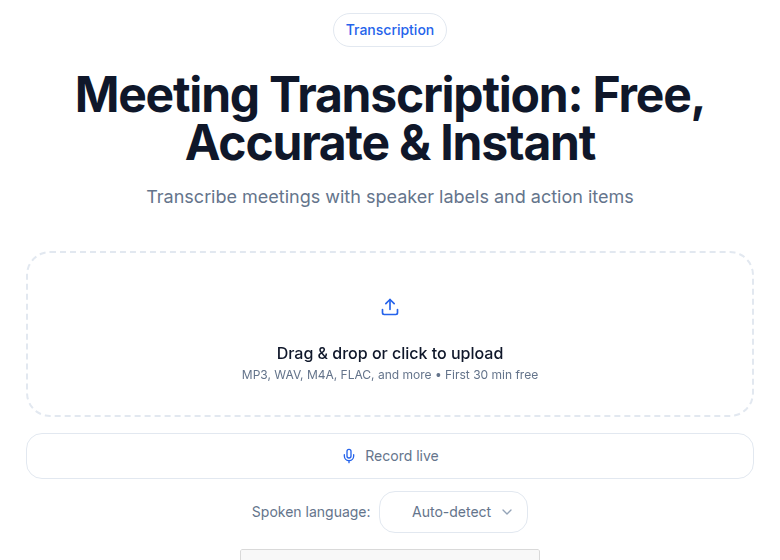 Meeting transcription tool with speaker labels and timestamps
For a 30-minute Zoom call, a good transcription tool returns labeled speaker turns in about two minutes. Before prompting the LLM, scan the speaker labels to confirm they match the actual participants. Diarization gets speaker counts right most of the time but occasionally swaps labels, particularly when two speakers have similar voices or talk over each other.
If you're looking at options, the speaker diarization explained post covers what to look for in a diarization result and how to spot the common error patterns.
Step 2: Pick the Right Email Type
Different follow-up emails serve different purposes, and each needs a different prompt structure.
Type 1: Team Recap
For any meeting where the main job is documenting what happened. Decisions, commitments, and open items, no sales or client framing needed.
You are drafting a follow-up email after a team meeting.

Recipients: everyone who attended. Tone: professional and direct.

Structure:
- One sentence opening that states what the meeting was about.
- Bulleted list of decisions made.
- Bulleted list of action items with owner and due date.
- Short section on topics discussed but not yet decided.
- Closing line on next steps.

Do not use "great meeting," "as discussed," or any filler phrase.
Be specific. If a decision has a rationale, include one sentence of it.

Transcript:
[transcript]
Type 2: Customer Follow-Up
For sales or customer success calls. The email goes to the customer and summarizes their needs and your commitments.
You are drafting a follow-up email after a customer call.

Recipient: [Customer Name], [Company]. Tone: professional, warm, action-oriented.
Sender: [Your Name], [Your Role].

Structure:
- One sentence thank-you that names something specific from the call.
- Short paragraph recapping the customer's main needs as you understood them.
- Bulleted list of next steps you committed to, with timing.
- Bulleted list of next steps the customer mentioned they would take.
- One closing sentence offering to answer questions.

Do not invent next steps. Only include what was explicitly committed to in the call.

Transcript:
[transcript]
Type 3: Hiring Debrief
Internal email to align the hiring panel after a candidate interview.
You are drafting an internal debrief email after a candidate interview.

Recipient: the hiring panel. Tone: specific and professional.
Sender: the interviewer.

Structure:
- One sentence framing: candidate name, role, and interview type.
- Key strengths observed (3-5 bullets with specific examples from the conversation).
- Areas of concern (3-5 bullets if any, with specific moments from the call).
- Recommendation: advance, pass, or hold for further discussion.
- Open questions for the next round.

Reference specific moments from the interview rather than generic observations.

Transcript:
[transcript]
Type 4: Cross-Functional Sync
When teams from different departments meet to align on a project. These emails have the widest audience and go stale fastest, so brevity matters.
You are drafting a follow-up email after a cross-functional alignment meeting.

Recipients: all attendees and their managers. Tone: clear and operational.

Structure:
- One sentence stating the meeting purpose.
- Decisions made.
- Owner assignments for each action item.
- Risks or blockers identified.
- Date of next sync if agreed upon.

Target under 200 words. Cross-functional emails get ignored when they run long.

Transcript:
[transcript]
Step 3: Prompt Patterns That Improve Every Draft
Three patterns make a consistent difference regardless of which template you use.
Name the specific reader. "An email to my manager" and "an email to the client" produce different output even with identical transcripts. The model adjusts level of detail, framing, and what to surface. Always say who receives the email.
Be specific about tone. "Professional" alone produces generic output. "Professional, the way a senior consultant emails a client after a first discovery call" is more useful. "Terse and operational, the way engineers email each other" is better still. The tone instruction shapes word choice and sentence length.
Ban the cliches. Most AI-drafted emails default to "great meeting," "as per our discussion," or "I hope this finds you well." These phrases signal automation and add nothing. Explicitly banning them in the prompt forces the model to write the actual content.
For a deeper look at structuring prompts for post-meeting outputs, creating meeting minutes from audio covers how to break a long recording into structured artifacts.
Step 4: The Edit Pass
Every AI-drafted email needs a human read before sending. The edits cluster around four issues.
Names and numbers. The model occasionally misspells names, gets titles wrong, or rounds figures. A customer who said "we need to ship by mid-September" might appear in the draft as "early Q4." Verify against the transcript or your notes.
Hedging. AI drafts often hedge more than the conversation did. "We talked about possibly considering an integration" was actually "we decided to integrate next quarter." The model errs on the cautious side. Strengthen confident commitments and soften genuinely speculative ones, but don't let the model's caution deflate real agreements.
Voice. The draft will sound generic, because it is. Your normal email voice is not. Edit one sentence in the opening and one in the closing to sound like you. The middle, the substance, can stay close to the AI output. Two sentences of you is enough for the whole email to read as human.
Length. AI drafts trend long. Most follow-up emails should stay under 200 words. The bulleted lists usually keep their value. The framing paragraphs around them are where the bloat lives. Cut those first.
My Take on AI Email Tools vs. a Manual Prompt
Tools like Fireflies and Otter both have native follow-up email features, per their documentation. Fireflies uses "AI Skills" to generate email drafts after a meeting ends. Otter has a one-click autogenerate option in its sales-focused plan. These work well if you want a single, preset format with no customization.
The manual-prompt approach in this post gives you control the native tools do not. You can match the draft to the specific recipient, set a tone, ban phrases your company culture avoids, and structure the output for your team's exact use. If you run the same meeting type repeatedly, save the prompt as a text snippet and it becomes effectively one-click anyway.
For one-off recordings where you just need a clean transcript before prompting, the meeting transcription tool at ConvertAudioToText handles the diarization step without a bot joining your call.
Privacy and Consent
Two things to check before using this workflow at your organization.
Consent to record. Most jurisdictions require informed consent for call recording. The rules vary by state, country, and where the participants are located. Verify the rules that apply to your calls before recording.
Data handling. Sending a meeting transcript to a cloud LLM means your customers' words leave your security boundary. Check your provider's defaults before you assume they apply to your situation:
- OpenAI's API does not train on your data by default. Inputs are retained for up to 30 days for abuse monitoring, per OpenAI's developer documentation.
- Anthropic's Claude API does not store prompts or outputs after the response returns, by default. Zero data retention is available for qualifying enterprise customers, per Anthropic's API data retention documentation.
- Azure OpenAI routes data through Microsoft's infrastructure and has its own data handling agreements.
For most consumer and SMB use cases, the standard API agreements from major providers are sufficient. For regulated industries, healthcare, financial services, legal, evaluate the data processing agreement before sending any sensitive content through a cloud LLM.
When to Skip the AI Draft
Three meeting types warrant writing the email yourself.
Sensitive personnel conversations. Performance reviews, terminations, conflict resolution. The follow-up here needs human judgment about what to put in writing, and what to leave out.
Legal-sensitive discussions. Anything that might be discoverable in litigation. The follow-up email needs careful legal review, not AI speed.
Highly emotional conversations. The model can summarize what was said but not what was felt or left unsaid. For these, the transcript is useful for your own reference, but the email should come from you.
Common Questions
Do I need a special transcription tool, or will any recording work?
You need speaker diarization, not just a transcript. A flat transcript without speaker labels forces you to re-read the whole thing to figure out who committed to what. Any tool that outputs labeled speaker turns works, including the CATT meeting transcription tool, Otter, Fireflies, or cloud provider APIs. If your transcript has no speaker labels, add a line at the top of the prompt telling the model to attribute quotes as best it can from context, but accept that the result will be less precise.
Can I paste a long transcript directly into ChatGPT or Claude?
Yes, for most meetings. A 60-minute call typically produces 8,000 to 12,000 words of transcript, which fits comfortably in the context windows of current models. Where it gets tricky is a multi-hour workshop or an all-day session. In those cases, split the transcript by agenda segment and run one prompt per segment, then combine the outputs.
What should I always edit before sending?
Four things: names and titles (the model occasionally misspells or swaps them), specific numbers and dates mentioned in the call (models round and summarize), any commitment the model hedged that was actually firm, and the opening sentence. The opening is where the generic AI voice shows up most. Write one sentence that sounds like you, and the rest of the email reads as human.
Is it safe to send meeting transcripts to a cloud LLM?
For most business use, yes, with the right provider and plan. OpenAI's API does not train on your data by default. Anthropic's Claude API does not store your prompts after the response returns, and zero data retention is available for qualifying enterprise customers. For regulated industries such as healthcare or financial services, verify your vendor's data processing agreement and whether a Business Associate Agreement or equivalent is in place before sending any sensitive content.
Sources
- Anthropic API and data retention documentation (verified July 2026)
- OpenAI enterprise privacy (verified July 2026)
- Fireflies AI tools to automate follow-up emails (verified July 2026)
- Otter.ai autogenerate a follow-up email help article (verified July 2026)
Try transcription free
Convert any audio or video to clean, unwatermarked text — speaker labels, timestamps, and AI summaries included. First 30 minutes free, no account.
Related Articles

How to Extract Action Items From Meetings: A 2026 Workflow
A practical workflow for pulling real commitments out of meeting transcripts: the language patterns that flag action items, how to capture owner and deadline, and how to close the loop.

How to Transcribe a Microsoft Teams Meeting (2026 Guide)
Transcribe Microsoft Teams meetings: license requirements, where files live, and the external-tool path when Teams transcription is locked.