How to Transcribe a Microsoft Teams Meeting (2026 Guide)
Summarize this article with:
Teams has a built-in live transcript that saves automatically to OneDrive or SharePoint, but it requires the right admin policy and a paid M365 plan (Business Basic or higher). If your org disables live transcripts but allows recording, you can pull the MP4 and run it through an external tool. When both are locked, live captions are your only native option. Intelligent Recap (AI notes and chapters) requires a Teams Premium or M365 Copilot license on top of the base plan.
Teams has a built-in transcript that saves automatically, but whether it works for you depends on your M365 plan and what your IT team has switched on. This post answers the five questions Teams users actually ask: which method to use, which license they need, where the files go, what to do when the option is locked, and how to improve speaker labels on mixed-track recordings.
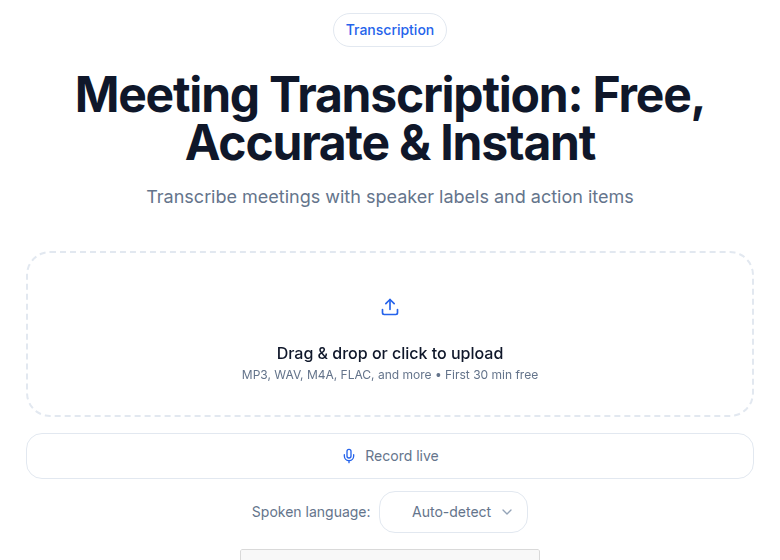 The external-tool path: upload the Teams recording file directly
Which Path Gets You a Transcript?
Three options exist, and they are not mutually exclusive:
- Native live transcript during the meeting. Saves automatically. Requires a qualifying plan and admin policy.
- Post-meeting transcription of the recording. Works if recording is allowed even when native transcript is disabled.
- Live captions only. Available to all paid Teams users, but captions are not saved.
Start with the native transcript if your org allows it. It uses Teams metadata for speaker labels (each participant's Microsoft account name), which outperforms acoustic diarization on any external tool for internal meetings. For external guests or cases where speaker accuracy matters less than format options, the external-tool path gives you SRT, custom vocabulary, and more control.
| Need | Best path |
|---|---|
| Internal meeting, fastest | Native Teams live transcript |
| Best speaker labels | Native Teams live transcript |
| SRT subtitles for video editing | External tool on the MP4 |
| Non-Microsoft service policy (can't upload externally) | Native transcript only |
| AI-generated summary and chapters | Intelligent Recap (needs Teams Premium or Copilot) |
| Org disables recording and transcript | Live captions, documented by hand |
Which License Do You Need?
The short answer: any paid Microsoft 365 plan that includes Teams. Transcription and recording are available starting with Microsoft 365 Business Basic. They are not available on Teams Essentials or Teams Free.
The fuller picture as of July 2026:
- Live captions: All paid Teams plans, including Business Basic. User-controlled, not saved.
- Live transcription and cloud recording: Business Basic and higher, subject to admin policy.
- Live translated transcription (read the transcript in a different language than spoken): Requires Teams Premium.
- Intelligent Recap (AI meeting notes, chapters, action items, speaker timeline): Requires Teams Premium or Microsoft 365 Copilot.
- Audio Recap and custom dictionary upload: Requires Microsoft 365 Copilot specifically.
One important update from April 2026: Microsoft moved some features that previously required Teams Premium into Teams Enterprise plans. If your org has an Enterprise license, check whether your Recap features expanded recently.
If transcription is greyed out despite having the right plan, the admin has turned off the AllowTranscription policy for your account or for the meeting organizer. Both the organizer and the person starting the transcript must have the policy enabled. Talk to IT before assuming the feature is broken; Microsoft's Teams Transcripts Diagnostic in the M365 admin center can pinpoint the issue in under a minute.
How to Use the Built-In Live Transcript
When your org has live transcription enabled, the steps are:
- Join the meeting. Click "More" (the three-dot menu) and choose "Start transcription." A notification goes to all participants.
- The live transcript appears in a panel on the right side of the meeting window. Participants can show or hide the panel, but cannot stop a transcript the organizer started.
- After the meeting, the transcript saves automatically. Find it in the meeting chat or under the Recap tab on the calendar event.
- Download as VTT (with timestamps and speaker labels) or DOCX (formatted for reading). Teams does not export SRT natively. If you need SRT for subtitles, you need an external tool.
The speaker labels are the native transcript's biggest advantage. Teams assigns each turn to the participant's Microsoft account name from metadata, not from voice analysis. Guests who joined from outside your org may appear as "Guest" or by their display name, but internal attendees will be labeled correctly even in a chaotic, cross-talking meeting.
Supported languages: more than 60, including English, Spanish, French, German, Japanese, Arabic, Chinese (Simplified and Traditional), Portuguese, Korean, and many others. You pick the spoken language before starting transcription. Only one spoken language is supported per transcript session.
Where Do the Files Go?
Recordings and transcripts land in different places depending on the meeting type.
- Scheduled and ad hoc meetings (non-channel): The recording and transcript save to the Recordings folder in the meeting organizer's OneDrive for work or school. Even if the organizer didn't attend, it still goes to their OneDrive.
- Channel meetings: The recording saves to SharePoint, under the path
Teams name - Channel name / Documents / Recordings. - 1-on-1 and group calls: The recording saves to the OneDrive of the person who clicked Record.
Permissions follow the location. Channel meeting recordings are visible to all channel members by default. Private meeting recordings are shared automatically with meeting invitees from your org; external participants must be shared explicitly by the organizer.
Default expiration is 120 days. After that, Teams moves the file to the recycle bin (where it stays another 93 days). Download or move recordings you want to keep before the 120-day mark. Admins can adjust or turn off expiration in the Teams admin center.
A 60-minute meeting recording runs to roughly 400 MB as an MP4 at 720p with stereo AAC audio. If you need a smaller upload for an external tool, extracting audio-only with FFmpeg cuts that down significantly:
ffmpeg -i teams-call.mp4 -vn -acodec mp3 -ab 128k teams-call.mp3
Transcription accuracy is the same on the MP3 as on the original MP4.
How to Transcribe the Recording with an External Tool
If your org disables live transcripts but allows recording, or if you need SRT output or better accuracy on a specific language, pull the MP4 and run it externally.
- Find the recording. Check the meeting chat for a link, or navigate directly to the organizer's OneDrive Recordings folder or the channel's SharePoint Recordings folder.
- Download the MP4, or copy a shareable link if the tool accepts URLs.
- Upload to a transcription tool. If you just need a clean transcript or an SRT file without setting up a meeting bot, ConvertAudioToText accepts both file uploads and direct links. Specify the language and approximate speaker count.
- Run. Processing a 60-minute call typically takes 3 to 5 minutes.
- Export. TXT, SRT, VTT, DOCX, or JSON, depending on the tool.
External tools are worth choosing when:
- You need SRT for video captions. Teams exports VTT and DOCX only.
- Your meeting was in a language where you want a specialized model or better non-English vocabulary handling.
- You want structured output like meeting minutes. See how to create meeting minutes from audio for templates.
- Your org's data-transfer policy blocks external uploads. In that case, this option is not available and you should fall back to the native transcript.
Note: some enterprise orgs explicitly block uploading meeting recordings to non-Microsoft services. If your IT policy restricts external data transfer, the native Teams transcript is your only path.
For context on how speaker diarization works on a mixed-track recording (all participants on one audio channel), the speaker diarization explained post covers why the native transcript wins on internal calls and where acoustic diarization can match it.
What to Do When Recording and Transcript Are Both Disabled
If your admin has disabled both, you still have live captions. They appear in real time but are not saved after the meeting ends.
Your remaining options:
- Copy caption text as the meeting runs. Tedious and error-prone, but the only Teams-native path.
- Use a local recording tool (OBS, for example) to capture the audio from your own device. Check consent law in your jurisdiction before doing this, and verify it does not violate org policy.
- Use a local transcription overlay (Krisp or similar tools that run locally and don't access Teams' API). These work at the OS audio level and don't depend on Teams permissions.
In most enterprise settings, routing around a disabled-transcript policy creates compliance risk. Talking to IT is faster than building a workaround.
The Consent and Notification Layer
Teams shows an automatic notification to all participants when recording or transcription starts. That notification satisfies one-party consent requirements in most US states. It is not a substitute for explicit verbal consent in two-party-consent states (California, Florida, Illinois, and others), or for the explicit consent requirements under EU GDPR when participants are from the EU.
Internal corporate meetings often have blanket consent covered by employment policies. For external meetings with vendors, customers, or research participants, a verbal "I'm recording this call for note-taking purposes, do you consent?" at the start is the safest practice. Don't skip it for customer calls.
Common Editing Issues on Teams Transcripts
Even a good transcript needs a 10 to 15 minute editing pass on a 60-minute meeting. The patterns that appear most often:
- Internal project names and acronyms. "Project Falcon" becomes "Project Falcon" correctly, but "CRM" becomes "serum" or "Sarah M."
- Cross-talk during lively discussion. When multiple people speak simultaneously, the transcript merges or drops turns.
- Screen-share audio. A demo video or a shared presentation's audio gets transcribed alongside the meeting.
- Side conversations with an open mic. Whispers picked up by a sensitive headset show up as speaker turns.
The transcription accuracy explained post covers the recording habits that prevent most of these errors at the source.
FAQ
Does transcription cost extra in Microsoft Teams?
Basic live transcription is included with Microsoft 365 Business Basic and higher plans at no extra charge, as long as your admin has it enabled via meeting policy. Live translated transcription (seeing the transcript in a different language) requires Teams Premium. AI-generated summaries and Intelligent Recap require Teams Premium or Microsoft 365 Copilot.
Why is the Start Transcription button missing or greyed out?
Three causes: your M365 plan doesn't include transcription (Teams Essentials and Teams Free don't), your admin has turned off the AllowTranscription policy for your account, or the meeting organizer's policy doesn't permit transcription. Run the Teams Transcripts Diagnostic in the Microsoft 365 admin center to pinpoint the issue.
How long does Teams keep recording and transcript files?
The default expiration is 120 days. After that, Teams moves the file to the OneDrive or SharePoint recycle bin, where it stays another 93 days before permanent deletion. Admins can change or disable expiration in the Teams admin center; the change only applies to new recordings, not existing ones.
Can external guests get a copy of the transcript?
External participants (those outside your org) don't automatically receive a link to the recording or transcript. The meeting organizer must share it explicitly. Guests who joined from inside Teams appear in speaker labels by their display name; guests who joined from a browser often appear as 'Guest' or by whatever name they entered.
Does Teams transcription support languages other than English?
Yes. The native Teams transcript supports more than 60 languages, including French, Spanish, German, Japanese, Arabic, Chinese, and many others. You select the spoken language before starting transcription. What requires Teams Premium is live translated transcription, where participants read the transcript in a language different from what was spoken.
What is the difference between live captions and live transcription in Teams?
Live captions appear in real time during the meeting but are never saved. Live transcription also appears during the meeting AND is saved afterward with timestamps and speaker names. Both are controlled by admin policy, but they are separate policy toggles, so your org may have one without the other.
Sources
- Overview: Recording and transcription for Teams meetings, events, and calls - Microsoft Learn
- Admins: Manage transcription and captions for Teams meetings - Microsoft Learn
- Teams meeting recording and transcript storage and permissions in OneDrive and SharePoint - Microsoft Learn
- Intelligent recap for Teams calls, meetings, and events - Microsoft Learn
- Which Microsoft 365 plan has recording and transcription feature - Microsoft Q&A
- Microsoft Teams Premium licensing - Microsoft Learn
Try transcription free
Convert any audio or video to clean, unwatermarked text — speaker labels, timestamps, and AI summaries included. First 30 minutes free, no account.
Related Articles
How to Transcribe a Teams Meeting Recording
Turn a Microsoft Teams meeting recording into searchable text: upload the file or paste a share link, review speaker labels, and export TXT, SRT, or VTT.

Action Items from Meeting Recordings: What AI Catches
Honest look at what AI tools actually catch when extracting action items from meeting recordings, including accuracy limits, fabrication risks, and the verification pass that makes it reliable.