
Transcribe Google Meet Recordings Free 2026 (3 Methods)
Summarize this article with:
Live captions are free for all Google accounts (100+ languages, not saved). Live transcripts that save to Drive require Business Standard or higher ($14/user/month annual). If you already have a recording in Drive and did not turn on live transcription, Google offers no built-in post-meeting transcription — download the MP4 and run it through an external tool. The saved transcript only supports 8 languages (English, French, German, Italian, Japanese, Korean, Portuguese, Spanish).
The Quick Path
If you already have a Meet recording sitting in Drive, there is no built-in Google button to transcribe it after the fact. Google's native transcript runs live during the call, not on recordings. So the path splits early: enable live transcription before the meeting if you can plan ahead, or run the Drive MP4 through an external tool if you are working with a recording you already have. This post covers both, plus the free live-captions option.
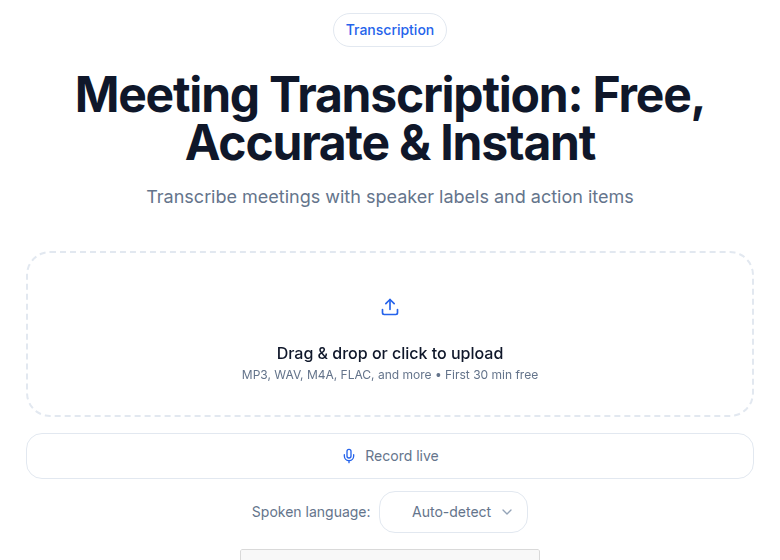 Upload the Meet recording from Drive and transcribe it in minutes
What Google Meet Gives You Out of the Box
Meet's built-in transcript feature generates text in real time during the call and saves it as a Google Doc to the organizer's Drive. It is not a post-processing step on the recording file.
Availability is gated by Workspace edition. As of July 2026, verified against Google's own support pages:
| Edition | Recording | Live Transcript |
|---|---|---|
| Free Google account | No | No (live captions only) |
| Business Starter | No | No |
| Business Standard ($14/user/mo annual) | Yes | Yes |
| Business Plus | Yes | Yes |
| Enterprise Starter, Standard, Plus | Yes | Yes |
| Workspace Individual | Yes | Yes |
| Google One 2 TB+ (personal) | Yes | No transcript |
If the "Transcribe meeting" option is greyed out, either your plan does not include it or your Workspace admin has not enabled transcription in the Admin console. Both things need to be true before the button appears.
Language support for the saved transcript is narrower than most people expect. Only English, French, German, Italian, Japanese, Korean, Portuguese, and Spanish are supported for saved transcripts. If your meeting is in any other language, the native transcript is not an option. Live captions cover roughly 100 languages but are not saved.
Method 1: Enable the Live Transcript Before the Meeting
This path works when you know in advance the meeting should be documented.
- Open the Activities panel (the icon looks like three overlapping shapes) before or during the call.
- Select "Transcripts" and turn it on. Participants will see a notification that the meeting is being transcribed.
- After the call ends, find the transcript in the organizer's "Meet Recordings" folder in My Drive. It arrives as a Google Doc named with the meeting title and date. The recording (if also enabled) lands in the same folder as an MP4.
- Export from the Google Doc as DOCX, TXT, PDF, or RTF. There is no native SRT or VTT export.
The built-in transcript has real limits worth knowing:
- Speaker attribution is inconsistent. The transcript attempts to label speakers but the Google Doc layout makes it hard to filter or search by person.
- Only 8 languages supported. Any other language and the feature is unavailable.
- No SRT/VTT output. If you need subtitles for the video version, you need a different export path.
- Transcription cannot be paused. Stopping and restarting creates separate transcript files.
For quick internal notes from a planned meeting, this is fine. For anything you publish, share with a client, or need in subtitle format, the external tool path produces cleaner results.
Method 2: Transcribe the Drive Recording with an External Tool
This is the only path if the meeting has already ended and you did not turn on live transcription. It also produces better speaker labeling and more export options than the built-in transcript.
Find the recording in Drive first. Meet saves recordings to "Meet Recordings" in the organizer's My Drive, named with the meeting ID and a timestamp (for example, abc-defg-hij (2026-07-01 at 10:00 GMT)). Note that longer recordings can take up to 24 hours to appear after the meeting ends. The organizer also gets an email with the recording link, and if the meeting was on a Calendar event, the link attaches there too.
Processing steps:
- Open the recording in Drive and download it, or copy the shareable link (set to "Anyone with the link can view").
- Upload to your transcription tool. ConvertAudioToText accepts both direct uploads and URL imports.
- Set the language and speaker count. Specifying speaker count reduces diarization errors on multi-speaker calls.
- Run the job. A 60-minute meeting typically processes in 3-5 minutes.
- Review and export: TXT for notes, SRT or VTT if you need subtitles for the video, JSON if you are passing the output to another tool.
What the external path adds over the built-in transcript:
- Speaker diarization with cleaner labels
- SRT and VTT export for adding subtitles to the recording
- Support for languages beyond the 8 Google offers
- Custom vocabulary for product names and internal jargon
- AI summaries and action item extraction via templates
If you regularly transcribe Meet calls and want to understand the downstream workflow, the guide on creating meeting minutes from audio covers how to turn a raw transcript into a structured document.
Method 3: Live Captions (No Record Needed)
Meet's live captions are free for all users, personal accounts included, covering roughly 100 languages. They appear on screen during the call.
The hard limit: captions are not saved anywhere. When the meeting ends, they are gone. If you need a record, you have to copy text as it appears, or use a third-party tool that can capture a live audio stream.
Live captions are the right choice when you just need to follow along in the moment and have no downstream documentation need. For anything you will reference later, Method 1 or Method 2 is the correct path.
The Drive Recording Format
Meet recordings download as MP4 with H.264 video and AAC audio. Google's own documentation lists a 4-hour / 1.5 GB per-recording cap. These files are clean enough for modern speech models: the audio is a straightforward stereo mix of all participants.
If you want a smaller upload file, you can strip the video track first:
ffmpeg -i meeting.mp4 -vn -acodec mp3 -ab 128k meeting.mp3
Transcription quality is the same; you just save transfer time.
Speaker Diarization on Meet Recordings
Meet mixes all participants into a single audio track. This is the main diarization challenge with Meet files, and it is different from the Zoom meeting setup where the client can optionally record separate audio per participant.
Practical expectations:
- 2-3 speakers: Diarization is usually reliable.
- 4-6 speakers: Expect some misattribution on short interjections.
- 7 or more speakers: Diarization is unreliable. Run the transcript and tag speakers manually after the fact.
The post on speaker diarization explained covers why single-track audio is harder to split than per-participant tracks.
Legal: Consent Before You Record
Recording laws vary, and this applies whether you use the built-in feature or an external tool.
In the US, one-party consent states (38 states plus DC) allow you to record as long as you are a participant. Two-party (or all-party) consent states, California, Florida, Illinois, Maryland, Massachusetts, Michigan, Montana, Nevada, New Hampshire, Pennsylvania, Washington, among others, require everyone on the call to consent.
In the EU, GDPR-relevant recording generally requires explicit consent from all participants.
Google Meet shows a notification to all participants when recording starts. That satisfies awareness, but it is not a substitute for verbal consent in all-party states. When in doubt, state "I'm recording this call for our notes" at the start and wait for acknowledgment.
Which Method to Use
| Situation | Best path |
|---|---|
| Planned meeting, Workspace Business Standard+ | Enable live transcript before the call |
| Recording already exists, need subtitles | External tool on Drive MP4 |
| Non-English meeting | External tool (native transcript supports only 8 languages) |
| Need SRT/VTT output | External tool (Google Doc export has no SRT/VTT) |
| No recording needed, follow along in the moment | Live captions (free, all accounts) |
| Need AI summary with action items | External tool or Gemini "Take notes for me" (AI Pro/Ultra plans) |
If you just need a clean transcript without setting up a meeting bot, ConvertAudioToText handles the Drive MP4 directly. Upload the file, set speaker count, and get a labeled transcript with SRT export in a few minutes. For a dedicated Google Meet transcription workflow, see our Google Meet transcription guide for the full end-to-end process.
Frequently Asked Questions
Can I transcribe a Google Meet recording after the meeting ends?
Google does not offer a native post-meeting transcription tool. The built-in transcript feature only works live during the call. To transcribe an existing recording, download the MP4 from your "Meet Recordings" folder in Google Drive and run it through an external transcription tool.
Which Google Workspace plans include meeting transcription?
Business Standard and higher include both recording and live transcription. Business Starter and free Google accounts include neither. Workspace Individual subscribers get recording but should verify transcript availability for their account. Your Workspace admin must also enable transcription in the Admin console.
How many languages does Google Meet transcription support?
The saved transcript supports exactly 8 languages: English, French, German, Italian, Japanese, Korean, Portuguese, and Spanish. Live captions cover roughly 100 languages but are not saved after the meeting ends.
Where does Google Meet save recordings and transcripts?
Both land in the organizer's Google Drive, in a folder called "Meet Recordings" under My Drive. The transcript is a Google Doc; the recording is an MP4. The organizer also receives an email with links, and if the meeting was scheduled via Google Calendar, the files attach to the event. Longer recordings can take up to 24 hours to process before they appear.
What export formats does the built-in Google Meet transcript support?
The transcript is a Google Doc, so you can export it as DOCX, TXT, PDF, or RTF. There is no native SRT or VTT export. If you need subtitle files for the video version of the recording, an external transcription tool is the only way to get them.
Sources
- Google Meet Help: Record a video meeting, https://support.google.com/meet/answer/9308681
- Google Meet Help: Use Transcripts with Google Meet, https://support.google.com/meet/answer/12849897
- Google Workspace Admin: Turn Meet Recording On or Off, https://knowledge.workspace.google.com/admin/meet/turn-meet-recording-on-or-off-for-your-organization
- Google Workspace Admin: Turn Meeting Transcription On or Off, https://knowledge.workspace.google.com/admin/meet/turn-meeting-transcription-on-or-off
- Google Workspace Pricing, https://workspace.google.com/pricing
- Google Workspace Updates: More languages for recorded captions and transcripts, https://workspaceupdates.googleblog.com/2025/03/more-languages-for-recorded-captions-and-transcripts-in-google-meet.html
- Google Blog: Gemini Take notes for me in Google Meet, https://blog.google/products-and-platforms/products/workspace/take-notes-for-me/
Try transcription free
Convert any audio or video to clean, unwatermarked text — speaker labels, timestamps, and AI summaries included. First 30 minutes free, no account.
Related Articles
How to Transcribe a Google Meet Recording
Turn a Google Meet recording into searchable text, speaker-labeled notes, action items, and subtitles with a clear step-by-step upload or URL workflow.
How to Transcribe a Microsoft Teams Meeting (2026 Guide)
Transcribe Microsoft Teams meetings: license requirements, where files live, and the external-tool path when Teams transcription is locked.