Automating Transcription with Zapier: Honest Reality
Summarize this article with:
What Zapier Can Actually Do
Zapier can connect transcription into your existing tool stack, but only a handful of transcription services have dedicated native connectors. The rest require the Webhooks by Zapier action, which is a paid-plan-only feature. If you know which path your tool takes before you start, you will save an afternoon of frustration.
This post covers the native connectors (verified July 2026), the webhook fallback pattern for services without one, the async timing issue that trips up every first-time builder, and a few real-world zap recipes that hold up in production.
Which Transcription Tools Have Native Zapier Connectors
As of July 2026, the Zapier app directory lists the following transcription services with dedicated connectors. "Native" here means you can pick them from the Zapier app picker without writing any webhook config yourself.
| Service | Trigger (what Zapier watches for) | Action (what Zapier can do) |
|---|---|---|
| Fireflies.ai | New Meeting (transcript ready) | Upload Audio for transcription; Find Meeting by ID/details |
| Otter.ai | New Recording available | Import recording into Otter |
| Rev | New automated transcript delivered; new caption delivered | Create automated transcription order; create caption order |
| Descript | New project or transcript | Request transcription in Descript |
| Trint | Transcript events | Create and search transcripts |
| Sonix | New transcript completed | Upload media for transcription |
| HappyScribe | Transcript/subtitle ready | Submit media; retrieve transcript |
| Notta | New meeting transcript | Export summary and action items |
Fireflies has the richest connector of the group. Its trigger passes transcript text, speaker names, timestamps, notes, and custom topics in the payload. That means you can route action items to Asana without a separate AI parsing step.
Otter's connector is more limited: one trigger (new recording available) and one import action, per the Zapier app page (checked July 2026). Otter's marketing claims richer output, but the live Zapier integration page does not expose structured export fields natively.
TurboScribe does not have a dedicated Zapier connector. You go through the webhook path described below.
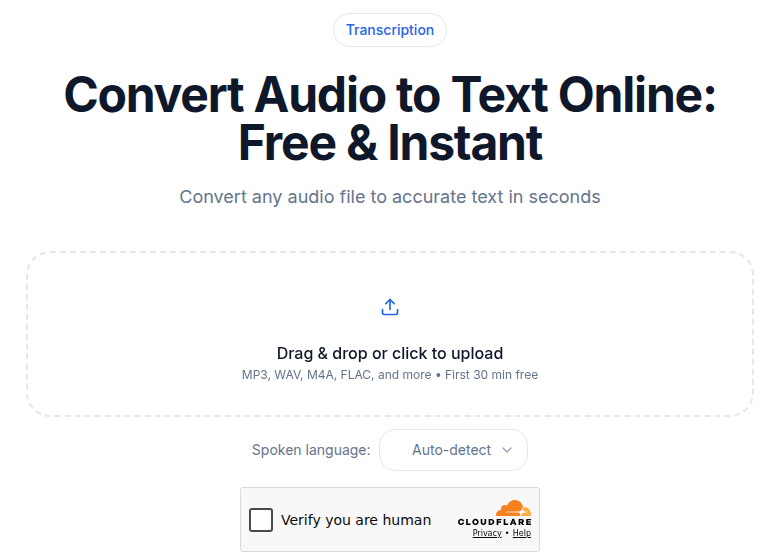 ConvertAudioToText audio upload tool, the starting point for URL-based Zap workflows
The Webhook Fallback: When There Is No Native Connector
For transcription services without a dedicated Zapier app, you use "Webhooks by Zapier" or "API Request by Zapier" to call the service's REST endpoint directly. Two things to know upfront.
First, this feature requires a paid Zapier plan. The Professional plan (around $30/month, or about $20/month billed annually, starting at 750 tasks) is the entry point. The free plan does not support webhooks. If you are testing on a free account, you will hit a wall at the integration step.
Second, Zapier enforces a 30-second timeout per step. Transcription jobs almost never complete in 30 seconds. That means a single-step "send file and get transcript" flow will time out. The correct pattern is always submit-and-poll.
The Submit-and-Poll Pattern
- POST to the transcription API. Receive a job ID immediately.
- Add a Delay step (minimum 1 minute, typically 3 to 5 minutes for files under 30 minutes).
- GET the result using the job ID.
- Branch on status: if completed, continue; if still processing, the simple version fails here (the honest limitation of this pattern in Zapier).
For ConvertAudioToText specifically, the endpoint shape looks like this in a Webhooks action:
Submit (Webhooks by Zapier, POST)
URL: https://api.convertaudiototext.com/api/v1/transcribe
Auth: Bearer YOUR_API_KEY
Body: {"source": "url", "input_url": "{{file_url}}", "language": "en"}
Returns: job_id

Retrieve (Webhooks by Zapier, GET, after Delay step)
URL: https://api.convertaudiototext.com/api/v1/result/{{job_id}}
Auth: Bearer YOUR_API_KEY
Note that CATT API keys come with the Developer or Business plan, not the free or Pro tiers. On Business ($59.99/month) you can also register a webhook so CATT posts a job.completed event to a Webhooks by Zapier Catch Hook trigger, which removes the Delay step. A native CATT Zapier app is coming soon; until then, this webhook route is the one that works. For simple no-code workflows without API access, see the section on alternative automation platforms below.
For the webhook versus polling decision in more depth, that post covers the tradeoffs on latency and reliability.
Trigger Patterns That Work
New File in Cloud Storage
The most reliable trigger for audio workflows. A file lands in a Dropbox or Google Drive folder and the Zap fires. Add a Filter step on file extension (.mp3, .wav, .m4a, .mp4) so plain text documents and images do not kick off transcription jobs.
This works because the cloud folder becomes a single handoff point. Upload the file from any device or app and the rest runs automatically.
New Recording From a Meeting Bot
If your team uses Fireflies or Otter, the native trigger handles this without any webhook config. The meeting bot joins, the recording finishes, and the Zap fires with the transcript already in the payload.
For Zoom specifically, Zapier's Zoom connector fires on "Recording Completed" and passes the download URL. You feed that URL into a transcription action downstream.
Webhook From Any Source
Any internal tool, app, or script can kick off a transcription Zap by POST-ing a payload to a Zapier webhook URL (available on paid plans). Useful for in-house recording tools, specialty hardware, or custom apps. The payload typically carries the audio file URL and metadata you want to preserve downstream.
Email With Attachment
Source audio arrives by email. A journalist receives source recordings from contacts. A transcription service pipeline gets submissions by email. The trigger fires on new matching email; a filter checks that the attachment is an audio file; the workflow proceeds.
New Row in Airtable or Notion
Audio URLs live in a project management database. A new record with a populated "Audio URL" field triggers the Zap. This pattern fits research operations and content production teams that already track assets in a database.
Downstream Patterns
Once the transcript is in the Zap, five destinations appear most often.
Save to a document. A new Google Doc or Notion page gets the transcript text as its body. The title comes from the source filename and a timestamp. For archival workflows, this is the whole pipeline.
Run an AI summary. The transcript passes to Zapier's OpenAI or Anthropic action with a summary prompt. Output: a structured summary (key points, action items, decisions) that flows to the next step. Keep the prompt in the Zap step, not hard-coded, so you can edit it without rebuilding the workflow.
Push action items to a task tracker. The AI summary contains action items. A Formatter step or another AI step extracts them. For each item, a Zapier action creates a task in Linear, Asana, or Jira. For integrating with HubSpot specifically, the HubSpot integration guide covers the CRM task pattern. For Notion, see the Notion integration guide.
Post to Slack. Meeting summaries go to the relevant project channel with the action items listed. For Slack-specific routing by keyword or channel, see integrating transcription with Slack.
Write to a database. Transcript text, duration, language, speaker count, and summary land in an Airtable or Notion database row. Over time this becomes searchable and analyzable across many transcripts.
Three Zap Recipes That Work in Production
Zap 1: Podcast Pipeline
- Trigger: New audio file in Dropbox folder "Podcast Episodes"
- Filter: file extension is .mp3 or .wav
- Action: Webhooks POST to transcription API, capture job ID
- Action: Delay 5 minutes
- Action: Webhooks GET result with job ID
- Action: OpenAI step with show notes prompt
- Action: Create Notion page with episode notes
- Action: Slack message to editorial channel with page link
Result: episode drops into Dropbox, show notes land in Notion about 6 minutes later.
Zap 2: Sales Call Pipeline
- Trigger: Fireflies New Meeting (filtered to meetings tagged "sales")
- Action: Zapier OpenAI step, custom sales call summary prompt
- Action: Parse action items with Formatter
- Action: Create HubSpot task under relevant deal
- Action: Email summary to sales rep
Because Fireflies delivers the transcript in the trigger payload, there is no polling step. The workflow is tighter and does not count polling tasks against your Zapier quota.
Zap 3: Research Interview Archive
- Trigger: New file in Google Drive folder "Research Audio"
- Action: Webhooks POST to transcription API
- Action: Delay 5 minutes
- Action: Webhooks GET result
- Action: Append to Notion database with tags extracted from summary
- Action: Email researcher with link to interview record
For high-volume research, the batch transcription guide covers the bulk processing side that Zapier alone does not handle well.
Common Failures
The 30-Second Timeout
Every action step in Zapier must complete within 30 seconds. Transcription never does. If you try to submit a file and return a completed transcript in one step, the Zap will fail every time. Always split into submit, delay, retrieve. This is not an edge case; it is the mandatory pattern for any transcription API in Zapier.
File Access Errors
Cloud storage triggers typically produce private file URLs. A transcription service calling that URL from outside the cloud provider's network will receive a 403. Fix: generate a time-limited signed URL (Dropbox and Drive both support this), or switch to a direct upload pattern where you pull the file into Zapier first and then upload to the API.
Quota Mismatch
A multi-step transcription Zap can consume 4 to 6 tasks per run (each action counts as one task). At 750 tasks on the Professional plan, you get about 125 to 187 Zap runs before hitting the monthly limit. If your workflow fires daily or more, check the math before assuming the plan covers it.
Missing Native Connector
If your transcription service is not in the Zapier directory (the directory listed 20+ tools as of July 2026, and TurboScribe was not among them), you go through Webhooks by Zapier. That requires a paid plan and adds the submit-poll pattern. Build a test Zap before committing to this architecture in a production workflow.
Make.com as an Alternative
Make.com (formerly Integromat) handles the same patterns through "modules" and "routes" instead of Zaps and paths. The key practical difference: Make.com bills per operation at roughly $0.001 each on their Core plan ($9/month for 10,000 operations). For high-volume workflows that run hundreds of times per month, the cost is meaningfully lower than Zapier.
My take: Zapier is faster to set up and has a deeper prebuilt connector library. Make.com gives you finer control over data shaping and is cheaper above around 500 runs per month. Both work for transcription automation. Start with whichever you already know.
n8n for Self-Hosted Needs
For teams with compliance or data sensitivity requirements, n8n is the open-source alternative. The community edition is free to self-host, and you pay only for your server (typically $5 to 7 per month for a VPS). Unlimited workflow executions, no per-task billing.
The data sensitivity caveat applies at the transcription API step, not the automation layer: unless you run a self-hosted transcription service, the audio still leaves your perimeter when it is submitted for transcription. Self-hosted n8n closes the automation layer but not the transcription layer.
What to Build First
If you have never built a transcription Zap before, start with the minimum viable version:
- Trigger: new file in a Dropbox or Drive folder.
- Action: Webhooks POST to your transcription API, capture job ID.
- Action: Delay 5 minutes.
- Action: Webhooks GET the transcript.
- Action: Create a Google Doc with the transcript text.
Five steps, one file-to-doc loop. Get that running cleanly before layering in summaries, downstream tasks, or additional triggers. Once the core pattern is stable, extending it takes 10 minutes.
If you just need a clean transcript fast and do not need Zapier at all, ConvertAudioToText lets you drop a file and get a transcript without any integration setup or signup required.
Common Questions
Does Zapier have a native ConvertAudioToText connector?
Not yet. A native ConvertAudioToText Zapier app is coming soon. Today you go through Webhooks by Zapier or API Request by Zapier, which requires a paid Zapier plan (Professional or higher) and a CATT Developer or Business plan for API key access. The submit-and-poll pattern applies, or on the Business plan you can register a CATT webhook and catch the job.completed event with a Webhooks by Zapier trigger.
Do I need a paid Zapier plan to automate transcription?
Almost certainly yes. Webhooks by Zapier, which is the integration path for any transcription service without a native connector, is a paid-plan-only feature. The free plan allows only 2-step Zaps with no webhook support. You will also run into the 100 task/month cap on free, which a multi-step transcription Zap burns through quickly.
Why does my Zap fail when it tries to fetch the transcript?
The most common cause is the 30-second action timeout. Zapier kills any step that does not respond within 30 seconds, and transcription jobs typically take longer. Use the submit-then-delay-then-GET pattern: POST to get a job ID, add a Delay step (minimum 1 minute), then GET the result separately.
Which transcription tools are the easiest to connect in Zapier?
Fireflies.ai has the most capable native connector, delivering transcript text, speaker labels, timestamps, notes, and action items directly in the trigger payload. Rev and Descript also have solid connectors with both trigger and action support. Otter has a simpler connector: one trigger, one import action. If your team already uses a meeting bot like Fireflies, that is the lowest-friction path.
Sources
- Zapier Fireflies.ai integrations: https://zapier.com/apps/fireflies/integrations (checked July 2026)
- Zapier Otter.ai integrations: https://zapier.com/apps/otterai/integrations (checked July 2026)
- Zapier Rev integrations: https://zapier.com/apps/rev/integrations (checked July 2026)
- Zapier transcription app directory: https://zapier.com/apps/categories/transcription (checked July 2026)
- Zapier pricing and plan details: https://checkthat.ai/brands/zapier/pricing (checked July 2026)
- Zapier step timeout documentation: https://docs.zapier.com/platform/build/troubleshoot-action-timeouts (checked July 2026)
- Fireflies.ai pricing: https://fireflies.ai/pricing (checked July 2026)
- Make.com pricing: https://www.make.com/en/pricing (checked July 2026)
- ConvertAudioToText pricing: https://convertaudiototext.com/pricing (checked July 2026)
Try transcription free
Convert any audio or video to clean, unwatermarked text — speaker labels, timestamps, and AI summaries included. First 30 minutes free, no account.
Related Articles

Agentic Transcription Systems: Real Patterns for 2026
Agentic transcription goes beyond raw text. Learn the three real agent loops (verify-and-retry, terminology lookup, summary chains) that work in production today.

Transcribe Audio Overnight in Batch: Queue It and Sleep (2026)
The honest guide to overnight batch transcription: when modern AI is fast enough to skip it, and when queueing dozens of files the night before genuinely saves your day.