
Transcribe Audio Overnight in Batch: Queue It and Sleep (2026)
Summarize this article with:
Set It Up Before Bed
If you have 40 interview recordings or 60 customer calls to transcribe, the right move is to queue everything before you sleep and open your laptop to finished transcripts in the morning. A single file takes 1-3 minutes with modern AI, so overnight is not about waiting for compute, it is about not babysitting dozens of uploads.
This guide covers the bulk workflow: organize, convert, submit, and walk away. Two paths: no-code for people who want it done once, and an API loop for teams running this monthly.
When Overnight Batch Actually Makes Sense
Be honest about this. A single hour-long recording transcribes in roughly 2 minutes. You do not need to sleep on it.
Overnight batch is the right call when:
- You have 20 or more files and do not want to click through them one by one.
- Your upload bandwidth is the real constraint (40 uncompressed WAV files can mean several gigabytes; overnight removes the pressure of sitting there while it uploads).
- You are running a recurring workflow, a research archive, a podcast backlog, or a quarterly call review, where the batch is the unit of work.
- The concurrency cap on your account means jobs queue behind each other anyway.
For 3 files or fewer, just upload them now. The "batch" framing applies when the overhead of manual submission is the actual time cost.
Step 1: Get Everything in One Folder
Drop all source files into a single directory. Standardize filenames so you can match transcripts back to their source:
interview_2026-06-15_smith.mp3
interview_2026-06-15_lee.mp3
interview_2026-06-16_kim.mp3
Avoid spaces in filenames. They survive most workflows, but they occasionally trip up shell scripts and batch tools.
Step 2: Reduce Upload Size First
The real bottleneck for overnight batch is usually upload bandwidth, not processing. A 1-hour WAV at 48 kHz stereo is about 600 MB. The same hour as 128 kbps mono MP3 is around 60 MB. Across 40 files, that is 24 GB versus 2.4 GB. On a 50 Mbps connection, you are looking at over an hour of upload versus under 10 minutes.
Convert with ffmpeg before you queue:
for f in *.wav; do
  ffmpeg -i "$f" -ac 1 -ar 16000 -b:a 64k "${f%.wav}.mp3"
done
The flags: -ac 1 for mono, -ar 16000 for 16 kHz sample rate (plenty for speech), -b:a 64k for a small file. Transcription accuracy does not meaningfully degrade at this setting for voice recordings.
iPhone Voice Memos (M4A) and Zoom MP4 recordings work fine as-is if you prefer to skip conversion. Just check that you are not uploading stereo 4K video when 64 kbps mono MP3 would do the same job.
Step 3: Upload the Batch
The audio to text tool accepts multi-file uploads. Drag the whole folder onto the upload area and it queues each file as a separate job.
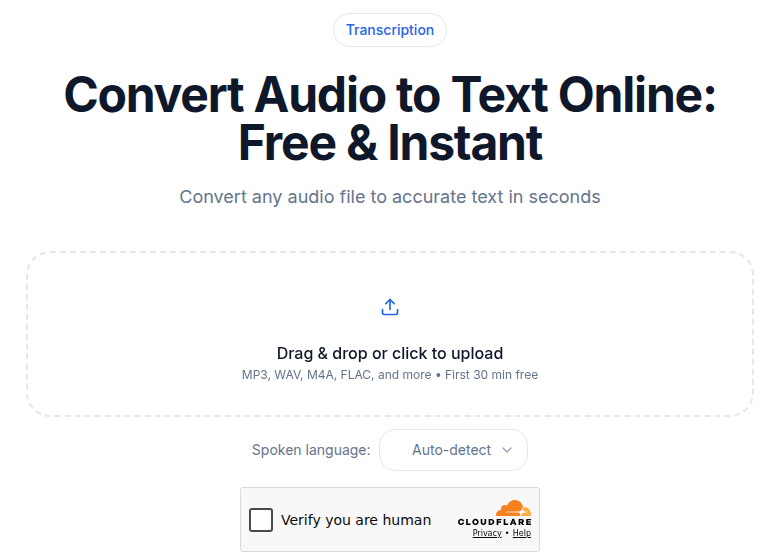 The CATT audio upload tool accepts multiple files at once, queuing each as an independent job
For 40-60 files, expect 5-20 minutes for the upload to complete, depending on your connection and file sizes. After that, each file processes independently.
Close the tab once the uploads finish. Processing continues server-side. Results save to your account regardless of whether the browser is open. Most batches of 40-60 standard interview recordings finish within 2-4 hours of upload completion. Come back in the morning.
The API Path for Recurring Batches
If you run this monthly or quarterly, scripting the submission loop saves real time and removes manual clicking entirely. API access is available on the Developer and Business plans.
A Minimal Submit Loop
API_KEY="your_api_key"
for f in ./audio/*.mp3; do
  curl -s -X POST https://convertaudiototext.com/api/v1/transcribe \
    -H "Authorization: Bearer $API_KEY" \
    -F "source=upload" \
    -F "language=en" \
    -F "file=@$f" \
    > "./jobs/$(basename "$f" .mp3).json"
  echo "submitted: $f"
  sleep 2
done
The sleep 2 between requests keeps you inside the rate limits. The API returns immediately with a job ID; processing runs async.
Polling for Results in the Morning
for job_file in ./jobs/*.json; do
  job_id=$(jq -r .job_id "$job_file")
  curl -s https://convertaudiototext.com/api/v1/result/$job_id \
    -H "Authorization: Bearer $API_KEY" \
    > "./results/${job_id}.json"
done
Jobs still processing return a status field. Jobs that finished return the transcript. Run this once in the morning and you have everything.
Webhook Delivery Instead of Polling
For larger batches, webhooks are cleaner: register an endpoint once and the API posts results to your URL as each job completes. This is the right pattern for automated pipelines that write transcripts directly to a database or a Notion workspace.
Pitfalls That Kill Overnight Runs
Not rate-limiting your submissions. Most APIs have per-minute caps. Submit in batches of 10-20 with a small pause between each. The total processing time is identical, but a rate-limit failure at file 47 of 60 is less painful to recover from.
Relying on auto-detect for a known-language corpus. Language auto-detection adds a few seconds per file and occasionally misidentifies short or noisy clips. For 60 files where you know the language, set it explicitly in every request. You save time and avoid rare misdetections.
Not checking for failures. Occasional files fail: corrupt audio, an unsupported codec, a network hiccup during upload. Always scan your results directory in the morning for missing job IDs and re-submit those files.
Ignoring filenames in output. When you have 60 transcripts, "Transcript_1.txt" through "Transcript_60.txt" is useless. Preserve the original filename in your output structure from the start.
Patterns That Actually Work
Research archive. A researcher returns from a week of fieldwork with 25 interviews. They drop everything into batch the night they return, set language explicitly, and open a folder of indexed transcripts in the morning. This is the workflow for transcribing interview recordings at scale.
Podcast backlog. A producer with 50 unpublished episode recordings processes the whole backlog in one overnight run, then publishes transcripts one per week alongside episode re-shares. See also best transcription for podcasts for per-episode quality considerations.
Quarterly customer call review. A revenue ops team batches a quarter of sales calls overnight monthly, runs analysis on the output, and produces a searchable Voice of Customer archive. The cost of transcription per hour comparison shows why unlimited flat-rate plans make "transcribe everything" viable for ongoing call analysis.
What to Do With the Results
Overnight batches produce a lot of text. Three practical output patterns:
One file per source, plus a master index. Each transcript as a Markdown or TXT file with a CSV index mapping filename to transcript path, speaker count, and duration.
Combined CSV for analysis. If you are doing sentiment or topic analysis across the corpus, concatenate transcripts into one CSV with a source-file column. This is the direct input for most qualitative analysis tools.
Database write via webhook. For ongoing pipelines, transcripts post directly from the webhook handler to Postgres or Notion, ready for search and tagging.
The Real Math on Cost
My take: the overnight pattern changes the economics of what you decide to transcribe. If you were paying $1.50 per minute for human transcription, you would transcribe selectively. Flat-rate unlimited plans make "transcribe everything, search it later" a legitimate strategy for teams that do recurring call or interview work.
For API-volume workflows at scale, the major cloud APIs price batch transcription at significant discounts versus their streaming counterparts. AssemblyAI (per their pricing page, checked July 2026) is $0.15/hr for Universal-2 and $0.21/hr for Universal-3.5 Pro. AWS Transcribe tiers start around $0.024/minute with volume discounts. These are relevant for teams building internal tooling on top of raw APIs. For most content teams and researchers, an unlimited flat-rate plan is simpler to reason about.
If you just need a clean transcript without setting up API keys or scripts, ConvertAudioToText handles multi-file queues directly. Pro plan is $14.99/month and handles long recordings (links and videos up to 24 hours). Business adds API and webhook access for teams building automated pipelines.
Common Questions
Is overnight batch transcription still necessary if AI is so fast now?
For a handful of files, no. Modern AI processes a 1-hour recording in roughly 1-3 minutes. Overnight batch makes sense when you have 20 or more files and the overhead of manual submission, the upload time, and not wanting to monitor the progress bar is the real cost. It is a bulk-workflow pattern, not a speed workaround.
What is the practical limit on how many files I can batch submit?
It depends on the platform's concurrency cap. AssemblyAI, for instance, defaults to 200 simultaneous jobs (per their documentation, checked July 2026). Most consumer-tier tools queue jobs and process them in order. For very large batches (200 or more files), use the API with rate-limit-aware pacing rather than a single drag-and-drop.
Should I convert WAV to MP3 before uploading?
For batches where upload bandwidth matters, yes. A 1-hour WAV can be 600 MB; the same file as 64 kbps mono MP3 is around 35-60 MB. The conversion takes a few minutes with a one-line ffmpeg loop and saves significant upload time across large batches. Transcription accuracy on voice recordings does not meaningfully change at 64 kbps mono.
How do I handle files that fail in the middle of a batch?
Always scan your results for missing output files after the batch completes. Write your submit loop to log the job ID alongside the source filename, then check which job IDs have no corresponding result file. Re-submit only those files. Most batches of clean audio complete without failures; the check takes 30 seconds and saves you from a silent gap in your archive.
Sources
- AssemblyAI pricing page: https://www.assemblyai.com/pricing (checked July 2026)
- AssemblyAI batch transcription concurrency docs: https://support.assemblyai.com/articles/4854424693-how-does-the-concurrency-limit-work-for-transcription-requests (checked July 2026)
- AWS Transcribe pricing: https://aws.amazon.com/transcribe/pricing/ (checked July 2026)
- Deepgram pricing: https://deepgram.com/pricing (checked July 2026)
- ConvertAudioToText pricing: https://convertaudiototext.com/pricing (checked July 2026)
- AssemblyAI real-time vs batch transcription: https://www.assemblyai.com/blog/real-time-vs-batch-transcription (checked July 2026)
Try transcription free
Convert any audio or video to clean, unwatermarked text — speaker labels, timestamps, and AI summaries included. First 30 minutes free, no account.
Related Articles

Agentic Transcription Systems: Real Patterns for 2026
Agentic transcription goes beyond raw text. Learn the three real agent loops (verify-and-retry, terminology lookup, summary chains) that work in production today.
Automating Transcription with Zapier: Honest Reality
A practical guide to Zapier transcription automation in 2026: native connectors, webhook fallbacks, async patterns, Make.com alternatives, and honest gap coverage.