How to Transcribe Audio Files Stored in Google Drive (2026 Guide)
Summarize this article with:
You can transcribe Google Drive audio without downloading it: generate a direct download URL from the share link, paste it into a transcription tool that accepts URLs, and a 60-minute recording comes back in about 5 minutes. If the file is restricted, download it and upload directly instead. The usual blockers are permissions: you need download rights on the file, Workspace admins can disable external link sharing, and Shared Drive files behave differently from My Drive.
From Drive to Transcript
You can transcribe audio stored in Google Drive without downloading it first, as long as you use the right link format or a tool with an authenticated Drive picker. The fastest path for a typical 60-minute recording: generate a direct download URL from the share link, paste it into your transcription tool, and get a transcript in roughly 5 minutes. This guide walks through each path, the Meet-recordings angle, and the permission gotchas that break this workflow in enterprise environments.
What Ends Up in Drive
Before picking a workflow, it helps to know what format your file is in:
- Google Meet recordings. Auto-saved to the organizer's "Meet Recordings" folder in My Drive as .webm video files. Note that recording requires a paid Workspace plan (Business Standard, Business Plus, or Enterprise tiers). Free Gmail accounts cannot record. Since April 30, 2026, new recordings can be downloaded by viewers by default, unless the recording owner disables that setting.
- Voice memos from iPhone. Usually M4A, sometimes WAV depending on the recording app.
- Podcast raw files or interviews. Typically MP3 or WAV, shared via a team Drive folder.
- Lecture or webinar recordings. Often MP4 if captured with screen-recording software.
Each file type follows the same transcription workflow once it is in Drive. The format only matters if your transcription tool does not handle .webm (some do not). If you are unsure, download and check the file extension.
Method 1: Direct Download URL (No File Transfer Needed)
Google Drive share links open a browser preview page, not a raw file. Most transcription tools cannot use a plain drive.google.com/file/d/.../view link directly.
To get a URL that serves the actual audio bytes, convert the share link to the direct download format:
- Open the file in Drive.
- Click "Share", set "General access" to "Anyone with the link", leave the role as Viewer, and click "Copy link."
- Paste the link somewhere to inspect it. It will look like:
https://drive.google.com/file/d/FILE_ID/view?usp=sharing - Extract the
FILE_ID(the string between/d/and/view). - Build the direct download URL:
https://drive.google.com/uc?export=download&id=FILE_ID - Paste that URL into your transcription tool's URL input.
The tool fetches the raw audio directly. No download to your machine, no re-upload.
The trade-off: the file has to be set to "Anyone with the link" for this to work. For sensitive recordings, that is a real privacy concern even though the link itself is not indexed anywhere. Use Method 2 for private files.
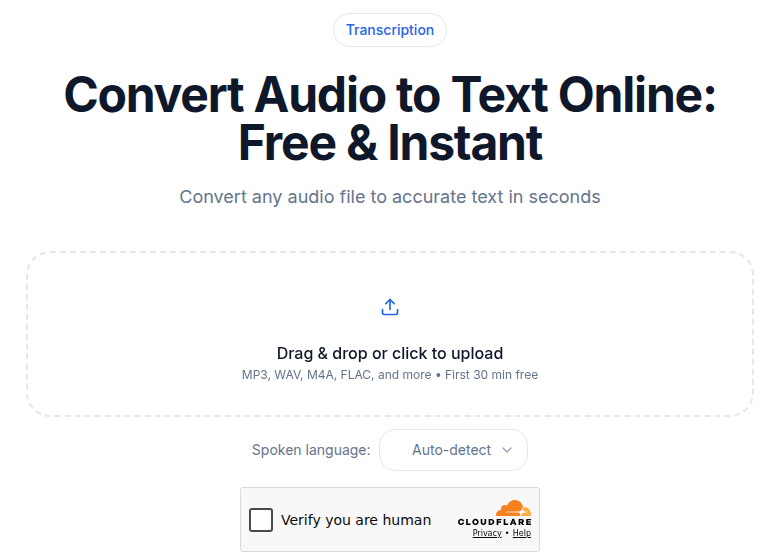 ConvertAudioToText audio upload tool accepting a URL or file
Method 2: Download, Then Upload
The universal fallback. Works with every transcription tool, no URL engineering required:
- In Drive, right-click the file and select Download.
- Wait for the file to land in your Downloads folder.
- Upload it to your transcription tool.
For a 500 MB .webm meeting recording on a typical home connection, expect 4-8 minutes for each transfer leg, so 8-16 minutes of waiting before transcription even starts. For one-off files, that is fine. For a batch of 20 interviews, the URL path or OAuth integration (below) will save you meaningful time.
Method 3: OAuth Drive Picker (Authenticated)
Some transcription tools offer a "Connect Google Drive" button that opens an authenticated file picker. With this approach:
- Click "Connect Google Drive" in the tool and complete the OAuth flow.
- Grant the tool read-only access to your Drive.
- Pick the file from the picker. The tool fetches it with your authenticated session.
- Revoke access anytime in your Google Account security settings under "Third-party apps with account access."
This is the right path for private files and for Workspace accounts where "Anyone with the link" sharing is disabled. The file never needs to be made public. Not every tool supports this, so check before assuming it is available.
Google Meet Recordings: The Full Workflow
Meet is the most common source of Drive-stored audio that people want to transcribe. A few things to keep in mind:
The recording lands in the organizer's Drive, not a shared folder. If you were a participant, you may receive an email with a link but you will not own the file. To use Methods 1 or 2, the organizer has to either share the file with you or generate the link themselves.
Since Meet saves recordings as .webm (a video container), your transcription tool needs to extract the audio track first. Most tools handle this automatically, but a few audio-only tools do not accept video files. If you hit an error on a .webm file, the video-to-text tool is built to handle video containers specifically.
After transcription, Meet recordings are a natural fit for structured meeting minutes. The create meeting minutes from audio workflow covers how to turn a raw transcript into a usable follow-up doc.
Drive Permission Gotchas
Three permission issues that reliably break the shareable-link workflow:
1. You are not the file owner
If a colleague shared the file with you as a Viewer, you cannot change sharing settings. You cannot generate an "Anyone with the link" URL for someone else's file. Ask the owner to share the link directly, or use the OAuth picker if available.
2. Your Workspace organization has disabled external link sharing
Enterprise admins can block "Anyone with the link" sharing entirely from the Admin console under Apps, then Google Workspace, then Drive and Docs, then Sharing settings. If the option is grayed out in your Drive, this is likely why. The OAuth-picker path bypasses this restriction because no public link is created. Alternatively, download the file and upload it locally.
3. Shared Drives vs. My Drive
Shared Drives (the team-owned folders, previously called Team Drives) have different permission semantics than My Drive. Files in a Shared Drive are owned by the organization, not an individual, and sharing controls can be tighter. The transcription workflow itself is the same once you have access, but link-sharing may behave differently depending on what your admin has configured.
Organizing Drive Audio for Batch Work
For researchers, sales teams, or podcasters transcribing many files, folder structure prevents the inevitable chaos:
Project Alpha/
  audio/
    2026-06-15_interview-alice.mp3
    2026-06-16_interview-bob.mp3
  transcripts/
    2026-06-15_interview-alice.txt
    2026-06-16_interview-bob.txt
Date-first filenames keep folders sortable. Keeping audio and transcripts in separate subfolders makes it obvious at a glance what has been processed.
For teams running research interview transcription at scale, the Drive API plus a transcription API can watch a folder and auto-transcribe any file dropped into audio/. For most projects, a manual workflow with the folder structure above is more than enough.
If You Want No-Signup, No-Friction Transcription
My take: the smoothest path for a one-off Drive file is to download it and drag it into a tool that accepts uploads without requiring an account. ConvertAudioToText transcribes the first 30 minutes of any audio or video file for free, no login needed. For longer files, the Weekly Pass or Pro covers the rest, and the same upload workflow applies. If the meeting-transcription context matters, the meeting transcription tool has speaker-separated output.
Multilingual Drive Audio
The transcription workflow is the same for non-English files. The difference is in which model or language setting you use. For best accuracy, specify the language rather than relying on auto-detection, especially for accented speech or shorter clips where auto-detection can misfire.
For projects spanning multiple languages, submit each file separately with the correct language tag rather than batching them together.
Common Mistakes
Three patterns that add unnecessary time:
- Pasting a plain Drive share URL and expecting it to work. The standard
view?usp=sharinglink serves an HTML preview page. You need theuc?export=download&id=...format to get raw file bytes. - Transcribing the same file twice. If you already have a transcript job in your tool, re-export the existing result to a different format rather than re-running transcription. Re-running costs time and credits.
- Flat Drive folders. A folder with 50 audio files and no naming convention becomes hard to audit. Date-first naming and per-project subfolders pay off quickly.
For a broader look at what transcription tools cost and which are worth the upgrade, the free vs paid transcription services comparison covers the key trade-offs.
FAQ
Do I need to download my Google Drive audio file before transcribing it?
Not always. If your transcription tool accepts a direct download URL, you can feed it a specially formatted Drive link (the uc?export=download format) and skip the local download step. For tools that only accept file uploads, a quick download and re-upload is the simplest path. Either way, the transcription itself takes the same amount of time.
Can I transcribe a Google Meet recording directly from Drive?
Yes, but with two caveats. First, Meet recording requires a paid Google Workspace plan (Business Standard, Business Plus, or Enterprise tiers). Second, Meet recordings save as .webm video files to the organizer's "Meet Recordings" folder in My Drive. A good transcription tool will extract the audio from the .webm container automatically, so you do not need to convert the file first.
What if my organization has disabled 'Anyone with the link' sharing?
Many enterprise Workspace admins disable public link sharing entirely. If you see the option grayed out, the shareable-link path will not work for you. Your options are: use a transcription tool that offers Google Drive OAuth integration (authenticated picker), or download the file locally and upload it to the transcription tool. The OAuth path respects your org's security policy because no public link is created.
What file formats from Google Drive work best for transcription?
MP3 at 128 kbps or higher transcribes cleanly and keeps file sizes small. M4A (common from iPhone voice memos) and WAV both work well. .webm from Google Meet works if the tool handles video-to-audio extraction. FLAC gives excellent quality but produces large files. If you have control over what gets uploaded to Drive, MP3 or M4A is the practical default for spoken audio.
Sources
- Record a video meeting, Google Meet Help - storage location and Workspace plan requirements, checked 2026-07-02
- Share files from Google Drive, Google Drive Help - shareable link workflow, checked 2026-07-02
- Upcoming change to default setting for downloading Google Meet recordings, Google Workspace Updates - April 30, 2026 default flip, checked 2026-07-02
- Manage external sharing for your organization, Google Workspace Help - admin controls for "Anyone with the link," checked 2026-07-02
- Where Do Google Meet Recordings Go, Scriptivox - .webm format confirmation, checked 2026-07-02
Try transcription free
Convert any audio or video to clean, unwatermarked text — speaker labels, timestamps, and AI summaries included. First 30 minutes free, no account.
Related Articles

On-Device vs Cloud Transcription: The Real Tradeoff
On-device transcription is finally production-ready. Here is when it beats cloud, when it does not, and the real privacy, accuracy, and cost tradeoffs in 2026.
Spotify Transcript Extractor: How to Copy and Download Episode Text
Get a Spotify podcast transcript you can copy and download: paste a public episode link, 30 minutes free with no signup, TXT or SRT files on eligible plans.