
How to Transcribe 1 Hour of Audio in Minutes (Honest Timings)
Summarize this article with:
A 1-hour audio file processed by a cloud AI transcription service typically finishes in a few minutes once it starts processing, but the total wall-clock time depends on upload speed, queue wait, and whether your file needs format conversion. Manual transcription of the same file takes 4-6 hours of human effort. Preparing your file correctly (right format, trimmed silence, mono where appropriate) shaves meaningful time off the total. This post walks through the realistic workflow and what actually controls the clock.
A 1-hour audio file processed by a cloud AI transcription service takes a few minutes total, not a few hours. But "a few minutes" is doing real work in that sentence, and the range is wide enough to matter: a 60 MB MP3 on a fast connection with no queue wait can be done in under two minutes, while the same job with a slow upload and a busy service might take fifteen. This post breaks down exactly what controls the clock and how to push the number toward the low end.
The Old Math vs the New Math
Manual transcription of a 1-hour recording takes 4 to 6 hours of focused typing. English speakers average around 130 to 150 words per minute in conversation, which puts a typical hour of audio at roughly 8,000 to 9,000 words. At a fast transcription typing rate of 70 wpm, that is still two-plus hours of pure keystrokes, before you count rewinds, ambiguous words, and a final proofread.
Hiring a human service compresses that with a team pipeline, but the cost is real. Rev, for example, publishes a rate around $1.99 per audio minute for their human tier, with standard delivery in 12 hours or less (per Rev's published service terms as of July 2026). That is roughly $120 for our 1-hour file, arriving hours later.
Cloud AI APIs process audio faster than real time. The actual ratio varies by engine and server load, but the processing phase itself is not what you are waiting for. What you are waiting for is: upload, queue position, and processing. Understanding each one is how you get the best realistic outcome.
The Three Things That Actually Control the Clock
Upload Time
This is where most of the variance lives for users on typical home connections. File format matters more here than anywhere else:
- 1-hour MP3 at 128 kbps: around 57-60 MB
- 1-hour MOV from an iPhone at 1080p 30fps: around 3-4 GB
- 1-hour WAV (uncompressed, stereo): around 640 MB
On a 50 Mbps upload connection, a 60 MB MP3 takes under 10 seconds. A 3 GB MOV takes close to 8-9 minutes. If your file is a video and your connection is average, converting to audio before uploading is the highest-leverage thing you can do.
The audio to text tool accepts MP3, M4A, and WAV directly. The video to text tool strips the audio track server-side, which is the right choice when your connection is fast or when you want to skip a local conversion step.
Queue Wait
Cloud transcription services run jobs through a processing queue. During peak hours, a job can sit in the queue for 30 seconds to a couple of minutes before processing begins. During off-peak hours, it starts almost immediately. This is the least predictable part of the total time and the one you have the least control over, but it rarely dominates the total unless the service is under heavy load.
The queue is also why you do not need to watch the page after submitting. Submit, walk away, and come back. The result is saved to your account.
Processing Time
Once processing starts, modern cloud speech-to-text APIs work faster than real time for pre-recorded audio. The exact multiplier varies by engine, model size, and infrastructure load. For a 1-hour file on CATT's pipeline, processing typically takes somewhere in the range of 2 to 8 minutes once it starts, with clean single-speaker English files landing at the lower end and noisy multi-speaker files at the higher end.
The honest summary: total wall-clock time for a typical 1-hour MP3 is usually under 5 minutes from submit to transcript, assuming a reasonable connection. A slow upload or a large video file can make total time 15 minutes or more.
For context on how these time estimates compare across different use cases, the transcription timing expectations for 2-hour meetings applies the same framework to longer files.
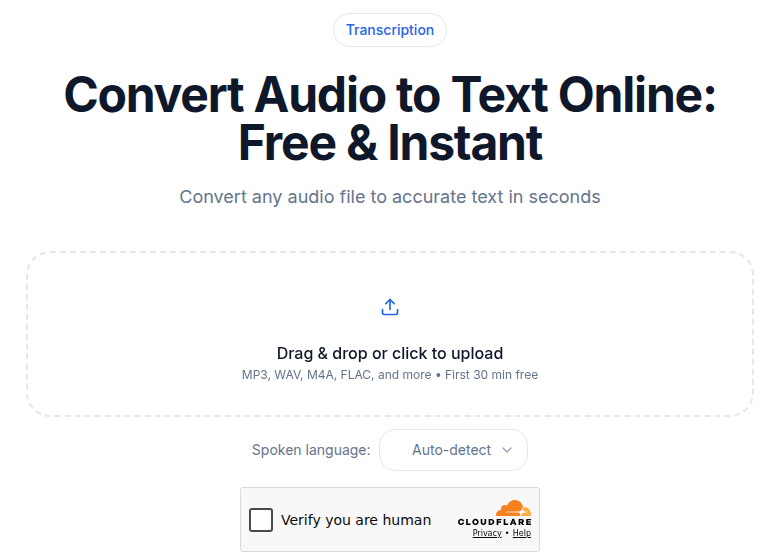 The audio upload tool at ConvertAudioToText showing a file being submitted for transcription
The Actual Workflow
Step 1: Prepare the File Before Uploading
A few minutes of prep here saves more time than any other optimization.
Convert video to audio if your connection is under 50 Mbps upload. A 3 GB MOV will take longer to upload than it will take to process. Any audio export from your video editor works. If you do not have one, VLC and FFmpeg both convert for free.
Trim leading silence. A 90-second intro of music or dead air before the first word gets processed just like speech content. Trim it. You get a cleaner transcript and a slightly faster job.
Use mono if the source is mono. A stereo file at 256 kbps is double the upload size of a mono file at 128 kbps. If the recording came from a single microphone, downmixing before upload costs nothing and saves upload time.
Send the raw file, not a post-processed one. Recording tools that apply noise reduction, EQ, or reverb sometimes make audio worse for speech recognition. The speech AI expects raw conversational audio. Use the original file.
Step 2: Set the Language Explicitly
Auto-detection adds a few seconds and occasionally guesses wrong on files that start with music, silence, or a non-speech intro. If you know the language, set it explicitly before submitting.
For English-only files, setting the language also unlocks downstream features like topic detection and sentiment analysis on some engines. For non-English audio, see the speaker diarization explained post for how multi-language handling works at the transcription layer.
Step 3: Submit and Come Back
Once the file is uploaded and the language is set, there is nothing else to do. You do not need to keep the browser tab open. The result persists in your account, and you can return to it whenever you are ready.
For high-volume workflows, the transcription API supports webhooks so you get a notification rather than polling. See the best speech-to-text APIs for 2026 comparison for a look at which services support webhook callbacks natively.
File Prep That Saves Real Minutes
The biggest gains come from decisions made before you click submit.
Batch uploads save overhead. If you have five 1-hour files to transcribe, submitting them sequentially one by one means five rounds of queue wait. Batch submission, where the service allows it, keeps the queue overhead to one entry.
Avoid re-encoding unnecessarily. Converting an already-compressed MP3 to WAV before uploading makes the file larger without improving quality. Re-encoding a lossy file through another lossy codec (M4A to MP3, for instance) adds artifacts. Send the format you already have unless it is video or lossless at very high bitrate.
Check audio levels before submitting, not after. If a recording is very quiet or clipped, the transcript will have errors clustered throughout. Normalizing audio to around -14 to -16 LUFS before submission costs two minutes in Audacity or Adobe Audition and can save ten minutes of post-editing. Per the transcription accuracy explained post, loudness and signal clarity are among the strongest predictors of output quality.
What to Do in the First 5 Minutes After the Transcript Lands
My take: the smartest move is a targeted spot check, not a full re-listen.
Open the transcript and jump to:
- The first 30 seconds (names, proper nouns, and introductions get transcribed early and set the pattern for the rest).
- One technical segment in the middle where domain-specific terms appear.
- The last two minutes of the recording.
If those three samples are clean, the rest is almost always clean too. AI transcription errors cluster around proper nouns, acronyms, and brand names. They do not appear randomly distributed throughout the file. A 5-minute spot check on a 1-hour transcript catches 90% of what matters.
For structured output (speaker-labeled meeting notes, podcast show notes, interview summaries), the meeting transcription tool and podcast transcription workflow both handle formatting automatically after the raw transcript is ready.
Putting the Time in Context
The shift from a multi-hour manual workflow to a few-minute automated one changes what is worth transcribing in the first place. At $90 and a 12-hour wait, only the most important recordings justify the cost. At a flat monthly fee and a 5-minute total workflow, the threshold drops close to zero.
That flip, from "only transcribe what matters" to "transcribe everything and decide later," is where the real compounding value comes from. A searchable archive of every meeting, every interview, and every client call becomes a practical asset rather than an aspiration, but only once the time and cost barrier is low enough to treat transcription as a default, not a deliberate decision.
If you need a clean transcript without a meeting bot or account setup, ConvertAudioToText accepts uploads directly and starts processing without requiring sign-in. The first 30 minutes of any file are free with no account, a free account runs its first file on the premium engine up to an hour, and the free tier keeps working after that.
For a full comparison of what different transcription services cost per hour, see the cost of transcription per hour breakdown.
Frequently Asked Questions
How long does it take to transcribe a 1-hour audio file with AI?
Total wall-clock time depends on three things: upload speed, queue wait, and processing. A 60 MB MP3 on a 50 Mbps connection uploads in about 10 seconds. Queue wait varies by service load. Processing itself runs faster than real time on modern cloud APIs. For most users on a decent connection with a moderately compressed audio file, expect the transcript within a few minutes of submitting, though a large uncompressed file or a slow connection can push that to 10-15 minutes.
Does audio quality affect transcription speed?
Audio quality primarily affects accuracy, not speed. A noisy or multi-speaker file takes roughly the same processing time as a clean one. What changes with quality is how much time you spend correcting the output afterward.
What file format is fastest to upload for transcription?
A 128 kbps MP3 is around 58-60 MB per hour of audio. The same hour as a 1080p MOV from a phone is roughly 3-4 GB. Upload time dominates when the file is large. Convert video to audio before uploading if your connection is slow, and it will save several minutes on the total workflow.
Can I transcribe 1-hour audio for free?
Several services offer free tiers with minute limits. ConvertAudioToText's free tier runs your first file on the premium engine for up to an hour, so a single 1-hour file is covered free. After that, a free account transcribes up to 30 files a day, up to 30 minutes each. Human transcription services like Rev charge around $1.99 per audio minute for their human tier, so $120 for a 1-hour file.
Sources
- Rev human transcription service page: https://www.rev.com/services/human-transcription (verified July 2026, ~$1.99/min, 12hr standard delivery)
- Rev turnaround times help article: https://support.rev.com/hc/en-us/articles/18859196207629-Turnaround-Times
- Deepgram speech-to-text benchmarks: https://deepgram.com/learn/speech-to-text-benchmarks
- VirtualSpeech average speaking rate: https://virtualspeech.com/blog/average-speaking-rate-words-per-minute
- Audio file size calculator (MP3 at 128 kbps): https://www.omnicalculator.com/other/audio-file-size
Try transcription free
Convert any audio or video to clean, unwatermarked text — speaker labels, timestamps, and AI summaries included. First 30 minutes free, no account.
Related Articles

Agentic Transcription Systems: Real Patterns for 2026
Agentic transcription goes beyond raw text. Learn the three real agent loops (verify-and-retry, terminology lookup, summary chains) that work in production today.

Batch Transcription for Large Projects: The 2026 Playbook
How to run a 1,000-file batch transcription job without losing your mind: manifest setup, API parallelism, rate limits, failure handling, QC sampling, and cost math for 2026.