
Voice to Text on Any Device: 2026 Per-Device Guide
Summarize this article with:
Every major platform ships free built-in dictation: the keyboard mic and Voice Memos transcription on iPhone, Gboard voice typing and Pixel Recorder on Android, Voice Typing (Win+H) on Windows 11, Dictation on macOS, and Google Docs voice typing in any browser. The differences are offline support and session limits. Built-in dictation handles live speech only, so for a pre-recorded file use each platform's file path or upload the recording to a browser transcription tool.
Every Device, One Table
Every major platform ships with free built-in dictation in 2026, the differences are in offline support, session length, and what happens when you have a pre-recorded file rather than live speech. The table below maps each device to its native dictation option, offline status, and the best path for transcribing an existing audio file.
| Device | Built-in dictation | Offline? | Recorded-file path |
|---|---|---|---|
| iPhone (iOS 16+) | Keyboard mic / Voice Memos (iOS 18+) | Yes, supported languages | iOS 18 Voice Memos auto-transcription or browser upload |
| Android (Pixel 3+) | Gboard Voice Typing / Google Recorder | Partial (downloaded packs; Recorder = full offline) | Google Recorder (Pixel only) or browser upload |
| Android (other) | Gboard Voice Typing | Partial (downloaded packs) | Browser upload |
| Windows 11 | Voice Typing (Win+H) | No, requires internet | Microsoft Word Transcribe (M365) or browser upload |
| macOS (Apple Silicon) | Dictation (Fn Fn) | Yes | MacWhisper or browser upload |
| macOS (Intel) | Dictation (Fn Fn) | No, cloud-assisted | Browser upload |
| Linux | No built-in; third-party required | Varies by tool | whisper.cpp, Vocalinux, or browser upload |
| Chromebook | System Dictation (Search+D) or Google Docs | No, requires internet | Google Docs Voice Typing or browser upload |
| Any browser | Google Docs Voice Typing | No | Browser upload tool |
Two use cases drive every decision here: live dictation (typing a message, drafting a note as you speak) vs. file transcription (converting a recording you already have). Built-in tools dominate the first. For the second, a browser upload tool is the universal fallback that works on every device in this list.
Voice to Text on iPhone
Real-Time Dictation
Enable dictation in Settings, then General, then Keyboard by toggling on Enable Dictation. The microphone icon on the iOS keyboard activates it during any text input session.
Key facts verified against Apple's support documentation:
- Dictation processes on-device for supported languages (iOS 16 and later on iPhone 6s and later). After downloading a language model (roughly 30-100 MB), it runs without a connection.
- Per Apple's documentation, there is no fixed session length cap. Dictation stops automatically after about 30 seconds of silence.
- iOS 18 added dual-language dictation, letting you switch between two languages mid-sentence.
- The keyboard stays visible while you dictate (iOS 17 and later), so you can correct words by tapping without stopping.
- Caveat: Dictating into a search box may still send your audio to the search provider regardless of on-device mode.
Say punctuation out loud: "Hello comma how are you question mark" produces "Hello, how are you?" Say "new line" or "new paragraph" for line breaks.
Transcribing Recorded Audio on iPhone
iOS 18 added automatic transcription to Voice Memos, available on iPhone 12 or later. Open a recording, tap the transcript icon, and the transcription runs on-device without sending audio to Apple's servers. It works in a limited set of languages and is not available in all regions.
For audio formats Voice Memos does not handle, or for higher accuracy on long recordings, upload through a browser. See the Browser section below.
Voice to Text on Android
Gboard Voice Typing
Gboard is the default keyboard on most Android devices and includes voice input without any setup step. Tap the microphone icon in any text field to start.
Offline support is partial. Gboard can download language packs for offline use (Settings, then Voice Typing, then Offline Speech Recognition), but availability depends on your Android version and language. Most non-English packs have smaller offline models than their cloud counterparts, which lowers accuracy slightly.
Google's voice recognition is strong for English and supports over 100 languages in cloud mode. Standard punctuation commands work: say "period," "comma," "new paragraph."
In mid-2026, Google announced a Gboard feature called Rambler powered by Gemini's multilingual model, which handles code-switching between languages within a single sentence. It is initially available on Pixel 10 and Galaxy S26-class hardware.
Google Recorder (Pixel Phones Only)
Google Recorder is the best free transcription tool on any mobile platform, but it ships exclusively on Pixel 3 and later (and ChromeOS). It is not available for other Android devices.
What it does:
- Records audio and produces a real-time transcript simultaneously, entirely on-device using Gemini Nano
- Highlights words in the transcript as audio plays back
- Makes recordings searchable by keyword
- AI summarization (3-bullet format for meetings)
- Works fully offline
For transcribing files recorded outside of Google Recorder, or on non-Pixel Android phones, a browser upload tool is the practical answer.
Voice to Text on Windows
Voice Typing (Win+H)
Press Windows+H in any text field to open the floating Voice Typing toolbar. Standard Voice Typing uses Microsoft's Azure cloud speech services and requires an internet connection, offline use is not supported except on Copilot+ PCs with the Fluid Dictation feature.
Features in 2026:
- Supports 40 or more languages (40+ per Microsoft's documentation)
- Auto-punctuation mode (enable via the gear icon on the toolbar)
- Voice commands for editing: "delete that," "select all," "go to the end"
- Fluid Dictation (Copilot+ PCs only): automatically corrects grammar, punctuation, and filler words using an on-device language model, with actual offline operation
For best microphone quality, use a headset or USB mic. The laptop's built-in mic introduces more error, especially in noisy environments.
Transcribing Recorded Audio on Windows
Microsoft Word Transcribe (Home, then Dictate, then Transcribe) handles uploaded audio files with speaker labels. This requires a Microsoft 365 subscription. The free monthly cap for uploaded audio is 300 minutes; a Copilot license raises that to 30,000 minutes per month. For a quick transcription without an M365 subscription, a browser-based upload tool is the simpler path. Supported formats include .wav, .mp4, .m4a, and .mp3. Accuracy is solid for English; coverage across 80-plus languages is available but uneven.
Voice to Text on Mac
Dictation (macOS)
Enable Mac Dictation in System Settings, then Keyboard, then Dictation. The default trigger is pressing the Fn key twice. A microphone icon confirms dictation is active.
Key differences by hardware:
- Apple Silicon Macs (M1 and later): Dictation processes entirely on-device. No audio leaves your Mac. Works fully offline. Per Apple's documentation, there is no timeout, dictation stops only after about 30 seconds of silence.
- Intel Macs: Dictation uses Apple's cloud servers. An internet connection is required.
Standard punctuation voice commands work the same as on iPhone. You can use the keyboard and trackpad simultaneously while dictating, which makes correction mid-session easy.
My take: Apple Silicon dictation is the most friction-free desktop dictation option across any platform in 2026. No session limits, no cloud dependency, no configuration beyond enabling it once.
Transcribing Recorded Audio on Mac
macOS does not include native audio file transcription. Options:
- MacWhisper (Jordi Bruin): a native Mac app wrapping OpenAI's Whisper models locally. Free tier available; Pro license is a one-time purchase of roughly €59 on Gumroad (pricing as of mid-2026). Handles audio and video files, YouTube URLs, and batch jobs. Runs fully offline.
- Browser upload: works in Safari or Chrome, no installation required. Covered in the Browser section.
Voice to Text on Linux
Linux has no built-in system-wide dictation, but the ecosystem of open-source and low-cost tools has grown substantially.
Options in 2026:
- OpenWhispr / whisper.cpp: push-to-talk dictation using a local Whisper model. Open source, 99-plus languages, works offline. Requires some setup.
- Vocalinux: polished system-tray app with toggle and push-to-talk modes, voice commands, real-time transcription. Targets Ubuntu and common distros.
- Nerd Dictation: lightweight Python script using the VOSK API. Hackable, offline, minimal dependencies.
- Voicy for Linux: commercial, cloud-based, minimal setup, 50-plus languages.
- Google Docs Voice Typing in Chromium: if you need a quick no-install option and have a connection, Google Docs' voice typing works in Chromium on Linux. See the Browser section.
For file transcription on Linux, whisper.cpp run locally on the command line is the most capable local option. Alternatively, browser upload works on any Linux desktop with a browser.
This is one area where the on-device vs cloud transcription tradeoff is most visible: local Whisper gives you privacy and offline capability, but setup time is real and model downloads run several gigabytes for the large-v3 model.
Voice to Text in the Browser
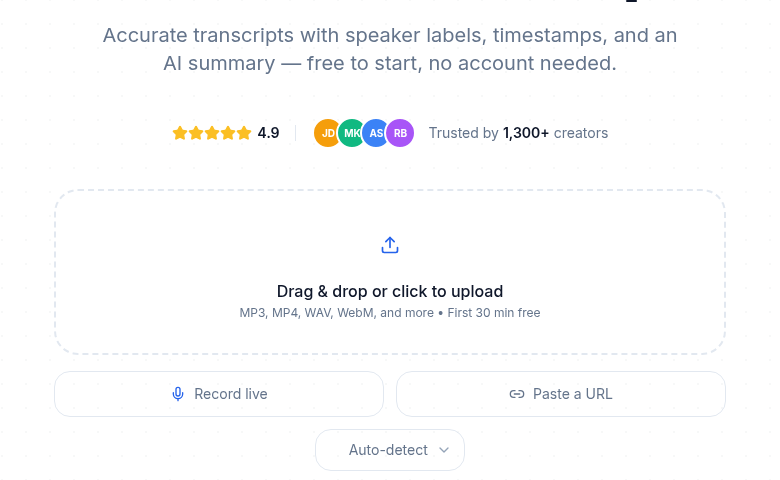
A browser-based upload tool is the universal fallback that works across every device and operating system in this guide. It requires no installation, no account on most platforms, and handles formats that mobile voice memo apps reject.
Google Docs Voice Typing
Google Docs includes free voice typing:
- Open a Google Doc.
- Go to Tools, then Voice typing (or press Ctrl+Shift+S on Windows / Cmd+Shift+S on Mac).
- Click the microphone icon and begin speaking.
Requirements: Chrome browser on desktop (not available in Firefox, Safari, or Edge), internet connection, microphone permission granted. Supports 120-plus languages with no monthly word or session cap. Completely free with any Google account.
For Transcribing Existing Audio Files
When you have a recording you want converted to text, upload tools handle the things built-in dictation cannot: long recordings, background noise, multiple speakers, and specialized vocabulary. ConvertAudioToText's audio-to-text tool accepts audio and video files from any device in your browser, no app install needed. This is the one CATT workflow worth bookmarking across all platforms: if you are on a Chromebook, a Linux machine, a borrowed Windows PC, or an iPhone, the upload path looks the same.
For a broader comparison of no-signup tools, see the best no-signup transcription tools.
Improving Accuracy Across All Devices
The single biggest accuracy lever is microphone placement, not model quality. A $20 USB mic or wired earbuds with an inline mic outperform any laptop's built-in mic for dictation. Close-talk microphones reject ambient noise that neural networks still struggle with in loud environments.
Beyond hardware:
- Enunciate fully at the ends of words. Trailing off causes drop-outs on every platform.
- Pause briefly between sentences. It helps segment correctly.
- Say punctuation explicitly if auto-punctuation is off. All systems recognize "period," "comma," "question mark," "exclamation point," "new paragraph."
- Add specialized vocabulary to your device dictionary when available. Medical terms, product names, and proper nouns are where generic models slip most often.
Privacy: Where Your Audio Goes
The table above flags offline status, but here is the practical breakdown:
- On-device: iPhone (iOS 16+, supported languages), Apple Silicon Mac, Pixel phones with downloaded packs, Copilot+ PC Fluid Dictation. Audio never leaves your hardware.
- Cloud-assisted: Windows Voice Typing (standard), Intel Mac dictation, Google Docs Voice Typing, most browser-based tools. Audio goes to remote servers for processing.
- Hybrid: Chromebook system dictation routes to Google's cloud; Google Recorder on Pixel is fully local.
Before uploading sensitive audio (medical records, legal proceedings, confidential meetings) to any third-party service, read its privacy policy. On-device options and tools with clear data-deletion policies are the safer path for private content. The on-device vs cloud transcription breakdown covers this tradeoff in more depth.
FAQ
What is the most accurate voice to text method in 2026?
For real-time dictation, Google Voice Typing (Android) and Apple's on-device dictation (iPhone, Apple Silicon Mac) are both strong performers for clear English speech. For transcribing recorded audio files, cloud-based AI tools consistently outperform on-device dictation because they use larger models and can process the audio multiple times. If accuracy on a pre-recorded file matters, a dedicated upload-and-transcribe tool will beat anything running on your keyboard.
Can I use voice to text offline?
It depends on the device and the type of task. Real-time dictation works offline on iPhones (iOS 16 or later, supported languages), Apple Silicon Macs (M1 and later), Pixel phones with downloaded language packs, and ChromeOS devices. Windows 11 voice typing uses Azure cloud servers and requires an internet connection, the offline Fluid Dictation mode is limited to Copilot+ PCs. Audio file transcription tools almost always need a connection. Local options like MacWhisper or whisper.cpp-based tools on Linux can process files offline, but setup is more involved.
How do I add punctuation with voice to text?
Say the punctuation out loud. All major dictation systems recognize: "period," "comma," "question mark," "exclamation point," "colon," "semicolon," "new line," and "new paragraph." Most also accept "open quote" and "close quote." Windows Voice Typing and Google Docs Voice Typing both support auto-punctuation modes that handle periods and commas automatically, so you do not need to say them at all.
Is voice to text good enough for professional writing?
Yes, as a first-draft tool. Many writers, journalists, and content creators dictate first drafts and then edit on screen. Treat dictation as a drafting mode, not a final-output mode: speak freely, then clean up structure and precision afterward. For transcribing professional recordings (interviews, meetings, dictated notes), AI transcription tools typically produce clean output that needs only light editing.
Does Google Recorder work on all Android phones?
No. Google Recorder is built exclusively for Pixel phones (Pixel 3 and later) and ChromeOS devices. Other Android phones do not get Google Recorder pre-installed, though some manufacturers include their own recording apps with transcription. If you are on a non-Pixel Android, the best path for recorded-file transcription is a browser-based upload tool.
Sources
- Apple Support: Dictate text on iPhone, https://support.apple.com/guide/iphone/dictate-text-iph2c0651d2/ios
- Apple Support: Use Dictation on Mac, https://support.apple.com/guide/mac-help/use-dictation-mh40584/mac
- Microsoft Support: Use voice typing to talk instead of type on your PC, https://support.microsoft.com/en-us/windows/use-voice-typing-to-talk-instead-of-type-on-your-pc-fec94565-c4bd-329d-e59a-af033fa5689f
- Microsoft Support: Transcribe your recordings (Word/M365), https://support.microsoft.com/en-us/office/transcribe-your-recordings-7fc2efec-245e-45f0-b053-2a97531ecf57
- Google Gboard Help: Type with your voice (Android), https://support.google.com/gboard/answer/2781851
- Google Gboard Help: Advanced voice typing features, https://support.google.com/gboard/answer/11197787
- Google Docs Editors Help: Type and edit with your voice, https://support.google.com/docs/answer/4492226
- Google Chromebook Help: Type text with your voice, https://support.google.com/chromebook/answer/12001244
- Google Recorder about page, https://recorder.google.com/about
- MacWhisper on Gumroad (Jordi Bruin), https://goodsnooze.gumroad.com/l/macwhisper
Try transcription free
Convert any audio or video to clean, unwatermarked text — speaker labels, timestamps, and AI summaries included. First 10 minutes free, no account.
Related Articles
Focus Group Transcription for UX Researchers: Turn Multi-Speaker Audio Into Usable Evidence
A practical guide to focus group transcription for UX and insights teams. See how CATT handles speaker labels, timestamps, AI summaries, and clean export.
How to Add Timestamps to a Transcript
Learn how to add timestamps to a transcript with an audio-to-text tool, then export timestamped SRT or VTT subtitle files for easy navigation and editing.