AI Audio Enhancement: The Studio-Sound Pipeline
Summarize this article with:
The Studio-Sound Pipeline
The order of operations for turning a raw recording into broadcast-quality audio is: high-pass filter, then denoise, then dereverb, then EQ and compression, then loudness normalization. Running these steps out of order causes each processor to fight the previous one. This guide walks through that pipeline stage by stage with honest settings and tool suggestions.
This is the hands-on workflow companion to the AI audio enhancement overview, which covers the tool landscape and buyer comparisons. If you want settings and stage-by-stage logic, you are in the right place.
Stage 1: High-Pass Filter (Clean the Floor First)
Start with a high-pass filter before any AI processing touches your file. This step is fast, free in any DAW, and prevents noise-reduction algorithms from treating low-frequency rumble as "good" audio to preserve.
Set the cutoff between 80-120 Hz depending on the speaker. Male voices rarely contain useful content below 80 Hz. Female voices and higher-pitched speakers can tolerate a slightly higher cutoff (100-120 Hz) without thinning out. Use a gentle slope (6 or 12 dB per octave) rather than a steep brick-wall cut, and always listen inside a mix, not in solo. If the voice starts sounding thin, back off.
What this removes: HVAC rumble, desk vibration, traffic low-end, microphone-handling noise. None of that should survive to the AI denoise stage, because noise reducers that see low-frequency energy can try to model it as useful signal, adding artifacts.
Stage 2: AI Denoising (The Main Event)
AI denoise is where broadband noise, hiss, fan hum, and steady-state background sounds get removed. Modern tools use neural models trained on millions of recordings to separate voice from noise rather than the older spectral-subtraction approach that left metallic artifacts.
Tool options by use case
| Use case | Tool | Notes |
|---|---|---|
| Quick one-file cleanup | Adobe Podcast Enhance Speech | Free, browser-based; 30-min file limit, 1 hr/day |
| In-editor workflow | Descript Studio Sound | Applies on the clip; unlimited on Creator plan ($35/mo monthly) |
| Automated batch pipeline | Auphonic | 2 free hrs/mo; paid plans from $11/mo for 9 hrs |
| Surgical repair of damaged recordings | iZotope RX 12 Standard | One-time license, $399; plugin or standalone |
| Real-time calls and meetings | Krisp | 60 min/day free; Pro at $8/mo for unlimited |
My take: Adobe Podcast Enhance Speech is the strongest free starting point for spoken-voice files. In independent comparisons, it has consistently scored highest for wind noise removal and severe echo handling without introducing metallic overtones. Its 30-minute cap per file is the main constraint; anything longer needs Auphonic or Descript.
Settings guidance
For most AI denoise tools with a strength slider, start at 50-60% and raise it only until the noise stops being distracting. Over-denoising strips warmth and presence from the voice. If you hear the recording start sounding hollow or "speakerphone," you have pushed too far. Some tools (iZotope RX) expose separate parameters for noise sensitivity and voice preservation; if yours does, set the voice preservation floor high and lower the noise sensitivity until you find a balance.
Honest expectation: AI denoise cannot recover a clip that was clipped (digitally overloaded) on the way in. If your waveform is flat-topped, the missing peaks are gone permanently. Enhancement makes the distortion less irritating; it cannot restore the lost waveform detail.
Stage 3: Dereverb (Remove Room Acoustics)
Dereverb runs after denoise because a reverberant signal is better analyzed when the noise floor has already been cleaned. Reverb and noise interact; if you dereverb first, the algorithm often models background noise as early reflections and leaves it behind.
Room reverb sounds like you recorded in a bathroom or large office. A dereverb tool estimates the room's impulse response and subtracts the tail. The result can sound slightly drier than natural, which is usually preferable to the original room sound.
Good dereverb options bundled with the denoise tools above:
- Adobe Podcast Enhance Speech handles both simultaneously in one pass.
- iZotope RX 12 includes a dedicated Dialogue De-reverb module with separate controls for early reflections and tail decay.
- LANDR ReHance is a plugin available with LANDR Studio subscriptions that pairs noise reduction and dereverb specifically for vocal and speech tracks.
- Descript Studio Sound applies both as part of its single-click enhancement.
Keep the dereverb amount conservative. Heavy dereverb can strip the natural acoustics that tell your brain "this sounds like a real person in a room," replacing it with something that sounds processed. Subtle is almost always better.
Stage 4: EQ and Compression (Shape the Voice)
EQ after denoising, not before. Boosting frequencies before you clean the audio makes the noise louder at those frequencies, which forces your denoise step to work harder against your own EQ choices.
A voice EQ starting point:
- Gentle high-shelf cut around 8-10 kHz if there is harshness or sibilance.
- Presence boost around 2-5 kHz to bring clarity and cut through speakers.
- Low-mid cut around 200-400 Hz if the voice sounds muddy (check against speakers and headphones, not just headphones alone).
After EQ, a slow-attack compressor (ratio around 2:1 to 3:1, attack 10-30 ms) levels the dynamics without squashing the life out of the voice. If your AI enhancement tool already applied leveling, listen before adding another compressor layer. Stacking compression leads to the "overcooked" sound.
For interview recordings with multiple speakers at different distances and volumes, per-speaker EQ and compression makes a bigger difference than any global enhancement pass.
Stage 5: Loudness Normalization (The Final Gate)
Loudness normalization is the last step in the pipeline, applied after everything else. Normalizing first and then processing changes the target.
Platform targets in 2026:
| Platform | Integrated loudness target |
|---|---|
| Spotify (podcasts) | -14 LUFS |
| Apple Podcasts | -16 LUFS |
| YouTube | -14 LUFS (auto-normalized) |
| EBU R128 (broadcast TV/radio Europe) | -23 LUFS |
| ATSC A/85 (broadcast US) | -24 LKFS |
For most podcast and online video work, target -14 LUFS with a true peak ceiling of -1 dBTP. This gives headroom across platforms without your audio getting turned down by Spotify's normalization pass.
Auphonic handles this step automatically, including selecting the correct EBU or podcast target. iZotope RX has a Loudness module. Most DAWs include a loudness meter for free. If you need a quick web-based check, Auphonic's free tier (2 hours/month) is enough for basic leveling work on most episode lengths.
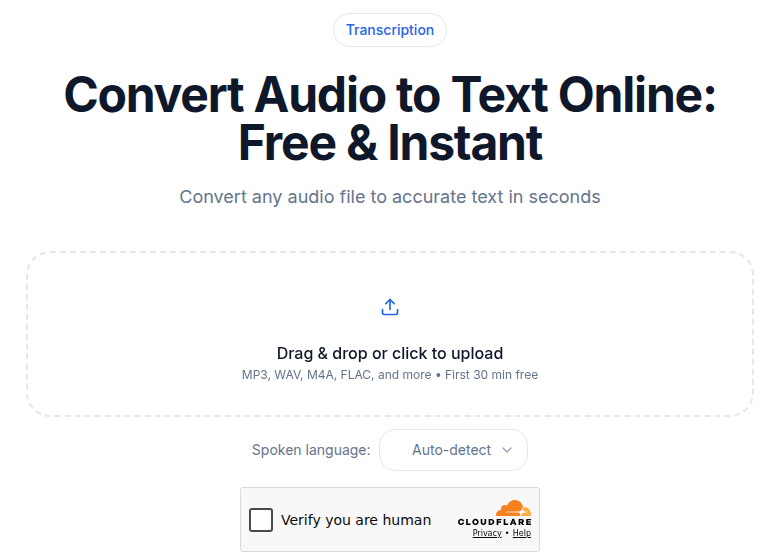 ConvertAudioToText audio upload tool - transcription from enhanced recordings
Once your audio is clean and leveled, you may want to transcribe it. A polished recording with consistent loudness and minimal background noise feeds significantly better results into any speech-to-text engine. If you need a transcript without setting up an account or a meeting bot, ConvertAudioToText accepts upload or URL and returns a transcript directly, with speaker labels on the premium engine (your first file or a paid plan).
Better source audio also improves transcription accuracy in measurable ways. If you are working on content where the text output matters as much as the audio, it is worth running the enhancement pipeline first. See transcription accuracy tips for more on what affects engine performance.
What the Pipeline Cannot Fix
AI audio enhancement has real limits worth stating plainly:
- Clipping (flat-topped waveforms from overloaded input): the missing peaks cannot be reconstructed. Enhancement reduces the harshness; it does not restore what was never recorded.
- Highly variable background noise: sudden voices, dogs barking mid-sentence, slamming doors. AI denoise is optimized for steady-state noise. Transient noise requires manual editing.
- Two people talking at once: enhancement cannot separate interleaved voices. Source separation tools exist but produce artifacts on real-world recordings. Better to prevent it with recording practice.
- Ultra-low-quality compression artifacts: heavily compressed audio (low-bitrate MP3, voice messages sent over messaging apps) has already lost frequency content that enhancement cannot recover.
The most reliable route to studio-quality audio is still improving the recording environment before you start: a quiet room, consistent microphone distance, and recording at the proper input level. Enhancement extends the usability of imperfect recordings; it does not substitute for recording technique.
Common Questions
What order should I run audio enhancement steps?
Run them in this sequence: high-pass filter first (cut sub-80 Hz rumble), then AI denoising, then dereverb, then EQ and compression, then loudness normalization last. This order ensures each stage works on the cleanest possible input. Reversing denoise and EQ, for example, risks boosting noise before removing it.
Can AI completely remove background noise without affecting the voice?
Partially. Modern AI denoise tools are highly effective on steady-state noise (fan hum, HVAC, computer noise) and handle moderate reverb well. They are weaker against variable noise, sudden transients, or audio that is already heavily compressed. Over-applying any noise reduction introduces its own artifact: a hollow, over-processed quality. Set the strength at the minimum that makes the noise inaudible in context.
What loudness level should I target for a podcast?
Target -14 LUFS integrated with a true peak ceiling of -1 dBTP. This aligns with Spotify's normalization target and is close enough to Apple Podcasts (-16 LUFS) that the difference is not audible to most listeners. Broadcast targets (-23 LUFS EBU R128) are significantly quieter and apply to TV and radio distribution, not online podcasts.
Is iZotope RX worth the price for voice cleanup?
For occasional use, probably not. Adobe Podcast Enhance Speech and Descript Studio Sound handle most spoken-word cleanup without spending anything. iZotope RX 12 Standard (currently $399 as a one-time purchase) is worth it if you regularly deal with severely damaged recordings, have audio where the voice is nearly buried in noise, or need surgical control over individual modules (spectral repair, dialogue isolate, per-clip de-reverb) that one-click tools do not expose. For most podcast and video creators, the free tools are enough.
Sources
- Adobe Podcast Enhance Speech: podcast.adobe.com/en/enhance and podcast.adobe.com/en/plans (checked 2026-07-02)
- Auphonic pricing: auphonic.com/pricing (checked 2026-07-02)
- iZotope RX 12 Standard pricing: izotope.com/products/rx-standard (checked 2026-07-02)
- Descript Studio Sound and pricing: descript.com/studio-sound, descript.com/pricing (checked 2026-07-02)
- Krisp pricing: krisp.ai/pricing (checked 2026-07-02)
- LANDR ReHance: landr.com/plugins/landr-rehance (checked 2026-07-02)
- LUFS loudness standards: sone.app/blog/podcast-loudness-standards-2026-spotify-apple-youtube (checked 2026-07-02)
- High-pass filter guidance: izotope.com/en/learn/6-ways-to-use-a-high-pass-filter-when-mixing (checked 2026-07-02)
Try transcription free
Convert any audio or video to clean, unwatermarked text — speaker labels, timestamps, and AI summaries included. First 30 minutes free, no account.
Related Articles
AI Audio Enhancement in 2026: What It Does and When to Use It
A practical landscape of AI audio enhancement in 2026: noise reduction, dereverb, EQ normalization, and the tools that handle each category well.
How to Transcribe Voice Recorder Recordings (Any Device)
Get text from any voice recorder, from Anker SoundCore Work to old Olympus dictaphones. Covers file transfer, formats, WMA conversion, speaker labels, and export options.