Best Speech-to-Text Apps for Students 2026: Mobile Capture
Summarize this article with:
The best mobile speech-to-text app for students depends on your phone and workflow. Otter is the strongest live-lecture option with a real free tier and multi-language support. Apple Voice Memos (iOS 18, iPhone 12+) and Google Recorder (Pixel only) handle capture with zero setup. Notta's free plan is too short per session for real lectures. If you recorded a lecture and want a clean, speaker-labeled transcript, upload the file to ConvertAudioToText after class.
The best mobile speech-to-text app for students is the one that starts recording before the lecture does. Speed and reliability in the moment matter more than feature lists. This post covers apps you run from your phone in class, for live capture and in-class dictation. If you already have a recording you want to upload and process, that is a different workflow covered in best no-signup transcription tools.
A quick note on the two modes in this lane: live lecture capture (the app transcribes while audio happens) and live dictation (you speak your own notes into a text field). They look similar but use different tools.
Live Lecture Capture Apps
These apps run on your phone during class and produce a real-time transcript as the professor speaks.
Otter: The Student Standard
Otter's free plan is the most practical starting point for most students. The iOS and Android apps are polished, the live transcription is fast, and the free tier provides 300 minutes per month with a 30-minute per-conversation cap. That cap cuts off a 50-minute lecture, which is its real limitation.
| App | Platform | Free tier | Live capture | Best for |
|---|---|---|---|---|
| Otter | iOS, Android | 300 min/mo, 30 min/session | Yes | English-language lectures |
| Apple Voice Memos | iOS 18+, iPhone 12+ | Unlimited (on-device) | Record, then transcribe | Any iPhone user on iOS 18 |
| Google Recorder | Pixel only | Unlimited (on-device) | Yes (live) | Pixel owners |
| Notta | iOS, Android | 120 min/mo, 3 min/session | Yes | Multi-language classes |
Otter supports English, Spanish, French, German, Japanese, and Chinese, so it is no longer limited to English as older comparisons suggest. Speaker identification is included on the free tier. The searchable transcript library syncs across devices.
Otter offers a 20% student discount on Pro plans for .edu email addresses, bringing the annual plan to approximately $6.67 per month (billed yearly). Verify current pricing at otter.ai/pricing because Otter revises rates regularly.
Limitation to know: The 30-minute per-session cap is a hard cutoff. For a standard 50-minute or 75-minute lecture you will need to start a second session mid-class, which breaks the transcript and the audio sync. Paid plans remove the per-session cap.
Best for: English-language courses where you want a live, synced transcript and a searchable archive of past sessions.
Apple Voice Memos: The Built-In Option for iPhone Users
If you have an iPhone 12 or later running iOS 18, you already have a capable transcription tool with no setup required. Voice Memos gained automatic transcription in iOS 18 and processes it entirely on-device, so no audio leaves your phone. The transcript appears in the Notes-style view inside the app and is searchable.
Supported languages include English, Spanish, Portuguese, Italian, French, German, Japanese, Korean, Simplified Chinese, and Traditional Chinese. There is no per-session cap and no monthly limit because processing is local. The catch: transcription is not available in all countries or regions, and it requires iPhone 12 or later.
Voice Memos does not do live rolling transcription during recording. You record first, then open the transcript view after stopping. For most lecture workflows that is fine; you get the full audio and the text together immediately after class.
Best for: iPhone users who want zero-friction capture with no account and no cloud upload.
Google Recorder: The Pixel Option
Google Recorder is the strongest on-device live-transcription tool available, but only for Pixel phone owners. It transcribes in real time as you record, labels multiple speakers, and runs offline. On-device languages include English, French, German, Hindi, Italian, Spanish, and Traditional Chinese. A cloud-based "Transcribe again" mode extends that to approximately 42 languages.
Pixel 8 and later models add AI summarization inside the Recorder app, which distills a one-hour lecture into a short paragraph. The transcript is searchable and includes timestamps at the word level.
There is no cap, no account required, and no cost. The only constraint is hardware: Pixel phones only.
Best for: Pixel phone owners who want live transcription with speaker labels, offline, no account.
Notta: Wide Language Support, Narrow Free Sessions
Notta's mobile app supports live transcription in 58 languages, which makes it the widest option for international students attending courses in languages other than those Apple and Otter cover. The app is available on iOS and Android and includes real-time playback speed controls and AI summaries.
The free plan is too constrained for most lectures. Each recording session is capped at 3 minutes, with 120 minutes total per month. That cap makes Notta's free tier useful only for short in-class moments, not full lectures. A paid plan removes per-session caps.
For students attending courses in languages outside Otter's list, Notta at the paid tier is worth considering. For English-language students, Otter's free plan is a better value.
Best for: Students in non-English-language courses who can justify a paid plan for the language breadth.
Live Dictation: Speaking Your Own Notes
Live dictation is a different mode: you speak your own words while writing, usually in a notes app. This is useful for drafting summaries after class, composing essays, or students who find typing slow or physically difficult.
Built-in keyboard dictation (iOS and Android) is the fastest way to start. Both platforms include a microphone key on the native keyboard. Tap it in any text field, speak, and the phone transcribes inline. No app installation required.
For a dedicated experience, Google released Google AI Edge Eloquent on iOS in April 2026. It is a free, offline-first dictation app powered by on-device Gemma models. It strips filler words in real time, includes text transformation tools (summarize, formalize, condense), and imposes no usage caps. The trade-off: it requires iPhone 17 or later running iOS 26 for the full experience, and it currently supports English only. It dictates inside the Eloquent app, not system-wide, so you copy the result into your notes. Worth watching, but early adopters only for now.
For Android users, Gboard's voice typing covers most dictation needs with broad language support and works in every text field on the phone.
Using These Tools Together
A practical workflow for most students:
- Record the full lecture with Apple Voice Memos (iPhone) or Google Recorder (Pixel), or start Otter for a live rolling transcript in sessions under 30 minutes.
- After class, open the transcript to skim for unfamiliar terms and flag sections to review.
- For recordings that came out long, noisy, or need clean speaker attribution, upload the audio file to ConvertAudioToText for post-processing. That workflow is better covered in the tools-focused sibling post on best no-signup transcription tools.
For combining transcripts into study materials, see note-taking with AI and how to transcribe a lecture for notes.
A Note on Recording Consent
Recording a lecture without permission may violate your institution's policy or, in all-party-consent states, state law. Read your student handbook and ask your professor before recording. See recording a lecture with permission: practical tips for a fuller guide. This paragraph is not legal advice.
FAQ
Is it legal to record lectures on your phone?
Most universities permit personal-use recording, but this is governed by institutional policy rather than a universal rule. In one-party-consent US states you generally do not need professor permission to record a conversation you are part of; all-party-consent states (California, Florida, Illinois, and others) require everyone present to consent. Always check your school's academic policies and ask your professor before recording, especially in smaller seminars. This is not legal advice; consult your institution's student affairs office for specifics. See also our guide on recording a lecture with permission.
Which mobile transcription app works best in a large lecture hall?
Otter performs best in large-hall conditions because its mobile app is built around ambient audio capture and adjusts for room acoustics. Place your phone on your desk rather than in your bag; proximity to the speaker matters more than the app you choose. Apple Voice Memos and Google Recorder both capture well, but their transcription is less tuned for overlapping crowd noise.
Can these apps transcribe in languages other than English?
Otter supports English, Spanish, French, German, Japanese, and Chinese. Apple Voice Memos (iOS 18) covers those six plus Portuguese, Italian, Korean, and Simplified/Traditional Chinese. Google Recorder handles English, French, German, Hindi, Italian, Spanish, and Traditional Chinese on-device. Notta supports 58 languages in the app, making it the widest option for international students, though its short free-tier session cap is a real constraint.
What do I do with a lecture recording I already have?
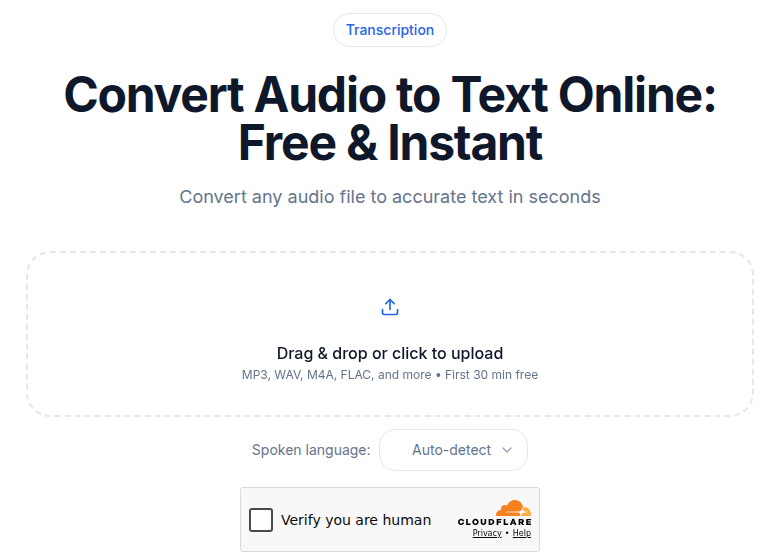
If you recorded a lecture on any device and want a clean, speaker-labeled transcript, upload the file rather than re-recording in class. ConvertAudioToText accepts audio and video files and returns a full transcript with speaker identification, so you can tell apart the professor and student questions in a Q&A. Our guide on how to transcribe a lecture for notes covers the full workflow.
Sources
- Otter.ai Pricing - free plan limits, languages, student discount
- Otter Student and Teacher Discount Program - .edu discount details
- Apple Support: View a Voice Memos transcription on iPhone - iOS 18 requirements, supported languages
- Google Pixel Recorder Help: Create, edit and manage transcriptions - on-device language list, Pixel exclusivity
- Notta Pricing - free tier structure
- Sonix: Notta Pricing Review - 3-min per-session cap, 120 min/mo confirmed
- TechCrunch: Google quietly launches offline AI dictation app for iOS - Google AI Edge Eloquent, April 2026
- Google AI Edge Eloquent on App Store - availability, device requirements
Try transcription free
Convert any audio or video to clean, unwatermarked text — speaker labels, timestamps, and AI summaries included. First 10 minutes free, no account.
Related Articles
Best Transcription Tools for Students in 2026: Budget-Ranked
Ranked by real cost and verified free-tier limits: the best transcription tools for students in 2026, from free university options to paid picks for heavy lecture loads.
Transcription for Students: The Complete Use-Case Guide (2026)
How students use AI transcription for lectures, seminars, group projects, language learning, and disability accommodations. Verified tools, free-tier limits, and study workflows.