
Best Transcription Software for Windows in 2026 (Verified)
Summarize this article with:
Windows users get more transcription options than they often realize: Microsoft Word already includes a 300 min/mo upload transcription feature for M365 subscribers, Voice Typing covers live dictation in any text field, and a full NVIDIA GPU makes free unlimited local Whisper practical. For cloud-based work, Descript, TurboScribe, Otter, and Fireflies each target a different use case. If your hardware is mid-range or integrated-graphics only, cloud services win by a wide margin.
For most Windows setups, the fastest path to a clean transcript is whichever tool fits your hardware: Word Transcribe if you already pay for Microsoft 365, a web tool if you have a mid-range laptop, or local WhisperX if you own an NVIDIA GPU with 8+ GB VRAM. The cards below separate those paths.
Windows transcription differs from Mac in one key way. Apple Silicon chips make local Whisper fast on any MacBook. On Windows, hardware varies from integrated-graphics laptops (local Whisper is impractical) to RTX 4090 desktops (Whisper Large-v3 runs near real-time). That range means the "right tool" depends as much on your PC as on your workflow.
Windows-Native Options
Microsoft Word Transcribe (M365)
The built-in option most Windows users overlook.
- Price: Included in Microsoft 365 subscription
- Free cap: 300 min/mo (Business/Enterprise/Edu), 200 min/mo (Personal/Family), 30,000 min/mo with Copilot license
- Languages: Broad (Azure-powered, no published exact count for file upload)
- Formats out: Word document with speaker labels, copy-paste to clipboard
- Privacy: Cloud (Microsoft Azure); stays within your M365 tenant
- Windows fit: Tight: desktop Word for Microsoft 365 on Windows only; requires Edge or Chrome
Word's Transcribe feature (Insert > Transcribe) lets you upload a .wav, .mp4, .m4a, or .mp3 file up to 300MB and get a timestamped speaker-labeled transcript directly inside Word. If you transcribe interview notes or meeting recordings a few times a month and already pay for M365, this costs nothing extra. The main limits: no SRT/VTT export, no AI summary, and the 300 min/mo cap hits hard if you do high volume. M365 Copilot subscribers get a 100x increase to 30,000 min/mo per Microsoft's support documentation (checked June 2026).
Voice Typing (Win+H, Built-in)
Live dictation, not file transcription.
- Price: Free, built into Windows 11
- Free cap: Unlimited (live only, no file upload)
- Languages: 46 languages, Azure cloud-powered
- Formats out: Text in any text field; no export
- Privacy: Cloud via Azure; requires internet
- Windows fit: Native: any text field in any Windows app
Press Win+H to open the Voice Typing toolbar. Speak, and text appears in the active text field. This is for dictating into Word, Outlook, or a browser form. It does not accept audio files. Fluid Dictation (Copilot+ PCs only) adds real-time grammar and filler-word correction. My take: Voice Typing is underrated for quick notes and emails, but if you need to transcribe a recording, you need one of the tools below.
Subtitle Edit (Free, Open Source)
The best free Windows app for subtitle-centric transcription.
- Price: Free
- Free cap: Unlimited (local processing)
- Languages: 99 (Whisper model)
- Formats out: SRT, VTT, ASS, and most subtitle formats
- Privacy: Total: runs locally, audio stays on your PC
- Windows fit: Native Windows app, polished GUI
Subtitle Edit is a well-maintained open-source Windows application. Under Video > Audio to text (Whisper), you can download and run multiple Whisper engine flavors: OpenAI, Faster Whisper, whisper.cpp, and more. Faster Whisper with a discrete GPU is the fastest local option and requires no command-line work once Subtitle Edit is installed. Setup takes 5-10 minutes. This is the right pick for anyone who produces video content and wants free subtitle generation with timing control. See speaker diarization explained if you need per-speaker labels too.
WhisperX (NVIDIA GPU, Command Line)
Best local option for Windows users with a discrete NVIDIA GPU.
- Price: Free
- Free cap: Unlimited (local processing)
- Languages: 99
- Formats out: TXT, SRT, JSON (script-controlled)
- Privacy: Total: local, no internet needed
- Windows fit: Requires Python, CUDA Toolkit 12.8, 8+ GB VRAM; setup 30-60 min
WhisperX is the fastest open-source Whisper implementation and includes speaker diarization. On an RTX 3060 or above, it handles practical workloads well. The trade-off is setup time: you install CUDA Toolkit, Python, WhisperX via PyPI, and optionally configure a Hugging Face token for diarization. For a Windows developer or technical user who transcribes regularly, it is effectively free unlimited transcription with full privacy. For everyone else, the setup cost does not pay off.
Web-Based Tools (Any Windows PC, Any Browser)
These tools run in Chrome, Edge, or Firefox. No GPU or Python setup required.
TurboScribe
Best for high-volume raw transcription at low cost.
- Price: $10/mo annual ($20/mo month-to-month)
- Free cap: 3 files per day, each up to 30 minutes, no credit card needed
- Languages: 98+
- Formats out: TXT, DOCX, SRT, VTT, PDF
- Privacy: Cloud (vendor servers)
- Windows fit: Browser only; works in Edge, Chrome, Firefox
TurboScribe uses Whisper and keeps the interface minimal: upload a file, get a transcript. The free tier is generous for occasional use (3 x 30-min files per day). The $10/mo annual plan gives unlimited uploads up to 10 hours per file. There are no AI summaries or structured output templates; if you want AI post-processing, you export and paste into your tool of choice. That minimal surface also means there is very little to go wrong. A good pick for journalists or researchers who prefer to process transcripts themselves. Compare it with Otter for meeting use cases at turboscribe vs otter.
Descript
Best for Windows podcasters and video creators who edit in transcript view.
- Price: Free (60 min/mo), Hobbyist $16/mo annual, Creator $24/mo annual
- Free cap: 60 media minutes per month
- Languages: English, Spanish, French, German, Portuguese, and others
- Formats out: TXT, SRT, VTT, plus edited audio and video export
- Privacy: Cloud
- Windows fit: Native Windows desktop app, well-optimized
Descript is not a pure transcription tool: it is an audio and video editor where the transcript drives the edit. Cut a paragraph in the transcript and the audio disappears. Overdub lets you fix mistakes by typing. This workflow is genuinely useful for podcast production and YouTube video editing. The free tier was increased to 60 media minutes per month as of late 2025, making it usable for evaluation. The native Windows app is polished and does not require WSL or any command-line tools.
Otter.ai
Best for Windows users with heavy meeting schedules on Zoom, Meet, or Teams.
- Price: Free (300 min/mo), Pro $8.33/seat annual, Business $19.99/seat annual
- Free cap: 300 minutes per month, 30-minute cap per conversation, 3 lifetime file imports
- Languages: English primary
- Formats out: TXT, DOCX, SRT
- Privacy: Cloud
- Windows fit: Native Windows app plus browser; Calendar sync with Outlook and Google Calendar
Otter's meeting bot joins calls automatically once you connect your calendar. The free tier is 300 min/mo but allows only 3 lifetime file uploads, so it is really designed around live meeting recording. Pro at $8.33/seat (annual) raises that to 1,200 in-app recording minutes per month and 10 monthly file imports. The Windows native app is solid. If you attend a lot of Teams or Zoom meetings and want automatic transcripts without remembering to press record, Otter is the clearest choice. For a direct comparison against its nearest rival, see descript vs otter.
Fireflies.ai
Best for Windows sales teams who push meeting data to CRM.
- Price: Free, Pro $10/seat annual, Business $19/seat annual
- Free cap: 400 minutes storage per team (per vendor documentation), 20 AI credits
- Languages: 60+ claimed, English strongest
- Formats out: TXT, DOCX, SRT
- Privacy: Cloud
- Windows fit: Browser plus desktop notifications; meeting bot for Teams, Zoom, Meet
Fireflies differentiates from Otter with CRM auto-push. The Business plan ($19/seat annual) automatically pushes meeting summaries, action items, and deal data into Salesforce or HubSpot after each call. If your sales process runs through a CRM, that automation saves real time. The free tier's 400-minute storage cap fills up quickly on a busy team. The AI credits system (20 credits on free and Pro) gates some premium AI features; credits are a one-time pool, not monthly, so they run out. See the fireflies vs otter honest comparison for a closer look at where each wins.
ConvertAudioToText
Best for uploading a file and getting a clean transcript without creating an account.
- Price: Free tier, $14.99/mo unlimited, Weekly Pass $9.99 one-time for 1,200 min
- Free cap: first 30 minutes of any file with no account; on a free account, first file on the premium engine, then up to 30 files a day, up to 30 min each
- Languages: 99
- Formats out: TXT, DOCX, SRT, VTT, PDF
- Privacy: Cloud; source audio auto-deleted after a limited time (usually 7 days on the free plan)
- Windows fit: Browser; drag-and-drop from File Explorer
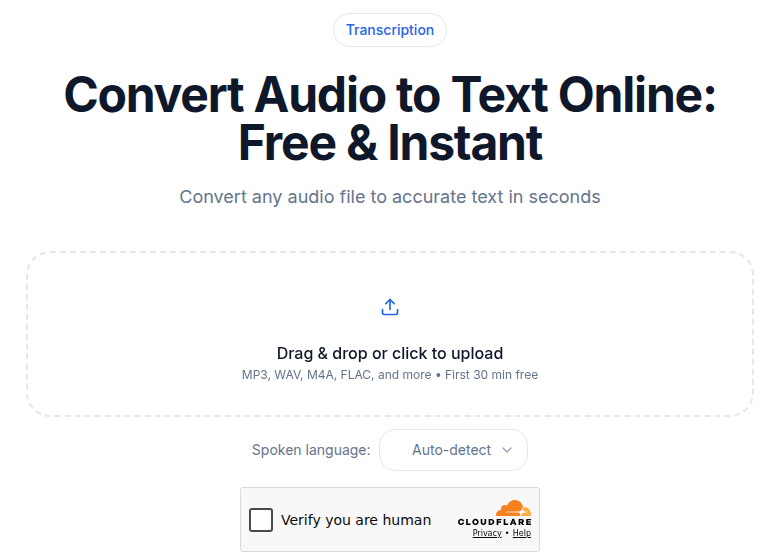 ConvertAudioToText audio upload tool in a browser on Windows
CATT starts transcription immediately without a signup wall, which is the right fit if you have one file and do not want to configure a meeting bot or create another account. With no account, the first 30 minutes of any file are free. A free account runs your first file on the premium engine (up to an hour), then keeps working: up to 30 files a day, up to 30 minutes each. On a free account, reading, copying and TXT downloads are free; DOCX, PDF, SRT, VTT and JSON downloads after the first file need the Weekly Pass, a minutes top-up or a paid plan. If you just need a clean transcript without a meeting bot or a full editor, the audio-to-text tool handles it in a browser tab.
Comparison Table
| Tool | Price (paid) | Free cap | Best use | Languages | Privacy |
|---|---|---|---|---|---|
| Word Transcribe | Included in M365 | 200-300 min/mo upload | M365 subscribers with occasional files | Azure-powered | M365 cloud |
| Voice Typing | Free (built-in) | Unlimited (live only) | Live dictation in text fields | 46 | Azure cloud |
| Subtitle Edit | Free | Unlimited (local) | Video subtitling, YouTubers | 99 | Local |
| WhisperX | Free | Unlimited (local) | Developers, GPU owners | 99 | Local |
| TurboScribe | $10/mo annual | 3x30min/day | High-volume raw transcripts | 98+ | Cloud |
| Descript | $16/mo annual | 60 min/mo | Podcast and video editing | ~6 | Cloud |
| Otter | $8.33/seat annual | 300 min/mo | Meeting bot (Teams, Zoom) | English primary | Cloud |
| Fireflies | $10/seat annual | 400 min storage | Sales team, CRM push | 60+ | Cloud |
| ConvertAudioToText | $14.99/mo or $9.99 Weekly Pass | First file premium; then up to 30 files a day, up to 30 min each | Quick one-off file upload | 99 | Cloud |
Hardware Realities for Windows
Integrated graphics laptop (no discrete GPU): Local Whisper is too slow to be practical on CPU alone. Cloud tools are the right choice. Word Transcribe, TurboScribe, and Otter all work in any browser with no hardware requirements.
Windows laptop with discrete NVIDIA GPU (RTX 3050 or better): Subtitle Edit with Faster Whisper or WhisperX becomes viable. Worth setting up if you process audio regularly and value privacy.
Windows desktop with RTX 3060 or better: WhisperX with Large-v3 and diarization runs well. Free unlimited local transcription with speaker labels is achievable. CUDA Toolkit 12.8 is the required dependency.
Older PC, pre-2018, no GPU: Cloud tools only. Local Whisper Large would process audio at far below real-time speed.
Snapdragon X Windows ARM (2025-2026): Cloud tools work fine. Local Whisper on Windows ARM is not well-optimized as of mid-2026, with limited ML acceleration support compared to x86 CUDA paths.
Windows Workflow Tips
OBS Studio recordings: OBS saves MKV or MP4 with AAC audio. Both formats upload cleanly to all cloud tools listed here. If you record game audio or screen captures for YouTube, Subtitle Edit with a local Whisper model can batch-process multiple files offline.
Teams meeting recordings: Microsoft Teams saves recordings to MP4. If you also hold a Teams premium license, Teams offers its own native live transcription. For post-meeting file transcripts, Word Transcribe is the most friction-free path since you stay inside the Microsoft 365 ecosystem.
Sound Recorder (built-in): Windows 11's Sound Recorder saves M4A files at decent quality. Files go to your Documents folder by default. Drag them into any browser-based tool.
WSL2 for technical users: Windows Subsystem for Linux 2 gives you full Linux command-line access with CUDA passthrough to your NVIDIA GPU. You can run Whisper, WhisperX, and faster-whisper exactly as on Linux. Useful for batch automation scripting.
For a cost breakdown on cloud API options, see speech-to-text API pricing 2026.
Privacy: Local vs Cloud
Local options (WhisperX, Subtitle Edit with local Whisper): Audio stays on your Windows PC. Best for confidential work. No subscription, no data retention policy to read.
Cloud options (Word Transcribe, TurboScribe, Otter, Fireflies, Descript, CATT): Audio uploads to vendor servers and is processed there. Most vendors delete audio after processing, but policies vary. For HIPAA-sensitive or attorney-client work, local-first is the right default. For general professional use, cloud services are practical.
FAQ
Does Windows have built-in transcription for audio files?
Yes, two ways. Word Transcribe (requires a Microsoft 365 subscription) lets you upload audio files up to 300MB and transcribes up to 300 minutes per month for Business/Enterprise/Education subscribers, or 200 minutes for Personal/Family plans. Microsoft 365 subscribers with a Copilot license get 30,000 minutes per month. Separately, Voice Typing (Win+H) handles live dictation across all text fields in Windows but does not process pre-recorded audio files.
Is local Whisper on Windows as fast as on Mac?
It depends entirely on your GPU. An RTX 3060 or newer will match or beat Apple Silicon for Whisper speed, and a high-end RTX 4080/4090 will outperform any current Mac. The problem is variance: Windows hardware ranges from integrated graphics (extremely slow for local Whisper) to dedicated NVIDIA GPUs (very fast). On integrated graphics, local Whisper is not practical and cloud services are the right choice.
Should I use Word Transcribe or a paid transcription tool?
If you already pay for Microsoft 365 and only transcribe occasionally, Word Transcribe is worth trying first: 300 minutes per month (Business/Enterprise) comes at no extra cost. Its output is a Word document with speaker labels. Where it falls short: no SRT/VTT export, no AI summaries, and the limit is a hard monthly cap. For podcasts, video subtitles, or recurring heavy volume, dedicated tools like Descript or TurboScribe offer more output formats and fewer constraints.
Can I use cloud transcription services with sensitive content?
Possibly, but check the vendor's data retention policy before uploading. Most services delete audio shortly after processing, but policies vary. For compliance-heavy work (HIPAA, legal, attorney-client), local options like WhisperX or Subtitle Edit with a local Whisper model are the safer choice: audio never leaves your PC. If you must use cloud, look for services with explicit HIPAA or SOC 2 certifications.
Sources
- Microsoft Word Transcribe support page (checked July 2026)
- Otter.ai pricing page (fetched July 2026)
- Fireflies.ai pricing page (fetched July 2026)
- Descript pricing page (fetched July 2026)
- TurboScribe pricing (search-verified July 2026; direct fetch returned 403)
- WhisperX PyPI and CUDA requirements (search-verified July 2026)
- Subtitle Edit official site (search-verified July 2026)
- Microsoft Voice Typing documentation (search-verified July 2026)
Try transcription free
Convert any audio or video to clean, unwatermarked text — speaker labels, timestamps, and AI summaries included. First 30 minutes free, no account.
Related Articles
Best No-Signup Transcription Tools (2026, No Account)
Eight transcription tools you can use without making an account, sorted by how "no-signup" they actually are. Honest 2026 limits on minutes, file caps, and where each one starts asking for an email.

Best Transcription for Content Creators 2026
Creator-lens roundup of 8 transcription and repurposing tools for 2026: verified prices, honest limits, and which tool fits which workflow.