How to Convert MP3 to Text Online (Free, No Software) 2026
Summarize this article with:
Upload your MP3 to any modern AI transcription tool, select the correct language, and download a text file in a few minutes. Bitrate above 64kbps has almost no effect on accuracy because every ASR engine resamples your audio to 16kHz mono internally. The only time you should touch the file first is to shrink it below a service's size cap, which you do by re-encoding to mono at 64-96kbps, not by converting to WAV.
Upload your MP3 to a transcription tool, pick the right language, and you will have a text file in a few minutes. That is the short answer. The longer answer is that MP3 is natively accepted by every major transcription service, so you almost never need to pre-process the file, but there are a few MP3-specific mechanics worth understanding before you press start.
Where Most MP3 Files Actually Come From
Not all "audio files" are MP3. It is worth checking before you upload.
Podcast episode downloads are the most common genuine MP3 source. RSS podcast feeds have distributed MP3 since the early 2000s, and the industry settled on 128kbps CBR mono for talk shows as the de facto standard. If you downloaded an episode from Spotify, Apple Podcasts, or a show's feed, you almost certainly have a real MP3.
Dedicated voice recorders (Sony, Zoom H-series, Olympus) let you choose the recording format. Many default to MP3 at 64-128kbps, though higher-end models default to WAV or FLAC. Check the recorder's settings if you are not sure what it saved.
Meetings are a different story. Zoom exports audio as M4A (AAC), not MP3. Microsoft Teams also produces MP4/M4A. iPhone Voice Memos record in M4A. If someone emailed you a "recording from the meeting" and the file ends in .m4a, it is not an MP3, though any good transcription tool accepts it natively regardless. See supported audio formats for transcription for a full format matrix.
YouTube-to-MP3 converters produce genuine MP3 files, typically at 128-192kbps, which is plenty for transcription.
Does Bitrate Affect Transcription Accuracy?
Above roughly 64kbps for clear voice audio, additional bitrate has almost no measurable effect on accuracy. Here is why: every modern ASR engine, including Whisper and Deepgram Nova-3, resamples your audio to 16kHz mono before processing. Human speech contains almost no meaningful information above 8kHz. So a 320kbps stereo podcast rip and a 64kbps mono file of the same recording go through identical processing once they hit the model.
The two knobs here are different things:
- Bitrate controls how much audio data per second the MP3 encoder preserved when it compressed the original.
- Sample rate (how often the audio signal was measured per second) is forced to 16kHz mono by the transcription engine, regardless of what you uploaded.
The practical implication: a 128kbps podcast MP3 is not measurably better to transcribe than a 96kbps version of the same file.
The exception is the low end. Below about 32kbps, lossy compression artifacts start to smear consonants, and accuracy does drop. That floor is only reached on heavily compressed voice mail exports or very old dictation recordings. Normal MP3 files are nowhere near it.
| Bitrate | Approx. file size per hour | Good for voice transcription? |
|---|---|---|
| 32 kbps mono | ~14 MB | Barely, artifacts audible |
| 64 kbps mono | ~28 MB | Yes, no meaningful quality loss |
| 96 kbps mono | ~43 MB | Yes |
| 128 kbps (mono or stereo) | ~57 MB (mono) / ~57 MB (stereo, wasted) | Yes, standard podcast quality |
| 192 kbps stereo | ~86 MB | Yes, but stereo is wasted for speech |
| 320 kbps stereo | ~144 MB | Yes, but massively oversized for transcription |
My take: if you have an MP3 above 64kbps, do not touch it. Upload as-is.
How Long Is Too Long? Handling Large MP3 Files
File size is the real limiting factor, not duration. A 2-hour podcast at 128kbps stereo is about 110MB. A 2-hour meeting recording at 64kbps mono is about 55MB.
Most transcription services accept files up to 100-500MB, but free tiers often cap at 100MB or less. The easiest way to shrink a large MP3 without losing transcription quality is to re-encode it to mono at 64-96kbps. Converting a 128kbps stereo file to 64kbps mono roughly cuts the size by 75%, with no accuracy penalty. The transcription engine would have made that conversion internally anyway.
For genuinely long files (3+ hours, 200MB+), splitting into 30-60 minute segments makes the review process more manageable even if the tool accepts large files.
One quirk worth knowing: variable bitrate MP3 files (VBR) sometimes display an incorrect duration because software estimates length from the first detected bitrate multiplied by file size. If you see a VBR file that reports a wrong duration, a service may mis-estimate how many minutes it will deduct from your quota. Re-encoding to CBR eliminates this. The free vs paid transcription guide has more on how services count usage against limits.
What Language and Speaker Setup Works Best?
Language selection matters more than format. Manually setting the language rather than relying on auto-detect reduces errors, especially for accents and non-English audio.
If your MP3 contains multiple languages in the same file, most current tools will default to whichever language appears most in the opening seconds. Split the file at language boundaries if you need each language transcribed precisely.
For speaker separation (diarization), mono MP3 recordings of single-speaker content work well with any current engine. Multi-speaker recordings are where things get harder. A stereo recording with each speaker on a separate channel technically carries more information, but almost no MP3 comes packaged that way. Typical MP3 meetings are mono mixes, so the engine separates speakers by timing patterns alone. See speaker diarization explained for a realistic accuracy picture.
Should You Convert Your MP3 to WAV First?
No. This is one of the most common pieces of bad advice in transcription guides.
Converting MP3 to WAV does not recover audio data that MP3 compression already discarded. You end up with a file that is 5-10x larger, takes longer to upload, and gets resampled down to 16kHz mono by the ASR engine anyway, arriving at exactly the same input as the original MP3. The WAV vs. MP3 for transcription comparison covers this in depth.
The only format change that is worth making before uploading:
- Re-encode stereo to mono if the file is too large to upload (free, halves file size, no accuracy loss).
- Drop bitrate to 64-96kbps at the same time if you need to shrink further.
If your file is already under your service's size limit, upload it exactly as it is.
How to Transcribe an MP3 (The Short Version)
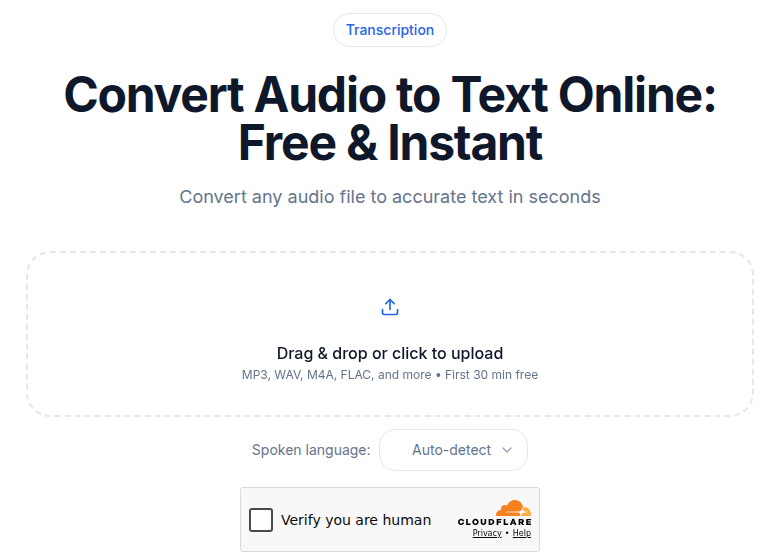
- Navigate to a transcription tool such as ConvertAudioToText. Drag your MP3 onto the uploader or click to browse.
- Select the language. Do not skip this step on non-English audio.
- Click transcribe and wait. A 30-minute file typically takes 2-4 minutes.
- Review the transcript in the editor, paying extra attention to proper nouns, product names, and technical terms.
- Export in TXT, DOCX, SRT, or VTT depending on how you plan to use the transcript.
That is the whole process. No plugins, no account required for a free-tier file.
MP3-Specific Gotchas Worth Knowing
VBR without a proper header. Some older recorders and converters produce VBR MP3 files without the XING or LAME header that tells players the true frame count. This causes seeking artifacts and can make the file appear shorter or longer than it is. If a transcript cuts off early despite a successful upload, suspect a malformed VBR file. Fix with any free MP3 re-encoder set to CBR.
ID3 tags with embedded artwork. A podcast MP3 with a large embedded album art image adds nothing for transcription but inflates file size. Tools strip it during processing, but a 5MB artwork block added to a 28MB voice file is wasted upload bandwidth.
YouTube-to-MP3 codec artifacts. Most converters re-encode the original AAC stream to MP3 instead of passing it through, introducing a second round of lossy compression. You will not notice it in transcription unless the bitrate was already very low, but if you are ripping for archival accuracy, keep the native AAC/M4A instead.
For more on how to transcribe interview recordings or best transcription tools for podcasts, the linked posts cover those specific workflows.
FAQ
How do I know whether my file is actually an MP3 and not an M4A?
Right-click the file and check the extension: .mp3 means it is an MP3 container with MPEG audio; .m4a means it is an AAC file in an MPEG-4 container. Zoom exports audio as M4A, and iPhone Voice Memos are also M4A. Rename confusion aside, most transcription tools accept both formats directly, so in practice you can upload whichever file you have.
Can I transcribe an MP3 downloaded from a podcast feed or YouTube?
Yes. Podcast episode files are typically 128kbps CBR mono MP3, which is well above the quality floor for accurate transcription. YouTube-to-MP3 rips are also generally fine as long as the original audio was speech-dominant and not heavy music. Just be aware that multi-speaker panel shows may still produce diarization errors if speakers talk over each other.
Can I transcribe an MP3 for free?
Many tools offer free tiers with limits on file duration or monthly usage. ConvertAudioToText lets you transcribe an MP3 directly in your browser with no software install required. Free tiers typically cap file size or monthly minutes, so for occasional short files the free tier is usually sufficient.
Why does my MP3 report the wrong length?
Variable bitrate MP3 files (VBR) sometimes display an incorrect duration because many players and services estimate length from the first bitrate they detect, then multiply by file size. If the file lacks a proper XING/LAME header, seeking also becomes unreliable. For transcription, this mainly means a service may mis-estimate how many minutes your file uses against a quota. Re-encoding to CBR at 64-96kbps fixes the issue.
Do I need to remove background music before transcribing an MP3?
You do not need to, but heavy background music is the single biggest cause of transcription errors. If your MP3 has a music track under speech (a recorded radio segment or a produced podcast intro baked into the conversation), accuracy will drop noticeably. A quick pass through a free noise-reduction tool helps. Pure background hiss or room tone has a much smaller effect than music.
Sources
- Whisper Audio Requirements: Supported Formats and Specifications - confirmed 16kHz mono resampling, 64kbps minimum
- Optimal Audio Input Settings for OpenAI Whisper - 32-64kbps floor for speech, no accuracy gain above 64kbps
- Google Cloud Speech-to-Text: Optimizing Audio Files - 16kHz minimum sample rate recommendation
- Zoom Recording Formats (Zoom Support) - Zoom exports M4A and MP4, not MP3
- Audio Bitrate Guide by Use Case (AudioUtils) - bitrate ranges by content type
- Apple Podcasts Audio Requirements - podcast MP3 bitrate standards
- Preprocessing Audio Datasets (Hugging Face) - ASR pipelines resample to 16kHz mono
Try transcription free
Convert any audio or video to clean, unwatermarked text — speaker labels, timestamps, and AI summaries included. First 10 minutes free, no account.
Related Articles
How to Convert AAC to Text: Streams vs M4A Explained
AAC to text: the raw-stream vs M4A container distinction that trips tools, broadcast origins, and the reliable workflow.
How to Convert FLAC to Text: Lossless Audio Guide 2026
FLAC to text for field recordings and archival interviews: why lossless helps, half-of-WAV file sizes, and the upload workflow.