
How to Transcribe an Instagram Reel: Fast Creator Workflow
Summarize this article with:
Quick Answer
Paste the public Reel URL into a transcription tool that accepts Instagram URLs directly, and you get a text transcript in seconds without downloading anything. If the Reel is private, or the URL fetch fails, save the video to your camera roll (three-dot menu, "Save to camera roll") and upload the MP4. Either path gives you a clean, editable transcript and an SRT file you can use for captions across Instagram, TikTok, and YouTube Shorts.
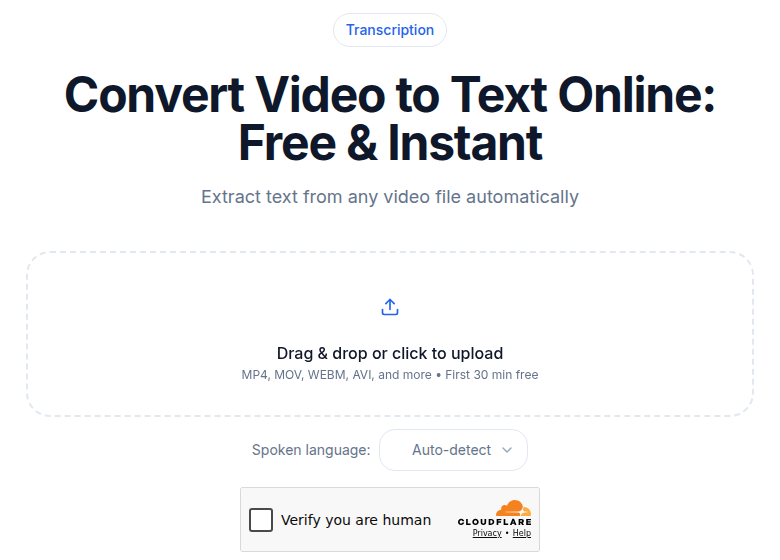 Video files transcribe directly: audio extraction happens server-side
Why Instagram's Built-In Captions Are Not Enough
Instagram added its Captions sticker to Reels in 2021. It still works the same way: drop the sticker during editing, wait for auto-generation, edit the text inline. It is fast for a single English-language Reel with clean audio.
The hard limit is that the captions are burned into the video as a visual overlay. There is no SRT export from the app. The text you edit exists only inside that Reel. If you want to repost to TikTok or Shorts, you are subtitling from scratch each time. Non-English Reels, multi-speaker content, or anything destined for a blog post all need a different path.
| Feature | Instagram Captions sticker | External transcript + SRT |
|---|---|---|
| Speed for a one-off Reel | Fast | Slightly more steps |
| SRT / VTT export | No | Yes |
| Reusable across platforms | No | Yes |
| Non-English accuracy | Limited | Strong (model-dependent) |
| Editable after publishing | No | Yes (edit the SRT) |
| Works on others' Reels | No | Yes, if public |
For a one-off English Reel you are not repurposing, the sticker is fine. For everything else, an external transcript is the right tool.
Path 1: Paste the URL (Fastest)
This is the easiest path for public Reels:
- Open the Reel on Instagram.
- Tap the share arrow and copy the link.
- Paste the URL into a transcription tool that accepts Instagram links. ConvertAudioToText's video-to-text tool fetches the audio server-side from the URL.
- Set the language. Do not rely on auto-detect for short clips under 60 seconds, it has less audio to work from.
- Run. Most Reels are 15 to 90 seconds, so transcription completes in a few seconds.
My take: the URL path saves the download step for most use cases. I reach for it first and fall back to the download path only when a Reel is private or the fetch hits an access restriction.
Path 2: Download, Then Upload
For private Reels or when URL fetching is unavailable:
Your own Reels
- Open the Reel on your profile.
- Tap the three-dot menu.
- Tap "Save to camera roll." On iOS, the MP4 lands in Photos. On Android, in Gallery.
The downloaded file is a 1080x1920 vertical MP4 with AAC audio.
Other people's public Reels
- Tap the share arrow under the Reel.
- Choose "Save video" if the option is present. Some accounts disable this.
If "Save video" is not available, two fallbacks: use your phone's screen recording (built into both iOS and Android) or a third-party download tool. Quality and platform terms vary on the latter, so check before using at scale.
After saving, upload the MP4 to your transcription tool the same way you would any video file.
Reel Audio: What Makes It Hard
Reels have characteristics that hurt transcription accuracy more than standard audio:
- Background music competing with speech. This is the biggest problem. When music is louder than the voice, the model may transcribe song lyrics instead of what the speaker said. A 60-second Reel with a loud music bed can require several minutes of cleanup versus almost none for a clean voiceover.
- Multiple cuts with audio discontinuities. A Reel assembled from three clips may have different recording environments, volume levels, or background noise in each segment.
- Voiceover plus on-screen text. The transcript captures only audio. If key information appears as text-on-screen only, it will not be in the output.
- Very short duration. Speaker diarization is harder on a 30-second clip than on a 30-minute podcast because the model has less audio per speaker to learn from. For two-speaker Reels, manually tagging speakers in the editor is often faster than waiting for automatic diarization. See how speaker diarization works for the short-clip case.
Creator Use Cases
Cross-platform captions
This is the most common reason creators transcribe Reels. The workflow:
- Transcribe the Reel to get a clean SRT file.
- Import the SRT into CapCut (which accepts SRT files natively).
- Apply a platform-appropriate style preset: centered larger text for Reels, smaller lower-frame text for TikTok.
- Burn in on export.
- Upload the resulting MP4 to the target platform.
The burned-in captions travel with the file everywhere. For how to transcribe a TikTok video with the equivalent workflow, the steps are nearly identical, the main difference is styling defaults and where you position the captions in the frame.
Reels vs. TikTok caption conventions:
- Reels: centered, larger text, often a brand-specific font treatment.
- TikTok: smaller text, lower in the frame, white or yellow with black outline.
Multilingual captions for global audiences
Creators targeting multiple language markets use the transcript as a translation source. Transcribe in the original language, translate the SRT (many translation tools accept SRT input), then burn the translated captions into a version of the Reel for that audience. This scales better than re-recording in each language.
Long-form repurposing
Five related Reels on the same topic, each transcribed, can be combined into a blog post, a newsletter section, or a YouTube script. The transcript is the raw material. How to transcribe a YouTube video covers a similar repurposing angle for Shorts.
Research and analysis
Studying Reels at scale (competitor content, trend analysis, marketing research) becomes much easier when each Reel has a searchable text version. Bulk transcription via API handles this at volume.
Accessibility
Instagram's inline captions work for viewers who see them in-feed, but a separate transcript gives a permanent accessible reference that lives outside the platform. This matters for Reels embedded on a website or shared in contexts where the Instagram player does not display the sticker captions.
Vocabulary Boosting for Niche Reels
Short clips have less context for the model to work from, so brand names and niche terms are more likely to come out wrong. A small custom vocabulary list catches most of them. Examples by niche:
- Fitness:
macros,deload,RPE,Peloton,Tonal - Beauty:
retinol,niacinamide,Sephora,Drunk Elephant - Food:
sous vide,deglaze,Maillard,Ottolenghi - Tech:
Stripe,Notion,Linear,Figma,Vercel
Reuse the same list for every Reel in the same niche and it pays for itself within the first few uploads.
Export Formats for Reel Workflows
After transcription, match the export format to what you do next:
- Burn-in captions for cross-posting: SRT, then import into CapCut or your video editor.
- Blog post or newsletter: TXT or DOCX.
- Subtitle track for embedded web video: VTT.
- Programmatic analysis: JSON.
- Accessibility reference page: TXT or HTML.
If you just need a clean transcript without any other setup, ConvertAudioToText handles the full workflow from URL or file upload through export format.
FAQ
Can I get an SRT file from Instagram's built-in captions?
No. Instagram's Captions sticker burns text directly into the video as an open-caption overlay. There is no SRT export from the app. You need an external transcription tool to get an editable SRT file.
Do I need to download the Reel first to transcribe it?
Not always. Several tools, including ConvertAudioToText, accept a public Reel URL directly and fetch the audio server-side. If the Reel is private or URL fetching fails, save the video to your camera roll first and upload the MP4.
What is the best way to use a Reel transcript for cross-posting to TikTok?
Export the transcript as an SRT file, import it into CapCut, apply a TikTok-style caption preset, burn it in on export, and upload the resulting MP4. This gives you styled captions that travel with the file to every platform.
How do I handle Reels with background music in the transcript?
Background music is the main accuracy problem for Reel transcription. If the music is louder than the voice, the model may transcribe lyrics instead of speech. Where possible, use a version of the Reel without music overlay. If not available, expect to spend a few extra minutes cleaning the output, especially around music-heavy cuts.
Sources
- How to Add Captions to Instagram Reels (NapoleonCat, 2024)
- Instagram Reels Caption and Subtitle Best Practices 2026 (OpusClip)
- How to Add Subtitles to Instagram Reels: 3 Methods (Subanana, 2026)
- How to Save Instagram Reels to Camera Roll (SocialzAI, 2026)
- How to Download a Reel from Instagram (Planable, 2026)
- AI Automatic Captions 2026: Premiere, CapCut, and Resolve (Pixflow)
- Manage Reels and Video Captions on Instagram (Instagram Help Center)
Try transcription free
Convert any audio or video to clean, unwatermarked text — speaker labels, timestamps, and AI summaries included. First 30 minutes free, no account.
Related Articles
Spotify Transcript Extractor: How to Copy and Download Episode Text
Get a Spotify podcast transcript you can copy and download: paste a public episode link, 30 minutes free with no signup, TXT or SRT files on eligible plans.
Focus Group Transcription for UX Researchers: Turn Multi-Speaker Audio Into Usable Evidence
A practical guide to focus group transcription for UX and insights teams. See how CATT handles speaker labels, timestamps, AI summaries, and clean export.