How to Make Videos Accessible with Captions (2026 Guide)
Summarize this article with:
Captions make your video accessible to the 430+ million people with disabling hearing loss, plus everyone watching on mute. The pipeline has four steps: generate captions with an AI tool, correct them to accessibility standard (verbatim dialogue, sound events, speaker IDs), choose the right format for each platform, and test before publishing. Most platforms support SRT uploads; social feeds require burned-in open captions. Legal requirements now apply to a broader set of organizations than most people realize, and the accuracy bar for compliance is higher than any platform's auto-captions can reliably hit.
Captions are the single most impactful accessibility improvement you can make to a video. They serve the 430 million people worldwide with disabling hearing loss (WHO estimate), every viewer watching on mute in public, and anyone whose first language is not the video's spoken language. Captioned videos also earn 40% higher watch-to-completion rates than uncaptioned ones, and on Facebook roughly 85% of video is watched without sound.
This guide walks the full caption pipeline: generate, correct to standard, format for each platform, and verify. For compliance depth, see accessibility captions ADA compliance.
Understand the Three Caption Types
Closed captions are separate text tracks viewers can toggle on or off. They carry dialogue, speaker identifications, and non-speech audio descriptions. SRT, VTT, SBV, and TTML are all closed-caption formats. Closed captions are the standard for accessibility compliance.
Open captions are permanently burned into the video. Viewers cannot remove them. This is the norm for social media content (Instagram Reels, TikTok, Facebook feed) where autoplay runs without sound.
Subtitles translate dialogue into another language. They assume the viewer can hear the audio and typically omit non-speech sounds. For accessibility purposes, subtitles are not a substitute for captions.
The baseline for any accessibility requirement is closed captions, not subtitles. Open captions satisfy the same requirement only when the viewer has no mechanism to toggle captions off.
Step 1: Generate Captions
Upload your video to the subtitle generator. It accepts MP4, MOV, AVI, MKV, WebM, and other common formats. Select the spoken language and start processing. A 10-minute video typically takes under 90 seconds.
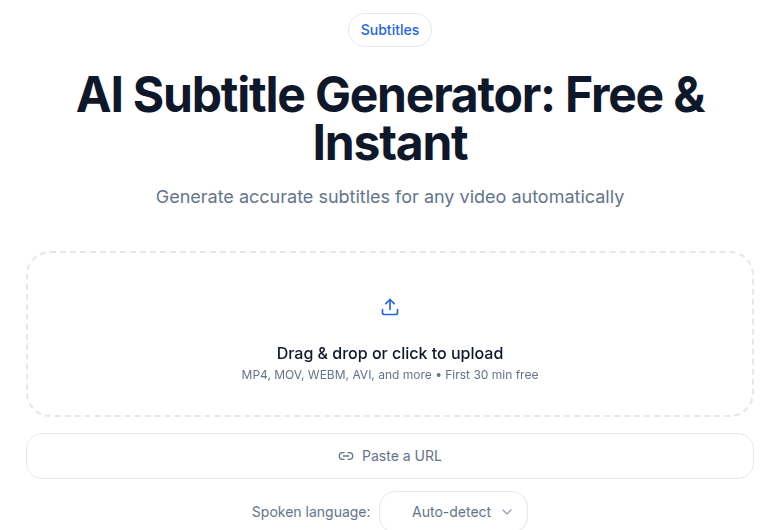
AI-generated captions reach 95-98% accuracy on clean audio with clear speech. Accuracy drops for overlapping speakers, heavy accents, background music, or fast technical speech. The generator gives you a starting point; human review is what gets you to compliance standard.
If you only need a transcript without platform-specific formatting, ConvertAudioToText produces clean verbatim text from audio or video in the same step.
Step 2: Correct to Accessibility Standard
Raw AI output is not accessibility-ready. Review and correct:
Verbatim accuracy. Every word spoken must appear, in the correct order. Do not paraphrase, summarize, or omit filler words if the viewer's experience depends on them. Proper nouns, brand names, and technical terms are the most common AI errors.
Sound events. Per DCMP captioning standards and WCAG 1.2.2, captions must include non-speech audio information that affects meaning. Use square brackets: [phone rings], [upbeat jazz music], [door slams]. Omit ambient sounds that carry no meaningful information. When a sound event occurs at the same time as dialogue, move the sound event caption to the top of the screen.
Speaker identification. When more than one person speaks, label each caption with the speaker's name or a consistent role label (NARRATOR, INTERVIEWER, DR. CHEN). Use all caps or consistent parenthetical notation. This is not optional for multi-speaker content under accessibility standards.
Timing. Captions must appear at the moment the words are spoken and clear within a beat after. Early or late captions break comprehension. Pay close attention to pauses, sentence boundaries, and fast speech segments.
Line length and reading speed. DCMP and Section 508 guidelines recommend no more than two lines per caption, 32-42 characters per line, and a reading speed under 180 words per minute (about 17-22 characters per second for broadcast). Break lines at natural linguistic boundaries, not mid-phrase or mid-word.
Step 3: Choose the Right Format per Platform
Not every platform handles captions the same way.
| Platform | Preferred method | Supported file | Notes |
|---|---|---|---|
| YouTube | Upload SRT | SRT, VTT, SBV | Always upload; auto-captions reach 78-96% accuracy, well below compliance standard |
| Vimeo | Upload VTT or SRT | SRT, VTT | Supports multiple language tracks |
| Upload SRT at post time | SRT | Cannot add or edit captions after publishing | |
| Upload SRT | SRT | Auto-captions available but require review | |
| Instagram Reels | Burn captions in | N/A | Platform auto-captions are inconsistent; burned-in open captions are more reliable |
| TikTok | Burn captions in or use built-in | Limited SRT | TikTok's auto-captions improve constantly but still error on names and technical terms |
| Your website | Reference VTT via HTML5 track element | VTT | Use the track element with kind="captions" |
For YouTube, the upload steps are: YouTube Studio, then Subtitles, select your video, click "Add Language", then "Add" and upload the SRT file. Never rely on YouTube's auto-generated captions for accessibility compliance.
For Instagram and TikTok, burn captions into the video before upload using Add Subtitles to Video. On TikTok, keep captions in the upper third of the frame to avoid overlap with the platform's own UI elements.
For your own website, the HTML looks like this:
<video>
  <track kind="captions" src="captions.vtt" srclang="en" label="English" default>
</video>
If you need to convert between SRT and VTT, the Subtitle Generator exports both formats.
Step 4: Test Before Publishing
Watch the full video with captions enabled. Check:
- Captions appear and clear in sync with speech
- Speaker labels are present and consistent throughout multi-speaker content
- Sound events are captured and correctly timed
- No long lines that scroll off screen or obscure critical visual content
- Font size is legible at typical viewing size (minimum 18px equivalent for standard video resolution, white text with dark drop shadow or box)
Test on mobile. Most viewers are on phones and caption readability is harder to evaluate on a desktop preview.
Legal Requirements
The compliance landscape has sharpened significantly in the past two years.
WCAG 2.1 Level AA requires captions for all prerecorded synchronized media (Success Criterion 1.2.2, Level A) and for all live video (1.2.4, Level AA). WCAG 2.2 did not change these criteria. Most organizations target Level AA.
ADA Title II (US): The DOJ's April 2024 final rule codified WCAG 2.1 Level AA for state and local government digital services. The compliance deadline was extended in April 2026: entities serving populations over 50,000 must comply by April 26, 2027; smaller entities and special districts have until April 26, 2028.
Section 508 (US Federal): Federal agencies and their contractors must caption all publicly available video. Auto-generated captions do not meet the Section 508 accuracy standard for prerecorded content.
European Accessibility Act (EAA): Took effect June 28, 2025. Public-facing video published after that date must include accurate, time-synced closed captions. Videos published before June 28, 2025 must be made accessible by June 28, 2030. Penalties range from 5,000 to 100,000 euros for non-compliance.
Section 1.2.2 is a Level A requirement, meaning it is the minimum threshold, not an advanced target. Organizations claiming any WCAG conformance must meet it.
My take: most organizations are further from compliance than they think, because they count auto-generated captions as "captioned." Platform auto-captions satisfy the checkbox only when they are reviewed and corrected. An uncorrected 85% accuracy rate is not accessible captioning; it is a starting draft.
Caption Formatting Reference
Following these conventions keeps captions readable and meets most standards bodies:
- Two lines maximum per caption
- 32-42 characters per line (32 for broadcast, up to 42 for online video)
- Mixed case (not ALL CAPS for full captions)
- Reading speed: 17-22 characters per second
- Sound events in square brackets: [phone rings]
- Speaker IDs in all caps before the colon: ANNA: We need to leave now.
- Position at the bottom center of the frame unless that blocks critical content
- Minimum 1 second on screen; no flash-on, flash-off
- Break lines at clause boundaries, never mid-phrase
For open captions on social video, font weight matters more than it does in closed-caption systems. Use a bold, clean sans-serif with a high-contrast outline or drop shadow. The caption must be legible against both light and dark backgrounds.
The Business Case, Briefly
Accessibility should not need a financial justification, but the numbers are real. Captioned video ads achieve skip rates of 18% versus 41% for uncaptioned. YouTube videos with captions see about 7% more engagement. TikTok content with captions shows a measurable increase in brand recall. The 85% of Facebook video watched on mute is the oldest stat in this space, but it has not stopped being true.
Caption files are also the cheapest content repurposing tool you have. A clean SRT becomes a transcript, a blog post draft, and show notes without any extra work. See best transcription for podcasts 2026 for how this applies to audio content.
FAQ
What is the difference between closed captions and subtitles for accessibility?
Closed captions include dialogue, speaker identifications, and non-speech audio descriptions such as sound effects and music cues. Subtitles only translate spoken dialogue for viewers who can hear the audio but need a different language. For accessibility purposes, closed captions are required; subtitles alone do not satisfy the standard.
Do auto-generated captions on YouTube or TikTok meet accessibility requirements?
No, not as delivered. Platform auto-captions range from 78% to 96% accuracy depending on audio quality and speaker clarity. Accessibility standards, including WCAG 1.2.2 and Section 508, require accurate captions. Industry practice and DOJ guidance treat uncorrected auto-captions as insufficient for prerecorded content. You must generate, review, and correct captions before uploading.
What must accessible captions include beyond the spoken words?
Following WCAG 1.2.2 and DCMP standards, accessible captions must include all meaningful non-speech audio: sound effects that convey information (indicated in square brackets), music descriptions when relevant, speaker identification when multiple people speak, and non-speech vocalizations like laughter or sighing when they carry meaning. Silence and ambient noise only need to be noted if their absence would confuse the viewer.
Which organizations are legally required to caption their videos?
In the United States, Section 508 covers federal agencies and their contractors. ADA Title II covers state and local government entities (deadline extended to 2027-2028). ADA Title III increasingly applies to businesses operating public accommodations, including websites. The European Accessibility Act covers businesses selling to EU customers, with the June 2025 deadline for new content. Educational institutions receiving federal funding face additional requirements under Section 504. When in doubt, captioning all public-facing video is the safest approach.
How do I caption a live stream or real-time event?
Live captioning requires real-time speech-to-text. Options include professional CART (Communication Access Realtime Translation) providers for high-stakes events, platform-native live captions on YouTube Live and Microsoft Teams, and AI-powered real-time transcription tools. Accuracy expectations for live captions are lower than for prerecorded content under WCAG 1.2.4, but captions must still be synchronized and substantively accurate. For meetings and recorded sessions, transcribing after the fact with meeting transcription and adding captions to the recording is often more practical.
Sources
- W3C WAI, WCAG 2.2 Understanding 1.2.2 Captions (Prerecorded): https://www.w3.org/WAI/WCAG22/Understanding/captions-prerecorded.html
- DCMP Captioning Key standards and guidelines: https://dcmp.org/learn/captioningkey
- Section 508, Captions and Transcripts: https://www.section508.gov/create/captions-transcripts/
- Federal Register, Extension of ADA Title II Compliance Dates, April 2026: https://www.federalregister.gov/documents/2026/04/20/2026-07663/extension-of-compliance-dates-for-nondiscrimination-on-the-basis-of-disability-accessibility-of-web
- Interprefy, European Accessibility Act Captioning Requirements: https://www.interprefy.com/resources/blog/european-accessibility-act-captioning-requirements
- WHO, World Report on Hearing (hearing loss prevalence): https://www.ncbi.nlm.nih.gov/pmc/articles/PMC8085630/
- GrabCaptions, YouTube Auto-Caption Accuracy 2026: https://grabcaptions.com/blog/youtube-auto-captions-accuracy/
- Nieman Journalism Lab, 85 percent of Facebook video watched without sound: https://www.niemanlab.org/reading/publishers-say-85-percent-of-facebook-video-is-watched-without-sound/
Try transcription free
Convert any audio or video to clean, unwatermarked text — speaker labels, timestamps, and AI summaries included. First 10 minutes free, no account.
Related Articles
Burning Subtitles into Video: Settings That Work
Learn when and how to burn subtitles permanently into video for TikTok, Reels, and social media. Covers FFmpeg commands, video editor workflows, styling, and quality tips.
How to Add Subtitles to a Video: 2026 Step-by-Step Guide
Add subtitles to any video in 2026. Covers AI subtitle generation, SRT formatting rules, soft vs burned-in paths, YouTube upload steps, and TikTok/Instagram best practices.