
Transcription for MOOCs: Coursera, Udemy, edX Reality
Summarize this article with:
Most major MOOC platforms now provide in-player transcripts or downloadable caption files at no extra cost, so the first step is checking what you already have before transcribing anything. The real gaps are MasterClass (CC only, no transcript file), older or uncaptioned Udemy courses, and Skillshare (captions rolling out, transcript feature still in beta). Where the platform gives you nothing usable, uploading the video directly to a transcription tool closes the gap quickly. This post maps each platform's transcript reality and shows you how to turn the output into actual study material.
Most major MOOC platforms now provide transcripts or captions natively. Before you transcribe anything, check what the platform already gives you, because for Coursera and edX learners, the answer is often "everything you need, already free."
The real problem is the gap: platforms that provide nothing useful, older courses where the auto-generated captions are poor, and the difference between "captions you read while the video plays" and "a file you can actually search and study from." This post maps the current state of each major platform as of mid-2026, then covers how to fill what is missing.
What Each Platform Actually Provides
The table below reflects the verified state of each platform as of August 2026. "In-player transcript" means scrollable text synced to the video. "Downloadable file" means a text or caption file you can save locally.
| Platform | Captions | In-player transcript | Downloadable file |
|---|---|---|---|
| Coursera | Yes, most courses | Yes | Yes (.txt from Downloads section) |
| edX | Yes, required by accessibility policy | Yes (interactive, clickable) | Yes (.srt and .txt) |
| Udemy | Yes (auto-generated on most courses) | Yes (Transcript panel in player) | No native export |
| LinkedIn Learning | Yes | Yes (desktop only) | No native export |
| MasterClass | Yes (English CC, some other languages) | No | No |
| Skillshare | Rolling out sitewide | Beta | No |
| MIT OpenCourseWare | Yes | Yes | Yes (PDF lecture notes on many courses) |
| Khan Academy | Yes (YouTube-sourced) | Via YouTube | Via YouTube |
Coursera's transcript is the most learner-friendly of the major platforms. Open any video, scroll below the player to the Downloads section, and click Transcript. You get a plain text file. The platform also added in-player highlighting and note-saving in early 2026, so you can annotate directly while watching. edX requires instructors to provide .srt files as part of its WCAG 2.1 AA accessibility policy, which means transcript quality is generally higher on edX than on platforms where it is optional.
Udemy's in-player transcript is useful but not exportable. Click the Transcript option at the bottom of the player and a panel opens on the right that autoscrolls with the speaker. For short-form review this works well. For batch study across a full course, you will need a third-party extension or to transcribe the videos yourself, Udemy does not let you download the transcript as a file.
MasterClass provides closed captions, not transcripts. All classes have English CC, and some are available in additional languages, but there is no transcript tab and no file to download. If you want a searchable text version of a MasterClass session, you need to create it yourself.
Skillshare is in transition. The platform began rolling out sitewide auto-captions and a transcript beta in late 2024. Coverage is uneven depending on when a class was published. Older classes may have no captions at all.
When to Transcribe Yourself
Given the platform picture above, transcribing yourself makes sense in three situations.
The platform provides nothing. MasterClass, older Skillshare content, and any YouTube-hosted free course (Stanford, freeCodeCamp, MIT lectures on YouTube) give you no exportable transcript.
Caption quality is poor. Auto-generated captions on older Udemy courses (pre-2022 content is the most common offender) can run 70-80% accuracy. Technical domains with specialized vocabulary, machine learning, medicine, accounting, law, are where this shows up most. A current AI transcription model typically recovers to around 95% on the same audio.
You need a different format. Platform transcripts are designed for real-time reading, not study. They lack paragraph breaks, subject headings, and summary sections. Retranscribing through a tool that adds structure (speaker labels, timestamp anchors, summary) gives you something you can turn into actual notes.
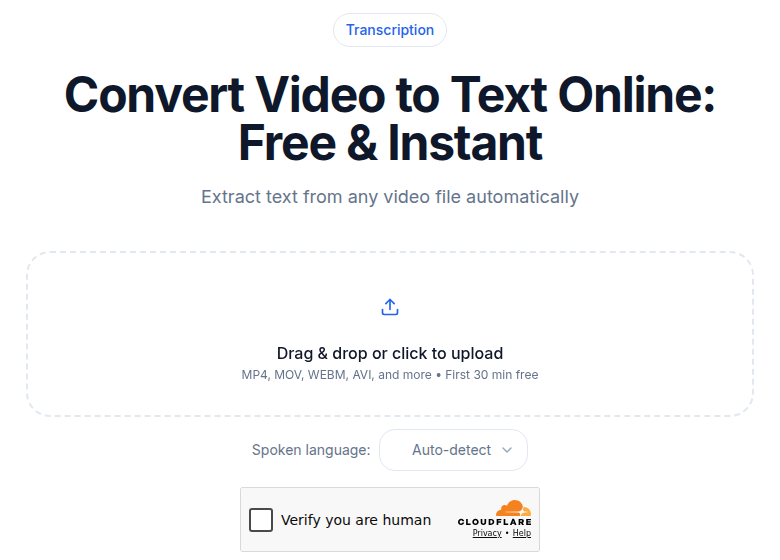 Transcribing a course video using the ConvertAudioToText video tool
How to Get the Audio or Video
For platforms that allow offline use, work within their official apps.
Coursera and edX both support video downloads for offline viewing through their mobile apps. If you need to process the file, sync it to your device and transfer to a computer. Udemy's desktop app supports offline download for purchased courses. These are the intended paths for personal offline study.
For YouTube-hosted free courses, the audio is publicly accessible. A YouTube transcript generator often bypasses the download question entirely by pulling the captions or audio directly from the URL.
Follow each platform's current terms of service before processing files locally. Platforms adjust their policies, and personal study use is distinct from redistribution.
A Workflow for a Long Course
My take: the highest-leverage step is not transcribing faster, it is auditing what you already have. For a 30-hour Coursera specialization, you might find that 85% of the modules already have downloadable transcripts. You then spend your effort only on the remaining 15%, the guest lectures or supplemental videos that fell through the cracks.
Audit first (15 minutes). Go module by module and note which have downloadable transcripts versus which need action. On Coursera, the Downloads section tells you immediately.
Batch the gaps. Collect all videos that need transcription into one folder. Upload the video files directly rather than converting to audio first, the video-to-text tool handles MP4, MOV, and similar formats without a separate extraction step. Let them run in the background.
Process what you have. While transcription runs, work through the modules with existing transcripts. Skim rather than read. Pull three to five highlights per module into your notes app. The goal is a searchable personal index of the course, not a word-for-word copy.
Review at module and course level. At the end of each module, write two practice questions from the content. At the end of the course, run your full set as a self-test. Revisit only the transcripts for your weak spots.
For a 30-hour course this approach takes roughly 4-5 hours of active effort. The transcription itself runs passively. You end up with a searchable archive you can query six months later when you have forgotten which lecture covered which tradeoff.
For the study note-taking side of this workflow, the note-taking with AI post covers how to turn a raw transcript into structured study material, and exam prep from lecture transcripts goes deeper on the practice-question method.
Which Courses Justify the Effort
Not every course needs this. Skip the transcript workflow for:
- Hobby or creative courses where retention does not matter. A Skillshare watercolor class does not need a study guide.
- Short, focused courses you will finish in one or two sittings. If you are doing a 4-hour deep-dive twice in close succession, rewatching is faster than transcribing.
- Live-cohort courses where the discussion is most of the value.
The bar is whether you would want to search or reference this content in six months. Career-transition courses, certification prep (AWS, PMP, CFA), and any course tied to an exam you will sit pass this bar easily.
Cost Considerations
Coursera Plus is $59/month or $399/year ($35/month annual) as of mid-2026. A typical Udemy sale course runs $10-15. MasterClass is $120/year for the Standard plan (one user at a time).
On the transcription side, the cost of transcription per hour post has the full breakdown. The short version: for batch processing a long course, a flat-rate unlimited plan is the right model. Per-minute services like Happy Scribe add up fast, their overage rate runs $0.20/min ($12/hour), which adds up across a 30-hour course. Otter.ai's Pro plan caps you at 1,200 minutes per month, less than the content in many specializations. For high-volume course study, see unlimited vs. metered transcription pricing for the full comparison.
If you just need a clean transcript without meeting-bot features or per-minute billing, ConvertAudioToText handles video files directly on a flat monthly plan. The Weekly Pass is $9.99 one-time for 1,200 minutes (20 hours), valid 7 days, no subscription, which works out to $0.50/hour and is the cheapest no-setup option for a single long course.
Common Questions
Do MOOC platforms provide transcripts I can actually download?
Coursera and edX offer the clearest download paths: Coursera lets you grab a text file from the Downloads section below any video, and edX provides both .srt and .txt files for most courses. Udemy shows transcripts inside the player (click the Transcript option at the bottom of the player) but does not offer a direct transcript-file download natively. MasterClass provides English closed captions on all classes and some additional languages, but there is no transcript file to export. LinkedIn Learning shows transcripts on desktop but has no native file download.
Is it legal to transcribe a course I paid for?
Transcribing for your own personal study use is generally considered fair use in the United States, though the platform's terms of service control what you can do with the files. The key limits: do not redistribute transcripts commercially, do not share them publicly, and do not use them in a way that substitutes for another person purchasing the course. Platforms like Coursera and edX explicitly provide downloadable transcript files, which implies they support personal offline study. For platforms that restrict content downloading (MasterClass, Skillshare), check their current terms before processing locally. This is not legal advice.
Why would I re-transcribe a course that already has captions?
Two reasons justify the effort. First, auto-generated captions on older Udemy or YouTube-hosted courses can have 70-80% accuracy, technical terms, names, and acronyms get mangled. Re-transcribing with a current AI model typically brings accuracy to 95% or above on the same audio. Second, platform captions are designed for reading along, not study: no paragraph breaks, no speaker labels if there are multiple presenters, and no summary. If you want to search across an entire course, build flashcards, or generate practice questions, a reformatted transcript is much more useful.
What is the most efficient way to handle a 30-hour course?
Start by auditing which modules already have downloadable transcripts (Coursera, edX) versus which require action (MasterClass, older Udemy content). Download everything available natively first. For the remainder, batch-upload the video files rather than converting to audio first, most modern transcription tools accept MP4 and similar formats directly and extract the audio track automatically. Process the backlog in background while you work through earlier modules. The active effort per module is 5-10 minutes of skimming and note-pulling; transcription runs passively. A full 30-hour course typically takes 4-5 hours of active effort this way.
Sources
- Coursera Support, "Download videos": https://www.coursera.support/s/article/learner-000001476
- Coursera Blog, "Updates to Your Learning Experience on Coursera" (January 2026): https://blog.coursera.org/updates-to-your-learning-experience-on-coursera/
- Udemy Support, "How to Use Subtitles and Transcripts (on a Browser)": https://support.udemy.com/hc/en-us/articles/229605028
- Udemy Support, "Instructors: Auto-Generated Subtitles FAQ": https://support.udemy.com/hc/en-us/articles/115010239888
- edX Help, "Do edX course videos have transcripts or captions?": https://help.edx.org/edxlearner/s/article/Do-edX-course-videos-have-transcripts-or-captions
- Open edX Accessibility Guidelines (WCAG 2.1 AA): https://docs.openedx.org/en/release-teak/educators/concepts/accessibility/accessibility_guidelines.html
- MasterClass Help, "Subtitles and Closed Captions": https://www.masterclass.com/help-center/masterclass/answers/subtitles-closed-caption-for-classes-on-master-class--id--yYHVYXdyTqKeUsQCZ0RnZQ
- Skillshare Blog, "Teacher Update: Upcoming Product Features, Class Captions and Transcripts": https://www.skillshare.com/en/blog/teacher-update-class-captions-transcripts/
- LinkedIn Learning Help, "Video Transcripts": https://www.linkedin.com/help/learning/answer/a705794
- Happy Scribe Pricing (verified August 2026): https://www.happyscribe.com/pricing
- Otter.ai Pricing (verified August 2026): https://otter.ai/pricing
- Coursera Plus pricing: https://www.coursera.org/courseraplus
- MasterClass pricing: https://www.masterclass.com
Try transcription free
Convert any audio or video to clean, unwatermarked text — speaker labels, timestamps, and AI summaries included. First 30 minutes free, no account.
Related Articles
Spotify Transcript Extractor: How to Copy and Download Episode Text
Get a Spotify podcast transcript you can copy and download: paste a public episode link, 30 minutes free with no signup, TXT or SRT files on eligible plans.
Focus Group Transcription for UX Researchers: Turn Multi-Speaker Audio Into Usable Evidence
A practical guide to focus group transcription for UX and insights teams. See how CATT handles speaker labels, timestamps, AI summaries, and clean export.