
Transcription for Online Courses: The Production Angle
Summarize this article with:
The Course Production Angle
If you are building an online course, every recording you publish without a transcript is leaving money and reach on the table. Transcripts unlock accessibility compliance, multi-language localization, searchable course libraries, and a marketing asset pipeline from a single production step. This post is a workflow guide for course creators, not a study guide for students (that lane lives at how to transcribe lecture for notes).
Why Transcripts Are Part of Course Production Now
The accessibility pressure is real and has a date attached to it. Under the U.S. Department of Justice's updated ADA Title II rule, public institutions including state universities must make all video and audio course content conform with WCAG 2.1 Level AA by April 24, 2026. That means captions for all pre-recorded video and transcripts for all audio-only content. Larger public entities face the April 2026 deadline; smaller jurisdictions have until 2027.
If you are an independent creator on a platform like Udemy or Teachable, Title II does not apply directly to you. Title III case law governs private businesses, and no fixed WCAG deadline has been codified for private course platforms. Even so, accessible courses rank better on platform search, convert better with learners who have hearing differences, and avoid the reputational cost of exclusion. This is a production standard worth building in, not a regulation to dodge.
For the deeper compliance picture, the accessibility for online courses post covers the legal framework in full.
Note: The above is a summary of applicable regulations, not legal advice. If you are a public institution, consult your institution's digital accessibility office.
The Course Creator Production Workflow
Here is the sequence that works for most creators.
Step 1: Record With a Clean Audio Track
Transcription accuracy depends primarily on audio quality. A room with soft furnishings, a decent USB microphone, and a consistent speaking pace gets you to 95 to 99 percent accuracy on the first pass. Technical jargon takes longer to fix than bad audio.
For screen-recording courses (coding, design, software tutorials), record narration through a dedicated microphone input rather than your laptop's built-in mic. The difference in post-editing time is significant.
Step 2: Transcribe the Full Recording
Run your own transcription rather than relying on platform auto-captions, at least for your first pass. Platform auto-captions (Udemy's are labeled "auto-generated" on the course page; Coursera's vary by course and often lack speaker labels; edX's quality depends on the institution) are inconsistent, especially for technical vocabulary.
Upload your recorded MP4 or audio file to a tool you control. ConvertAudioToText's video-to-text tool handles the audio extraction and transcription in one step, producing an editable transcript with timestamps you can export as SRT or VTT directly.
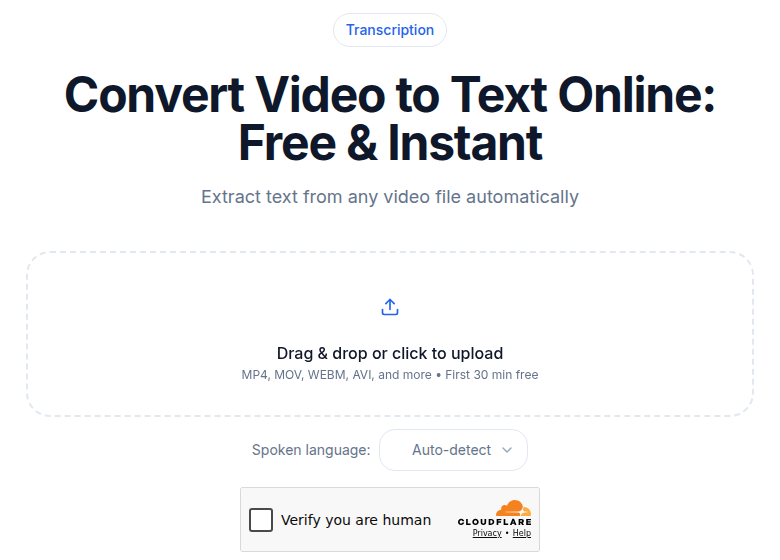 ConvertAudioToText video-to-text tool used for course lecture transcription
The SRT file becomes your closed caption source for the platform upload. The plain-text transcript becomes the starting point for everything else.
Step 3: Edit for Technical Accuracy
Automatic transcription handles conversational speech well. It handles domain-specific terms less reliably. Before publishing, edit for:
- Proper nouns and product names
- Technical abbreviations (AI models will often phonetically spell them)
- Code snippets or formulas that were read aloud
One pass through the edited transcript also serves as a proof-listen: you will catch pacing problems, filler words, and unclear explanations that survived the recording session.
Step 4: Caption the Videos
Upload the corrected SRT file when publishing your video. Every major course platform accepts SRT uploads:
| Platform | Caption upload | Auto-generated captions | Instructor can replace captions |
|---|---|---|---|
| Coursera | Yes | Yes (quality varies) | Yes |
| edX | Yes (SRT/TXT) | Yes (flagged "auto") | Yes |
| Udemy | Yes | Yes (labeled "auto-generated") | Yes |
| LinkedIn Learning | Yes | Yes (accurate for most content) | Partner/publisher only |
| Teachable | Yes | No | Yes |
Your uploaded captions will always be more accurate than platform auto-generation, particularly for specialized subject matter. Udemy's auto-generated captions do not require any action from instructors by default, but replacing them with your corrected SRT is one of the highest-ROI edits you can make to a published course.
Step 5: Build the Course Search Layer
A plain-text transcript of every lecture is the fastest way to make your course library searchable. Most LMS platforms (Teachable, Thinkific, Kajabi) do not index video content. A transcript published alongside the video, or embedded in a text summary block, gives search engines and the platform's internal search something to index.
For course libraries with more than 10 modules, this compounds quickly. A learner searching for "gradient descent" inside your machine learning course should land on the right module, not a blank results page.
The minimum version of this: paste the transcript text into the lecture description field. The complete version: publish a dedicated "notes" page per module with the edited transcript and pull-quotes. Both are better than none.
Step 6: Localize for More Markets
A transcript is the input to localization, not a finished product. Once you have clean English transcripts, a translation service or AI tool can produce foreign-language subtitle files. The translation process requires a source text (your SRT); without it, you are asking translators to work from video, which is slower and more expensive.
Course creators on Udemy who publish in Spanish and Portuguese reach Udemy's second and third largest student audiences. The incremental revenue from one localized version can exceed the time cost of transcription in a single month.
The transcription for MOOC and self-paced courses post covers the learner-side of course transcripts if you want to understand what your students are doing with the content after you publish it.
Step 7: Repurpose the Transcript for Marketing
Each lecture transcript is a draft for:
- A blog post or newsletter section (roughly 1 transcript paragraph per 300-500 word post)
- Social media snippets (pull a specific definition or worked example)
- An email course or welcome sequence
- Documentation or FAQ pages for a paid community
The transcript does not write the blog post. But it gives you the raw material to edit from, which is 10x faster than writing from a blank page. For instructors who also publish content marketing, this is the step that makes the transcript feel free rather than expensive.
Platform-Specific Notes for Creators
Udemy auto-generates subtitles for published courses in English and several other languages. The auto-generated label appears to learners on the course page. Instructors can upload their own SRT files to replace the auto-generated version. If your course has a lot of technical jargon or a non-native speaker accent, uploading your own is worth the 20-minute investment.
Coursera allows transcript download as a text file from the video player interface. Transcripts are available on mobile as of recent platform updates. If you are publishing through a university partnership, confirm with your institution whether WCAG compliance is handled by the platform or expected from the content producer.
Teachable and Thinkific do not auto-generate captions. You are responsible for providing SRT files for every video. Plan this into production, not as an afterthought after publishing.
LinkedIn Learning publishes transcripts for the majority of courses. If you are a LinkedIn Learning publisher (rather than an individual creator on another platform), the platform handles this in its own production pipeline.
Where to Get a Subtitle File Without Extra Tooling
If you just need a subtitle file for a single course module without setting up a full transcription pipeline, ConvertAudioToText's subtitle generator outputs SRT and VTT directly from an uploaded audio or video file. A free account runs your first file on the premium engine (up to an hour, with file downloads included), then keeps transcribing free (up to 30 files a day, up to 30 minutes each). TXT downloads stay free; subtitle file downloads after that first file need the Weekly Pass, a top-up or a paid plan. The Pro plan at $14.99/month covers any production volume.
For teachers who record in classroom settings, the transcription for teachers post covers the recording-permission and workflow questions specific to institutional teaching rather than commercial course production.
FAQ
Do I need transcripts for my online course if I'm an independent creator?
There is no federal WCAG deadline for private course creators on platforms like Udemy or Teachable. ADA Title II's April 2026 compliance requirement applies to public institutions (state universities, local governments). Independent creators fall under ADA Title III case law, which has not established a fixed technical standard. That said, most platforms recommend captions and transcripts for accessibility and discoverability, and Udemy's learner search gives higher placement to courses with subtitles in some markets.
How do I turn my course video into a caption file?
Upload your video or its audio to a transcription tool that exports SRT or VTT, edit the output for technical accuracy, and upload that file as a caption source when publishing on your chosen platform. Most platforms accept SRT. The entire process for a 15-minute lecture typically takes 20 to 30 minutes including the edit pass.
Can I use platform-generated captions or do I need my own?
Platform auto-generated captions work for general conversational content but are unreliable for technical vocabulary, non-native speaker accents, and any course covering specialized terminology. For a course on software development, medicine, law, or any niche field, your own corrected captions will be noticeably more accurate than auto-generation. Instructors on Udemy can replace auto-generated captions by uploading an SRT file; Coursera and edX also accept instructor-provided subtitle files.
Does having a transcript help my course rank higher on search?
On external search engines, yes: transcribed text embedded in a course page gives Google something to index. On platform-internal search, the effect varies by platform. Udemy's search indexes course titles and descriptions reliably, and subtitles influence search placement in some markets. Teachable and Thinkific rely heavily on text descriptions for internal search since video content is not indexed. Publishing your transcript text in the lecture description field is the lowest-effort indexing improvement available.
Sources
- Coursera transcript download: https://www.coursera.support/s/article/learner-000001476
- edX transcripts and captions help: https://help.edx.org/edxlearner/s/article/Do-edX-course-videos-have-transcripts-or-captions
- Udemy auto-generated subtitles FAQ: https://support.udemy.com/hc/en-us/articles/115010239888
- ADA Title II digital accessibility requirements (OSU summary): https://ascode.osu.edu/news/new-ada-title-ii-regulations-what-you-need-know
- Section 508 compliance overview: https://www.section508.gov/
- WCAG 2.1 AA requirements for video content: https://gotranscript.com/public/title-ii-video-accessibility-what-wcag-21-aa-requires
- LinkedIn Learning transcript help: https://www.linkedin.com/help/linkedin/answer/71911/linkedin-learning-video-transcripts
- ConvertAudioToText pricing: https://convertaudiototext.com/pricing
Try transcription free
Convert any audio or video to clean, unwatermarked text — speaker labels, timestamps, and AI summaries included. First 30 minutes free, no account.
Related Articles

Accessibility for Online Courses: The 2026 Compliance Checklist
A practical checklist for making online courses accessible: captions, transcripts, live sessions, course materials, and the legal requirements under ADA Title II and Section 504.

Accessible Lectures with Transcripts: The Delivery Guide
Recorded lectures plus transcripts as universal design: disability-services workflows and the student-facing formats that work.