
How to Transcribe Meeting Notes Automatically in 2026
Summarize this article with:
Upload your meeting recording to an AI transcription tool, get a structured transcript in minutes, then pull decisions, action items, and open questions to the top of the document. Most major platforms (Zoom Pro+, Teams Business Basic+, Meet Business Standard+) now include built-in transcription, but post-meeting upload gives you cleaner output and speaker labels without a bot joining the call. The workflow in this guide applies regardless of which platform you use.
The fastest way to transcribe meeting notes is to record your meeting, upload the file to an AI transcription tool, and have a structured text document ready within minutes. No manual note-taking, no selective memory, no one split between participating and typing.
This guide covers the full workflow from recording to organized notes, platform-by-platform decisions, and how to structure the output so your team actually uses it.
Record First, Then Decide
Before you can transcribe anything, you need an audio or video file. Every major platform gives you at least one way to capture this.
The simplest split is whether your platform transcribes the meeting for you in real time, or whether you record the meeting and process the file afterward. Both work. The choice comes down to what your subscription covers and how much you care about audio cleanliness.
Platform-native transcription runs during the call, produces a transcript immediately when the meeting ends, and requires no extra steps. The trade-off: the AI transcribes compressed, real-time audio streams, which produces more errors than post-processing a clean recording file.
Post-meeting upload lets you record locally or to the cloud, then upload the file to a dedicated transcription tool after the meeting ends. You get a few minutes of wait time in exchange for noticeably cleaner output and richer speaker labeling. No bot joins the call, and no participant sees a transcription notice in the chat.
Platform Coverage at a Glance
The table below shows what each major platform includes natively, and the minimum plan that unlocks it.
| Platform | Native transcription | Minimum plan |
|---|---|---|
| Microsoft Teams | Live transcription + speaker names from profiles | Microsoft 365 Business Basic and above |
| Zoom | Cloud recording audio transcript (post-meeting) | Pro, Business, Education, or Enterprise |
| Google Meet | Transcript saved to Google Docs (manual start) | Workspace Business Standard and above |
A few things the table does not show: Teams' AI-generated summaries and action items require Microsoft 365 Copilot at $30/user/month on top of your base plan. Google Meet transcription only works on desktop, not on iOS or Android. Zoom's native transcript is available only when you record to the cloud, not when you record locally.
For the click-by-click setup steps on each platform, see the dedicated guides: how to transcribe a Zoom meeting, how to transcribe a Microsoft Teams meeting, and how to transcribe a Google Meet recording.
The Post-Meeting Upload Workflow
If your plan does not include native transcription, or if you want better accuracy and speaker labeling, this four-step process works for any platform:
- Record the meeting. Use your platform's built-in recording feature. Zoom saves local recordings as MP4 files; Teams saves to OneDrive or SharePoint; Meet saves to Google Drive. Download the file.
- Upload to a transcription tool. Tools like ConvertAudioToText accept both audio and video files. The AI extracts the audio track from video automatically.
- Review speaker labels. The tool identifies distinct voices and labels them (Speaker 1, Speaker 2, etc.). If the tool supports profile-based identification, label the speakers by name at this stage.
- Export and structure. Download the transcript as TXT, SRT, or copy it directly into your notes document.
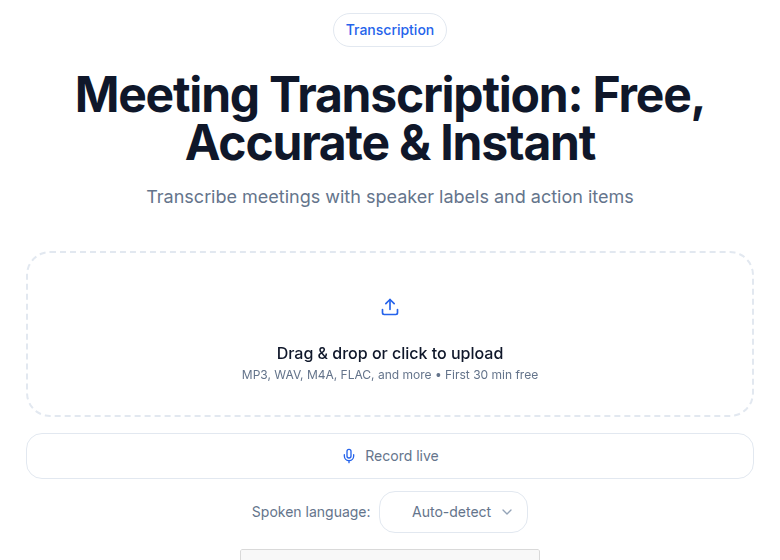
If you just need a clean transcript without a bot joining the call, ConvertAudioToText handles audio and video files up to unlimited length on paid plans, with 10 free transcription minutes at signup, given once, to test it on your own recordings first. After that, the free tier keeps working: up to 3 files per day, 10 minutes per file, and the free-finish button completes up to 2 more hours of a long file free.
Meeting Bots vs. File Upload
Several tools, including Otter.ai, Fireflies.ai, and Notta, work differently: they join your call as a bot participant and transcribe in real time. This is convenient for live captions and immediate post-meeting access, but it has trade-offs worth knowing.
Otter.ai (verified pricing as of July 2026): the free Basic plan gives 300 transcription minutes per month, but caps each conversation at 30 minutes and limits file imports to 3 total (lifetime, not monthly). Pro is $8.33/user/month billed annually, raising the per-conversation cap to 90 minutes and giving 10 monthly file imports. Business at $19.99/user/month removes the recording cap entirely.
Fireflies.ai free plan stores only 800 minutes of transcripts and comes with a one-time credit pool of 20 AI credits for summaries and action items. Pro starts at $10/user/month billed annually. A visible bot joins every meeting, which some participants find distracting or flag as a recording concern.
For teams where participant consent is already established and real-time captions are a benefit, bot-based tools are a solid choice. For one-off recordings, sensitive calls, or teams that already record meetings through the platform, post-meeting upload avoids the bot entirely and tends to produce cleaner output. See the fuller breakdown in Otter vs. Fireflies.
How Speaker Diarization Works
Speaker diarization answers the question "who said what" by segmenting audio by voice. The AI identifies distinct voice patterns and labels each segment with a speaker number. Modern diarization tools from providers like AssemblyAI and Deepgram report speaker-count accuracy rates above 97 percent on clean, two-to-four speaker audio.
Accuracy drops when speakers have similar voice characteristics, talk over each other, or when multiple people share a single microphone in a conference room. The practical fix: have everyone join from their own device rather than sharing a room setup on a single connection.
For a deeper explanation of how the technology works and where it still struggles, see speaker diarization explained.
Audio Quality Is the Biggest Variable
The AI model matters less than the audio it receives. These changes reliably improve transcription output:
- Use a headset or dedicated USB microphone instead of a laptop's built-in mic. Built-in mics pick up keyboard noise, echo, and room reverb that confuse speech recognition.
- Mute when not speaking. Background noise from unmuted participants is the single most common source of transcription errors in multi-person meetings.
- One speaker at a time. Overlapping speech is hard for any diarization system to resolve correctly. Good meeting facilitation directly improves transcript quality.
- Test before high-stakes calls. Record 30 seconds of audio before the real meeting, play it back, and confirm the microphone and input device are correctly selected.
Structuring Notes After You Get the Transcript
A raw transcript of a one-hour meeting runs thousands of words. That is useful as a searchable reference but not practical as a meeting summary. The structure that works best in practice:
Action items (top of the document, always). Each item needs an owner and, if stated, a deadline. "Follow up with legal team by Friday - Alex" is a usable action item. "We should look into the legal stuff" is not.
Decisions made. A short, neutral list of what was agreed: "Approved Q3 budget at $80K," "Moved launch from July to August." These are the durable facts of the meeting.
Open questions. Things raised but not resolved that need a follow-up or an owner assigned later. Do not let these get buried in the full transcript.
Full transcript (bottom). Keep the verbatim text as a reference, but do not expect anyone to read it in full. It exists for search and for resolving disputes about what was said.
For teams that want this structure generated automatically, AI-powered tools can extract these sections from a transcript. See how to create meeting minutes from audio and AI meeting summary templates for ready-to-use formats.
Where to Store and Share Transcripts
A transcript no one can find is not useful. The storage setup that works:
- A shared folder in Google Drive, OneDrive, or Notion with a consistent naming convention:
2026-07-02 - Marketing Weeklyis findable by date and meeting name. - Action items placed at the top of every document, not embedded in the middle.
- A link to the transcript added to the calendar event or meeting chat, so participants can find the record from their calendar without hunting through folders.
- A retention policy. Storing every transcript indefinitely increases privacy exposure for no practical benefit. A rolling window of six to twelve months covers almost all legitimate reference needs.
Real-Time vs. Post-Meeting: When Each Makes Sense
Real-time transcription (via platform native tools or a bot) makes sense when: participants benefit from live captions during the call, the meeting format involves rapid back-and-forth where immediate notes are useful, or the team is large and cannot coordinate a single recording file.
Post-meeting upload makes sense when: audio quality is the priority, the meeting is sensitive and a bot joining would be awkward, or you already record through your platform and just need the file processed.
The accuracy gap between the two approaches has narrowed, but post-processing still has a small edge on clean recordings because the AI can use the full audio context rather than committing to words as they are spoken. For more on this, see real-time vs. post-meeting transcription.
Privacy and Consent
Always inform participants that the meeting is being recorded and transcribed. Most jurisdictions require at least one-party consent to record a conversation; many require all parties. A brief verbal notice at the start of the meeting ("this meeting is being recorded and transcribed for notes purposes") is usually sufficient for internal business meetings.
For tools that process audio through third-party servers, review the vendor's data handling policy before using it on sensitive calls. Check specifically: where the audio is processed, whether it is stored after transcription, how long it is retained, and whether it is used for model training. Organizations under GDPR, HIPAA, or sector-specific regulations need a vendor with a Data Processing Agreement in place.
FAQ
Can I transcribe a meeting that already happened?
Yes. If you have a recording file (audio or video), you can upload it to a transcription tool at any time after the meeting. The AI processes it the same way regardless of when it was recorded.
How accurate is AI meeting transcription?
Accuracy varies with audio quality. A University of Colorado study found Zoom's built-in transcription at 48 to 85 percent, depending on configuration. Dedicated post-processing tools using models like Deepgram Nova-3 or AssemblyAI Universal-2 consistently perform better on clean audio. The biggest single driver of accuracy is microphone quality, not the AI model.
Do I need a bot to join my meeting for transcription to work?
No. Tools like Otter.ai, Fireflies, and Notta join as a bot participant for real-time transcription. But if you record the meeting yourself and upload the file afterward, no bot is needed. The post-meeting upload approach tends to give cleaner output and avoids the "a bot has joined" notification.
Which meeting platform includes transcription on the cheapest plan?
Microsoft Teams includes live transcription on Business Basic and above. Zoom requires at least a Pro plan with cloud recording enabled. Google Meet requires Business Standard or higher (one tier above Teams). Check your current subscription before adding a paid transcription tool you may not need.
How should I structure meeting notes after I get the transcript?
Put action items with owners at the top, then decisions made, then open questions that need follow-up. The raw transcript goes at the bottom as a reference. This order ensures the most actionable content is visible without scrolling, and busy stakeholders who skip the full transcript still get what they need.
Sources
- Otter.ai pricing page (verified July 2026): https://otter.ai/pricing
- Zoom support: enabling audio transcription for cloud recordings: https://support.zoom.com/hc/en/article?id=zm_kb&sysparm_article=KB0065911
- Microsoft Learn: recording and transcription overview for Teams: https://learn.microsoft.com/en-us/microsoftteams/recording-transcription-overview
- Google Workspace Help: turn meeting transcription on or off: https://knowledge.workspace.google.com/admin/meet/turn-meeting-transcription-on-or-off
- Fireflies.ai pricing page: https://fireflies.ai/pricing
- AssemblyAI: what is speaker diarization and how does it work: https://www.assemblyai.com/blog/what-is-speaker-diarization-and-how-does-it-work
- ConvertAudioToText pricing page (verified July 2026): https://convertaudiototext.com/pricing
Try transcription free
Convert any audio or video to clean, unwatermarked text — speaker labels, timestamps, and AI summaries included. First 10 minutes free, no account.
Related Articles

How to Transcribe a 2-Hour Meeting Fast (Honest Workflow)
A step-by-step workflow for transcribing 2-hour meetings quickly with AI: file prep, speaker labels, AI summaries, and why your tool choice matters for long recordings.

How to Create Meeting Minutes from Audio Recordings in 2026
Turn any meeting recording into formal, legally accurate minutes in under 30 minutes. Step-by-step workflow covering transcription, motion capture, vote tallies, and approval cycles.