
Transcription + Obsidian or Notion: The 2026 Workflow Stack
Summarize this article with:
Transcripts without a home pile up and get forgotten. This guide covers two practical pipelines for Obsidian (local markdown files, Dataview queries, bidirectional links) and Notion (cloud databases, views, API import). Pick Obsidian if you want local ownership and a file-based graph; pick Notion if you need team sharing or already live in a cloud workspace. Either way, the capture-once habit matters more than the tool choice.
A transcript without a home is just a text file you will never read again. The pipelines below turn raw transcription output into a searchable, interlinked knowledge base inside Obsidian or Notion, whichever fits how you already work.
The Two-Tool Reality
Obsidian and Notion solve the same problem differently. Obsidian stores notes as plain Markdown files in a local vault; everything is on your disk, and plugins extend the functionality. Notion stores everything in cloud databases with structured fields and team-sharing built in.
Neither is objectively better. The choice comes down to three questions: Do you want local ownership of the files? Do you need to share the archive with teammates? Do you already have a home in one ecosystem?
If you answered "local" and "no team": Obsidian. If you answered "cloud" and "yes team": Notion. If you already pay for one, start there.
The Obsidian Pipeline
Step 1: Vault Structure
Obsidian's vault is just a folder. A structure that works for a transcription archive:
vault/
  transcripts/
    2026/
      07/
        2026-07-02_team-standup.md
        2026-07-02_voice-memo-product-thoughts.md
  daily/
    2026-07-02.md
  projects/
    product-research.md
One file per recording. Date-prefixed filenames sort cleanly and make Dataview queries trivial.
Step 2: Transcript Template via Templater
Templater is a verified community plugin that adds dynamic fields to note templates. Install it from the Community Plugins browser inside Obsidian. A template for transcript notes:
---
title: <% tp.file.title %>
date: <% tp.date.now("YYYY-MM-DD") %>
type: transcript
source:
duration:
language: en
speakers:
tags:
project:
---

## Summary

## Action Items

-

## Key Quotes

-

## Full Transcript
The YAML frontmatter is what makes Dataview queries possible. Every field you fill in becomes a queryable property across the vault.
Step 3: Run the Transcription
Upload your recording to the audio to text tool, get the transcript and summary back, then paste each section into the appropriate block of the template. For interviews specifically, the interview transcription tool preserves speaker labels, which map directly to the speakers: field.
If you want to understand what accurate speaker labeling looks like before you build, the speaker diarization explained post covers how the underlying technology assigns turns.
Step 4: Dataview Queries
Dataview (verified community plugin, available in the Community Plugins browser) treats your vault as a local database. Once your notes have frontmatter, you can query across all of them. A query that lists transcripts from the past week:
TABLE date, project, duration
FROM "transcripts"
WHERE date >= date(today) - dur(7 days)
SORT date DESC
A query filtered to a specific project:
TABLE date, duration
FROM "transcripts"
WHERE contains(project, "product-research")
SORT date DESC
The queries stay dynamic. Add a new transcript note and it appears in every relevant query automatically.
Step 5: Bidirectional Links
Obsidian's [[wiki-style links]] create connections between notes. In a project note, link to the relevant transcripts:
## Related Interviews

- [[2026-07-01_user-interview-alice]]
- [[2026-06-28_user-interview-bob]]
When you open Alice's transcript, Obsidian shows a backlink to the project note. The graph view visualizes these connections, which becomes useful once the vault grows past 50 to 100 notes.
For daily indexing, the Periodic Notes community plugin (also in the official plugin browser) generates daily and weekly notes automatically. Each day's note links to every transcript captured that day.
For better search across a large vault, Omnisearch (community plugin, available in the official browser) adds full-text indexing that outperforms Obsidian's built-in search on large corpora.
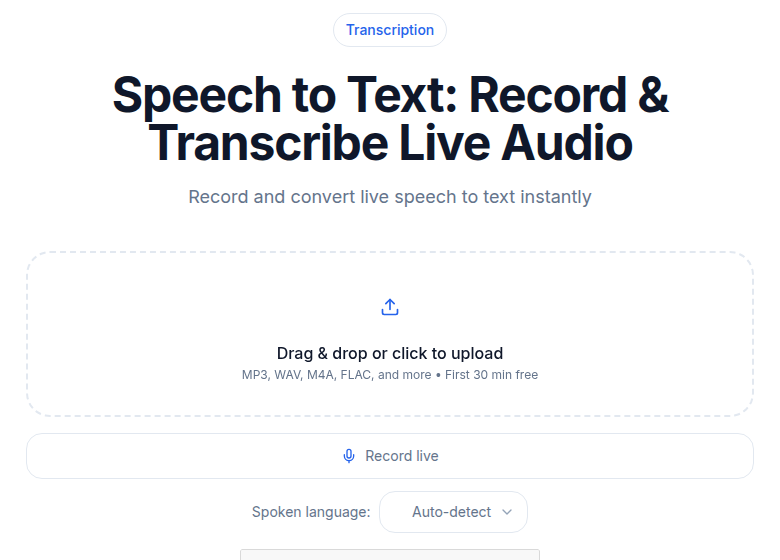 Transcribe first, then route the markdown wherever your vault lives
The Notion Pipeline
Step 1: Transcripts Database
Create a database in Notion with these properties:
| Property | Type | Notes |
|---|---|---|
| Title | Title | Recording name or date |
| Date | Date | When the recording happened |
| Type | Select | Meeting, Interview, Voice Memo, Other |
| Project | Relation | Links to a Projects database |
| Participants | Multi-select | Names or a People relation |
| Duration | Number | Minutes |
| Language | Select | ISO code (en, fr, es, etc.) |
| Summary | Text | AI-generated summary |
| Tags | Multi-select | Topics or themes |
The page body holds the full transcript. This structure lets you filter by project, date range, type, or participant without building any custom tooling.
Step 2: Import Paths
Manual paste: Open the database, click New, fill the properties, paste the transcript body. This takes about 90 seconds per recording. It scales to a few transcripts per week without friction.
Notion API: Notion's REST API lets you programmatically create pages in a database. The pattern: fetch the transcript from your transcription service, map the fields to Notion property types, and POST to the database endpoint. The Notion developer docs at developers.notion.com cover authentication and the pages endpoint. This path pays off at more than 10 recordings per week.
Third-party automation: Tools like Make.com or Zapier can bridge your transcription output directly to a Notion database row. If you are already routing voice memos to a transcription step, adding a Notion action takes minutes to configure.
One note on Notion AI Meeting Notes: as of mid-2026, that feature requires the Business plan ($20 per user per month billed annually) and records system audio during live calls. It is not the same as importing a finished transcript. For archiving recordings after the fact, the manual or API paths above apply to any Notion plan, including Free.
Step 3: Database Views
Notion views slice the same database without duplicating data. Worth setting up from day one:
- All by Date: List view, sorted newest first. Default landing view.
- By Project: Grouped by the Project relation. Shows every transcript per project at a glance.
- This Week: Filter to the last 7 days.
- Interviews Only: Filter to Type = Interview.
- Has Action Items: Filter to non-empty action items. A working task list from meeting transcripts.
Each view takes 30 seconds to create. They cost nothing and are the reason a flat list of transcripts becomes a usable archive.
Step 4: Cross-Database Relations
Notion's relation properties connect databases. A transcript references a project; the project references the people involved; the people reference their teams. Opening a person record shows every transcript that person appeared in. Opening a project shows every interview tied to it.
This cross-reference structure is what makes Notion strong for team research archives. A UX researcher running 20 interviews per quarter gets genuine value from having every participant's history queryable from a single person record.
Comparison: Obsidian vs Notion
| Dimension | Obsidian | Notion |
|---|---|---|
| File ownership | Local Markdown files on disk | Cloud, on Notion's servers |
| Personal cost | Free (no sign-up) | Free (individual), $10/user/month for teams (Plus plan, billed annually) |
| Sync cost | $4/month (Sync Standard, billed annually) | Included in cloud |
| Collaboration | Manual (Git or shared folder) | Native: real-time editing, comments, sharing |
| Search | Fast local; Omnisearch plugin for full-text | Built-in; slower on large workspaces |
| Sensitive data | Files stay local | Data on Notion's servers |
| Structured queries | Dataview plugin | Database views and filters |
For a solo researcher or knowledge worker who values data ownership, Obsidian wins. For a team that needs to share a research archive and already pays for Notion, adding a transcripts database takes an afternoon.
One correction from the previous version of this post: Obsidian Sync costs $4 per month (billed annually) for the Standard tier, not $8. The $8 figure applies to Sync Plus (which adds 10 GB storage and 12-month version history). Notion's Plus plan is $10 per user per month (billed annually), not $8.
Common Patterns That Work in Both
Daily Note as Index
Each day has a note. The note links to every transcript, voice memo, and meeting from that day. In Obsidian, Periodic Notes generates this automatically. In Notion, a "Daily Logs" database with a relation to the transcripts database achieves the same thing.
The daily note becomes the single-day view of everything that happened. It is also the fastest entry point for "what was that thing I recorded on Tuesday."
Project as Hub
Each active project has a hub page. The hub links to all related transcripts, decisions, and people. In Obsidian, that is a project note with [[wiki-links]] to transcripts. In Notion, it is a project page with a filtered view of the transcripts database.
A product manager running 10 user interviews for a feature research cycle can open the project hub and see every interview, sorted by date, with summaries visible in the gallery view. No search required.
People as Cards
Each person you interview or meet with regularly gets a card. The card accumulates over time: every conversation, every transcript, every follow-up. For customers, this becomes a full relationship history. For collaborators, it shows the arc of a working relationship.
For knowledge management frameworks like Zettelkasten or PARA, transcripts slot in as atomic notes (Obsidian) or database entries (Notion). The transcription for knowledge management post goes deeper on how these methods apply to audio capture specifically.
The Capture-Once Habit
The bottleneck is never the tool. It is the moment between "recording done" and "note created." Every hour that passes between a recording and its archive makes the note less useful.
The automation patterns that remove that gap:
- Voice memos recorded on your phone: send the file to your transcription tool immediately. The convert voice memos to text post covers the mobile capture side.
- Meetings: route the recording to a transcription job as soon as it finishes. The result lands in your vault or database without any manual step.
- Interviews: same flow as meetings, with a richer template that includes participant context and research questions.
The hands-off pattern means transcript notes appear as a byproduct of having the conversation. You stop feeling like you "should" be taking notes because the notes take themselves.
Anti-Patterns Worth Skipping
One mega-note for everything. Putting all transcripts in one giant document means search is the only navigation method. Past 50 recordings, this breaks. One note per recording, always.
No metadata on creation. A transcript saved as raw text with no date, type, or participants becomes nearly unsearchable within a few weeks. Fill in at least date, type, and project at the moment of saving. Everything else can come later.
Skipping the summary step. The full transcript is evidence. The summary is the thing you actually browse. Without a summary in the note, retrieval requires reading through dense transcripts to figure out what each one contains. For a transcript archive to be usable, AI summaries are not optional.
Getting Set Up This Week
Pick Obsidian or Notion based on the ownership vs. collaboration question. Set up the basic structure: a transcript template in Obsidian, or a transcript database in Notion.
Run one recent recording through the audio to text tool and save the result in the structure you built. That first note is the proof of concept.
If you process more than a handful of recordings per week and want a no-setup path before committing to a Notion database or Obsidian vault, ConvertAudioToText lets you transcribe without creating an account and download plain text with a free one. Use it to generate the raw transcript, then paste it into whichever system you are building.
After one week of usage, evaluate whether you are actually searching the archive. If yes, expand the automation. If no, adjust the structure before scaling.
FAQ
Can I import transcripts into Obsidian automatically, without pasting manually?
Yes. The simplest path is a script (Python or shell) that downloads the transcript text from your transcription service and writes it as a new Markdown file in your vault's transcripts/ folder, with frontmatter already filled in. Obsidian picks up the new file instantly. For a no-code path, tools like Make.com can write files to a cloud folder that syncs to your vault via Obsidian Sync or iCloud. The Templater plugin also supports scripted note creation if you want to trigger it from within Obsidian.
Does Notion have a native transcription feature, or do I have to import manually?
Notion AI Meeting Notes (available on the Business plan at $20 per user per month billed annually, as of mid-2026) transcribes live calls by recording system audio during Zoom, Meet, Teams, or similar calls. It is not an import tool for existing recordings. To get transcripts from recordings you already have into Notion, use the manual paste path, the Notion API, or a third-party connector like Make.com or Zapier.
Which Obsidian plugins do I actually need for a transcript archive?
Three cover the core use case: Dataview (query notes by frontmatter properties), Templater (apply a consistent template when creating a transcript note), and Periodic Notes (generate daily notes that link to that day's transcripts). All three are in Obsidian's official Community Plugins browser. Omnisearch is worth adding once your vault exceeds a few hundred notes and built-in search starts to feel slow.
Is it safe to store sensitive transcripts in Notion?
Notion stores data on its own cloud infrastructure. For transcripts that contain confidential information (legal conversations, medical discussions, financial data), the risk profile is similar to any SaaS cloud product. If data residency or local ownership matters, Obsidian with files stored on your own disk is the lower-risk choice. Notion does offer Enterprise plans with additional security controls and audit logging for organizations that need them.
How do I link a transcript to a specific project or person in both tools?
In Obsidian, use [[wiki-style links]] in the transcript's body or frontmatter. Add project: [[product-research]] to the YAML and Dataview will query across that link. In Notion, use the Relation property type to connect your Transcripts database to a Projects database or a People database. Once linked, both tools give you bidirectional navigation: open the project and see all related transcripts; open a transcript and jump directly to the linked project.
Sources
- Obsidian pricing and Sync plan details: https://obsidian.md/pricing and https://obsidian.md/sync (checked 2026-07-02)
- Notion pricing: https://www.notion.com/pricing (checked 2026-07-02)
- Notion AI Meeting Notes: https://www.notion.com/help/ai-meeting-notes (checked 2026-07-02)
- Notion API overview: https://developers.notion.com/guides/get-started/overview (checked 2026-07-02)
- Dataview plugin: https://community.obsidian.md/plugins/dataview (verified in community browser)
- Templater plugin: verified in Obsidian Community Plugins browser
- Periodic Notes plugin: https://github.com/liamcain/obsidian-periodic-notes (verified in community browser)
- Omnisearch plugin: https://community.obsidian.md/plugins/omnisearch (verified in community browser)
Try transcription free
Convert any audio or video to clean, unwatermarked text — speaker labels, timestamps, and AI summaries included. First 30 minutes free, no account.
Related Articles

Spotify Transcript Extractor: How to Copy and Download Episode Text
Get a Spotify podcast transcript you can copy and download: paste a public episode link, 30 minutes free with no signup, TXT or SRT files on eligible plans.
Focus Group Transcription for UX Researchers: Turn Multi-Speaker Audio Into Usable Evidence
A practical guide to focus group transcription for UX and insights teams. See how CATT handles speaker labels, timestamps, AI summaries, and clean export.