Transcribe Meeting Recordings Automatically (2026)
Summarize this article with:
The Hands-Off Setup
The fastest way to get a transcript from a meeting recording is to not touch it at all after the meeting ends. Two honest architectures exist: a bot-based tool joins your call live and delivers a transcript automatically, or you pipe your cloud recording through a watch-folder workflow that triggers transcription the moment a new file lands. Which one you need depends on whether your recordings are already sitting in cloud storage or you want something that joins every call for you.
This post covers both, with verified pricing and an honest take on where each approach breaks down.
The Two Automation Paths
Path 1: Bot Joins the Call, Transcript Appears After
Meeting bot tools like Otter.ai and Fireflies.ai connect to your calendar, send a bot participant into every video call, and deliver a transcript within minutes of the call ending. You configure it once and forget it.
Otter.ai (verified July 2026): Free tier gives 300 monthly minutes and only 3 lifetime file imports, which makes it nearly useless for regular team use. Pro costs $16.99/month (or $8.33/month billed annually) and raises the cap to 1,200 minutes per month with a 90-minute per-meeting limit. Business costs $30/month per user ($19.99/month annually) and lifts those caps to unlimited meetings and 4 hours per session. Zapier integration is available on Pro and above.
Fireflies.ai (verified July 2026): Free tier stores only 400 minutes of recordings per team and comes with a monthly AI credit pool that gates summaries and action items. Pro costs $18/seat/month ($10/seat/month annually) and includes 8,000 minutes of storage. Business costs $29/seat/month ($19/seat/month annually) and adds unlimited storage, conversation intelligence, and CRM sync. One hidden cost worth knowing: AI credits power summaries, action items, and search. Heavy users routinely spend $15 to $50 per month above the sticker price once those credits run out. For a detailed breakdown of costs that don't show up on pricing pages, see hidden costs of transcription services.
Both tools join Zoom, Google Meet, and Microsoft Teams. Setup takes under 20 minutes: connect your calendar, authorize the bot, configure which meeting types it should join automatically.
Path 2: Native Platform Transcription (Plan-Gated)
Before reaching for a third-party tool, check whether your meeting platform already handles transcription natively.
Zoom cloud recording is included on all paid plans. Zoom's auto-record setting starts recording every meeting the moment it begins. A cloud transcript can be enabled separately in account settings.
Microsoft Teams (verified July 2026): Standard transcription ships with Microsoft 365 E3/E5 and higher. As of April to May 2026, meeting organizers can choose a "Transcribe only" option that captures transcripts without a video recording. AI-generated summaries that pull out decisions and action items require a Microsoft 365 Copilot license on top.
Google Meet (verified July 2026): Native transcription requires Business Standard ($14/user/month annually) or a higher Workspace tier. Business Starter and free accounts are excluded. Transcripts save to the organizer's Google Drive within 5 to 10 minutes of the call ending. One real constraint: only 8 languages are supported (English, French, German, Italian, Japanese, Korean, Portuguese, Spanish), and the feature only works on desktop, not iOS or Android.
Comparing the Auto-Join Options
| Tool | Automation method | Free tier | Paid from | Best for |
|---|---|---|---|---|
| Otter.ai | Bot via calendar | 300 min/mo | $8.33/user/mo (annual) | Individual + small teams |
| Fireflies.ai | Bot via calendar | 400 min storage, limited AI credits | $10/seat/mo (annual) | Sales and ops teams needing CRM sync |
| Microsoft Teams built-in | Native (no bot) | Requires E3/E5 license | Included in M365 E3 | Teams already on Microsoft 365 |
| Google Meet built-in | Native (no bot) | Not available | Business Standard ($14/user/mo) | Google Workspace orgs, 8 languages only |
| Zoom cloud transcription | Native (no bot) | Requires paid Zoom plan | Included on paid Zoom | Simple Zoom-only workflows |
The Watch-Folder Pipeline (Batch Reality)
If you already have recording files in cloud storage, a watch-folder Zapier workflow can transcribe them without any manual upload step. The architecture is straightforward: when a new file lands in a specific Google Drive or OneDrive folder, Zapier detects it and passes the file to a transcription service via an HTTP POST.
Zapier has verified pre-built templates for this pattern, including triggers on new Google Drive files that send audio to Fireflies.ai or Rev automatically.
For teams using CATT's API, the same pattern applies: a Zapier workflow (using the Webhooks by Zapier or HTTP step) can POST a recording URL to the CATT transcription endpoint and receive the completed transcript via a registered webhook when processing finishes. CATT does not yet have a native Zapier app listed in the Zapier marketplace, so this requires a small amount of no-code setup (an HTTP step with your API key and a webhook URL for the completion callback). Developers can go further with the REST API plus HMAC-signed webhooks documented on the CATT developer pages.
The honest batch reality: true unattended automation, where every recording is transcribed without anyone clicking anything, requires either a meeting bot or a cloud-trigger pipeline. For teams that record occasionally, manual batch upload is the pragmatic middle ground: drop five recordings at once, start them all, come back to the results. That is not zero-touch, but it is far faster than waiting for a pipeline to be built.
For more on wiring transcription into post-meeting workflows, see meeting notes automation and how to create action items from meeting recordings.
Step-by-Step: Transcribing a Recording File Right Now
Step 1: Get the Recording
Every major platform exports recordings after the call:
- Zoom: Files save locally as MP4 and M4A, or to Zoom Cloud if cloud recording is enabled. The audio-only M4A is smaller and processes faster.
- Microsoft Teams: Recordings save as MP4 to OneDrive or SharePoint. Download from there.
- Google Meet: Recordings save as MP4 to the organizer's Google Drive.
- Webex, GoTo Meeting, others: Each platform has its own recording location. Check settings before the meeting.
Step 2: Upload the File
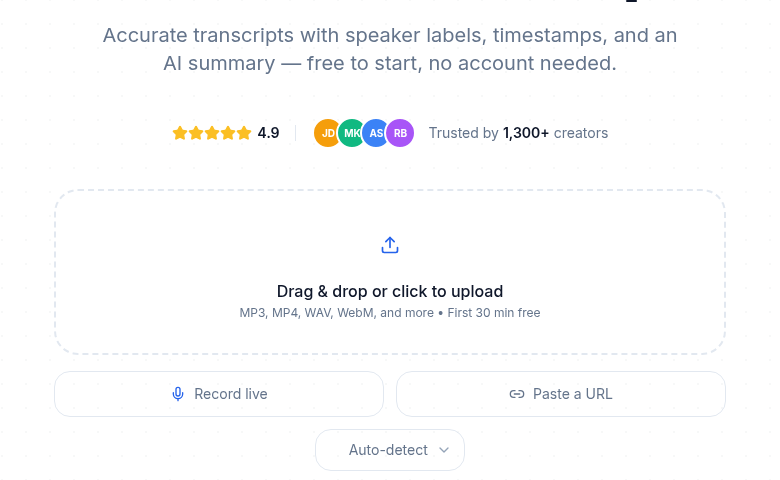
Go to the Meeting Transcription tool and upload the recording. MP4, M4A, WAV, MP3, and WebM all work. If your recording lives at a shareable URL in cloud storage, you can paste the link directly instead of downloading first.
Step 3: Configure for Accuracy
Select the language spoken. If the meeting used multiple languages, select the primary one. Enable speaker diarization if you need the transcript to label who said what. For a deeper look at how speaker identification works and where it degrades, see speaker diarization explained.
Step 4: Review and Route
Processing takes 3 to 5 minutes for a 60-minute meeting. Once complete, scan the transcript for proper nouns, project names, and technical terms that AI models frequently misread. These are the spots that matter most: action items, decisions, and names of people or clients.
For context on accuracy expectations, transcription accuracy explained covers what "90 to 98 percent accurate" actually means in practice.
Step 5: Format and Share
Export the transcript and attach it to your meeting summary. A short block at the top with the key decisions and action items, followed by the full transcript for reference, is the format most teams actually use.
For a parallel read on structuring the output, see how to transcribe meeting notes and AI meeting summary templates.
Platform-Specific Gotchas
Zoom local recordings produce two files: a video MP4 and an audio-only M4A. For transcription, use the M4A. It is smaller, uploads faster, and drops no accuracy compared to the full video.
Microsoft Teams notes that if your organization does not have an E3 or higher Microsoft 365 license, the native transcription option does not appear in the interface at all. Users below that tier need to download the recording and use an external tool.
Google Meet saves transcripts separately from recordings. A recording can exist without a transcript, and vice versa. If you need both, confirm that both are enabled in admin settings before the meeting.
Audio Quality Makes a Bigger Difference Than the Tool
My take: the single most impactful thing you can do for meeting transcript quality has nothing to do with the tool you pick. A laptop microphone in a large conference room with echo will produce inaccurate transcripts no matter which service you use. A dedicated conference room microphone, even a basic one, moves the needle more than any feature difference between services.
A few habits that compound:
- One speaker at a time, especially during decisions and action items. Crosstalk is the leading cause of transcription errors.
- Each participant states their name at the start. Speaker diarization gets more reliable when it can anchor voices early.
- Technical terms, project names, and client names spelled out the first time they appear. AI models transcribe unfamiliar terms phonetically.
For platform-specific walkthroughs beyond the summary above, see how to transcribe a Zoom meeting, how to transcribe a Microsoft Teams meeting, and how to transcribe a Google Meet recording.
FAQ
How long does automatic meeting transcription take?
A 60-minute recording takes 3 to 5 minutes with a modern AI tool. Manual transcription of the same recording takes 4 to 6 hours. For large backlogs of recordings, processing in parallel using batch upload cuts the wall-clock time significantly.
Can meeting transcription identify who is speaking?
Yes, speaker diarization assigns a label (Speaker 1, Speaker 2, and so on) to different voices in the transcript. Accuracy is highest with 2 to 4 speakers and decreases as the number of simultaneous speakers grows or voices become similar in pitch and cadence. The Meeting Transcription tool supports multi-speaker identification.
Is automatic transcription accurate enough to replace manual notes?
For most business purposes, yes. Modern AI transcription achieves 90 to 98 percent accuracy on clear audio, which is high enough that a quick review pass to fix proper nouns and technical jargon produces a reliable record of decisions and action items. Accuracy drops on poor-quality recordings, heavy accents, or fast-paced crosstalk. For a realistic breakdown of what that percentage means in practice, see transcription accuracy explained.
Do I need a meeting bot to automatically transcribe every meeting?
Not always. If your organization runs on Microsoft 365 E3/E5 or Google Workspace Business Standard, native transcription on Teams or Meet can handle this without a bot. For Zoom, the cloud transcription option on paid plans works without a third-party bot too. A bot-based service like Otter.ai or Fireflies.ai is the right choice when you need cross-platform coverage, AI summaries, or integrations that the native tools lack. If you already have a recording file and just need a clean, accurate transcript without adding another app to your meetings, ConvertAudioToText handles it directly from the file.
Sources
- Otter.ai Pricing (verified July 2026)
- Fireflies.ai Pricing (verified July 2026)
- Microsoft Teams: Recording and transcription overview (verified July 2026)
- Google Workspace: Turn meeting transcription on or off (verified July 2026)
- Zoom: Enabling and disabling automatic recording (verified July 2026)
- Zapier: Transcribe audio files in Google Drive with Fireflies.ai (verified July 2026)
- Otter.ai: Import recordings automatically using Zapier (verified July 2026)
- ConvertAudioToText: Integrating Transcription With Slack (verified July 2026)
Try transcription free
Convert any audio or video to clean, unwatermarked text — speaker labels, timestamps, and AI summaries included. First 10 minutes free, no account.
Related Articles

How to Transcribe a 2-Hour Meeting Fast (Honest Workflow)
A step-by-step workflow for transcribing 2-hour meetings quickly with AI: file prep, speaker labels, AI summaries, and why your tool choice matters for long recordings.

How to Create Meeting Minutes from Audio Recordings in 2026
Turn any meeting recording into formal, legally accurate minutes in under 30 minutes. Step-by-step workflow covering transcription, motion capture, vote tallies, and approval cycles.